

Manually keying in transactions from a PDF bank statement is one of the most tedious tasks in bookkeeping. A single month's statement might contain 50 to 200 line items, and a quarter's worth of records across multiple accounts can easily balloon into thousands of entries. For small business owners, freelance accountants, bookkeepers, and finance teams, this repetitive work drains hours that could be spent on higher-value analysis or client service.
The good news: you no longer have to retype a single transaction. Modern tools let you upload bank statement extract data workflows that convert PDFs into structured spreadsheets in seconds. This article explains exactly how that process works, what to look for in a conversion tool, and how to get the cleanest possible output for your accounting software.
Why Manual Data Entry From Bank Statements Is a Problem
Before diving into the solution, it's worth understanding why this task is so error-prone and costly in the first place.
Bank statements are designed for human readability, not machine processing. They include headers, footers, page breaks, running balances, and inconsistent column layouts that vary from bank to bank. When someone manually transcribes this data into Excel or Google Sheets, several issues commonly arise:
- Transposition errors — swapping digits (e.g., entering $1,234.56 as $1,243.56)
- Missed transactions — skipping rows during long, repetitive data entry sessions
- Inconsistent date formats — mixing MM/DD/YYYY and DD/MM/YYYY across different bank exports
- Duplicate entries — re-entering the same transaction when working across multiple statement pages
- Time cost — a bookkeeper managing 15–20 clients may spend 10+ hours per month on manual entry alone
According to the Association of Certified Fraud Examiners, weak internal controls around financial record-keeping are one of the leading contributors to undetected discrepancies in small business accounting. Manual entry doesn't just waste time — it introduces real financial risk.
How to Upload a Bank Statement and Extract Data: Step-by-Step
The actual process of converting a PDF statement into usable data is simpler than most people expect. Here's the typical workflow using a dedicated conversion platform like Bank Statement Boss:
- Gather your PDF statements. Download statements directly from your bank's online portal rather than using scanned paper copies when possible — digital PDFs produce more accurate extraction results.
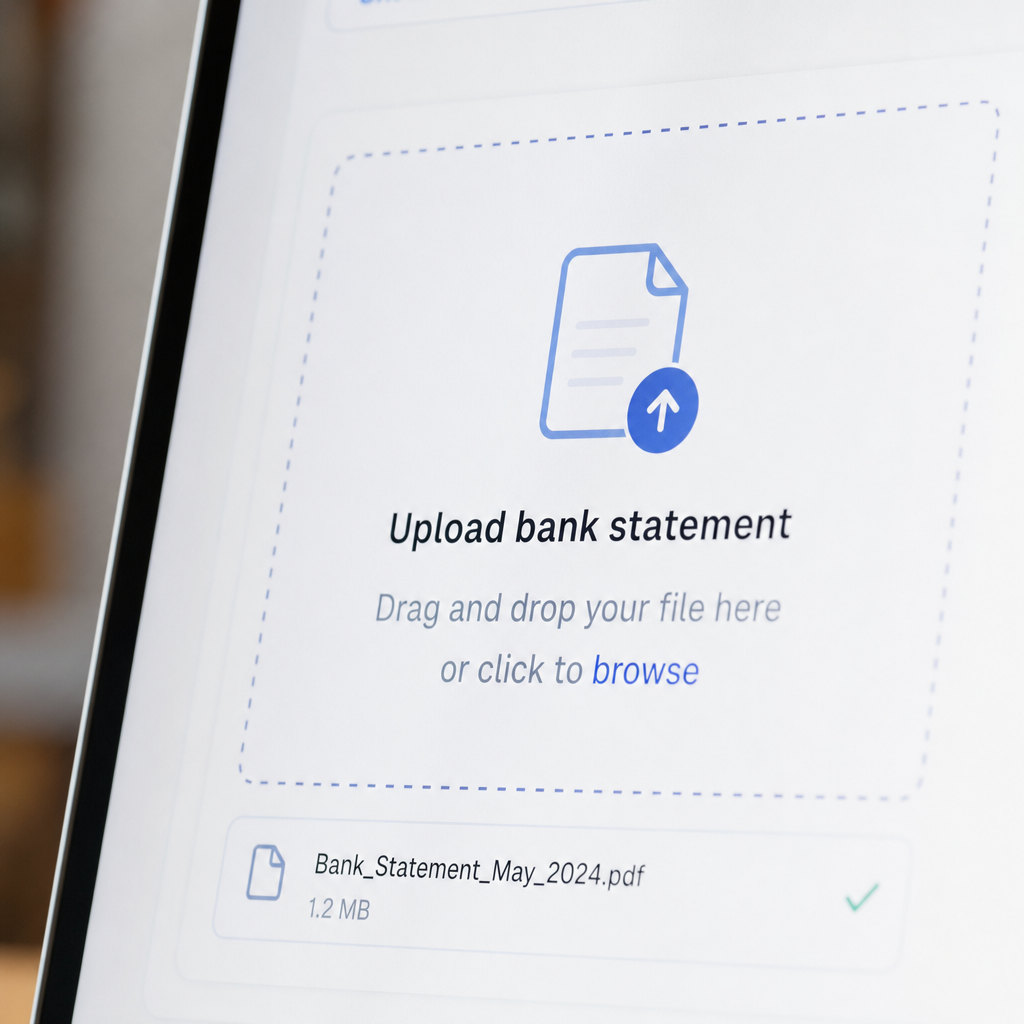
- Upload the file(s). Drag and drop one or multiple PDFs into the platform. Most tools support batch uploads, so you can process several months or several accounts at once.
- Let the AI parse the document. Optical character recognition (OCR) combined with machine learning identifies transaction dates, descriptions, debits, credits, and running balances — even across varying bank formats.
- Review the extracted data. A quick visual check ensures totals match the original statement and no rows were misread.
- Export in your preferred format. Download as CSV, XLSX, or a format pre-mapped for QuickBooks, Xero, or Sage.
- Import into your accounting software. Many platforms offer direct integrations or API access so the data flows straight into your books without a manual export/import step.
This entire process typically takes under a minute per statement, compared to 20–40 minutes for manual entry of a comparable document.
What Makes a Good Bank Statement Data Extraction Tool
Not all PDF-to-spreadsheet tools are created equal. Some rely on basic OCR that struggles with complex layouts, while others use purpose-built financial parsing engines. When evaluating a solution, consider the following criteria:
Accuracy and Format Recognition
The tool should reliably handle statements from hundreds of banks, including regional and international institutions, and correctly parse multi-column layouts, foreign currency symbols, and varying date conventions.
Security and Compliance
Because bank statements contain sensitive financial information, the platform should offer encryption in transit and at rest, clear data retention policies, and ideally a compliance posture aligned with standards referenced by the National Institute of Standards and Technology (NIST) for data protection.
Accounting Software Compatibility
Look for export formats that map directly into QuickBooks, Xero, Sage, or other platforms your clients use. This eliminates a secondary manual mapping step.
Speed and Scalability
A good tool should handle single statements for a solo freelancer just as well as bulk batches for an accounting firm managing dozens of clients.
API Access
For finance teams or bookkeeping firms processing high volumes, an API allows statement conversion to be built directly into existing internal tools or client portals.
Comparing Manual Entry, Generic OCR Tools, and Purpose-Built Extraction Software
The table below compares three common approaches to digitizing bank statement data.
| Method | Speed | Accuracy | Accounting Software Ready | Best For |
|---|---|---|---|---|
| Manual data entry | Very slow (20–40 min/statement) | Prone to human error | No — requires manual formatting | Very small, one-off jobs |
| Generic OCR/PDF tools | Moderate | Inconsistent with financial layouts | Rarely | Simple, non-financial documents |
| Purpose-built extraction software (e.g., Bank Statement Boss) | Fast (under 1 minute/statement) | High, tuned for financial data | Yes — pre-formatted exports | Bookkeepers, accountants, finance teams |
As the comparison shows, purpose-built tools strike the best balance of speed, accuracy, and downstream compatibility — which matters most when the output needs to flow directly into a general ledger.
Formatting Extracted Data for QuickBooks, Xero, and Sage
One of the biggest pain points after extraction isn't getting the data out of the PDF — it's getting it into your accounting platform in a format it actually accepts. Each platform has its own import quirks:
| Accounting Platform | Preferred Import Format | Common Formatting Requirement |
|---|---|---|
| QuickBooks Online | CSV or QBO | Date, Description, Amount columns in specific order |
| Xero | CSV | Separate debit/credit columns or signed amount column |
| Sage | CSV or Sage-specific template | Consistent date format and account coding |
A tool that automatically formats exports for these platforms — rather than producing a generic spreadsheet — saves an additional round of manual cleanup. Bank Statement Boss is built specifically to output data pre-mapped for these three platforms, which means bookkeepers don't need to reformat columns or fix date formats before importing.
For reference, QuickBooks publishes its own bank statement conversion and import guidelines that detail accepted file structures — useful for cross-checking that any export you generate aligns with the platform's expectations.
Common Challenges When Extracting Data From Bank Statements
Even with strong AI-driven tools, a few challenges can affect extraction quality. Understanding these helps you choose the right tool and review process.
- Scanned or low-resolution PDFs. Statements scanned from paper rather than downloaded digitally can reduce OCR accuracy. Whenever possible, download statements directly from your bank's portal.
- Multi-currency statements. International accounts or multi-currency credit cards can introduce symbol and formatting inconsistencies that require a parser trained specifically on financial documents.
- Password-protected PDFs. Many banks encrypt statement downloads. A good extraction tool should support secure password entry without compromising data privacy.
- Non-standard layouts. Credit union and smaller regional bank statements sometimes use unconventional table structures that generic tools fail to parse correctly.
- Combined checking/savings statements. Some banks bundle multiple account types into a single PDF, requiring the tool to correctly separate transactions by account.
Choosing a platform that has been trained on a wide range of real-world statement formats — rather than a one-size-fits-all OCR engine — significantly reduces these issues.
Security Considerations When Uploading Financial Documents
Because bank statements contain highly sensitive information — account numbers, balances, transaction histories — security should be a top priority when choosing any upload-and-extract tool. Reputable platforms typically offer:
- End-to-end encryption for files in transit and at rest
- Automatic file deletion policies after a defined retention window
- Role-based access controls for teams and firms handling multiple clients
- SOC 2 or equivalent compliance frameworks, similar to standards outlined by the AICPA's SOC reporting guidance
- No third-party data sharing without explicit consent
Before uploading any statement, it's worth reviewing a vendor's privacy policy and confirming how long files are retained and whether they're used to train external models. Bookkeepers and accounting firms, in particular, have a professional obligation to safeguard client financial data, and due diligence here protects both the firm and its clients.

Use Cases Across Different Roles
Different professionals use statement extraction for slightly different reasons. Here's how the workflow typically plays out across common roles:
Small Business Owners
Owners often need a fast way to reconcile monthly expenses without hiring a full-time bookkeeper. Uploading statements and exporting clean CSVs lets them track cash flow and prepare for tax season without manual spreadsheet work.
Freelance Accountants and Bookkeepers
Professionals managing multiple clients benefit the most from batch processing. Instead of manually entering transactions for each client separately, they can upload a batch of statements, extract data in bulk, and export directly into each client's accounting software — multiplying their effective capacity without multiplying hours worked.
Finance Teams at Growing Companies
As companies scale, finance teams often deal with statements from multiple business accounts, credit cards, and even international subsidiaries. API access becomes valuable here, allowing statement processing to be embedded directly into internal reconciliation systems rather than relying on manual uploads every time.
Tax Preparers
During tax season, preparers often receive a stack of PDF statements from clients who didn't keep organized books throughout the year. Fast extraction tools let them reconstruct a full year's transaction history quickly, which is particularly useful when reconciling against the IRS recordkeeping requirements for small business tax filings.
Best Practices for a Smooth Extraction Workflow
To get the most accurate and efficient results when converting bank statements, follow these best practices:
- Use original digital PDFs downloaded directly from your bank rather than scanned copies.
- Batch similar statement types together (e.g., all checking account statements from the same bank) for more consistent parsing.
- Spot-check totals against the original statement's summary page before importing into your accounting software.
- Standardize naming conventions for uploaded files, especially if managing statements for multiple clients or accounts.
- Set a regular cadence — monthly uploads right after statements are issued prevent backlogs from accumulating.
- Keep a secure backup of both the original PDF and the extracted spreadsheet for audit purposes.
Following this kind of routine turns what used to be a dreaded monthly chore into a five-minute task.
Frequently Asked Questions
Can I upload multiple bank statements at once? Yes. Most modern extraction tools, including Bank Statement Boss, support batch uploads so you can process several months or multiple accounts in a single session.
Will the extracted data match my accounting software's required format exactly? Reputable tools offer export templates pre-formatted for platforms like QuickBooks, Xero, and Sage, which minimizes the need for manual reformatting after export.
Is it safe to upload bank statements to an online tool? As long as the provider uses strong encryption, clear data retention policies, and does not share data with third parties, uploading statements to a reputable platform is generally safer than emailing spreadsheets or storing unprotected files locally.
What file formats can I export to? Common export options include CSV, XLSX, and platform-specific formats like QBO for QuickBooks.
Does this work with credit card statements too? Yes — most extraction tools handle both bank account and credit card statement formats, since the underlying transaction structure (date, description, amount) is similar.
Bringing It All Together
Converting PDF bank statements into usable, accurate spreadsheet data no longer requires hours of manual transcription or error-prone copy-paste work. With the right approach, you can upload bank statement extract data in minutes, review the results for accuracy, and export directly into the accounting platform your business or clients rely on.
Whether you're a small business owner trying to stay on top of monthly reconciliation, a freelance bookkeeper managing dozens of clients, or a finance team scaling across multiple accounts, automating this step frees up time for higher-value work and reduces the risk of costly errors. Bank Statement Boss was built specifically to solve this problem — offering secure, accurate PDF-to-spreadsheet conversion with formatting ready for QuickBooks, Xero, and Sage, plus API access for teams that need to scale the process further. If manual data entry is still part of your monthly routine, now is a good time to automate it.
Article written by FrontRank