

Every small business owner, bookkeeper, or freelance accountant eventually hits the same wall: a stack of PDF bank statements that need to become usable spreadsheet data. Manually retyping transactions is slow, error-prone, and frankly a waste of billable hours. The good news is that in 2026, you no longer have to choose between tedious copy-pasting and expensive outsourcing. You can scan bank statement to Excel files in minutes using modern conversion tools that combine optical character recognition (OCR) with AI-driven structuring.
This article walks through exactly how statement-to-Excel conversion works, what separates a reliable tool from a frustrating one, and how to build a workflow that keeps your books accurate and audit-ready.
Why Converting Bank Statements to Excel Still Matters in 2026
Despite years of fintech innovation, most banks still issue statements as PDFs, not clean data feeds. Even when banks offer CSV exports, formatting is often inconsistent across institutions, missing running balances, or incompatible with accounting software. That leaves finance professionals with a recurring problem: how do you get months — sometimes years — of transaction history into a format that QuickBooks, Xero, or Excel can actually use?
The demand for a reliable way to scan bank statement to Excel has grown alongside a few clear trends:
- Remote bookkeeping growth. More bookkeepers manage multiple clients across different banks, each with unique statement layouts.
- Audit and tax scrutiny. Accurate digitized records make it easier to respond to IRS or HMRC inquiries without digging through paper files.
- Multi-currency and multi-account complexity. Small businesses increasingly hold accounts in different currencies or with multiple banks, compounding reconciliation work.
- Time cost of manual entry. Studies on administrative overhead consistently show that manual data entry is one of the largest hidden costs in small business accounting, a finding echoed by research from the American Institute of CPAs on practice efficiency.
Put simply, converting statements isn't a nice-to-have anymore — it's foundational to running an efficient back office.
How Scanning a Bank Statement to Excel Actually Works
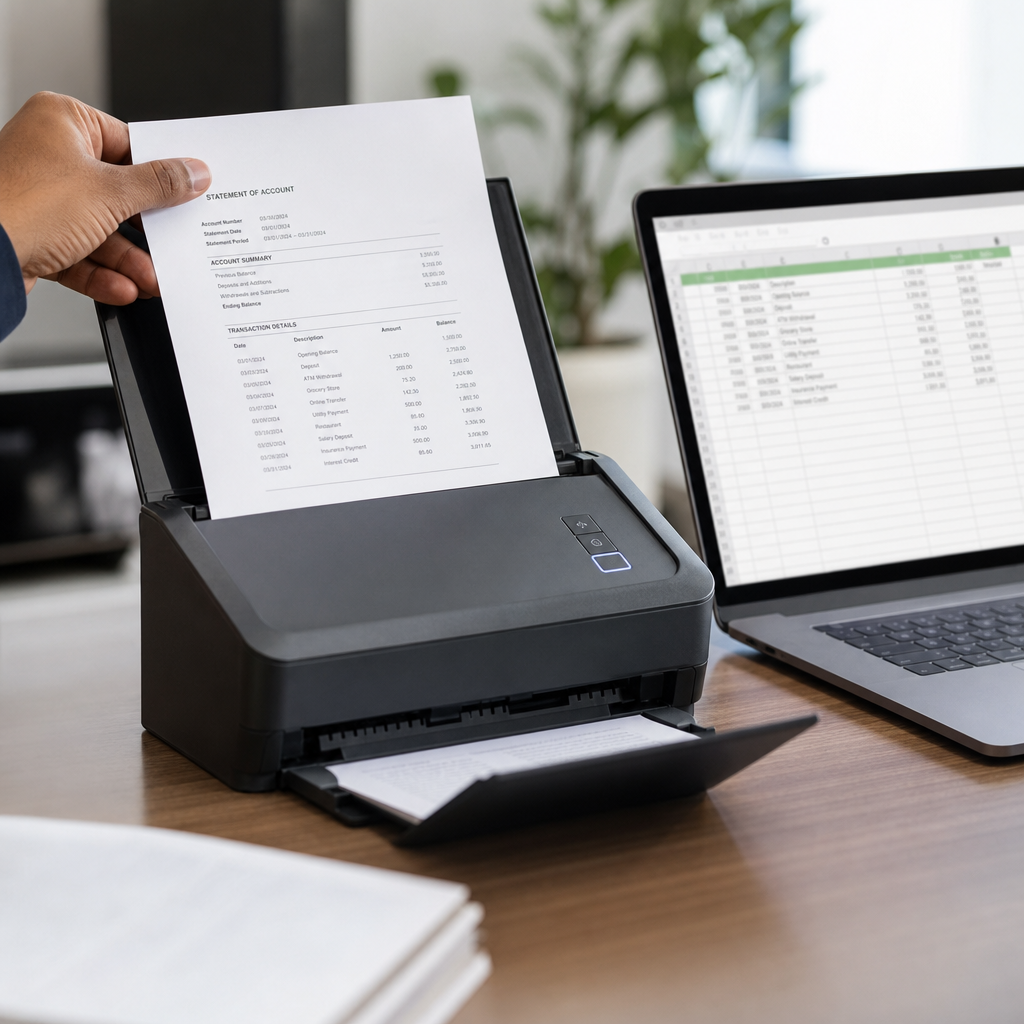
"Scanning" in this context doesn't mean physically running paper through a scanner (though that works too, if you photograph or scan paper statements first). It refers to the process of taking a PDF or scanned image of a bank statement and extracting its transaction data into rows and columns.
Here's the typical technical pipeline:
- Document ingestion – The tool accepts a PDF, JPG, or PNG file of the statement.
- OCR processing – Optical character recognition reads the text layer or scanned image and identifies characters, numbers, and dates.
- Layout detection – AI models recognize table structures, column headers (date, description, debit, credit, balance), and page breaks.
- Data normalization – Dates are standardized, currency symbols are stripped or retained consistently, and duplicate headers/footers are removed.
- Export formatting – The cleaned data is output as an Excel (.xlsx) or CSV file, often with templates matching accounting software import requirements.
This is precisely the architecture behind platforms like bankstatementboss.com, which layers AI-based classification on top of OCR to handle messy, real-world statement formats — including scanned images with skewed text or low resolution.
Manual Methods vs. AI-Powered Conversion
Before investing in software, it's worth understanding what your realistic options are and how they stack up.
| Method | Speed | Accuracy | Scalability | Best For |
|---|---|---|---|---|
| Manual retyping | Very slow | Prone to human error | Poor | Single statement, one-off need |
| Copy-paste from PDF | Slow | Formatting breaks often | Poor | Simple, text-based PDFs only |
| Generic OCR software | Moderate | Inconsistent with tables | Moderate | Non-financial documents |
| Outsourced data entry | Slow (turnaround delay) | Depends on vendor | Moderate | Infrequent, large batches |
| AI-powered statement converter | Fast | High, with built-in validation | Excellent | Ongoing bookkeeping, multi-client work |
As the table shows, generic OCR tools often stumble on bank statements specifically because of their dense tabular layouts, multi-line descriptions, and inconsistent bank-by-bank formatting. Purpose-built tools trained on financial documents tend to outperform general-purpose scanning apps significantly.
Step-by-Step: Converting Your Bank Statement to Excel
If you're ready to try the process yourself, here's a practical workflow that applies whether you're handling one statement or dozens:
- Gather your statements. Download PDFs directly from your bank's portal rather than photographing paper copies when possible — digital PDFs preserve more accurate text data.
- Check for password protection. Many banks encrypt statements by default. Remove passwords before uploading, or use a tool that accepts password-protected files directly.
- Upload to a conversion tool. Services like bankstatementboss.com allow drag-and-drop upload of single or multiple files at once.
- Review the extracted data. Spot-check a sample of transactions against the original PDF, paying close attention to the first and last transactions on each page, where formatting errors are most common.
- Select your export format. Choose a layout compatible with your accounting platform (QuickBooks, Xero, Sage, or plain Excel/CSV).
- Import into your accounting software. Match the exported columns to your chart of accounts and reconcile against your bank feed.
- Archive the original PDFs. Keep source documents for audit trail purposes, following guidance similar to the IRS recordkeeping requirements for small businesses.
What to Look for in a Bank Statement Conversion Tool
Not all converters are created equal. When evaluating options, consider these criteria:
- Accuracy on multi-bank formats. Does it correctly parse statements from major banks as well as smaller regional or international institutions?
- Handling of scanned (image-based) PDFs. Some tools only work with digitally generated PDFs and fail on photographed or faxed statements.
- Accounting software compatibility. Direct export templates for QuickBooks, Xero, and Sage save significant reformatting time.
- Security and compliance. Since bank statements contain sensitive financial data, look for encryption in transit and at rest, plus clear data retention policies. The Federal Trade Commission's data security guidance is a useful benchmark for what responsible handling looks like.
- Batch processing capability. Bookkeepers managing multiple clients need to upload and convert dozens of statements simultaneously.
- API access. Finance teams building internal tools or integrating with existing software stacks benefit from programmatic access rather than manual uploads.
- Error flagging. The best tools highlight low-confidence extractions so you can manually verify only the lines that need it, rather than re-checking everything.
| Feature | Why It Matters | Who Needs It Most |
|---|---|---|
| Multi-bank template recognition | Reduces manual correction across clients | Bookkeepers, accounting firms |
| QuickBooks/Xero/Sage export | Speeds up reconciliation | Small business owners, finance teams |
| API access | Enables automation at scale | Finance teams, SaaS integrations |
| Batch upload | Saves time on monthly closes | Freelance accountants |
| Bank-grade encryption | Protects client financial data | Everyone handling sensitive data |
Common Mistakes to Avoid When Converting Statements
Even with good software, a few recurring mistakes can undermine your results:
- Skipping the review step. AI extraction is highly accurate but not infallible, especially with unusual fonts or low-quality scans. Always spot-check totals against the statement's stated ending balance.
- Ignoring multi-page transactions. Some statements split a single transaction description across two lines or pages; check that software merges these correctly.
- Mixing currencies without flagging them. For businesses with international accounts, make sure the exported data clearly labels currency per transaction.
- Overwriting original files. Keep the source PDF untouched and treat the Excel export as a derived document, not the system of record.
- Choosing a tool without a security policy. Avoid uploading sensitive financial documents to free, no-name web tools that don't disclose how data is stored or deleted.
Getting these details right the first time saves hours of reconciliation headaches later, and it's one of the reasons many bookkeepers standardize on a single trusted platform like bankstatementboss.com rather than switching between random free tools each month.
Workflow Efficiency: Time and Cost Comparison
To put the value of automated conversion in perspective, consider the time investment across different volumes of statements.
| Scenario | Manual Entry Time (est.) | AI Conversion Time (est.) | Approx. Time Saved |
|---|---|---|---|
| 1 statement (30 transactions) | 25–35 minutes | 2–3 minutes | ~90% |
| 10 statements (client batch) | 4–6 hours | 15–20 minutes | ~93% |
| 50 statements (monthly firm workload) | 20–30 hours | 1–2 hours | ~95% |
These figures align with broader findings on administrative automation; the Small Business Administration has noted that reducing manual bookkeeping tasks is one of the most accessible efficiency gains available to small businesses today. When you multiply these savings across a dozen clients per month, the return on investment for a conversion tool becomes obvious — particularly for freelance accountants billing hourly or managing fixed-fee engagements where efficiency directly impacts margin.

Security Considerations When Digitizing Financial Documents
Because bank statements contain account numbers, balances, and transaction histories, security can't be an afterthought. Before uploading any statement to a third-party service, confirm the following:
- Encryption standards. Data should be encrypted both during upload (in transit) and while stored (at rest), typically using AES-256 or equivalent.
- Data retention policy. Understand whether your uploaded files are deleted after processing or retained, and for how long.
- Access controls. If you're part of a team, ensure the platform supports role-based permissions so not everyone has access to every client's data.
- Compliance alignment. Look for tools that align with recognized frameworks, similar to practices outlined by the National Institute of Standards and Technology for data protection.
- Audit logging. For accounting firms, having a record of who uploaded, viewed, or exported a file adds a layer of accountability during client disputes or audits.
Tools built specifically for financial document handling, rather than generic file converters, are generally better positioned to meet these standards because security is part of their core design rather than an add-on feature.
Integrating Conversion into Your Broader Accounting Workflow
Converting a statement to Excel is rarely the end goal — it's a step toward faster reconciliation, cleaner books, and better financial reporting. To get the most value:
- Standardize your export templates so every client or account follows the same column structure, making it easier to batch-import into your accounting platform.
- Automate recurring uploads where possible, using API access to pull statements directly from a document management system instead of manual uploads each month.
- Pair conversion with categorization rules in QuickBooks or Xero so transactions are automatically sorted into the correct expense or income categories after import.
- Schedule monthly reconciliation immediately after conversion, while the data is fresh, rather than batching multiple months together.
- Combine with lead and client management workflows. Agencies and bookkeeping firms juggling multiple clients often benefit from pairing document automation with broader operational tools; for instance, firms managing inbound client inquiries sometimes use services like leadmailbox.com to keep communication organized alongside their financial workflows.
This kind of integrated approach — conversion, categorization, reconciliation, reporting — transforms what used to be a scattered monthly scramble into a predictable, repeatable process.
Frequently Asked Questions
Can I convert a scanned image of a paper bank statement, not just a digital PDF? Yes, provided the tool supports image-based OCR. Quality matters — a clear, well-lit photo or scan produces far better results than a blurry or angled image.
Will the exported Excel file preserve running balances? Good conversion tools retain the balance column alongside each transaction, which is essential for verifying accuracy against the original statement.
Is it safe to upload statements from multiple different banks to the same tool? Yes, as long as the platform is designed to recognize varied bank formats and maintains strict data separation and security protocols between uploads.
How many years of statements can I convert at once? Most platforms support batch uploads covering multiple months or years, though very large batches may be processed in smaller groups depending on file size limits.
Final Thoughts
Learning how to scan bank statement to Excel files efficiently is no longer a luxury reserved for large accounting firms with expensive software licenses. With AI-powered tools now widely available, small business owners, freelance accountants, and bookkeeping teams can convert complex, multi-page PDF statements into clean, accounting-software-ready spreadsheets in minutes rather than hours. The key is choosing a platform that balances accuracy, security, and compatibility with the accounting systems you already use.
Bankstatementboss.com was built specifically for this challenge — offering accurate OCR-driven extraction, export formatting tailored for QuickBooks, Xero, and Sage, and secure handling of sensitive financial data, with API access available for teams that need to scale their document automation further. Whether you're processing a single statement or managing monthly conversions for dozens of clients, bankstatementboss.com gives you a faster, more reliable path from PDF to spreadsheet, so you can spend less time on data entry and more time on the financial work that actually grows your business.
Article written by FrontRank