

Every month, bookkeepers, accountants, and small business owners face the same tedious ritual: downloading PDF bank statements and manually re-typing transactions into a spreadsheet or accounting platform. It's slow, error-prone, and completely avoidable. A dedicated PDF to CSV converter for banking data eliminates this bottleneck by transforming static statement documents into structured, editable files that plug directly into tools like QuickBooks, Xero, and Sage.
This article breaks down why banking data conversion matters, how the technology works, what to look for in a converter, and how to build a reliable workflow around it — whether you manage one business account or dozens of client statements every month.
1. Why PDF Bank Statements Are a Bookkeeping Bottleneck
Banks issue statements as PDFs because they're easy to standardize, print, and archive. But that same rigidity makes them a nightmare for accounting work. PDFs are designed for human reading, not machine processing — numbers, dates, and descriptions are laid out visually rather than stored as structured data.
This creates several recurring problems:
- Manual data entry errors — transposed digits and missed transactions are common when re-typing hundreds of line items.
- Inconsistent formatting across banks, meaning no two statements look alike.
- Time lost to copy-pasting from PDF viewers into Excel, often breaking column alignment.
- Reconciliation delays when figures don't match ledgers due to entry mistakes.
- Multi-page statements that fragment transaction tables across page breaks, confusing basic tools.
According to the American Institute of CPAs, manual bookkeeping tasks remain one of the top drivers of billable-hour inflation for small accounting practices. Automating statement entry isn't just a convenience — it directly affects profitability for firms billing by the hour or working on fixed-fee engagements.
2. How a PDF to CSV Converter for Banking Data Actually Works
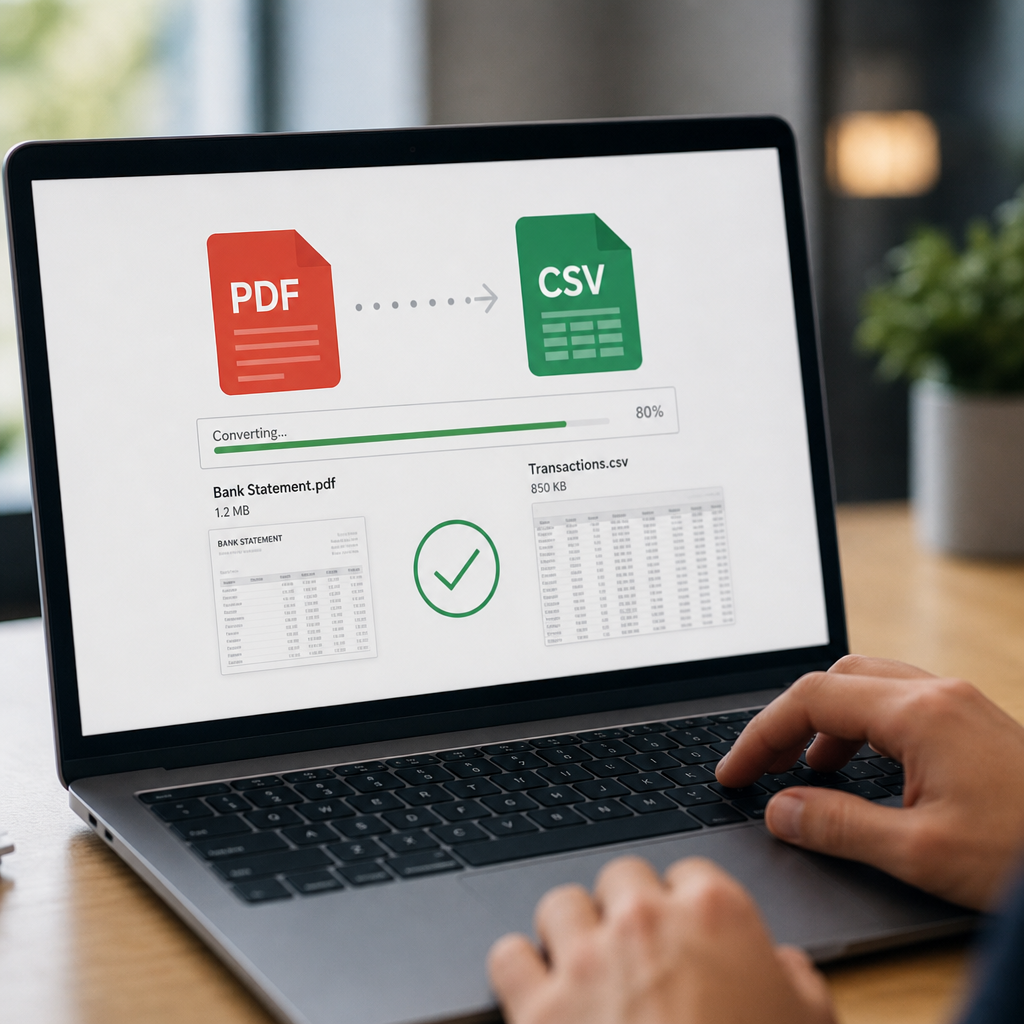
Modern converters built specifically for financial documents go far beyond basic "PDF to text" extraction. They combine optical character recognition (OCR) with machine learning models trained to recognize banking-specific layouts: transaction dates, descriptions, debits, credits, and running balances.
Here's a simplified look at the typical processing pipeline:
- Upload — the PDF statement (digital or scanned) is uploaded securely.
- Document parsing — the tool identifies the bank's layout and locates the transaction table, even across multiple pages.
- Data extraction — OCR and pattern recognition pull out each transaction row with its date, description, amount, and balance.
- Validation — totals are cross-checked against the statement's reported opening and closing balances to catch extraction errors.
- Export — clean data is delivered as CSV, XLSX, or a format mapped to QuickBooks, Xero, or Sage import templates.
This is precisely the approach used by Bank Statement Boss, which applies AI models trained on hundreds of bank statement formats to ensure accuracy even with scanned or lower-quality PDFs. Instead of spending an afternoon retyping a quarter's worth of transactions, users get a validated spreadsheet in minutes.
3. Manual Entry vs. Automated Conversion: A Side-by-Side Look
To understand the real impact of automation, it helps to compare the two approaches directly.
| Factor | Manual Data Entry | AI-Powered PDF to CSV Conversion |
|---|---|---|
| Time per 50-transaction statement | 20–40 minutes | Under 2 minutes |
| Error rate | Moderate to high (typos, omissions) | Low, with balance validation |
| Scalability across multiple clients | Poor — linear time increase | High — batch processing available |
| Format consistency | Varies by person entering data | Standardized output every time |
| Accounting software compatibility | Requires manual reformatting | Pre-mapped to QuickBooks, Xero, Sage |
| Audit trail | Minimal | Structured, timestamped exports |
The time savings compound quickly. A bookkeeper handling 15 client accounts monthly, each with a 60-transaction statement, could spend 10+ hours per month on manual entry alone. Automated conversion can cut that down to under an hour, freeing time for higher-value advisory work.
4. What to Look for in a Banking-Focused PDF to CSV Tool
Not all PDF converters are built for financial data. Generic PDF-to-Excel tools often misread columns, merge transaction descriptions, or fail entirely on scanned documents. When evaluating a converter for banking data specifically, prioritize these features:
Accuracy and Validation
The tool should automatically verify that extracted transactions sum correctly to the statement's reported closing balance. This catches OCR misreads before they reach your books.
Format Compatibility
Look for native export options formatted for QuickBooks, Xero, and Sage, rather than a generic CSV that requires manual column remapping every time.
Security and Compliance
Because bank statements contain sensitive financial data, the platform should offer encryption in transit and at rest, clear data retention policies, and ideally compliance alignment with frameworks referenced by the Federal Trade Commission's data security guidance. Avoid tools that store your documents indefinitely without a clear deletion policy.
Multi-Bank and Multi-Format Support
Freelance accountants and bookkeeping firms deal with statements from dozens of institutions. A converter should reliably handle varying layouts — not just the top five national banks.
Batch Processing and API Access
Finance teams processing high volumes need the ability to upload multiple files at once or connect via API for automated pipelines. This is especially valuable for firms that want to embed statement conversion directly into their existing practice management software.
5. Comparing Conversion Approaches Available Today
Several categories of tools claim to solve the PDF-to-spreadsheet problem. Here's how they generally stack up.
| Approach | Pros | Cons |
|---|---|---|
| Manual copy-paste into Excel | No cost, no software needed | Extremely time-consuming, high error risk |
| Generic PDF-to-Excel converters | Widely available, low cost | Poor handling of financial table structures |
| Bank-provided CSV/OFX downloads | Clean data when available | Not all banks offer it; historical statements often PDF-only |
| AI-powered banking-specific converters | High accuracy, accounting-ready formatting, scalable | Subscription cost for advanced features |
| Outsourced data entry services | Human oversight | Slow turnaround, higher ongoing cost, privacy concerns |
For recurring bookkeeping work, AI-powered converters typically offer the best balance of speed, accuracy, and cost — particularly when a platform like Bank Statement Boss already outputs files pre-formatted for the accounting software you use.
It's worth noting that while some banks support direct OFX or QFX downloads through open banking initiatives, many customers only have access to historical statements as PDFs — especially multi-year archives needed for audits, loan applications, or tax preparation. This is where a dedicated converter remains essential even as open banking expands.
6. A Practical Workflow for Bookkeepers and Finance Teams
Here's a workflow many bookkeeping professionals adopt once they introduce automated conversion into their process:
- Collect statements — request PDF statements from clients via a secure upload portal rather than email attachments.
- Batch upload — feed multiple statements into the converter at once, organized by client and month.
- Review validation flags — check any transactions the tool marks as uncertain (common with low-quality scans).
- Export to accounting software format — generate a CSV or direct import file matched to QuickBooks, Xero, or Sage.
- Reconcile — match converted data against existing ledger entries, using the automatically calculated balances as a cross-check.
- Archive — store the original PDF and converted file together for audit purposes, following a consistent naming convention.
This workflow turns what used to be a multi-day task at month-end close into something that can be completed in an afternoon, even across dozens of client accounts. For firms scaling their client base, this kind of process standardization is often what separates a stressful close from a smooth one — a theme explored in-depth in discussions around month-end close inefficiencies and their impact on small accounting practices.
7. Security Considerations When Converting Banking Data
Because bank statements contain account numbers, balances, and personally identifiable information, security can't be an afterthought. When choosing a conversion tool, confirm the following:
- Encryption — data should be encrypted both during upload (TLS) and while stored (AES-256 or equivalent).
- Data retention policy — ideally, files are deleted automatically after a defined period, or you can manually purge them.
- Access controls — for teams, role-based permissions prevent unauthorized access to client files.
- Compliance posture — look for alignment with recognized frameworks such as SOC 2, and review how the vendor handles requests under privacy regulations.
- No unnecessary data sharing — your financial documents shouldn't be used to train unrelated third-party models without explicit consent.
Bank Statement Boss addresses this by applying secure handling practices throughout the conversion pipeline, which matters greatly for accountants bound by client confidentiality obligations and firms subject to data protection expectations outlined by bodies like the National Institute of Standards and Technology. If you're evaluating any converter — not just this one — ask directly how long your files are retained and whether they're deleted after processing.

8. Common Mistakes to Avoid When Converting Bank Statements
Even with the right tool, a few habits can undermine the benefits of automation:
- Skipping validation checks — always confirm extracted totals match the statement's closing balance before importing into your books.
- Ignoring scanned statement quality — blurry or skewed scans reduce OCR accuracy; rescan at higher resolution when possible.
- Mixing formats across accounting platforms — ensure the export format actually matches what QuickBooks, Xero, or Sage expects, since each platform has slightly different CSV field requirements.
- Neglecting backup copies — always retain the original PDF alongside the converted file for audit trails.
- Overlooking batch limits — some free tools cap the number of pages or files per conversion, which can slow down high-volume workflows unexpectedly.
Avoiding these pitfalls is largely about process discipline — using a consistent, validated tool every time rather than switching between different converters depending on the bank or file type.
Making the Case for Automated Conversion
The shift from manual data entry to automated PDF to CSV conversion isn't just about saving time — it's about accuracy, scalability, and professionalism. Bookkeepers who adopt a reliable conversion workflow can take on more clients without proportionally increasing hours worked. Finance teams reduce the risk of reconciliation errors that can cascade into reporting problems. And small business owners gain the ability to manage their own books without needing to master spreadsheet formatting.
As statement volumes grow — across multiple accounts, multiple banks, and multiple years of historical records — the case for automation only strengthens. A PDF to CSV converter for banking data isn't a luxury tool; it's quickly becoming a baseline expectation for anyone serious about efficient, accurate financial record-keeping.
Bank Statement Boss was built specifically to meet that need: converting PDF bank and credit card statements into clean, accounting-ready spreadsheets formatted for QuickBooks, Xero, and Sage, with secure handling and API access for teams that need to scale. Whether you're a solo bookkeeper juggling client statements or a finance team processing high volumes every month, Bank Statement Boss turns one of accounting's most tedious tasks into a fast, reliable part of your workflow.
Article written by FrontRank