

Bank statements still arrive as PDFs more often than not, yet almost every bookkeeping workflow today runs through spreadsheets. That gap creates a recurring headache for small business owners, freelance accountants, and finance teams: how do you get a PDF statement to Google Sheets without burning hours on manual data entry or introducing costly transcription errors?
This article walks through the practical options available in 2026, compares their accuracy and speed, and explains how to choose the right approach depending on your transaction volume and accounting platform. Whether you manage a single small business account or reconcile dozens of client statements each month, there's a method here that fits.
Why PDF Bank Statements Are Still a Bottleneck
Banks generate PDF statements because they're easy to standardize, secure, and store. Unfortunately, PDFs are a presentation format, not a data format. The numbers and dates you see are often rendered as images or flattened text layouts, which means there's no simple "copy and paste" that preserves rows and columns cleanly.
When bookkeepers try to paste PDF content directly into Google Sheets, they typically run into:
- Merged or broken columns, especially with multi-line transaction descriptions
- Dates and amounts landing in the wrong cells
- Currency symbols, commas, and negative signs causing formatting errors
- Scanned statements that contain no selectable text at all, only images
These issues compound when you're handling statements from multiple banks, each with its own layout. A freelance bookkeeper managing five clients might deal with five entirely different PDF structures every single month, according to industry surveys on small business accounting workflows.
Manual Methods: Copy-Paste, Retyping, and Their Limits
Before automated tools became common, bookkeepers had three manual options. Each still exists today, and each has clear limits worth understanding.
1. Copy and paste directly from the PDF. This works reasonably well for statements that use selectable text and simple, single-line rows. However, most real-world statements include wrapped descriptions, running balances, and footnotes that break the copy-paste structure the moment it lands in Google Sheets.
2. Manual retyping. Some bookkeepers still type transactions by hand into a spreadsheet template, especially for scanned or low-quality PDFs. This guarantees control over formatting but is extremely slow—often 20 to 40 minutes per statement for a typical month of transactions.
3. PDF table export tools built into PDF readers. Programs like Adobe Acrobat offer "export to spreadsheet" features. These can work for cleanly formatted statements, but they frequently misalign columns when a bank uses inconsistent spacing or multi-column layouts, requiring manual cleanup afterward. Adobe's own documentation on exporting PDFs acknowledges that complex layouts may need additional formatting work.
The core problem with all three manual methods is that they don't scale. One statement might take ten minutes; fifty statements across a tax season can consume entire workdays.
Automated Conversion: How AI-Powered Tools Handle the Job
Automated PDF-to-spreadsheet converters use optical character recognition (OCR) combined with machine learning models trained specifically to recognize bank statement structures—transaction dates, descriptions, debits, credits, and running balances. Rather than treating a PDF as a block of text, these tools understand it as structured financial data.
This is the approach used by Bank Statement Boss, which is purpose-built for converting PDF bank and credit card statements into clean, structured spreadsheets. Instead of generic OCR that just extracts raw text, the platform maps extracted values into properly labeled columns, ready to paste directly into Google Sheets or export as a CSV.
Key advantages of this approach include:
- Speed — most statements process in under a minute, regardless of page count.
- Accuracy — purpose-built models reduce the column-misalignment errors common with generic OCR.
- Consistency — output is standardized across different banks, so a spreadsheet looks the same whether the source was Chase, Bank of America, or a regional credit union.
- Accounting compatibility — formatting aligns with QuickBooks, Xero, and Sage import requirements, saving an extra formatting step.
- Batch processing — multiple statements can be uploaded and converted together, which matters enormously for bookkeepers managing several clients.
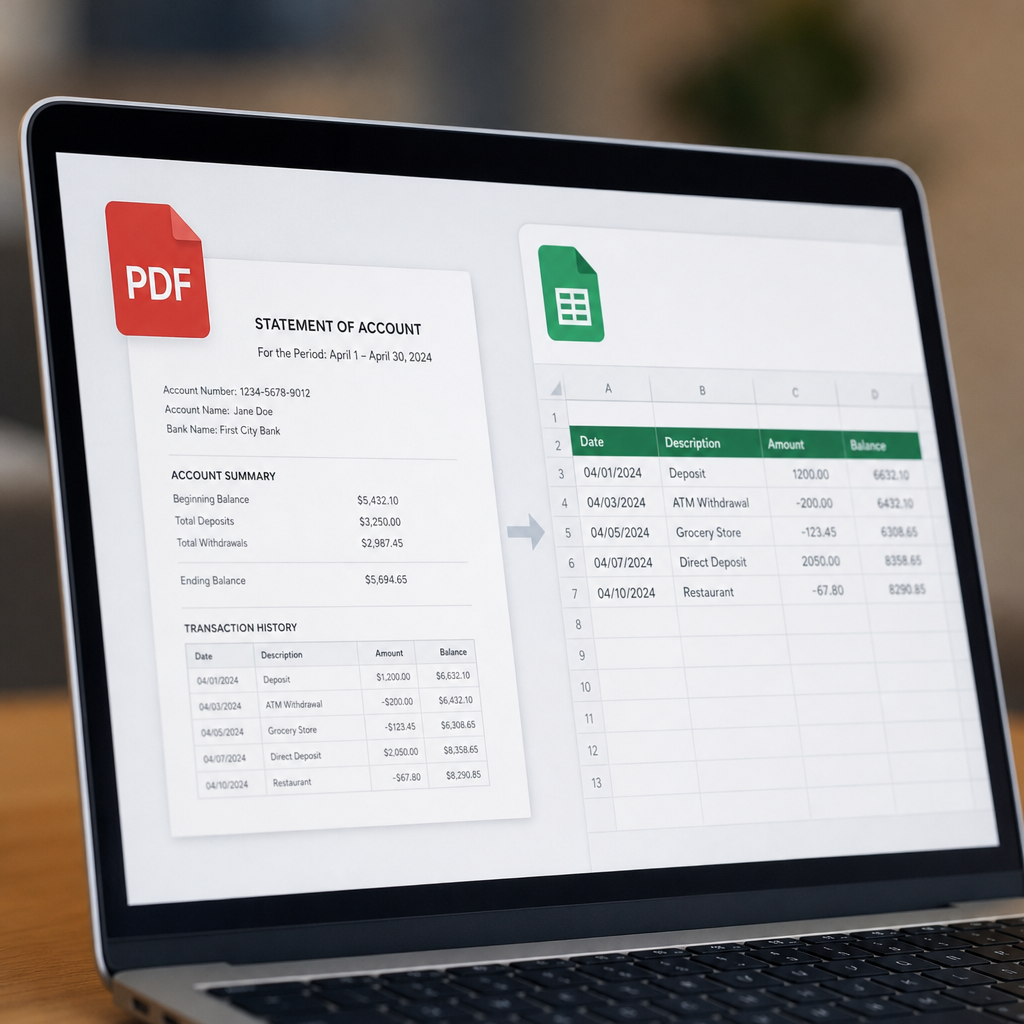
Step-by-Step: Converting a PDF Statement to Google Sheets
Here's a practical workflow for getting from a downloaded PDF to a usable Google Sheet with minimal friction.
- Download the statement PDF directly from your bank's portal rather than a forwarded email attachment, which sometimes strips metadata or compresses the file.
- Upload the PDF to a conversion tool such as Bank Statement Boss, which supports both single statements and batch uploads.
- Review the extracted data for accuracy, particularly on the first page where headers and account summary information sometimes get mixed in with transaction rows.
- Export as CSV or XLSX. Google Sheets reads both formats natively, though CSV tends to import slightly faster for very large files.
- Open Google Sheets and either import the file directly (File > Import > Upload) or copy and paste the cleaned data into an existing template.
- Apply your categorization or tagging system, if you track expenses by category, client, or project.
- Reconcile against your accounting software by cross-checking totals, or import directly if your platform accepts CSV bank feeds.
This workflow typically takes two to three minutes per statement once you're set up, compared to the 20-40 minutes manual retyping often requires.
Comparing Conversion Methods
The table below compares the main approaches available for turning a PDF statement into a usable Google Sheets file.
| Method | Avg. Time per Statement | Accuracy | Scales for Multiple Clients | Accounting Software Ready |
|---|---|---|---|---|
| Manual retyping | 20–40 minutes | Depends on operator | No | No, needs reformatting |
| Copy-paste from PDF | 10–20 minutes | Low to moderate | No | No, needs reformatting |
| Generic PDF export tools | 8–15 minutes | Moderate | Limited | Partial |
| AI-powered converter (e.g. Bank Statement Boss) | 1–3 minutes | High | Yes | Yes |
As the table shows, the time savings compound quickly. A bookkeeper processing 40 statements a month saves roughly 15-20 hours by switching from manual entry to an automated converter—time that can be redirected toward advisory work or client growth.
Choosing the Right Spreadsheet Format for Your Accounting Platform
Not every spreadsheet export is created equal, and the format you choose matters depending on what you do next with the data. Below is a quick comparison of common export formats and their best use cases.
| Format | Best For | Notes |
|---|---|---|
| CSV | Importing into QuickBooks, Xero, Sage | Lightweight, universally supported |
| XLSX | Manual review, custom formulas in Google Sheets | Preserves formatting and multiple sheets |
| Google Sheets (direct) | Collaborative review with a team or client | Real-time editing and commenting |
| JSON (via API) | Custom integrations, automated pipelines | Best for developers building internal tools |
If you're working with QuickBooks Online, their support documentation specifies exact column headers required for successful CSV imports—something a well-built conversion tool will already match, avoiding manual remapping.
Handling Multi-Bank and Multi-Currency Statements
Finance teams and bookkeepers rarely deal with just one bank. A small business might hold accounts across two or three institutions, plus a credit card statement from a different provider entirely. Each of these may use a different date format, currency symbol, or column order.
When converting multiple statement types to Google Sheets, keep these practices in mind:
- Standardize date formats immediately after conversion (MM/DD/YYYY vs. DD/MM/YYYY mismatches are a common source of reconciliation errors).
- Normalize currency symbols if you work with international clients, since mixed currency symbols in a single column can break formula calculations.
- Use consistent column headers across all client sheets if you manage multiple clients, so templates and formulas remain reusable.
- Flag negative values clearly—some banks show debits in parentheses, others with a minus sign, and inconsistency here is a frequent source of reconciliation mismatches.
Tools built specifically for financial document conversion, such as Bank Statement Boss, are designed to normalize these inconsistencies automatically, which is particularly valuable for accounting teams serving multiple clients with different banking relationships. This aligns with broader guidance from the AICPA on data integrity in financial reporting, which emphasizes consistent, auditable source data as a foundation for reliable bookkeeping.

Security Considerations When Converting Financial Documents
Bank statements contain sensitive information: account numbers, balances, and sometimes personal identifying details. Before uploading any statement to an online conversion tool, it's worth understanding how that data is handled.
Questions worth asking any conversion service include:
- Is data encrypted both in transit and at rest?
- Are uploaded files deleted after processing, or retained indefinitely?
- Does the provider have a clear, published privacy policy?
- Is the service compliant with relevant data protection standards for your region?
The Federal Trade Commission's guidance on safeguarding customer information is a useful reference point for financial service providers and the tools they rely on, even indirectly. Reputable conversion platforms will state their encryption standards and data retention policies clearly, rather than burying them in fine print. Bank Statement Boss, for instance, emphasizes secure data handling as a core part of its service, which matters considerably for bookkeepers who have a fiduciary responsibility to protect client financial data.
Common Mistakes to Avoid
Even with a reliable conversion tool, a few habits can undermine data quality once it lands in Google Sheets:
- Skipping the review step. Even high-accuracy AI extraction can occasionally misread a smudged number or an unusual font. A quick scan of totals against the statement summary catches most issues.
- Mixing formats across months. If January's statement used MM/DD/YYYY and February's used DD/MM/YYYY due to a bank switch, formulas referencing dates can silently fail.
- Overwriting formulas during import. When importing new data into an existing Google Sheet, make sure you're not pasting over cells that contain running calculations.
- Ignoring duplicate transactions. If you import the same statement twice, or if a transaction appears on both a checking and savings summary, duplicates can inflate totals.
- Not backing up the original PDF. Always retain the source PDF for audit purposes, even after conversion, since many jurisdictions require original document retention for several years.
When Automation Makes the Most Sense
Not every business needs an automated converter. A sole proprietor with five transactions a month might manage fine with manual entry. But automation becomes clearly worthwhile once you hit certain thresholds:
- You're processing statements for more than one bank account or client regularly
- You spend more than an hour a month on data entry from PDFs
- You need consistent formatting for QuickBooks, Xero, or Sage imports
- You're preparing for tax season and need to process several months or years of historical statements quickly
- Your firm requires audit-ready, consistent spreadsheets across multiple clients
For bookkeepers and finance teams fitting any of these descriptions, tools like Bank Statement Boss offer API access on higher-tier plans as well, which allows firms to build the conversion step directly into their existing document pipelines rather than uploading files manually each time.
Final Thoughts
Turning a PDF statement into Google Sheets doesn't have to mean hours of retyping or wrestling with misaligned columns. Manual methods still have a place for very small, occasional needs, but for anyone handling recurring bookkeeping work—especially across multiple clients or bank formats—automated conversion is now the practical standard. It reduces errors, saves substantial time, and produces output that's ready for QuickBooks, Xero, or Sage without extra reformatting.
Bank Statement Boss was built precisely for this use case: fast, accurate conversion of PDF bank and credit card statements into structured spreadsheets, with the security and formatting consistency that bookkeeping professionals depend on. If PDF statements are slowing down your monthly close, it's worth testing a dedicated conversion tool rather than continuing to fight with copy-paste and manual cleanup.
Article written by FrontRank