

Every bookkeeper, accountant, and small business owner knows the drill: a client emails over a stack of PDF bank statements, and suddenly your afternoon disappears into copy-pasting transaction rows into a spreadsheet. It's tedious, error-prone, and takes time away from actual analysis. Fortunately, a dedicated pdf bank statement to excel converter can eliminate this bottleneck entirely, turning hours of manual work into a task that takes minutes.
This article walks through why manual conversion is such a drain on productivity, how automated conversion tools work, what to look for in a reliable solution, and how to build a repeatable workflow that keeps your books accurate and audit-ready.
Why Manual PDF-to-Excel Conversion Is a Problem
Bank and credit card statements are designed for readability, not data extraction. Most are exported as PDFs with inconsistent formatting, multi-column layouts, and page headers that repeat on every sheet. When you try to copy this data into Excel, you typically run into:
- Misaligned columns — dates, descriptions, and amounts often merge into a single cell.
- Broken multi-line transactions — a single transaction description spanning two lines gets split into two rows.
- Manual re-typing — some banks only offer scanned or image-based PDFs with no selectable text at all.
- Time cost — a single 20-page statement can take 30-60 minutes to transcribe accurately by hand.
- Human error — a single transposed digit in a transaction amount can throw off an entire reconciliation.
For a freelance bookkeeper managing multiple clients, or a finance team closing the books monthly, this adds up to dozens of wasted hours every quarter. According to the Association of International Certified Professional Accountants, manual data entry remains one of the top time-drains reported by small accounting practices, even as automation adoption grows industry-wide.
How an Automated PDF Bank Statement Converter Works
Modern conversion tools use a combination of optical character recognition (OCR) and machine learning models trained specifically on financial documents. Unlike generic PDF-to-Excel tools that simply try to preserve visual layout, a purpose-built converter like Bank Statement Boss understands the structure of a bank statement — recognizing dates, transaction descriptions, debits, credits, and running balances as distinct data fields, not just text blocks.
The typical process looks like this:
- Upload — You upload one or more PDF statements (digital or scanned).
- Extraction — The AI engine identifies the statement's layout, bank format, and column structure.
- Parsing — Transactions are parsed into rows with consistent columns: date, description, amount, category, and balance.
- Validation — The tool cross-checks totals and running balances to flag any extraction errors.
- Export — Data is exported to Excel, CSV, or directly formatted for accounting software.
This approach is dramatically faster and more accurate than manual transcription or generic conversion tools, particularly for statements with dense transaction histories or non-standard formatting.
Manual Entry vs. Generic PDF Tools vs. Dedicated Converters
Not all conversion methods are created equal. The table below compares the three most common approaches finance professionals use today.
| Method | Speed | Accuracy | Accounting Software Compatibility | Best For |
|---|---|---|---|---|
| Manual data entry | Very slow (30-60 min/statement) | Prone to human error | Requires manual formatting | One-off, single-page statements |
| Generic PDF-to-Excel tools | Moderate | Inconsistent column alignment | Minimal formatting support | Simple, single-column PDFs |
| Dedicated bank statement converter (e.g., Bank Statement Boss) | Fast (under 2 minutes/statement) | High, with balance validation | Pre-formatted for QuickBooks, Xero, Sage | Recurring bookkeeping, multi-client workloads |
As the table shows, purpose-built tools close the gap between speed and accuracy — something generic converters typically can't achieve because they aren't trained on financial document structures specifically.
Key Features to Look for in a Conversion Tool
If you're evaluating a pdf bank statement to excel converter for your practice or business, prioritize these capabilities:
- Multi-bank format support — the tool should recognize statement layouts from major banks and credit unions, not just a handful of templates.
- Accounting software compatibility — exports formatted for QuickBooks, Xero, or Sage save an extra formatting step.
- Batch processing — the ability to upload multiple statements or months at once.
- Data security — encryption in transit and at rest, plus clear data retention policies.
- OCR for scanned documents — not every PDF has selectable text, so OCR support matters for scanned statements.
- API access — for finance teams that want to integrate conversion directly into existing workflows.
- Balance reconciliation checks — automatic validation that opening and closing balances match extracted transaction totals.
Bank Statement Boss was built around these exact requirements, offering structured exports and API access for teams handling high statement volumes. For more on how automated tools compare to manual bookkeeping methods, see this guide from Bank Statement Boss on choosing the right conversion workflow for your firm.
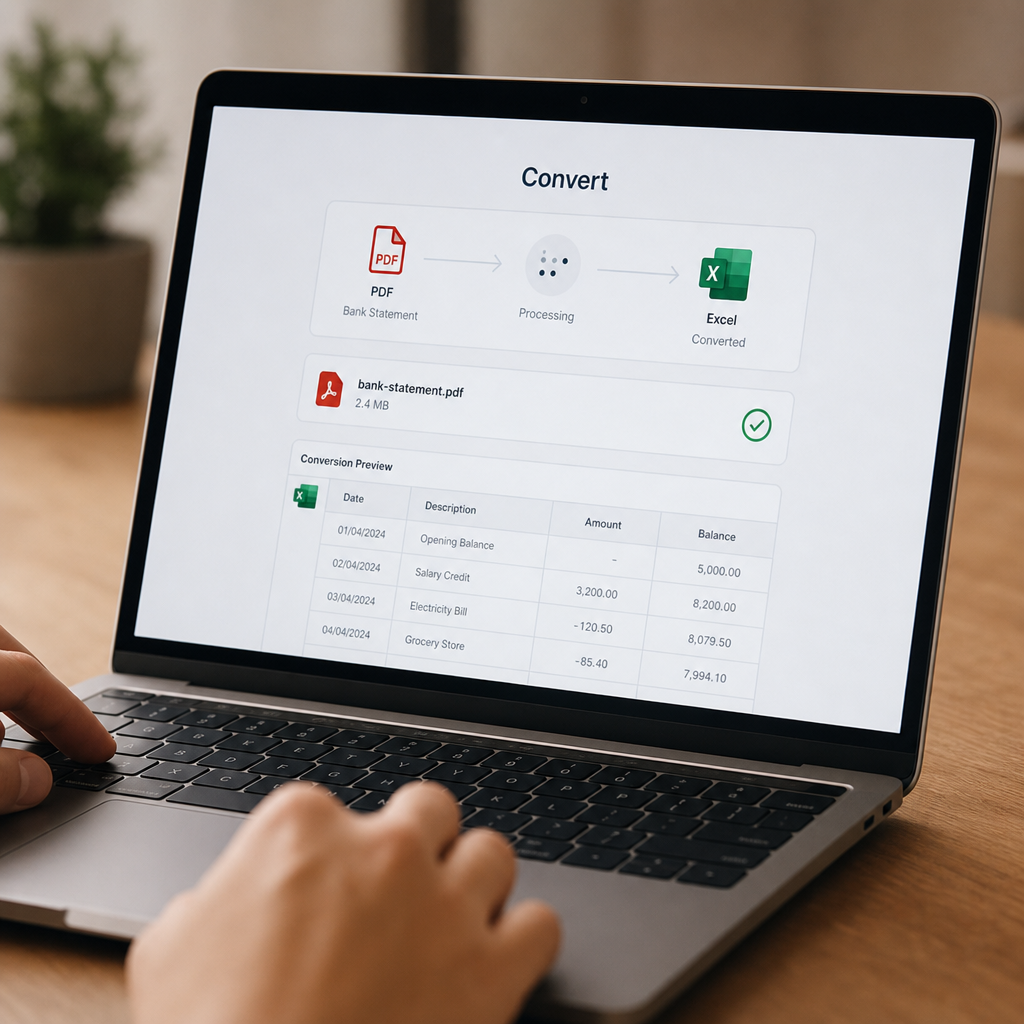
Step-by-Step: Converting a PDF Bank Statement to Excel
Here's a practical workflow you can apply immediately, whether you're processing one statement or fifty.
- Gather your statements. Collect all PDF files in one folder, ideally named by client and month for easy tracking.
- Choose your converter. Select a tool that supports your bank's format and your required output (Excel, CSV, or direct accounting software import).
- Upload in batches. If you're processing multiple months or multiple accounts, use batch upload features to save time.
- Review extracted data. Even the best AI tools benefit from a quick human review — check a sample of transactions against the original PDF.
- Validate balances. Confirm that the opening and closing balances match what's shown on the original statement.
- Export and import. Download the Excel file or push data directly into QuickBooks, Xero, or Sage.
- Archive the source PDF. Keep the original statement on file for audit purposes, even after conversion.
Following this process consistently helps ensure your books stay accurate and reduces the chance of discrepancies during reconciliation or tax season.
Data Security Considerations When Converting Financial Documents
Bank statements contain sensitive financial information, so security should never be an afterthought when choosing a conversion tool. Look for providers that are transparent about their data handling practices, including:
- Encryption standards — data should be encrypted both in transit (TLS) and at rest (AES-256 or equivalent).
- Data retention policy — understand how long your uploaded documents are stored, and whether you can request deletion.
- Compliance certifications — look for SOC 2 or similar attestations where available.
- Access controls — for team accounts, role-based permissions prevent unnecessary data exposure.
The Federal Trade Commission provides useful guidance on data security expectations for businesses handling consumer financial information, which is a helpful benchmark when vetting any SaaS tool that touches bank data. Similarly, the National Institute of Standards and Technology publishes a cybersecurity framework that many financial SaaS providers align their practices with.
Bank Statement Boss applies encryption and secure data handling practices throughout the conversion pipeline, which is particularly important for bookkeepers and accountants who are bound by client confidentiality obligations.
Comparing Popular Use Cases: Who Benefits Most?
Different professionals use PDF-to-Excel conversion for different reasons. The table below breaks down common use cases and the specific benefits each group sees.
| User Type | Primary Challenge | How Conversion Helps |
|---|---|---|
| Small business owners | Limited time for bookkeeping | Quickly digitize statements for tax prep and cash flow tracking |
| Freelance bookkeepers | Managing multiple clients' statements | Batch processing saves hours across dozens of accounts |
| Accountants | Need clean data for reconciliation | Structured exports reduce reconciliation errors |
| Finance teams | Integrating with existing accounting stacks | API access enables direct pipeline into QuickBooks/Xero/Sage |
| Auditors | Verifying historical transaction records | Fast conversion of archived statements for review |
Understanding your specific use case helps determine which features matter most — a solo freelancer might prioritize speed and simplicity, while a finance team may need API access and audit trails.
Common Mistakes to Avoid
Even with automated tools, a few common pitfalls can undermine your results:
- Skipping the review step. AI extraction is highly accurate, but not infallible — always spot-check a sample of transactions.
- Ignoring balance mismatches. If opening and closing balances don't reconcile, investigate before proceeding to import.
- Using generic tools for complex statements. Multi-column credit card statements or foreign currency accounts often confuse non-specialized converters.
- Not standardizing categories. If you plan to import into accounting software, make sure transaction categories align with your chart of accounts.
- Overlooking password-protected PDFs. Some banks issue encrypted statements — confirm your converter can handle these before uploading in bulk.
Avoiding these mistakes helps ensure that automation actually saves time rather than creating new cleanup work downstream.

Integrating Converted Data Into Your Accounting Workflow
Once your bank statement data is in Excel or CSV format, the next step is getting it into your accounting system cleanly. Most modern converters, including Bank Statement Boss, offer export templates that match the import requirements for popular platforms:
- QuickBooks Online — typically requires a CSV with Date, Description, and Amount columns in a specific order.
- Xero — accepts CSV bank statement imports through its bank feed reconciliation screen.
- Sage — supports CSV imports formatted to match its transaction template.
If you're managing imports for multiple clients, it's worth building a standard template checklist so every export matches the expected format before upload. This reduces back-and-forth troubleshooting and speeds up monthly close processes considerably.
For firms looking to scale their document workflows further, resources like frontrank.com and leadmailbox.com offer additional insights on optimizing operational workflows for service-based businesses, which pair well with financial automation tools like Bank Statement Boss.
Frequently Asked Questions
Can a PDF bank statement converter handle scanned documents? Yes, tools that include OCR capability can extract data from scanned or image-based PDFs, though accuracy may vary depending on scan quality.
Is it safe to upload bank statements to an online converter? Reputable providers use encryption and clear data retention policies. Always review a provider's security practices, similar to standards outlined by the FTC, before uploading sensitive financial documents.
Can converted files be imported directly into QuickBooks or Xero? Yes — many converters, including Bank Statement Boss, offer export formats pre-aligned with QuickBooks, Xero, and Sage import requirements.
How accurate is AI-based bank statement conversion? Accuracy is generally high, especially with tools that include balance validation checks, but a quick manual review is still recommended for critical financial records.
Does converting statements replace the need for an accountant? No — conversion tools handle data extraction and formatting, but professional judgment is still essential for categorization, tax treatment, and financial analysis.
Final Thoughts
Manually transcribing bank statements is a time-consuming, error-prone process that no longer needs to be part of your monthly workflow. A dedicated pdf bank statement to excel converter turns hours of tedious data entry into a task that takes just minutes, while improving accuracy and consistency across every client or account you manage.
Whether you're a small business owner trying to keep your books current, a freelance bookkeeper juggling multiple clients, or a finance team looking to streamline month-end close, automated conversion tools deliver measurable time savings without sacrificing accuracy. Bank Statement Boss was purpose-built for exactly this challenge — offering fast, secure, AI-powered conversion with export formats ready for QuickBooks, Xero, and Sage, plus API access for teams that need deeper integration. If you're ready to stop copy-pasting transactions by hand, it's worth putting a dedicated converter to the test on your next batch of statements.
Article written by FrontRank