

Automated expense tracking from bank statements sounds like a simple win: upload a PDF, get a clean spreadsheet, move on with your day. In practice, a surprising number of small business owners, bookkeepers, and finance teams adopt automation tools and still end up with messy categorization, broken reconciliations, or duplicate entries that take longer to fix than the manual process ever did. The technology works — but only when it's set up and used correctly.
This article walks through the most common mistakes businesses make when automating expense tracking from bank statements, why they happen, and how to avoid them. Whether you're a freelance accountant managing a dozen clients or a small business owner tired of manual data entry, understanding these pitfalls will save you real time and money.
Why Automated Expense Tracking Goes Wrong in the First Place
Most failures in this space don't come from bad software — they come from mismatched expectations. Bank statements vary wildly in format depending on the issuing institution, and PDFs are notoriously inconsistent. A statement from Chase looks nothing like one from a regional credit union, and a credit card statement has an entirely different layout than a checking account summary.
When businesses assume "automated" means "zero oversight required," they run into trouble. The best tools, including AI-driven platforms like bankstatementboss.com, are built to handle this variability, but understanding the underlying pitfalls helps you choose the right tool and use it correctly.
According to the U.S. Small Business Administration, poor financial record-keeping is one of the top reasons small businesses struggle with cash flow visibility. Automation is supposed to solve this — but only when implemented thoughtfully.
Mistake 1: Relying on Basic OCR Instead of AI-Powered Extraction
Many free or low-cost tools still rely on legacy OCR (optical character recognition) rather than modern AI extraction models. OCR reads characters on a page but doesn't understand context — it can't reliably distinguish between a transaction date and a reference number, or correctly parse a statement where columns shift slightly between pages.
Why this matters:
- OCR-based tools often misread merged or rotated cells in scanned statements.
- They struggle with multi-column layouts common in credit card statements.
- They lack the ability to "learn" transaction patterns across different bank formats.
AI-powered extraction, by contrast, understands the structure of a document — recognizing that a date, description, and amount belong together even if the PDF layout varies. This is a key reason platforms built specifically for financial documents outperform generic PDF-to-Excel converters. For a deeper technical comparison, see this breakdown of OCR versus AI-based document extraction.
Mistake 2: Ignoring Format Compatibility With Accounting Software
A shockingly common mistake is extracting clean data that still doesn't import properly into QuickBooks, Xero, or Sage because the column headers, date formats, or currency symbols don't match what the accounting platform expects.
This creates a second round of manual cleanup — the very thing automation was supposed to eliminate.
| Accounting Platform | Common Import Issue | What Compatible Formatting Requires |
|---|---|---|
| QuickBooks | Date format mismatches (MM/DD/YYYY vs DD/MM/YYYY) | Localized date formatting on export |
| Xero | Missing or inconsistent account categories | Pre-mapped category columns |
| Sage | Currency symbol conflicts in numeric fields | Clean numeric-only amount columns |
Tools that specifically format exports for these platforms — like Bank Statement Boss — eliminate this friction entirely. Rather than exporting a generic CSV, the output is structured to match the import templates these platforms expect, which is especially valuable for bookkeepers managing multiple clients across different software.
Mistake 3: Skipping Data Security Review Before Uploading Financial Documents
Bank statements contain sensitive data: account numbers, balances, names, and transaction histories. Yet many businesses upload these documents to random online converters without checking how the data is stored, encrypted, or deleted after processing.
This is not a small oversight. The Federal Trade Commission has repeatedly warned businesses about the risks of using unvetted third-party tools for financial data processing, especially tools that don't disclose data retention policies.
Before choosing a tool, ask:
- Is data encrypted both in transit and at rest?
- Are uploaded files automatically deleted after processing?
- Does the provider undergo any third-party security audits?
- Is there a clear, published privacy policy?
- Does the company offer a Business Associate Agreement or similar compliance documentation if needed?
Secure platforms built specifically for financial document conversion, such as bankstatementboss.com, prioritize this by design — encrypting uploads and giving users control over data retention, rather than treating security as an afterthought.
Mistake 4: Failing to Reconcile Automated Output Against Original Statements
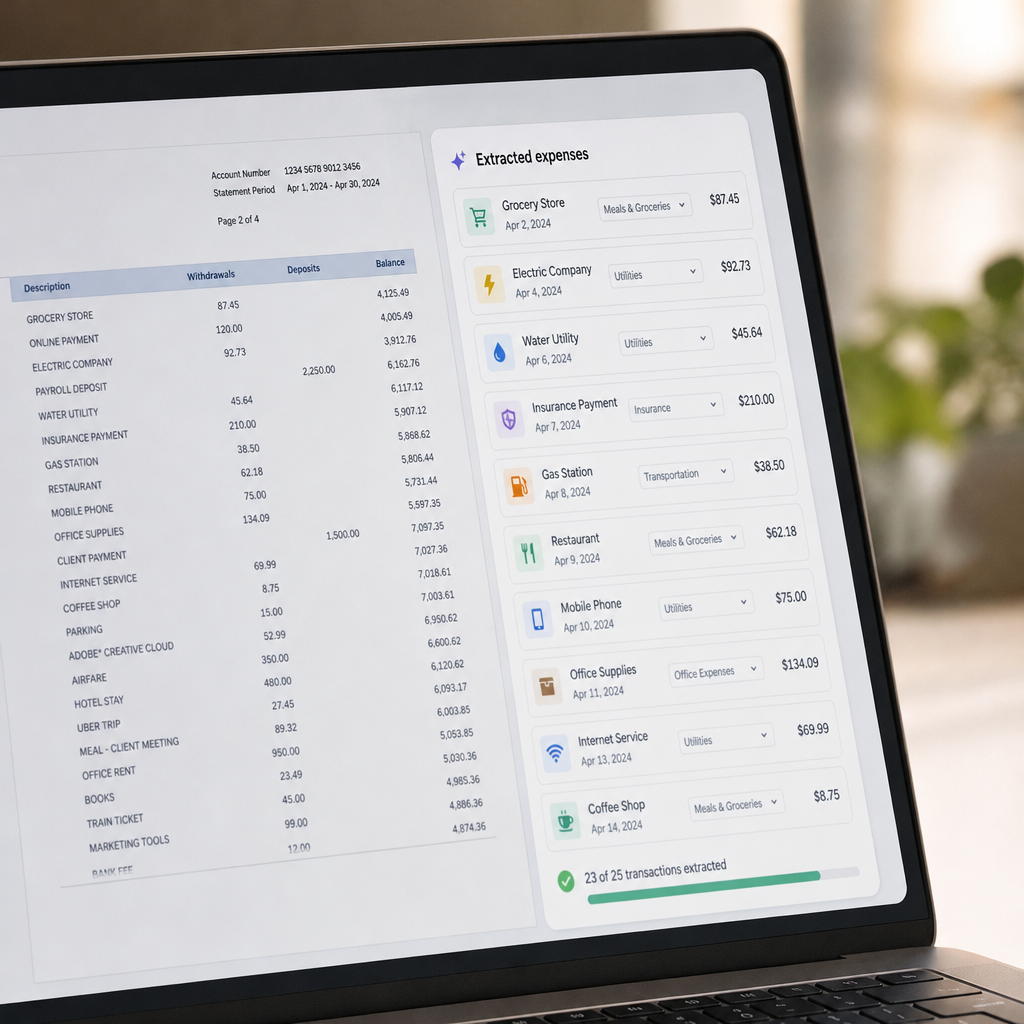
Automation reduces manual work, but it doesn't eliminate the need for verification — especially during the first few months of use. A common and costly mistake is trusting automated extraction blindly without spot-checking totals against the original statement.
Even high-accuracy AI tools can occasionally misread a smudged number, a split transaction line, or an unusual statement layout from a smaller regional bank. Skipping reconciliation means these rare errors can silently flow into your books, compounding over months of statements.
A simple reconciliation checklist:
- Compare the extracted closing balance to the statement's closing balance.
- Spot-check 5-10 transactions against the original PDF.
- Confirm transaction counts match (no duplicates, no missing rows).
- Verify category totals align with expected spending patterns.
- Flag any transactions with unusual characters or truncated descriptions.
This process takes minutes, not hours, but it catches the rare errors before they become embedded in financial reports.
Mistake 5: Treating All "Automated" Tools as Equivalent
Not all automated expense tracking tools are built the same way, and treating them as interchangeable commodities leads to disappointing results. Some tools are optimized for receipts, not full bank statements. Others handle single-page documents well but choke on 20-page multi-account statements. Still others lack API access, which matters significantly for finance teams trying to integrate extraction into a larger workflow.
Here's a comparison of what separates a basic tool from one built for serious bookkeeping and accounting use:
| Feature | Basic PDF Converter | Purpose-Built Financial Extraction Tool |
|---|---|---|
| Multi-page statement handling | Often fails or truncates | Designed for full statement sets |
| Accounting software formatting | Generic CSV only | QuickBooks/Xero/Sage-ready exports |
| Data security protocols | Varies, often undisclosed | Encrypted, documented retention policy |
| API access | Rarely available | Available on higher-tier plans |
| Handling of scanned/rotated PDFs | Poor to moderate | Strong, AI-based correction |
| Bulk processing | Limited | Supported for high-volume users |
If you're processing statements for multiple clients or accounts, this distinction isn't cosmetic — it directly affects how many hours automation actually saves you. Firms evaluating a PDF parser for accounting firms should weigh these capabilities carefully rather than defaulting to whichever tool ranks first in a quick search.
Mistake 6: Overlooking the Need for Consistent Categorization Rules
Automated extraction gets the numbers out of the PDF — but turning those numbers into useful expense tracking requires consistent categorization. A common mistake is letting categorization happen ad hoc, with different team members (or different software defaults) labeling the same type of transaction differently across months.
For example, a recurring software subscription might be labeled "Software," "SaaS," "Office Expense," or left uncategorized depending on who touches the data. Over a year, this inconsistency makes expense reports unreliable and complicates tax preparation.
Best practices for consistent categorization:
- Establish a standardized chart of accounts before automating anything.
- Use tools that support custom category mapping rules.
- Apply the same rules across all accounts and statement periods.
- Review categorization quarterly, not just at year-end.
- Document exceptions (e.g., how to categorize mixed personal/business charges).
The AICPA and other professional accounting bodies consistently emphasize that categorization consistency is one of the biggest determinants of clean, audit-ready books — automation only helps if the categorization logic behind it is sound.
Mistake 7: Underestimating the Time Savings — or Overestimating Them
Businesses tend to fall into one of two traps: assuming automation will save no meaningful time (so they stick with manual entry far longer than necessary), or assuming it will save all their time (so they under-budget for the review and setup process).
The reality sits in between. Based on typical small business workflows, here's a realistic time comparison:
| Task | Manual Entry | Automated Extraction (with review) |
|---|---|---|
| Processing one 3-page statement | 25-40 minutes | 3-5 minutes |
| Processing 10 statements (multi-client bookkeeping) | 4-6 hours | 30-45 minutes |
| Monthly reconciliation across 5 accounts | 3-4 hours | 45-60 minutes |
| Year-end expense report compilation | 8-10 hours | 1.5-2 hours |
These figures assume a properly configured tool with accounting-software-ready formatting and a quick reconciliation step — not blind trust in unreviewed output. The time savings are real, but they come from combining automation with a light, consistent review process, not from automation alone.
How to Set Up Automated Expense Tracking the Right Way
Avoiding the mistakes above comes down to a deliberate setup process rather than a rushed one. Here's a practical sequence for getting it right from the start:
- Audit your statement sources. List every bank and credit card account you need to process, and note which institutions produce scanned vs. native digital PDFs.
- Choose a tool built for financial documents, not a generic PDF converter. Look specifically for accounting software compatibility, security practices, and support for multi-page statements.
- Run a test batch. Process 2-3 statements first and manually verify the output before committing to a full workflow.
- Standardize categories. Set up your chart of accounts and mapping rules before bulk processing begins.
- Build in a review step. Even a five-minute spot-check per batch catches the rare extraction errors before they compound.
- Integrate with your accounting platform. Confirm imports into QuickBooks, Xero, or Sage work cleanly, adjusting export settings as needed.
- Scale gradually. Once the workflow is validated on a few accounts, expand to full client rosters or multi-account business use.

This structured approach is particularly important for freelance bookkeepers and accounting firms managing multiple clients, where an error in one workflow can multiply across dozens of accounts.
What Good Automated Expense Tracking Actually Looks Like
When done correctly, automated expense tracking from bank statements should feel almost invisible — a background process that turns a stack of PDFs into accounting-ready data without demanding hours of cleanup. The hallmarks of a well-functioning system include:
- Transactions imported with correct dates, amounts, and descriptions every time
- Output formatted specifically for your accounting platform of choice
- A fast, repeatable review process rather than a full manual recheck
- Consistent categorization that holds up at tax time
- Secure handling of sensitive financial data throughout the process
- The ability to scale from one account to dozens without a proportional increase in effort
Platforms like bankstatementboss.com are built around exactly this standard — converting PDF bank and credit card statements into structured spreadsheets formatted for QuickBooks, Xero, and Sage, with secure data handling and API access for teams that need to integrate extraction directly into larger financial systems. For bookkeepers and finance teams juggling multiple accounts, that combination of accuracy, compatibility, and security is what separates genuine time savings from a new source of busywork.
Closing Thoughts
Automated expense tracking from bank statements can genuinely transform how small businesses, bookkeepers, and finance teams handle their financial data — but only when the common pitfalls are avoided. Choosing AI-powered extraction over basic OCR, verifying accounting software compatibility, prioritizing data security, maintaining a light reconciliation habit, and keeping categorization consistent are what separate a smooth automated workflow from a frustrating one. Bank Statement Boss was built with these exact challenges in mind, offering secure, accurate, and accounting-ready statement conversion so you can spend less time untangling PDFs and more time on the work that actually grows your business.
Article written by FrontRank