

Keeping your books current in Xero depends on one unglamorous but essential task: getting your bank transaction data into the system accurately. Whether you're a small business owner reconciling your own accounts or a bookkeeper managing a dozen clients, knowing how to import a bank statement into Xero correctly can save hours every month and prevent reconciliation headaches down the line.
This guide walks through every method available in 2026, the file formats Xero accepts, common errors that trip people up, and how a dedicated conversion tool like Bank Statement Boss can remove the manual formatting work entirely.
Why Importing Bank Statements Into Xero Matters
Xero is built around the idea of continuous reconciliation — matching bank transactions against invoices, bills, and expenses as they happen. But that only works if the transaction data actually gets into Xero in a clean, structured format.
Most banks offer a direct feed connection, but direct feeds aren't universal. Some financial institutions aren't supported, some feeds break or lag behind, and many freelancers or small business owners only have access to PDF statements, especially for older accounts, loan statements, or credit cards without live feed integration. In those cases, manual import becomes the only option.
Getting this process right matters because:
- Incorrect imports create duplicate transactions that distort your financial reports
- Poorly formatted dates or amounts can cause reconciliation mismatches
- Missing transactions lead to inaccurate cash flow visibility
- Time spent re-entering data manually is time not spent on billable client work
According to the Xero Help Centre, import errors are among the most common support issues raised by small business users, which tells you how often this trips people up even with the native tools.
Methods for Importing Bank Statements Into Xero
There are three primary ways to get bank transaction data into Xero, each suited to different situations.
1. Direct Bank Feeds
Xero partners with thousands of banks worldwide to offer automatic daily feeds. Once connected, transactions flow in automatically without any manual file handling. This is the gold standard when available, but it requires your bank to be a supported partner and often involves a short setup and verification process.
2. Manual CSV Upload
If a direct feed isn't available, Xero allows you to manually upload a CSV file formatted to its specifications. This is the most common workaround for statements that only exist as PDFs or for banks without feed support.
3. OFX/QIF File Import
Some banks export statements in OFX or QIF format, which Xero can also import. These formats carry more structured metadata than a basic CSV but are less universally available from banks, especially for credit card and loan accounts.
| Method | Setup Effort | Best For | Limitations |
|---|---|---|---|
| Direct bank feed | Low (one-time setup) | Ongoing daily reconciliation | Not all banks supported |
| Manual CSV upload | Medium | PDF-only statements, unsupported banks | Requires correct formatting |
| OFX/QIF import | Medium | Banks offering export options | Less common file type |
Step-by-Step: How to Import a Bank Statement Into Xero Using CSV
If you're working from a PDF statement or a bank that doesn't support a live feed, here's the standard process:
- Convert your statement into a CSV file. Xero does not accept PDF files directly, so your PDF statement needs to be converted first, either manually by retyping transactions or using a conversion tool.
- Format the CSV correctly. Xero requires specific column headers and date formats, detailed below.
- Log into Xero and navigate to the relevant bank account. Go to Accounting > Bank Accounts and select the account you're importing into.
- Click "Import a Statement." This option appears on the bank account's reconciliation screen.
- Upload your CSV file and map the columns if prompted (date, amount, payee, description).
- Review the preview screen Xero shows before confirming the import, checking for duplicate or misaligned entries.
- Confirm the import and begin reconciling the newly added transactions against existing invoices and bills.
This process sounds straightforward, but step 1 and step 2 are where almost all errors originate. Xero is strict about formatting, and PDFs vary wildly in how banks lay out dates, balances, and descriptions.
Xero's Required CSV Format
Xero expects a specific structure for manual statement imports. Getting these details wrong is the single biggest reason imports fail or produce messy data.
| Column | Required Format | Example |
|---|---|---|
| Date | DD/MM/YYYY or MM/DD/YYYY (set in Xero settings) | 14/03/2026 |
| Amount | Positive for money in, negative for money out | -45.00 |
| Payee | Text field, optional but recommended | ABC Office Supplies |
| Description | Text field describing the transaction | Office supplies purchase |
| Reference | Optional, for internal tracking | INV-2041 |
A few formatting rules worth noting:
- Dates must match the date format configured in your Xero organisation settings, or the import will fail or misread the dates.
- Amounts should never include currency symbols like "$" or "£" — Xero expects plain numbers.
- Each row must represent a single transaction; multi-line descriptions can break the parser.
- The file must be saved as a genuine CSV, not an Excel .xlsx file renamed with a .csv extension.
Even bookkeepers experienced with Xero often lose time manually cleaning up PDF-extracted data to match this exact structure, particularly when dealing with statements from multiple banks that each format dates, balances, and descriptions differently.
Common Errors When Importing Bank Statements Into Xero
Understanding where imports typically go wrong helps you avoid repeating the same mistakes across multiple clients or accounts.
Duplicate transactions. This happens when a date range overlaps with transactions already imported via a bank feed or a previous manual upload. Xero does have some duplicate detection, but it isn't foolproof, especially if amounts or descriptions differ slightly between the two sources.
Incorrect date formats. A statement using DD/MM/YYYY uploaded into an organisation configured for MM/DD/YYYY will either throw an error or, worse, silently import transactions on the wrong dates. This is one of the most damaging mistakes because it isn't always obvious until you reconcile weeks later.
Negative/positive sign errors. If debits and credits are reversed during manual data entry or conversion, your bank balance in Xero will never match your actual bank statement, and tracing the error can take hours.
Hidden characters or formatting artifacts from PDF conversion. Copy-pasting from a PDF often brings along invisible characters, extra spaces, or merged columns that cause the CSV to fail validation entirely.
Encoding issues. Statements with non-standard characters (common with international accounts) can cause CSV encoding mismatches that corrupt payee names or descriptions.
Manual Conversion vs. Automated Tools
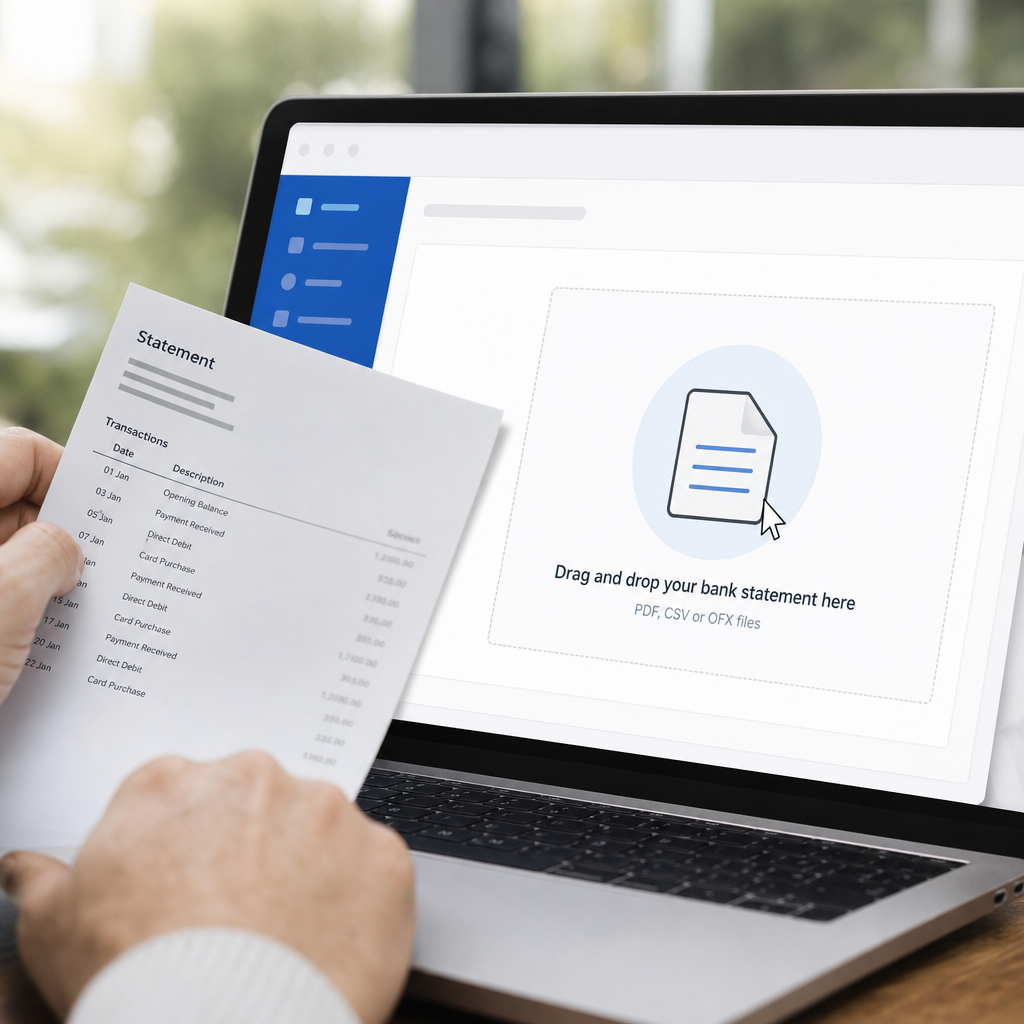
Many small business owners start out trying to convert PDF statements to CSV by hand, retyping transactions into a spreadsheet, or copy-pasting from the PDF and manually fixing the formatting. This works for a single-page statement but becomes impractical fast.
| Approach | Time for a 3-Page Statement | Error Risk | Scalability |
|---|---|---|---|
| Manual retyping | 45–90 minutes | High | Poor — doesn't scale across clients |
| Copy-paste + spreadsheet cleanup | 20–40 minutes | Medium | Limited |
| Dedicated PDF-to-CSV conversion tool | 2–5 minutes | Low | Excellent for bulk/recurring use |
For bookkeepers managing multiple clients, or finance teams dealing with statements from several banks and credit cards each month, manual conversion quickly becomes the bottleneck in an otherwise efficient workflow. This is where a tool purpose-built for this exact task makes a measurable difference.
How Bank Statement Boss Simplifies the Process
Bank Statement Boss is built specifically to solve the PDF-to-accounting-software gap. Instead of manually retyping transactions or wrestling with inconsistent bank formatting, you upload your PDF bank or credit card statement and the AI-powered engine extracts every transaction into a clean, structured spreadsheet.
What makes this particularly relevant for Xero users:
- Xero-compatible formatting — output is structured to align with Xero's CSV import requirements, including correct date and amount formatting.
- Accurate line-item extraction — even statements with complex layouts, multiple columns, or inconsistent spacing are parsed correctly.
- Bulk processing — convert multiple statements at once, which is especially valuable for bookkeepers handling several clients or a business with multiple accounts.
- Secure data handling — sensitive financial documents are processed with security practices appropriate for confidential financial data.
- API access on higher-tier plans — finance teams and accounting firms can integrate the conversion engine directly into their own workflows or internal tools.
Instead of spending an hour fixing date formats and chasing down sign errors, you can go from PDF statement to a Xero-ready file in a few minutes. For anyone handling statement imports regularly, visiting Bank Statement Boss to see the formatting options available is a reasonable first step before committing to another manual cycle of copy-paste cleanup.
Best Practices for Smooth Xero Imports
Whether you use a conversion tool or format files manually, a few habits consistently reduce import errors:
- Always check your Xero date format setting before uploading any CSV, since this is organisation-specific and easy to overlook.
- Import statements in chronological order and avoid overlapping date ranges with existing bank feed data.
- Reconcile immediately after each import rather than batching multiple imports together, which makes it far easier to spot errors early.
- Keep a backup of the original PDF statement alongside the converted CSV, both for audit purposes and in case you need to re-convert with different formatting.
- Standardize your process across clients if you're a bookkeeper — using the same conversion method for every client reduces the learning curve and error rate over time.
- Review the import preview screen carefully before confirming, since this is your last chance to catch formatting issues before they become permanent import errors.
Firms that handle statement conversion at scale, including partners like leadmailbox.com, often emphasize that standardizing document intake processes early prevents much larger cleanup efforts later, a principle that applies directly to bookkeeping workflows involving multiple bank statement formats.
Xero vs. Other Accounting Platforms: Import Flexibility
It's worth understanding how Xero's import process compares to other platforms, especially if you manage clients on multiple systems.
| Platform | PDF Direct Import | CSV Import | Bank Feed Coverage |
|---|---|---|---|
| Xero | No | Yes | Broad, varies by region |
| QuickBooks Online | No | Yes | Broad, varies by region |
| Sage | No | Yes | Moderate |
None of the major platforms accept raw PDF statements directly, which is precisely why PDF-to-CSV conversion tools have become a standard part of the bookkeeping toolkit rather than a niche workaround. Resources like the American Institute of CPAs and the Institute of Financial Accountants both note that document digitization is now considered a core bookkeeping competency rather than an optional skill, reflecting how central this step has become to modern accounting workflows.
Reconciling After Import
Once your statement is successfully imported into Xero, the real work of reconciliation begins. A few tips to make this phase smoother:
- Use Xero's bank rules feature to automatically categorize recurring transactions like rent, subscriptions, or recurring vendor payments.
- Cross-check the ending balance shown in Xero against your actual bank statement balance before marking the reconciliation complete.
- Flag any transactions that don't have a clear match for manual review rather than guessing at categorization, which can distort reports later.
- If you manage multiple accounts, reconcile one account fully before moving to the next, rather than switching back and forth.

Frequently Overlooked Details
A few smaller details catch people off guard even after they've imported statements into Xero successfully before:
- Multi-currency accounts require extra attention since Xero needs the correct currency code associated with each transaction, which standard bank exports don't always include cleanly.
- Statement date ranges that span a month-end can create confusion if you're reconciling on a strict monthly basis — it's worth splitting these before import.
- Credit card statements often have a different sign convention than checking accounts (purchases as positive vs. negative), which needs to be adjusted before import or your balances will read backward.
- Joint or shared business accounts sometimes mix personal and business transactions, requiring manual filtering before the file ever reaches Xero.
Planning for these edge cases ahead of time, rather than discovering them mid-import, saves significant rework.
Final Thoughts
Learning how to import a bank statement into Xero isn't complicated once you understand the required CSV format and the common pitfalls that cause failed or inaccurate imports. For businesses with full bank feed coverage, this is rarely an issue. But for anyone working with PDF-only statements, unsupported banks, or multiple client accounts, manual formatting quickly becomes a drain on time that could be spent on higher-value work.
Bank Statement Boss was built to close that gap. By converting PDF bank and credit card statements into clean, Xero-ready spreadsheets in minutes, it removes the tedious formatting work that causes most import errors in the first place, letting bookkeepers, freelancers, and finance teams get back to reconciling and reporting rather than retyping transaction data. If statement imports have been a recurring bottleneck in your monthly close process, it's worth seeing how much time a dedicated conversion tool like Bank Statement Boss can save.
Article written by FrontRank