

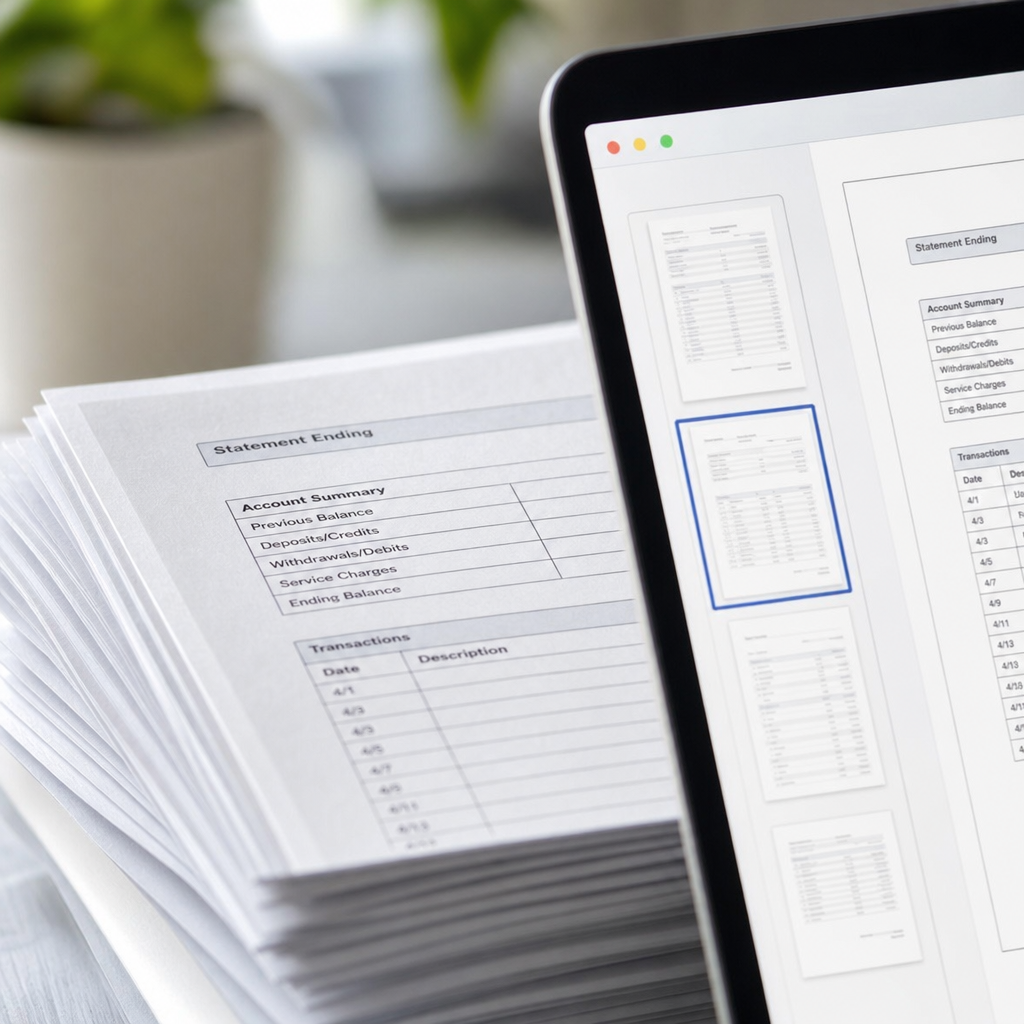
Paper bank statements still pile up in filing cabinets, storage boxes, and client dropboxes across small businesses and accounting firms. Whether you've inherited years of archived records, received statements from a client who banks with an institution that doesn't offer digital exports, or simply need historical data for a reconciliation project, converting those paper documents into structured digital data is a task every bookkeeper eventually faces. The good news is that digitizing paper bank statements is far easier today than it was even a few years ago, thanks to advances in optical character recognition (OCR) and AI-powered data extraction.
This article walks through practical, reliable methods for digitizing paper bank statements, compares the tools available, and explains how to get clean, accounting-ready data without spending hours on manual entry.
Why Digitizing Paper Bank Statements Matters
Paper records are fragile, hard to search, and nearly impossible to integrate into modern accounting workflows. If you're preparing financial statements, reconciling accounts, or responding to an audit request, having statement data trapped in physical paper creates unnecessary friction. Digitization solves several real problems:
- Searchability — Finding a specific transaction from eight months ago takes seconds instead of hours.
- Integration — Digital data can be imported directly into QuickBooks, Xero, or Sage.
- Durability — Paper degrades, gets lost, or is damaged by fire or water; digital files can be backed up indefinitely.
- Audit readiness — The IRS recommends keeping financial records for several years, and digital files are easier to retrieve and verify than paper archives.
- Collaboration — Teams and clients can access digitized records simultaneously from anywhere.
For bookkeepers managing multiple clients, the stakes are even higher. Manually re-typing numbers from paper statements is slow and error-prone, and a single transposed digit can throw off an entire reconciliation.
Step-by-Step: How to Digitize Paper Bank Statements
There are several approaches to digitizing paper statements, ranging from fully manual to fully automated. Here's a practical workflow that balances accuracy and speed.
- Scan the documents at high resolution. Use a flatbed scanner or a document scanner app at a minimum of 300 DPI. Low-resolution scans cause OCR errors later.
- Save as PDF, not just image files. PDFs preserve document structure and are the standard input format for most extraction tools.
- Organize files by account and date range. Consistent naming conventions (e.g.,
ClientName_Checking_2026-01.pdf) save time during bulk processing. - Run the scanned PDFs through an OCR or AI extraction tool. This converts the scanned image into machine-readable text and structured transaction data.
- Validate the extracted data. Spot-check totals and transaction counts against the physical statement to catch any OCR misreads.
- Export to your accounting format. Convert the cleaned data into CSV, Excel, or a direct import format for your accounting platform.
- Securely store or destroy the paper originals, depending on your firm's retention policy and applicable regulations.
Skipping the validation step is the most common mistake. Even the best OCR engines can misread smudged ink, faded thermal paper, or handwritten annotations, so a quick review pass is essential before the data enters your books.
Manual Entry vs. OCR vs. AI-Powered Extraction
Not all digitization methods are created equal. Understanding the trade-offs helps you choose the right approach for your volume and accuracy needs.
| Method | Speed | Accuracy | Cost | Best For |
|---|---|---|---|---|
| Manual data entry | Very slow | Depends on operator; error-prone with volume | Low tool cost, high labor cost | Very small batches (1-2 statements) |
| Basic OCR software | Moderate | Good for clean text, poor with scanned/faded paper | Low to moderate | Simple, well-printed documents |
| AI-powered extraction (e.g., Bank Statement Boss) | Fast | High, even with scanned or lower-quality paper | Subscription-based | Recurring bookkeeping, multiple clients, bulk archives |
| Outsourced data entry services | Slow (turnaround delays) | Variable, depends on vendor | High (per-document or per-hour) | One-off large archival projects with no tech resources |
Basic OCR tools, like the open-source Tesseract engine, can handle clean, well-scanned documents reasonably well. But bank statements often include tables, multiple columns, small fonts, and inconsistent formatting between institutions — conditions where basic OCR tends to struggle. AI-powered tools trained specifically on financial documents handle these edge cases far more reliably because they're built to recognize statement layouts, not just raw text.
Scanning Best Practices for Accurate Conversion
The quality of your digitization results starts well before any software gets involved. Poor scans lead to poor data, no matter how advanced your extraction tool is. Keep these best practices in mind:
- Use at least 300 DPI resolution, and 600 DPI for faded or older statements.
- Scan in grayscale or black-and-white rather than color, unless the original has color-coded information — this reduces file size without sacrificing OCR readability.
- Flatten pages fully before scanning to avoid shadows or curved text near the spine.
- Avoid skewed scans. Most scanning software includes an auto-straighten feature; use it.
- Scan both sides if your bank statements include information on the back, such as terms or fee schedules.
- Batch scan with a document feeder when digitizing large archives to save time.
If you're scanning with a smartphone, apps like Adobe Scan can improve contrast and auto-crop pages, which significantly improves OCR accuracy compared to a standard camera photo.
Choosing the Right Digitization Tool
Once your statements are scanned, the next decision is which tool will handle the extraction. This is where accuracy, security, and integration compatibility matter most, especially for bookkeepers handling sensitive client financial data.
Here's a comparison of the general categories of tools available in 2026:
| Tool Type | Data Structuring | Accounting Software Integration | Security Features | Typical Use Case |
|---|---|---|---|---|
| Generic OCR apps | Minimal — raw text only | None | Varies, often limited | Simple one-page documents |
| Spreadsheet templates + manual OCR | Manual cleanup required | Manual export | Depends on user | Low-volume personal use |
| Dedicated bank statement converters | Full transaction-level structuring | Direct QuickBooks/Xero/Sage formatting | Encryption, secure deletion policies | Bookkeepers, accountants, finance teams |
| Enterprise document management systems | High, but expensive to implement | Custom integrations | Enterprise-grade | Large finance departments with IT support |
For most small business owners and independent bookkeepers, a dedicated bank statement converter offers the best balance of accuracy, speed, and affordability. Bank Statement Boss was purpose-built for this exact use case — it takes scanned or digital PDF bank and credit card statements and converts them into clean, structured spreadsheets formatted for QuickBooks, Xero, and Sage, removing the need for manual re-entry entirely.
Handling Security and Compliance When Digitizing Financial Records
Bank statements contain sensitive personal and financial information, which means security can't be an afterthought during digitization. Whether you're converting your own records or a client's, consider the following:
- Encryption in transit and at rest. Any tool you upload statements to should use HTTPS/TLS encryption and encrypt stored files.
- Data retention policies. Understand how long a tool retains your uploaded documents and whether files are automatically deleted after processing.
- Compliance alignment. If you handle statements for clients, familiarize yourself with relevant standards like SOC 2 controls, which many reputable SaaS financial tools maintain.
- Access controls. Limit who on your team can view or download converted files, especially for sensitive client accounts.
- Secure disposal of paper originals. Shred physical statements after digitization and validation, rather than storing or discarding them in regular trash.
Platforms like bankstatementboss.com are built with secure data handling as a core feature, which matters significantly more than convenience alone when you're processing confidential banking information for multiple clients. Always review a vendor's security documentation before uploading sensitive statements, particularly if you work in a regulated industry or serve clients who do.
Common Challenges When Digitizing Older or Damaged Statements
Not every statement you need to digitize will be in pristine condition. Older paper records present unique obstacles:
- Faded thermal paper from older ATM or teller-printed statements can be nearly unreadable after a few years.
- Handwritten annotations (common on reconciled statements) confuse OCR engines that expect printed text.
- Non-standard formats from community banks or credit unions, which may not follow the column layouts larger OCR models are trained on.
- Torn or incomplete pages, which require manual reconstruction of missing transaction data.
- Multi-currency or international statements, which may use different date formats, decimal conventions, or currency symbols.
For these harder cases, AI-based extraction tools that have been trained on diverse statement formats from many financial institutions tend to outperform generic OCR, since they can infer structure even when formatting varies. Still, always build in a manual review step for damaged or unusual documents — no automated tool is perfect, and a few extra minutes of verification can prevent costly reconciliation errors down the line.

Digitization Workflow Comparison: DIY vs. Outsourced vs. Automated
To help decide which path fits your situation, here's a breakdown of the three most common workflows bookkeepers and business owners use:
| Factor | DIY Manual Process | Outsourced Data Entry | Automated AI Conversion |
|---|---|---|---|
| Time per statement | 15-30 minutes | 1-3 days turnaround | Under 1 minute |
| Error rate | Moderate to high | Low to moderate | Low, with validation |
| Cost at scale (50+ statements/month) | High (labor hours) | High (per-document fees) | Low (subscription-based) |
| Data format output | Varies, often unstructured | Spreadsheet, sometimes unstructured | Structured, accounting-ready |
| Security control | Full control, but manual risk | Depends on vendor | Depends on vendor's encryption standards |
| Scalability | Poor | Moderate | Excellent |
For firms processing statements for multiple clients every month, automated conversion consistently wins on both time and cost. A recent analysis by the American Institute of CPAs on practice efficiency has repeatedly pointed to document automation as one of the highest-leverage investments small accounting practices can make, since it frees up billable hours for advisory work rather than data entry.
Integrating Digitized Statements Into Your Accounting Software
Digitizing a statement is only half the job — the data needs to land in your accounting platform in a usable format. Here's what to look for:
- Pre-formatted templates for QuickBooks, Xero, and Sage so you're not manually remapping columns every time.
- Consistent date and currency formatting that matches your accounting software's expected import structure.
- Transaction categorization support, which speeds up reconciliation and reporting.
- CSV and Excel export options for platforms that don't support direct API import.
- API access for firms that want to automate the entire pipeline from scanning to bookkeeping software without manual uploads at each step.
This is precisely where a tool like Bank Statement Boss adds the most value — rather than just producing a wall of extracted text, it outputs clean, structured spreadsheets already formatted for the major accounting platforms, and offers API access on higher-tier plans for teams that want to fully automate recurring statement processing.
Best Practices for an Ongoing Digitization System
If you expect to digitize bank statements regularly — monthly client reconciliations, quarterly audits, or year-end tax prep — it pays to build a repeatable system rather than treating each batch as a one-off project.
- Standardize your scanning process across your team so file quality is consistent.
- Create a consistent folder and naming structure by client, account, and period.
- Set a monthly or quarterly digitization cadence rather than letting paper pile up.
- Use the same conversion tool consistently so output formatting stays predictable.
- Document your retention and disposal policy so paper originals are handled consistently and securely.
- Train your team on validation steps so extraction errors are caught early.
Consistency is what separates a sustainable digitization workflow from a recurring scramble every time statements pile up.
Final Thoughts
Digitizing paper bank statements no longer has to mean hours of manual retyping or unreliable OCR guesswork. With a solid scanning process, careful validation, and the right conversion tool, you can turn stacks of paper into clean, accounting-ready data in minutes rather than days. For bookkeepers, accountants, and finance teams juggling multiple clients, that time savings compounds quickly — and the reduced error rate protects the integrity of your financial records.
Bank Statement Boss was built specifically to solve this problem: it converts PDF and scanned bank and credit card statements into structured spreadsheets formatted for QuickBooks, Xero, and Sage, backed by secure data handling and API access for teams ready to automate the entire process. If you're ready to stop manually digitizing paper statements and start working with clean, structured data from day one, Bank Statement Boss is built to make that transition simple.
Article written by FrontRank