

Small business owners and bookkeepers lose an estimated 10+ hours a month wrestling with bank statement data that doesn't import cleanly into accounting software. If you've ever opened a PDF statement from your bank and wondered how to get those transactions into QuickBooks without retyping every line, you're not alone. This guide walks through exactly how to convert PDF statement to QuickBooks format, compares your available options, and shows you which approach actually saves time instead of creating more cleanup work.
QuickBooks is built to accept structured data — CSV files with clearly labeled columns for date, description, and amount. A PDF, by contrast, is designed for human eyes, not software parsing. That mismatch is the root of the problem, and solving it correctly is what separates a five-minute import from a three-hour data entry session.
Why PDF Statements Don't Work Natively With QuickBooks
QuickBooks Online and QuickBooks Desktop both support direct bank feeds for many financial institutions, but not every bank offers a live feed, and historical statements (especially from closed accounts, old credit cards, or clients who mail you PDFs) never arrive that way. When a feed isn't available, QuickBooks expects a CSV or QBO/QFX file with a very specific column structure.
PDFs store text as visual layout information rather than tabular data. A table that looks perfectly aligned on screen might actually be a jumble of disconnected text fragments underneath. This is why copying and pasting from a PDF into Excel often produces garbled columns, merged dates and descriptions, or missing decimal points.
According to the American Institute of CPAs, data entry and reconciliation remain among the most time-consuming tasks for small accounting practices, and manual transcription is consistently cited as a top source of bookkeeping errors. Getting the conversion right at the source — before the data ever touches QuickBooks — prevents downstream reconciliation headaches.
The 5 Steps to Convert a PDF Statement Into QuickBooks Format
Regardless of which tool you use, the underlying workflow for converting a PDF statement into something QuickBooks can digest follows the same basic path:
- Gather your PDF statements. Download them directly from your bank's online portal rather than scanning printed copies — digital PDFs preserve more accurate text data than scanned images.
- Extract the transaction data. Use OCR or a parsing tool to pull dates, descriptions, and amounts into a structured format. This is the step where quality tools separate themselves from free, generic converters.
- Format columns to QuickBooks' specification. QuickBooks typically expects columns in this order: Date, Description, Amount (or separate Debit/Credit columns depending on your version).
- Clean and review the data. Check for duplicate transactions, split multi-line descriptions, and confirm date formats match your QuickBooks regional settings (MM/DD/YYYY vs DD/MM/YYYY).
- Import the CSV into QuickBooks. Navigate to Banking > Upload Transactions (QuickBooks Online) or File > Utilities > Import (QuickBooks Desktop), map your columns, and confirm the import.
Tools like Bank Statement Boss handle steps two and three automatically, which is where most of the time savings come from. Instead of manually retyping or reformatting hundreds of line items, the platform's AI reads the PDF layout, identifies transaction rows, and outputs a spreadsheet already structured to match QuickBooks' expected columns.
Manual Entry vs. Generic Tools vs. AI-Powered Conversion
Not all conversion methods are created equal. Here's how the three most common approaches stack up when it comes to accuracy, speed, and reliability for QuickBooks-ready output.
| Method | Average Time (50-page statement) | Accuracy | QuickBooks-Ready Formatting | Best For |
|---|---|---|---|---|
| Manual data entry | 3-5 hours | Prone to human error | No — requires manual formatting | Very small, one-off statements |
| Generic OCR/PDF-to-Excel tools | 30-60 minutes | Moderate, often misreads tables | Partial — still needs cleanup | Occasional, simple statements |
| AI-powered converter (e.g., Bank Statement Boss) | 5-10 minutes | High, built for financial tables | Yes — pre-mapped to QuickBooks/Xero/Sage | Recurring bookkeeping, multiple clients |
Generic OCR tools are designed to handle any kind of document — invoices, contracts, forms — which means they aren't tuned to recognize the specific quirks of bank statement layouts, like multi-line transaction descriptions or running balance columns. This often results in misaligned rows that still require manual fixing, defeating the purpose of automation.
Purpose-built tools, on the other hand, are trained specifically on financial document structures. This is the core distinction behind Bank Statement Boss, which focuses exclusively on bank and credit card statement parsing rather than general document conversion.
What QuickBooks Actually Needs in Your Import File
Before uploading anything, it helps to understand the exact format QuickBooks expects. Getting this right the first time avoids failed imports and duplicate transactions.
Standard QuickBooks CSV column requirements:
- Date — formatted consistently (QuickBooks Online typically expects MM/DD/YYYY in US accounts)
- Description — a clean, single-line summary of the transaction (merchant name, memo, or reference)
- Amount — either a single signed column (negative for debits, positive for credits) or separate Debit/Credit columns
- Category (optional) — useful if you want transactions pre-categorized before import, though many users categorize after import using QuickBooks rules
Common reasons QuickBooks rejects or misreads an import file:
- Dates in an inconsistent or regional format mismatch
- Header rows not matching expected column names
- Merged or split transactions from poor PDF extraction
- Currency symbols or thousands separators left inside the amount field
- Duplicate header or footer rows carried over from the PDF
The QuickBooks support documentation outlines these formatting rules in more detail, and it's worth reviewing them once if you're setting up imports for the first time, since QuickBooks Online and Desktop have slightly different expectations.
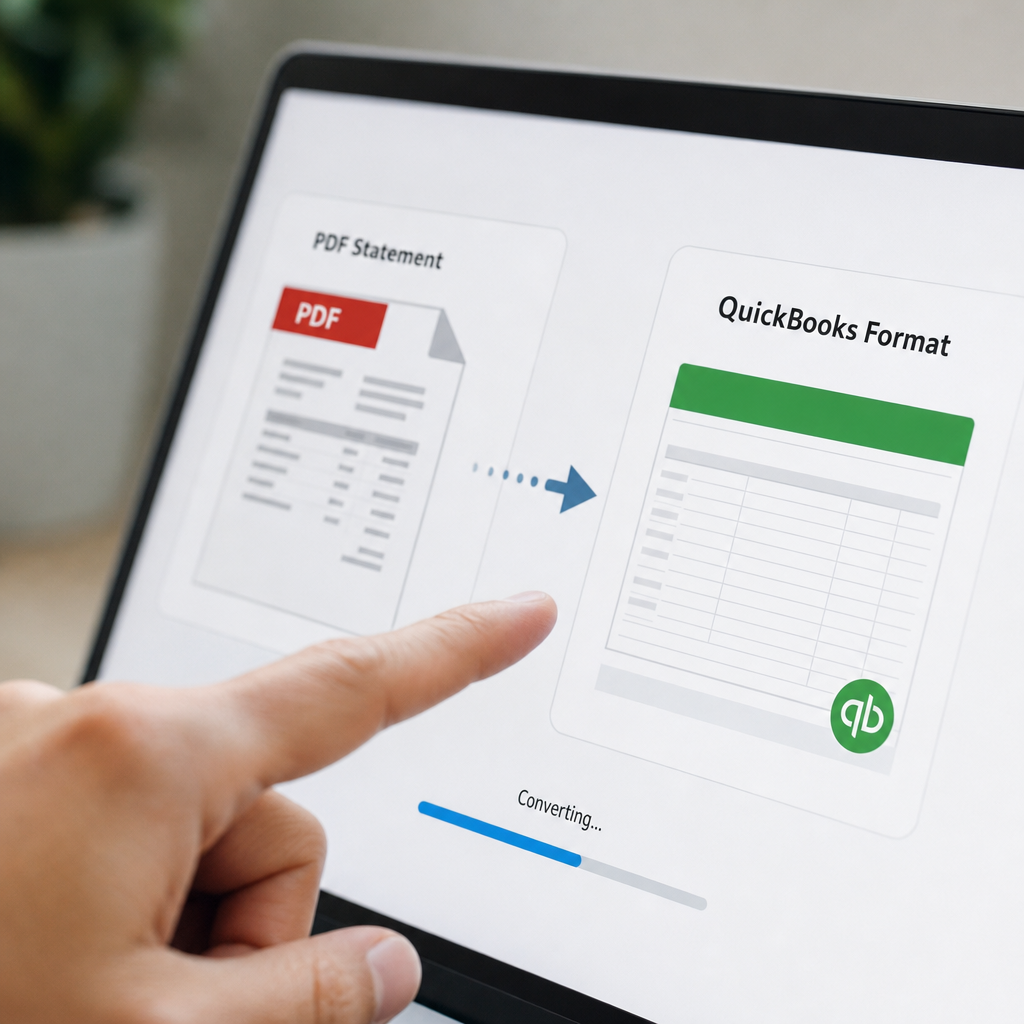
Comparing Popular Conversion Methods in Detail
If you're deciding which route to take, it helps to see the tradeoffs side by side — not just on speed, but on cost, security, and scalability for recurring work.
| Factor | Spreadsheet Retyping | Bank's Direct CSV Export | AI Conversion Tool |
|---|---|---|---|
| Setup effort | None | Varies by bank, often inconsistent format | Minimal — upload and download |
| Handles multiple statement formats | Yes, but slow | No — limited to that bank's layout | Yes — adapts to different bank layouts |
| Risk of transcription errors | High | Low | Low |
| Scales across multiple clients | Poorly | Poorly | Well |
| Output formatted for QuickBooks | No | Rarely | Yes |
| Typical cost | Labor time only | Free (if available) | Subscription or per-document fee |
Some banks do offer a native CSV or OFX export option, which is worth checking first since it eliminates the conversion step entirely. However, many business accounts, especially those tied to older online banking portals or offered by smaller community banks and credit unions, only provide PDF statements. Bookkeepers managing multiple clients across different banks face an even bigger challenge: every bank's PDF layout is different, and no single manual template works for all of them.
This is precisely the problem an AI-based layout-recognition approach solves. Rather than relying on a fixed template, a well-trained model identifies transaction tables regardless of which bank issued the statement, then normalizes the output into a consistent QuickBooks-ready structure.
Step-by-Step: Using an AI Tool Like Bank Statement Boss
For readers who want a concrete walkthrough, here's how the process typically looks using a dedicated conversion platform rather than general-purpose software:
- Upload your PDF statement(s). Most tools, including Bank Statement Boss, allow batch uploads, so you can process multiple months or multiple client accounts in one session.
- Let the AI parse transaction data. The system identifies the transaction table, separates dates, descriptions, and amounts, and strips out irrelevant text like marketing inserts or account summaries.
- Select your output format. Choose a QuickBooks-compatible CSV (or Xero/Sage format if needed), which pre-maps the columns to the structure those platforms expect.
- Review a preview. Reputable tools show you a preview of the extracted data before final export, so you can catch anything unusual, like a merged transaction or unclear merchant name.
- Download and import. Bring the finished CSV directly into QuickBooks via the Banking tab's file upload option.
For accountants managing a high volume of client statements, higher-tier plans typically include API access, meaning the conversion step can be built directly into an existing practice management workflow rather than handled as a separate manual task. This matters increasingly for firms trying to standardize processes across multiple staff members, a trend the Journal of Accountancy has covered extensively in discussions of automation adoption in bookkeeping practices.
Security Considerations When Converting Financial Documents
Bank statements contain sensitive information: account numbers, balances, and a full transaction history. Before uploading any financial document to a third-party service, it's worth confirming a few baseline security practices:
- Encryption in transit and at rest — data should be encrypted both while uploading and while stored on the provider's servers
- Data retention policy — understand how long your documents are stored and whether you can request deletion
- Compliance posture — look for providers who reference recognized frameworks like SOC 2 or GDPR-aligned practices
- Access controls — especially important for firms with multiple staff members accessing the same account
The Federal Trade Commission's guidance on safeguarding customer information is a useful baseline reference for any business handling financial data, including bookkeepers and accountants who process client statements on a regular basis. Bank Statement Boss addresses this directly by building secure handling into its core infrastructure, which matters for firms that need to document their data-handling practices for compliance purposes or client agreements.

Common Mistakes to Avoid During Conversion
Even with a good tool, a few recurring mistakes can create problems after import:
- Skipping the preview step and importing data without checking for merged or misread transactions
- Ignoring date format mismatches, which can cause QuickBooks to misread January 3rd as March 1st, for example
- Importing duplicate date ranges, especially when pulling overlapping statements for reconciliation purposes
- Not reconciling the opening and closing balance after import, which is the fastest way to catch a missed or duplicated transaction
- Forgetting to back up your QuickBooks company file before a large batch import, in case something needs to be rolled back
A simple post-import habit: always compare the statement's printed closing balance against the running balance QuickBooks calculates after import. If they match, your conversion was accurate. If they don't, it's much faster to catch the discrepancy immediately than three months later during tax prep.
Frequently Asked Questions
Can QuickBooks read a PDF statement directly? No. QuickBooks requires structured data in CSV, QBO, or QFX format. PDFs must be converted first, either manually or using a conversion tool.
Does QuickBooks Online handle imports differently than QuickBooks Desktop? Yes. QuickBooks Online typically imports via the Banking tab's "Upload from file" option, while Desktop versions often use a dedicated Import utility. Column naming conventions can differ slightly between versions, so it's worth checking your specific version's documentation.
Is it safe to use an automated converter for client bank statements? It can be, provided the tool uses encryption and has a clear data retention and deletion policy. Always review a provider's security page before uploading sensitive financial documents, and favor platforms built specifically for financial data handling.
How long does it typically take to convert a full year of statements? With manual entry, a full year across multiple accounts can take many hours. With an AI-powered tool, batch processing a year's worth of monthly statements typically takes under 30 minutes, including review time.
Final Thoughts
Converting a PDF bank statement into QuickBooks format doesn't have to mean hours of manual retyping or wrestling with misaligned spreadsheet columns. Whether you choose to review your bank's native export options first or go straight to a dedicated conversion tool, the key is getting clean, properly structured data before it ever reaches your accounting software. For freelance bookkeepers juggling multiple clients or small business owners who just want their books current without the busywork, Bank Statement Boss offers a faster, more reliable path — turning PDF statements into QuickBooks-ready spreadsheets in minutes, with the accuracy and security financial data demands.
Article written by FrontRank