

Every bookkeeper, accountant, or small business owner has faced the same tedious task at some point: staring at a stack of PDF bank statements that need to become usable spreadsheet data. Whether you're reconciling monthly expenses, preparing tax documents, or feeding transaction history into accounting software, the process of converting a bank statement PDF to Excel can eat up hours you don't have. This article walks through exactly how to do it efficiently, what tools are available, and which method makes the most sense depending on your workload.
Why Bank Statement Conversion Is Harder Than It Looks
PDFs are designed for readability, not data extraction. Banks format statements with headers, footers, logos, disclaimers, and inconsistent column spacing that make it difficult for basic software to recognize where one transaction ends and another begins. Unlike a native spreadsheet file, a PDF has no underlying structure that separates dates, descriptions, and amounts into distinct fields.
This creates several common problems:
- Merged columns where the description and amount appear as a single block of text
- Multi-page statements that break transaction tables across page boundaries
- Scanned or image-based PDFs that contain no selectable text at all
- Inconsistent formatting between different banks or even between statement periods from the same bank
- Rounding and currency symbol errors introduced during copy-paste operations
For a freelance bookkeeper handling statements from five or six different banks, these inconsistencies multiply quickly. What works for a Chase statement might completely fail on a Wells Fargo or HSBC statement, because each institution uses its own layout conventions.
Manual Copy-Paste: The Method Everyone Starts With
Most people's first instinct is to open the PDF, select the transaction table, and paste it into Excel. This works occasionally, but it's unreliable for anything beyond a single-page, simply formatted statement.
Steps for manual conversion:
- Open the PDF in Adobe Reader or a browser-based viewer.
- Highlight the transaction table you want to extract.
- Copy the selection and paste it into a blank Excel sheet.
- Use Excel's Text-to-Columns feature to split merged data into separate fields.
- Manually correct misaligned rows, especially where line-wrapped descriptions caused data to shift.
- Reformat dates and currency values to match your accounting system's expected input.
The problem is step five. Anyone who has tried this on a 20-page statement knows how much time gets consumed correcting misaligned cells. According to a U.S. Small Business Administration report on time management, administrative tasks like manual data entry are among the top time drains for small business owners, often consuming hours that could otherwise go toward client-facing work.
Built-In Software Tools: Excel, Adobe, and Google Sheets
Before turning to specialized converters, it's worth understanding what your existing software can and cannot do.
| Tool | Can Extract Tables? | Handles Multi-Page Statements? | Learning Curve | Best For |
|---|---|---|---|---|
| Adobe Acrobat Pro (Export PDF) | Yes, basic | Partially | Moderate | Simple, single-format statements |
| Microsoft Excel (Get Data from PDF) | Yes, basic | Limited | Moderate | Quick one-off conversions |
| Google Sheets + Apps Script | Requires custom scripting | No | High | Developers comfortable with code |
| Dedicated bank statement converter (e.g., Bank Statement Boss) | Yes, advanced with AI | Yes | Low | Recurring, high-volume conversions |
Microsoft's own Excel Get & Transform data documentation explains how Power Query can import structured PDF tables, but it still struggles with statements that don't have consistent gridlines or that mix text and numeric data in the same cell block. Adobe Acrobat's export feature performs similarly — decent for clean, well-structured statements, but prone to errors when a bank uses unusual spacing or watermarks.
Why AI-Powered Conversion Tools Are Becoming the Standard
The rise of machine learning-based document parsing has changed what's possible with financial document conversion. Instead of relying on rigid template matching, AI models trained on thousands of statement formats can recognize transaction patterns even when column widths shift or fonts change between banks.
This is the approach used by Bank Statement Boss, which is purpose-built for converting PDF bank and credit card statements into clean, structured spreadsheets. Rather than requiring users to manually clean up misaligned data, the platform automatically detects transaction rows, separates dates, descriptions, debits, and credits into proper columns, and outputs a file ready for import.
Key advantages of AI-based conversion include:
- Format-agnostic recognition — works across statements from hundreds of banks without needing a custom template for each one
- Batch processing — upload multiple months or multiple accounts at once instead of converting one file at a time
- Accounting software compatibility — output formatted specifically for QuickBooks, Xero, and Sage import requirements
- Error reduction — significantly fewer manual corrections needed compared to copy-paste or basic OCR tools
- API access — for firms that want to embed conversion directly into their own internal workflows
For bookkeeping firms managing dozens of clients, this shifts the bottleneck from data entry to data review, which is a much faster process.
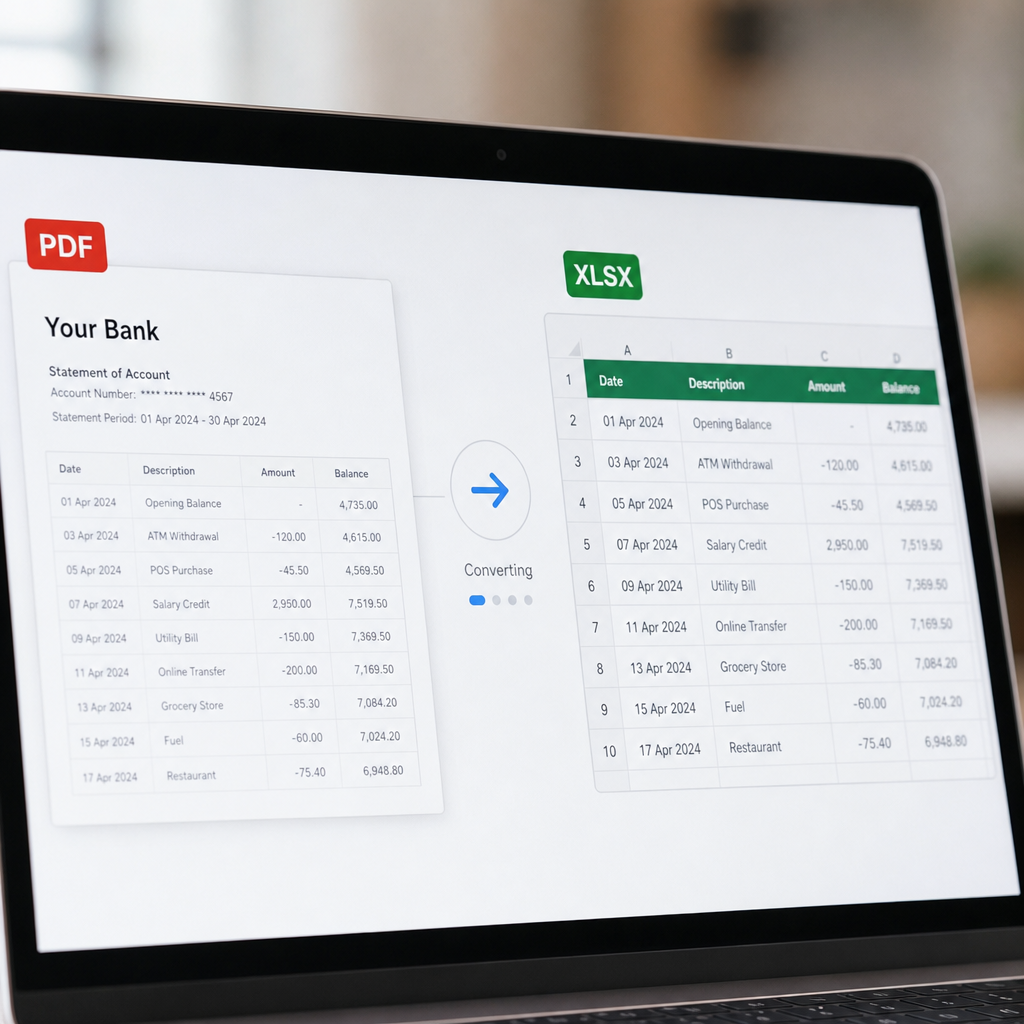
Step-by-Step: Converting a Bank Statement PDF to Excel with an AI Tool
Here's a general workflow for using a dedicated conversion platform like Bank Statement Boss:
- Upload your PDF statement(s). Most tools accept drag-and-drop uploads and support batch uploads for multiple files at once.
- Let the AI parse the document. The system identifies table structures, column headers, and transaction rows automatically, even across multiple pages.
- Review the extracted data. A preview screen typically shows the parsed transactions so you can confirm accuracy before export.
- Select your output format. Choose Excel (.xlsx), CSV, or a format pre-mapped for QuickBooks, Xero, or Sage.
- Download or sync. Export directly to your device or, for higher-tier plans, sync through an API connection to your accounting software.
This process typically takes a few minutes per statement, compared to 20-40 minutes for manual correction on a complex multi-page document. For firms processing hundreds of statements per month, that time difference compounds into real cost savings.
Security Considerations When Converting Financial Documents
Bank statements contain sensitive personal and financial information, so any conversion method — manual or automated — needs to account for data security. This is especially important for bookkeepers and accountants who are bound by confidentiality obligations to their clients.
When evaluating a conversion tool, consider:
- Encryption in transit and at rest. Files should be encrypted both while uploading and while stored on the provider's servers.
- Data retention policies. Understand how long your uploaded documents remain on a company's servers and whether they are automatically deleted after processing.
- Compliance certifications. Look for providers that follow recognized security frameworks such as SOC 2 or ISO 27001.
- Third-party audits. Independent security reviews add another layer of assurance, similar to services offered by firms like nexussecurityserviceses.com, which specialize in evaluating data handling practices for financial technology providers.
The National Institute of Standards and Technology (NIST) publishes widely referenced guidelines on data protection that many financial SaaS providers use as a baseline for their security architecture. Any tool you choose for converting sensitive bank data should be able to speak clearly to how it aligns with these kinds of standards.
Comparing Conversion Methods: Cost, Speed, and Accuracy
Choosing the right method depends on your volume of statements, your budget, and how much time you're willing to spend on manual review. Here's a side-by-side comparison:
| Method | Approx. Cost | Speed (per statement) | Accuracy | Scalability |
|---|---|---|---|---|
| Manual copy-paste | Free | 20-40 minutes | Low-Medium | Poor |
| Adobe Acrobat export | $19.99/month subscription | 10-15 minutes | Medium | Fair |
| Outsourced data entry service | $2-$10 per statement | 1-3 days turnaround | Medium-High | Fair |
| AI-powered converter (e.g., Bank Statement Boss) | Free-$99/month tiered | 1-3 minutes | High | Excellent |
Outsourcing might seem attractive for firms that want to avoid software altogether, but turnaround time becomes a real constraint during busy periods like tax season. An AI-based tool processes statements almost instantly and scales without needing to hire additional staff.
Common Formatting Mistakes to Avoid After Conversion
Even after successfully converting a PDF to Excel, formatting issues can cause problems when importing into accounting software. Watch out for:
- Date format mismatches — U.S. (MM/DD/YYYY) vs. international (DD/MM/YYYY) formats can cause transactions to import on the wrong day.
- Negative number formatting — some banks show debits in parentheses, others with a minus sign; accounting software often expects one specific convention.
- Duplicate header rows — multi-page statements sometimes repeat column headers on each page, which can get pulled into the data if not cleaned properly.
- Currency symbol inconsistencies — extra symbols or spacing can turn numeric fields into text fields, breaking formulas.
- Merged cells — leftover merged cells from PDF table structures can throw off sorting and filtering later.
A clean conversion tool should handle most of these automatically, but it's still good practice to spot-check a sample of transactions before importing into QuickBooks, Xero, or Sage.

Integrating Converted Data Into Your Accounting Workflow
Once your bank statement data is in spreadsheet form, the next step is getting it into your accounting system without introducing errors. Most modern platforms support CSV or Excel import, but each has specific column mapping requirements.
- QuickBooks typically requires a specific date, description, and amount column order, and supports bank rules for auto-categorization once imported.
- Xero allows CSV bank statement imports through its "Import a Statement" feature, but the file must match Xero's expected template structure.
- Sage often requires a manual mapping step where you match your spreadsheet's columns to Sage's internal fields.
Tools like Bank Statement Boss simplify this step by offering export formats pre-mapped to each platform's requirements, removing the need to manually adjust column order or headers every time. This is particularly valuable for bookkeeping firms juggling multiple clients who each use different accounting software.
For teams that manage client communications and document requests alongside conversion work, integrating with a client intake tool such as leadmailbox.com can help centralize the process of collecting bank statements from clients before they're even converted, keeping the entire workflow — from document collection to spreadsheet delivery — organized in one place.
Choosing the Right Approach for Your Business
Not every business has the same conversion needs. A solo freelancer converting a handful of statements per month has very different requirements than an accounting firm processing hundreds of documents weekly.
Consider these factors when deciding on a method:
- Volume — If you're converting more than 10 statements a month, manual methods become impractical.
- Bank variety — If you work with clients across multiple banks, format-agnostic AI tools save significant time versus template-based software.
- Accounting software — Confirm your conversion tool exports in a format compatible with your specific platform (QuickBooks, Xero, Sage, or others).
- Security requirements — Financial data handling should meet at least baseline encryption and retention standards, especially if you handle client data professionally.
- Budget — Weigh subscription costs against the time saved; even a $49/month plan often pays for itself if it saves several hours of manual entry weekly.
For most bookkeepers and small business owners, a hybrid approach works best: use an AI-powered tool for the bulk of conversions, and reserve manual review for edge cases or unusual statement formats that need a closer look.
Final Thoughts
Converting a bank statement PDF to Excel doesn't have to be a recurring headache. While manual copy-paste and basic software tools can work in a pinch, they don't scale well and often introduce errors that cost more time to fix than they save. For bookkeepers, accountants, and finance teams handling recurring statement conversions, a dedicated solution built specifically for this task offers a faster, more accurate, and more secure path forward.
Bank Statement Boss was built exactly for this problem — turning messy PDF statements into clean, accounting-ready spreadsheets in minutes, with formatting compatible with QuickBooks, Xero, and Sage, plus API access for teams that want to automate the process entirely. If you're tired of retyping transaction data or fighting with misaligned columns, it may be time to let bankstatementboss.com handle the heavy lifting so you can focus on the actual accounting work that matters.
Article written by FrontRank