

Manually sorting every deposit, withdrawal, and card swipe into the right accounting category is one of the most time-consuming parts of bookkeeping. For small business owners, freelance accountants, and finance teams juggling multiple clients, the task multiplies fast — a single business checking account can generate hundreds of transactions a month, each needing a label like "Office Supplies," "Travel," or "Payroll." Doing this by hand invites errors, burns hours, and delays financial reporting.
The good news: automated transaction categorization is no longer a luxury reserved for enterprise finance departments. With the right combination of software, rules, and AI-powered document conversion, you can turn a stack of PDF bank statements into categorized, accounting-ready data in minutes. This article walks through exactly how that process works, what tools make it possible, and how to build a system that keeps getting smarter over time.
Why Manual Categorization Doesn't Scale
Before diving into automation methods, it's worth understanding why manual categorization breaks down as your business — or your client list — grows.
- Time cost: Reviewing and tagging transactions line by line can take hours per statement, especially for accounts with high transaction volume.
- Inconsistency: Different team members may categorize similar expenses differently, creating messy reports that are hard to reconcile.
- Error-prone data entry: Manually retyping transaction details from a PDF statement into a spreadsheet or accounting platform introduces typos and misclassifications.
- Delayed insights: If categorization lags behind actual spending, business owners lose real-time visibility into cash flow and budget performance.
- Audit risk: Inconsistent or incomplete categorization can create headaches during tax season or a financial audit.
According to the U.S. Small Business Administration, proper bookkeeping practices — including accurate transaction categorization — are a foundational requirement for tax compliance and financial planning. As transaction volume grows, relying on manual review becomes a liability rather than a sustainable process.
What "Automatic" Categorization Actually Means
Automated categorization generally works through one or a combination of three approaches:
- Rules-based matching: The system applies "if-then" logic based on merchant name, keyword, or amount. For example, any transaction containing "Shell" or "Chevron" gets tagged as "Fuel Expense."
- Machine learning models: AI trained on large datasets of labeled transactions predicts the most likely category for new transactions, even ones it hasn't seen before, based on patterns in merchant names, amounts, and timing.
- Hybrid systems: Most modern accounting tools combine rules and machine learning — rules handle predictable, recurring transactions, while ML fills in the gaps for anything new or ambiguous.
The accuracy of automatic categorization depends heavily on the quality of the underlying data. This is where document conversion becomes critical. If your bank statement data is trapped in a PDF, no categorization engine — rules-based or AI-driven — can act on it until it's extracted into structured, machine-readable rows and columns.
Step 1: Convert Your Bank Statements Into Structured Data
Before any categorization logic can run, your transaction data needs to exist in a clean, structured format — typically a spreadsheet with separate columns for date, description, amount, and running balance. Most banks only offer PDF statements, which are notoriously difficult to parse because they're designed for human reading, not machine processing.
This is where a tool like Bank Statement Boss fits into the workflow. It uses AI-powered extraction to convert PDF bank and credit card statements into clean spreadsheets formatted for platforms like QuickBooks, Xero, and Sage. Instead of manually retyping transactions or wrestling with copy-paste formatting errors, you get a ready-to-use CSV or Excel file in a fraction of the time.
Here's what a typical conversion workflow looks like:
- Upload one or multiple PDF bank statements.
- The AI engine extracts transaction dates, descriptions, amounts, and balances.
- Data is validated and structured into rows and columns.
- The output is exported in a format compatible with your accounting software.
- Categorization rules or AI models are applied to the clean dataset.
Without step 1 done correctly, every downstream categorization effort is working with messy, incomplete, or misread data — which defeats the purpose of automation.
Step 2: Choose a Categorization Method That Fits Your Workflow
Once your transactions are in structured form, you need a system to actually assign categories. Below is a comparison of the most common approaches.
| Method | How It Works | Best For | Limitations |
|---|---|---|---|
| Manual tagging | Human reviews and labels each transaction | Very low transaction volume | Slow, inconsistent, doesn't scale |
| Rules-based (spreadsheet formulas) | IF/VLOOKUP formulas match keywords to categories | Predictable, repetitive vendors | Breaks when new merchants appear |
| Accounting software auto-categorization | Built-in AI in QuickBooks, Xero, etc. | Ongoing bookkeeping inside one platform | Requires clean imported data first |
| AI-powered extraction + categorization | PDF converted to data, then ML assigns categories | High-volume, multi-client bookkeeping | Requires a reliable conversion tool upfront |
Most accounting platforms, including QuickBooks and Xero, include some form of built-in categorization once transactions are imported through a bank feed or CSV upload. The catch is that these tools categorize based on historical patterns and user corrections — meaning the system gets smarter the more you use it, but it still depends on accurate initial data entry.
Step 3: Build and Refine Categorization Rules
Even with AI doing the heavy lifting, setting up a strong rule foundation improves accuracy and reduces the number of transactions that need manual review. Here's how to approach it:
- Start with your chart of accounts. Make sure your categories align with standard accounting classifications (e.g., Cost of Goods Sold, Utilities, Marketing, Payroll) rather than vague labels.
- Identify recurring vendors. Subscriptions, utility providers, and regular suppliers are the easiest to automate first since the pattern repeats monthly.
- Set amount-based thresholds. For example, flag any transaction over $1,000 for manual review regardless of the category assigned automatically.
- Review exceptions weekly. Automated systems will occasionally misclassify ambiguous transactions — a quick weekly review keeps your books accurate.
- Retrain or update rules quarterly. Vendor names change, new suppliers appear, and your business evolves — your rules should too.
The IRS recordkeeping guidelines emphasize that consistent, well-organized financial records are essential not just for filing taxes, but for substantiating deductions if you're ever audited. A reliable categorization system supports that consistency automatically.
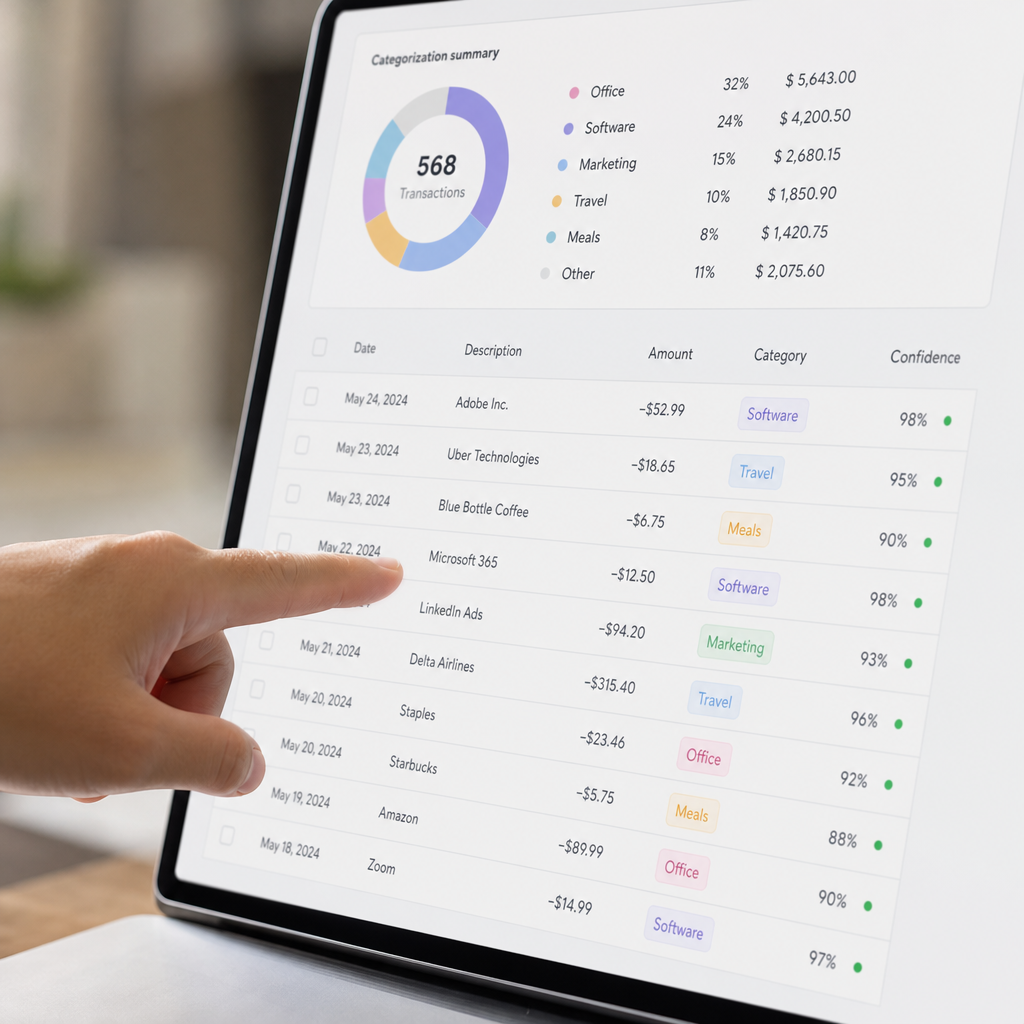
Comparing Categorization Accuracy Across Methods
To illustrate the practical difference automation makes, here's a simplified comparison of typical accuracy rates and time investment across different categorization approaches, based on common bookkeeping workflows.
| Approach | Avg. Time per 100 Transactions | Typical Accuracy | Scalability |
|---|---|---|---|
| Fully manual | 2–3 hours | Variable (depends on reviewer) | Low |
| Spreadsheet formulas/rules only | 30–45 minutes | 70–85% | Medium |
| Accounting software AI (post-import) | 10–15 minutes | 85–92% | High |
| AI extraction + ML categorization | 5–10 minutes | 90–95%+ | Very High |
These figures will vary based on transaction complexity and how clean your source data is, but the pattern holds across most small business bookkeeping environments: the earlier you introduce structured, accurate data into the pipeline, the higher your downstream categorization accuracy.
Integrating Automated Categorization With Your Accounting Platform
Once your bank statement data is converted and categorized, the next step is integration. Most small businesses rely on one of three major platforms, and each has its own way of handling automatic categorization rules.
QuickBooks uses "Bank Rules," which let you define conditions (like a merchant name or transaction type) and automatically assign a category, class, or customer. QuickBooks also applies machine learning suggestions based on your historical categorization choices.
Xero offers "Bank Rules" as well, with conditional logic based on contact, reference, or amount. Xero's reconciliation screen also suggests matches based on previous similar transactions.
Sage provides rule-based bank feeds and categorization suggestions, particularly useful for accountants managing multiple client ledgers who need consistent category mapping across businesses.
For freelance accountants and bookkeepers managing several clients, maintaining consistent categorization logic across different platforms can be challenging. This is where exporting clean, pre-formatted data becomes especially valuable — a tool like Bank Statement Boss that formats output specifically for QuickBooks, Xero, or Sage reduces the friction of reformatting data every time you switch between client files or platforms.
Common Challenges With Automated Categorization (And How to Solve Them)
Even a well-built automated system will run into edge cases. Here are the most frequent issues bookkeepers encounter, along with practical fixes:
- Ambiguous merchant names: A transaction labeled "SQ *JOHNSS COFFEE" might not clearly indicate the category. Solution: build a merchant alias list that maps common payment processor prefixes to recognizable vendor names.
- Split transactions: A single charge that should be divided across two categories (e.g., a Costco run covering both office supplies and employee snacks). Solution: flag large or multi-category vendors for manual splitting rather than full automation.
- Refunds and reversals: These can confuse rules-based systems that expect a debit/credit pattern. Solution: create separate rules specifically for refund-pattern transactions.
- New vendors: Any merchant your system hasn't seen before gets flagged as "Uncategorized." Solution: review uncategorized transactions weekly and add new rules as patterns emerge.
- Multi-currency or cross-border transactions: These often include extra fees or conversion charges that need separate categorization. Solution: set distinct rules for foreign transaction fees versus the underlying purchase.
Staying on top of these edge cases is far easier when your source data is already clean and structured, which again points back to the importance of reliable PDF-to-spreadsheet conversion as the foundation of the entire categorization pipeline.
Why Clean Source Data Is the Real Automation Unlock
It's tempting to think of categorization as purely an AI or software problem, but in practice, the biggest bottleneck is usually data quality at the input stage. If a bank statement PDF is poorly formatted, scanned at an angle, or includes merged columns, even the best categorization engine will struggle to interpret it correctly.
This is why professional bookkeepers increasingly treat document conversion as a distinct, critical step — separate from categorization itself. Getting clean, structured, properly delimited transaction data out of a PDF statement sets up everything downstream, from categorization accuracy to reconciliation speed to reporting reliability.
Teams that specialize in financial workflow optimization, such as frontrank.com, often emphasize that automation tools are only as good as the data pipeline feeding them. Similarly, firms focused on lead and document management efficiency, like leadmailbox.com, highlight how structured data capture at the source reduces downstream manual work across an entire operation — a principle that applies directly to bank statement processing and categorization.

Building a Repeatable Monthly Workflow
To make automatic categorization sustainable long-term, it helps to formalize a monthly routine rather than treating it as an ad hoc task. Consider this structure:
- Collect statements: Gather PDF bank and credit card statements from all relevant accounts.
- Convert to structured data: Use an AI-powered converter to extract transactions into a clean spreadsheet format.
- Import into accounting software: Upload the formatted file into QuickBooks, Xero, or Sage.
- Apply categorization rules: Let existing bank rules and AI suggestions auto-tag the majority of transactions.
- Review exceptions: Spend 10–15 minutes reviewing flagged or uncategorized transactions.
- Update rules: Add new rules for recurring vendors that weren't previously recognized.
- Reconcile and report: Confirm balances match and generate your monthly financial reports.
This workflow typically takes a fraction of the time required for fully manual bookkeeping, while maintaining — or improving — accuracy. For bookkeepers managing multiple clients, standardizing this process across all accounts creates consistency that pays off significantly at tax time.
Security Considerations When Automating Financial Data
Automating transaction categorization means financial data flows through more systems — PDF converters, accounting software, and sometimes third-party integrations. It's essential to verify that any tool handling sensitive bank data follows strong security practices.
When evaluating a conversion or categorization tool, check for:
- Encryption in transit and at rest for uploaded documents and extracted data.
- Clear data retention policies — does the provider delete your files after processing?
- Compliance certifications relevant to financial data handling.
- API access controls, especially important for firms integrating conversion tools into larger automated pipelines.
Bank Statement Boss, for example, emphasizes secure data handling throughout its conversion process, along with API access for higher-tier plans — a feature particularly useful for accounting firms or finance teams that want to embed PDF-to-spreadsheet conversion directly into their existing automated workflows rather than handling files manually each month.
Final Thoughts
Automatic transaction categorization isn't a single feature you switch on — it's a pipeline. It starts with getting clean, structured data out of PDF bank statements, continues through rules and machine learning that assign categories intelligently, and ends with a quick human review to catch the inevitable edge cases. Skipping the first step — reliable data extraction — undermines everything that follows, no matter how sophisticated your accounting software's AI claims to be.
For small business owners, freelance accountants, and bookkeeping teams looking to cut hours out of their monthly close process, the fastest path forward is pairing a dependable PDF conversion tool with the categorization features already built into platforms like QuickBooks, Xero, and Sage. Bank Statement Boss was built specifically to solve the data extraction bottleneck, turning messy PDF statements into clean, accounting-ready spreadsheets so that automatic categorization actually works the way it's supposed to — accurately, quickly, and without the manual cleanup that so often derails automation efforts. If you're ready to stop retyping transactions by hand, bankstatementboss.com offers a straightforward way to get your bank data structured, categorized, and reconciled in a fraction of the usual time.
Article written by FrontRank