

Freelance bookkeepers and small accounting teams rarely deal with one bank statement at a time. A typical month might bring in a dozen PDFs from three different banks, each formatted differently, covering multiple clients or multiple accounts for the same client. Manually keying in every line item is slow, error-prone, and frankly a poor use of a skilled bookkeeper's time. This article walks through why this problem is so common, what approaches actually work, and how to extract transactions from multiple PDF statements efficiently without sacrificing accuracy.
Why Extracting Data From Multiple PDF Statements Is Harder Than It Looks
A single bank statement PDF is manageable. The real challenge appears when you're processing statements in bulk — multiple months, multiple accounts, or multiple clients at once. Each bank formats its statements differently: column order varies, date formats differ, and some banks split transactions across pages in ways that confuse basic text extraction tools.
Common pain points include:
- Inconsistent layouts across banks and even across statement periods from the same bank after a redesign
- Scanned or image-based PDFs that don't contain selectable text at all
- Merged or split transaction descriptions that break when copied into spreadsheets
- Multi-currency or multi-account statements that require separate handling
- Volume — processing 50 statements by hand simply doesn't scale for a growing bookkeeping practice
According to the U.S. Small Business Administration, accurate recordkeeping is one of the most frequently cited administrative burdens for small business owners, and manual data entry from financial documents is a major contributor to that burden.
Manual Entry vs. Semi-Automated vs. Fully Automated Extraction
Before choosing a method, it helps to understand the tradeoffs between the three general approaches bookkeepers use today.
| Method | Speed | Accuracy | Scalability | Best For |
|---|---|---|---|---|
| Manual entry (typing from PDF) | Very slow | Low to medium, human error risk | Poor | Single statements, rare one-off jobs |
| Copy-paste into Excel | Slow | Medium, formatting often breaks | Poor to fair | Simple, text-based PDFs |
| AI-powered extraction tools | Fast | High | Excellent | Recurring monthly work, multiple clients |
Manual entry might feel "free" since it only costs time, but time is the scarcest resource in a bookkeeping practice. A 2023 industry survey referenced by the American Institute of CPAs found that data entry and document prep consistently rank among the top time drains reported by small accounting firms, well ahead of actual analysis or advisory work.
Copy-pasting from PDF to Excel seems like a reasonable middle ground, but anyone who has tried it knows the pitfalls: numbers get merged into one cell, dates shift formats, and multi-column statements turn into a jumbled mess that needs manual cleanup anyway — often taking as long as typing the data from scratch.
Fully automated, AI-powered extraction tools like Bank Statement Boss solve this by reading the PDF structure directly, identifying transaction rows regardless of bank formatting, and exporting clean, structured data ready for your accounting software.
A Practical Workflow for Processing Multiple Statements at Once
When you're handling statements from several clients or several accounts in the same sitting, having a repeatable process matters more than any single tool. Here's a workflow that works well for most bookkeeping practices:
- Collect and organize source files. Create a folder structure by client, then by month or statement period. Consistent naming conventions (e.g.,
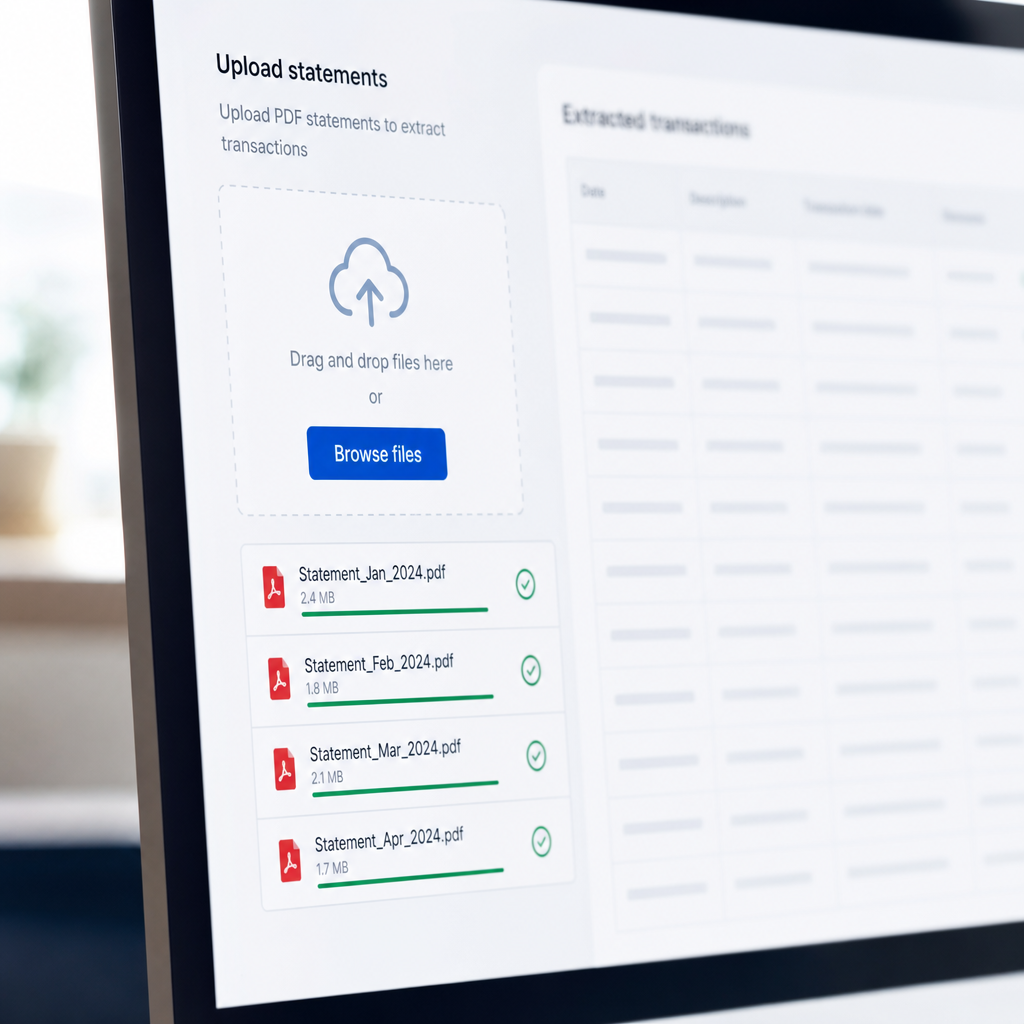
ClientName_Bank_MM-YYYY.pdf) prevent mix-ups later. - Batch upload to an extraction tool. Rather than processing one PDF at a time, use a platform that accepts multiple files in a single batch job.
- Review auto-categorized transactions. Even the best AI extraction benefits from a quick human review pass, especially for unusual transaction descriptions.
- Export in the correct format. Match the export format to your destination software — QuickBooks, Xero, and Sage each have slightly different expectations for CSV structure.
- Reconcile against statement totals. Always check that extracted totals match the opening and closing balances on the original statement before filing.
- Archive the source PDFs. Keep the original documents for audit trails, even after the data has been converted.
Following a consistent workflow like this reduces the chance of skipped transactions or duplicate entries, which are the two most common errors bookkeepers report when handling high volumes of statements.
Choosing the Right File Format for Your Accounting Software
Not all export formats work equally well with every accounting platform. Understanding the nuances can save you from reformatting data twice.
| Accounting Platform | Preferred Import Format | Common Gotchas |
|---|---|---|
| QuickBooks Online | CSV or QBO | Date format must match region settings; duplicate detection can misfire on similar transactions |
| Xero | CSV | Column headers must match Xero's expected bank statement template exactly |
| Sage | CSV | Requires specific column order; negative values must be formatted consistently |
Tools built specifically for accounting workflows, such as Bank Statement Boss, pre-format exports to match these platform requirements, which eliminates a significant chunk of post-processing work. This is especially valuable when you're converting statements for multiple clients who each use a different accounting platform — you don't want to manually reformat columns five different ways in a single afternoon.
For reference on how these platforms expect data to be structured, QuickBooks publishes its own bank feed and import guidelines, and Xero maintains documentation on importing bank statements that's worth bookmarking if you support multiple platforms.
Handling Edge Cases: Scanned PDFs, Foreign Currencies, and Multi-Page Statements
Not every statement is a clean, text-based PDF. Bookkeepers who work with older clients, international businesses, or smaller regional banks regularly encounter:
- Scanned statements that are essentially images, requiring optical character recognition (OCR) rather than simple text parsing
- Multi-currency accounts where transaction amounts need currency tagging before they can be reconciled properly
- Statements spanning 20+ pages where transactions wrap across page breaks, risking split or duplicated rows
- Statements with inconsistent decimal and thousands separators (common with European or Latin American banks)
A capable extraction tool needs to handle OCR accurately, recognize currency symbols, and correctly stitch together transactions that span page breaks. This is precisely where generic "PDF to Excel" converters tend to fail — they're built for general documents, not the specific structure of financial statements. Purpose-built platforms trained specifically on bank and credit card statement layouts, like Bank Statement Boss, tend to perform significantly better on these edge cases because the underlying models have seen thousands of real-world statement formats.
If you occasionally need to double-check OCR output or want a second tool for general document digitization tasks, utilities like alcogoal.app can be a useful complement for lighter, ad hoc conversion needs outside of core bank statement work.
Security and Compliance Considerations When Processing Client Financial Data
Bookkeepers and accountants handle some of the most sensitive data a small business has — account numbers, transaction histories, and balances. When choosing any tool to extract transactions from multiple PDF statements, security should weigh as heavily as speed or accuracy.
Key questions to ask before adopting a conversion tool:
- Is data encrypted both in transit and at rest?
- Does the provider have a clear data retention and deletion policy?
- Is the service compliant with relevant standards, such as SOC 2 or equivalent frameworks?
- Can you control who on your team has access to uploaded files?
- Does the vendor sell or share data with third parties?
The Federal Trade Commission provides general guidance on safeguarding consumer financial information that's a useful baseline when evaluating any SaaS tool touching client bank data. Reputable platforms will publish their security practices clearly rather than burying them in fine print. Bank Statement Boss, for example, emphasizes secure handling throughout the upload, processing, and export stages, which matters enormously when you're responsible for dozens of clients' financial records rather than just your own.
Calculating the Real Cost of Manual Data Entry
It's worth putting a number on what manual extraction actually costs a bookkeeping practice. Consider a firm processing statements for 15 clients, each with an average of 2 accounts and 12 statements per year — that's 360 statements annually.
| Task | Manual Entry (avg.) | AI-Powered Extraction (avg.) |
|---|---|---|
| Time per statement | 15–25 minutes | 1–3 minutes (including review) |
| Total annual hours (360 statements) | ~120 hours | ~12 hours |
| Error correction / rework time | Additional 10–15% of total hours | Minimal, mostly spot-checks |
| Approx. cost at $35/hr billing rate | $4,200+ | $420 |
Even accounting for subscription costs on an extraction platform, the time savings alone typically justify the switch for any practice handling more than a handful of statements per month. The hours freed up can be redirected toward advisory services, client communication, or simply taking on more clients without adding headcount.
Frequently Asked Questions
Can I extract transactions from PDF statements that are password protected? Most modern extraction tools support password-protected PDFs as long as you provide the correct password during upload. The file is typically decrypted temporarily during processing and not stored in its protected state.
What happens if a bank changes its statement layout mid-year? This is a common scenario, and it's one reason rule-based or template-dependent converters struggle long-term. AI-powered tools that recognize transaction patterns rather than relying on fixed templates adapt more gracefully to layout changes.
Is it possible to batch process statements from different banks in one upload? Yes, with the right tool. Platforms designed for bookkeeping workflows, including Bank Statement Boss, allow you to upload statements from multiple institutions in a single batch and still receive correctly formatted, separated output per account or client.
How accurate is AI extraction compared to manual entry? When working with clean, text-based PDFs, well-trained AI extraction tools routinely match or exceed human accuracy, particularly because they don't suffer from fatigue-related errors that creep in during long manual data entry sessions. Scanned or low-quality PDFs still benefit from a quick manual review pass.
Do I still need to reconcile accounts after extraction? Yes. Extraction automates data entry, not judgment. Always reconcile extracted totals against statement opening/closing balances before finalizing books, regardless of which method you used to pull the data.

Building a Scalable Process for Growing Client Loads
As a bookkeeping practice grows, the volume of statements needing processing grows right alongside it. What worked for five clients often breaks down at twenty. A few principles help practices scale without proportionally increasing headcount:
- Standardize your intake process. Require clients to submit statements in a consistent format and naming structure whenever possible.
- Batch your processing days. Rather than converting statements as they trickle in, set aside dedicated blocks of time to process multiple clients' documents together, taking advantage of batch upload features.
- Use API access for high-volume needs. Firms processing very high statement volumes can benefit from API-level integration, connecting extraction directly into existing practice management or accounting workflows rather than manually uploading files one client at a time. Bank Statement Boss offers API access on higher-tier plans specifically for this kind of integration.
- Train junior staff on the review step, not the data entry step. This shifts lower-level staff time toward judgment-based review rather than repetitive typing, which is both more efficient and better for staff retention.
- Audit your tool's output periodically. Spot-check a sample of converted statements each month against source documents to catch any drift in accuracy early.
Practices that adopt this kind of structured, tool-assisted approach typically find they can absorb new clients without a proportional increase in processing time, which directly improves margins.
Final Thoughts
Extracting transactions from multiple PDF statements doesn't have to be the bottleneck it once was. Whether you're a solo freelance bookkeeper juggling a handful of clients or part of a growing finance team processing hundreds of statements a month, the combination of a clear workflow, the right export formatting, and a purpose-built extraction tool makes an enormous difference in both speed and accuracy. Bank Statement Boss was built specifically to solve this problem — converting messy, inconsistent PDF statements into clean, structured spreadsheets formatted for QuickBooks, Xero, and Sage, with the security and API options that growing practices need. If manual data entry is still eating into your billable hours, it's worth seeing how much time a dedicated extraction workflow through bankstatementboss.com could give back to your practice.
Article written by FrontRank