

Every bookkeeper, freelance accountant, and small business owner eventually hits the same wall: a client or vendor sends over a stack of PDF bank statements, and none of that data lives in a format your accounting software can actually use. You need to extract data from bank statement PDF files quickly, accurately, and without losing an afternoon to copy-paste errors. The question isn't whether you'll face this task — it's which method you'll use to solve it.
This article breaks down the three realistic approaches available in 2026: manual data entry, semi-automated Excel/PDF tricks, and purpose-built AI extraction software. We'll compare accuracy, speed, cost, and compatibility with platforms like QuickBooks, Xero, and Sage, so you can pick the right method for your workload.
Why Bank Statement PDFs Are So Hard to Work With
PDFs were designed for consistent visual presentation, not for structured data extraction. Banks generate statements as static, print-style documents, which means the underlying file has no real concept of "rows" or "columns" — it just has text positioned at specific coordinates on a page. That's a huge problem when you're trying to pull out transaction dates, descriptions, and amounts in a way a spreadsheet or accounting platform can understand.
A few specific challenges make this worse:
- Inconsistent layouts across banks. Chase, Bank of America, Wells Fargo, and regional credit unions all format statements differently, so a solution built for one often fails on another.
- Multi-page statements. Transactions split across pages can cause tools to merge or drop rows if they aren't built to detect page breaks correctly.
- Scanned or image-based PDFs. Older statements or faxed documents may not contain selectable text at all, requiring OCR (optical character recognition) rather than simple text parsing.
- Merged columns. Some statements crowd the description, debit, and credit columns together, making automated column separation error-prone.
- Security features. Password-protected or encrypted statements add another layer that must be handled before any extraction can even begin.
Understanding these obstacles helps explain why some methods that look simple ("just copy and paste!") break down so quickly once you're handling real-world statements from multiple institutions.
Method 1: Manual Data Entry
The most straightforward approach — and still surprisingly common — is opening the PDF, reading each transaction, and typing it into a spreadsheet by hand. For a single-page statement with 15 transactions, this is tedious but doable. For a small business with 12 months of statements across multiple accounts, it becomes a serious time sink.
Pros:
- No software cost or learning curve.
- Complete control over formatting as you go.
- Works even with heavily scanned or low-quality documents.
Cons:
- Extremely time-consuming — often 20-40 minutes per statement.
- High risk of transposition errors (swapping digits, misreading decimals).
- Doesn't scale for bookkeepers managing multiple clients.
- No audit trail proving the data matches the source document.
Manual entry might be acceptable if you're dealing with one or two statements a year. But for recurring monthly reconciliation work, the math quickly stops making sense — a bookkeeper billing at even a modest hourly rate loses significant margin re-typing numbers that already exist digitally somewhere in the PDF.
Method 2: DIY Extraction With Excel, Adobe, and Copy-Paste Tricks
The middle-ground approach involves a combination of free or low-cost tools: copying tables out of Adobe Acrobat, using Excel's "Get Data from PDF" feature, or running a generic OCR tool before cleaning up the results manually. This is a popular option among freelancers who want to avoid recurring software subscriptions.
Here's a rough breakdown of the typical DIY workflow:
- Open the PDF in Adobe Acrobat or a free reader with export functionality.
- Export the file as a CSV, XLSX, or plain text file.
- Import the export into Excel or Google Sheets.
- Manually fix misaligned columns, merged cells, and broken date formats.
- Reformat headers and fields to match your accounting software's import template.
Microsoft's own documentation on Power Query in Excel shows how flexible this can be for structured data — but bank statement PDFs are rarely structured cleanly enough for Power Query to handle without manual pre-cleaning. The same is true for Adobe's PDF export tools, which perform reasonably well on simple tables but tend to struggle with multi-column statement layouts.
Pros:
- Lower cost than dedicated software (especially if you already own Excel and Acrobat).
- More scalable than pure manual entry.
- Flexibility to customize formatting rules yourself.
Cons:
- Still requires significant manual cleanup, especially with multi-bank data.
- Formulas and templates often break when a bank changes its statement layout.
- No built-in categorization or accounting-software-ready formatting.
- Time savings are inconsistent — a "quick" export can turn into an hour of troubleshooting.
This method works reasonably well for a bookkeeper handling a single client with a consistent bank and statement format. It falls apart quickly when you're juggling multiple clients, multiple banks, and multiple statement styles every month.
Method 3: AI-Powered Extraction Software
The most efficient option for ongoing, professional use is AI-powered extraction software purpose-built to read bank and credit card statements. Tools like Bank Statement Boss use machine learning models trained specifically on financial documents, allowing them to recognize transaction rows, dates, descriptions, and amounts regardless of which bank issued the statement.
Instead of relying on fixed templates, AI extraction tools can adapt to new formats, detect debit/credit columns even when they're visually similar, and output directly into spreadsheet formats pre-mapped for QuickBooks, Xero, or Sage.
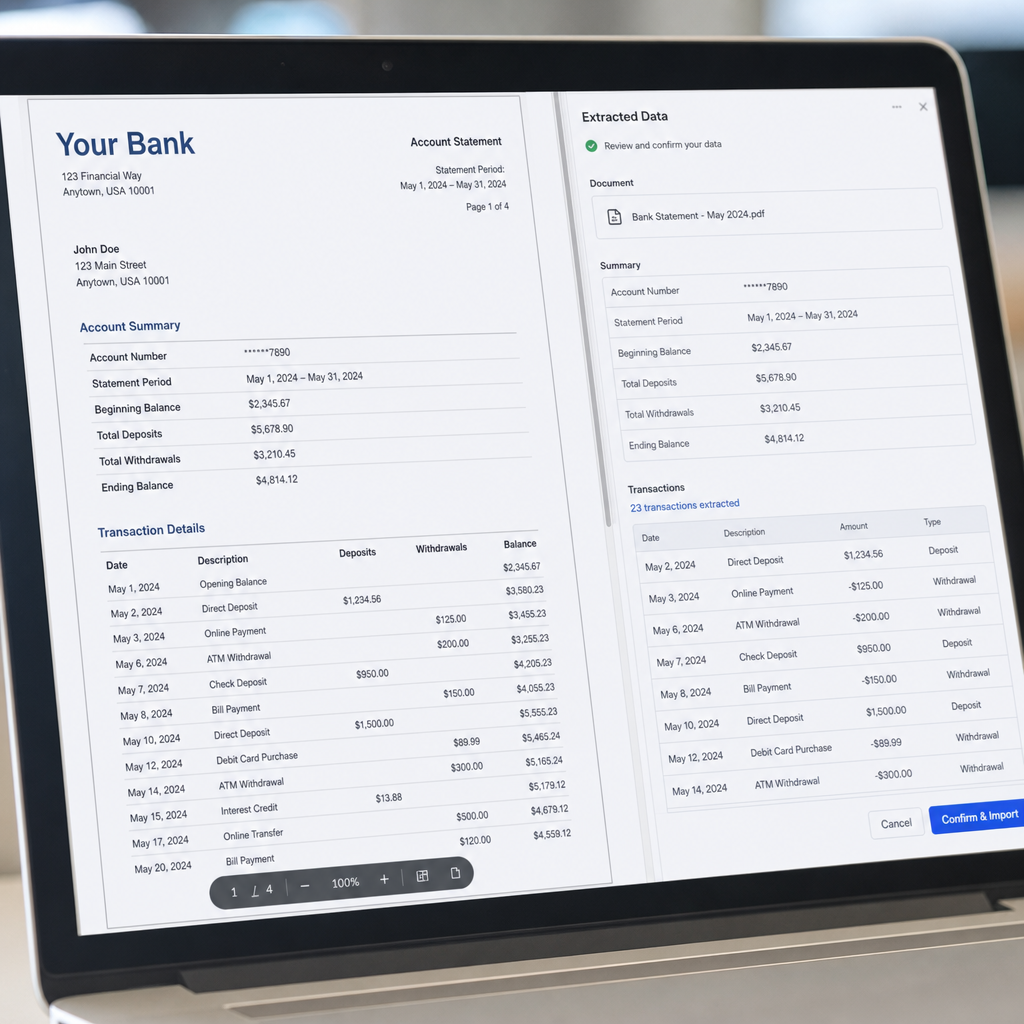
Typical AI extraction workflow:
- Upload one or multiple PDF statements (including password-protected files).
- The AI engine identifies transaction tables and extracts each line item.
- Data is cleaned, validated, and structured into rows and columns.
- Output is generated as CSV, XLSX, or a direct accounting-software-compatible file.
- Higher-tier plans allow API access for automated, recurring imports.
Pros:
- Extraction typically takes seconds to minutes, even for lengthy statements.
- Formatting is pre-mapped for accounting platforms, reducing import errors.
- Higher accuracy on complex, multi-column, or multi-bank layouts.
- Scales easily across dozens or hundreds of statements per month.
- Secure handling designed with financial data privacy in mind.
Cons:
- Subscription cost, though often offset by time savings.
- Some tools still require a quick manual review for edge cases (unusual formats, heavily scanned documents).
For firms handling recurring monthly reconciliations, the time saved compounds quickly. According to guidance from the American Institute of CPAs, efficient, accurate financial data handling is a growing priority as firms adopt more automation in day-to-day bookkeeping — a trend AI-based statement extraction fits neatly into.
Comparing the Three Methods Side-by-Side
| Factor | Manual Entry | DIY Excel/Adobe | AI Software (e.g., Bank Statement Boss) |
|---|---|---|---|
| Time per statement | 20-40 minutes | 10-25 minutes | Under 2 minutes |
| Accuracy | Prone to human error | Moderate, needs manual checks | High, with validation built in |
| Handles multiple bank formats | Yes, but slow | Inconsistent | Yes, by design |
| Accounting software compatibility | Manual formatting required | Manual formatting required | Pre-mapped templates |
| Scalability for multiple clients | Poor | Limited | Strong |
| Upfront cost | None | Low-moderate | Subscription-based |
| Best for | Rare, one-off statements | Occasional, single-bank use | Recurring, multi-client workloads |
What to Look for in a Bank Statement Extraction Tool
Not all extraction software is created equal, and the differences matter once you're relying on the output for actual bookkeeping or tax preparation. When evaluating a tool, consider these criteria:
- Accuracy across multiple banks. Ask whether the tool has been tested against major institutions and regional banks, not just a handful of common formats.
- Output compatibility. Confirm the software produces files ready for QuickBooks, Xero, or Sage without additional reformatting.
- Security and compliance. Since bank statements contain sensitive financial data, look for encryption in transit and at rest, plus a clear data retention policy. The Federal Trade Commission's guidance on data security is a useful benchmark for what responsible handling should look like.
- Batch processing. If you're managing multiple clients, the ability to upload and process several statements at once saves significant time.
- API access. Growing firms often want to integrate extraction directly into their existing workflow rather than uploading files manually every time.
- Support for scanned documents. Confirm whether OCR is included for older or image-based statements, not just digitally generated PDFs.

Feature Comparison: Free Tools vs. Paid AI Platforms
| Feature | Free/Generic Tools | Paid AI Extraction Platforms |
|---|---|---|
| Multi-bank format recognition | Limited | Extensive |
| Accounting software templates | Rarely included | Standard offering |
| Batch/bulk processing | Usually unavailable | Commonly available |
| OCR for scanned PDFs | Basic or absent | Advanced |
| Customer support | Minimal | Dedicated support |
| API access | Not available | Available on higher tiers |
| Data security guarantees | Often unclear | Explicit policies |
Free tools can be a reasonable stopgap for occasional, low-volume needs, but the lack of accounting-specific formatting and batch capability tends to reintroduce the very manual work you were trying to avoid.
Practical Tips for Cleaner Extraction Results
Regardless of which method you choose, a few habits will improve your results:
- Standardize file naming before uploading batches, so you can track which output corresponds to which client or account.
- Remove password protection ahead of time if your tool doesn't support encrypted files directly, or confirm the tool can handle it securely.
- Spot-check totals against the statement's summary page after extraction, catching any dropped or duplicated rows early.
- Keep a consistent chart of accounts so categorization stays uniform once data is imported into QuickBooks, Xero, or Sage.
- Archive the original PDFs alongside your converted files for audit purposes — extraction tools speed up data entry, but original source documents remain the reference of record.
Bookkeepers managing multiple clients often find it helpful to build a simple intake checklist covering these steps, ensuring consistency regardless of which staff member handles a given statement batch.
Where Automation Fits Into a Modern Bookkeeping Workflow
The shift toward automation in bookkeeping isn't just about saving time on any single task — it's about freeing up capacity for higher-value work like financial analysis, advisory services, and client communication. Tools that extract data from bank statement PDF files are one piece of a broader movement toward automated financial workflows, alongside automated invoicing, receipt scanning, and reconciliation software.
Firms looking to streamline client acquisition and communication alongside their back-office processes often turn to complementary services. For instance, agencies handling outreach and lead generation sometimes rely on platforms like leadmailbox.com to manage communication pipelines, while technical SEO and content visibility work is often handled by specialists such as frontrank.com. Just as those tools remove friction from marketing and outreach, AI statement extraction removes friction from the data entry side of bookkeeping.
For firms scaling their client base, this combination of automation — in marketing, communication, and data processing — tends to produce compounding efficiency gains rather than isolated time savings in just one department.
Frequently Overlooked Considerations
A few additional factors are worth keeping in mind as you choose an extraction method:
- Multi-currency statements. If you work with international clients, confirm your chosen tool correctly identifies currency symbols and doesn't misinterpret decimal separators.
- Credit card vs. bank statement formatting. Credit card statements often include additional fields like minimum payments and interest charges, which some extraction tools may not map correctly into standard bank statement templates.
- Historical statement volume. If you're onboarding a new client with years of back statements to digitize, batch processing capability becomes essential rather than a nice-to-have.
- Version control. When statements are corrected or reissued by a bank, make sure your workflow accounts for replacing outdated extracted data rather than duplicating it.
Addressing these edge cases upfront prevents small formatting issues from snowballing into reconciliation headaches later in the accounting cycle.
Final Thoughts
Choosing how to extract data from bank statement PDF files ultimately comes down to volume and consistency. Manual entry might suffice for a single annual statement, and DIY Excel tricks can handle occasional, single-bank use cases. But for bookkeepers, freelance accountants, and finance teams managing recurring, multi-client workloads, AI-powered extraction is the only method that scales without sacrificing accuracy or time.
Bank Statement Boss was built specifically for this use case — converting PDF bank and credit card statements into clean, structured spreadsheets formatted for QuickBooks, Xero, and Sage, with secure data handling and API access for teams that need automation at scale. If your team is still manually retyping transaction data every month, it's worth testing how much time a purpose-built tool like Bank Statement Boss can give back to your practice.
Article written by FrontRank