

Scanned bank statements are a special kind of headache. Unlike digital PDFs exported directly from an online banking portal, scanned statements are essentially images — photographs or scans of paper documents that contain no selectable text at all. When a bookkeeper or small business owner needs to convert scanned bank statement to Excel format for reconciliation, tax prep, or loan applications, the usual copy-paste tricks simply don't work. You're left choosing between retyping everything by hand, wrestling with free OCR tools that mangle columns, or using a purpose-built conversion platform designed specifically for financial documents.
This article breaks down each option in detail, compares their accuracy and time costs, and explains what to look for in a tool so your converted spreadsheet is actually usable in QuickBooks, Xero, or Sage — not just a wall of misaligned numbers.
Why Scanned Bank Statements Are Harder to Convert Than Digital PDFs
A digital PDF generated by a bank's export function contains embedded text layers. Even without special software, you can often select and copy text directly. Scanned statements are different: they're raster images, meaning every character is just a pattern of pixels. There's no underlying text to extract until you run the document through Optical Character Recognition (OCR).
This distinction matters because:
- Image quality varies wildly. A statement scanned on an old office scanner or photographed with a phone camera may have skewed angles, shadows, or low resolution, all of which degrade OCR accuracy.
- Table structures are visual, not structured data. OCR engines have to infer where columns begin and end, which is especially tricky with dense transaction tables that include dates, descriptions, debits, credits, and running balances in tight rows.
- Fonts and formatting differ by bank. Older statements, especially from smaller community banks or credit unions, may use dot-matrix fonts or faded ink that confuses generic recognition engines.
According to the National Institute of Standards and Technology, OCR accuracy can drop significantly when source documents have noise, skew, or low contrast — all common issues with scanned financial paperwork. That's why a tool optimized specifically for financial statement layouts tends to outperform general-purpose OCR software by a wide margin.
Option 1: Manual Data Entry
The most straightforward approach — and still common among smaller firms — is manually retyping every transaction into Excel. It requires no software investment and gives you full control over formatting.
Pros:
- No subscription or software cost.
- Complete control over column structure and labeling.
- No risk of OCR misreads being overlooked.
Cons:
- Extremely time-consuming — a 20-page statement can take hours.
- High risk of human transcription errors, especially with similar-looking numbers (3 vs 8, 0 vs O).
- Doesn't scale for bookkeepers managing multiple clients or finance teams processing dozens of statements monthly.
For a single, short statement, manual entry might be tolerable. But for freelance accountants managing several clients, or finance teams closing books monthly, the math quickly stops working in favor of manual labor.
Option 2: Generic OCR and Free Online Converters
Free tools like basic PDF-to-Excel converters or general OCR software (including some built into Google Drive or Adobe Acrobat) can technically process scanned documents. The Adobe Acrobat documentation notes that OCR features are designed primarily for general document digitization — not necessarily for preserving complex, multi-column financial tables.
These tools often struggle with:
- Misaligning debit and credit columns into a single jumbled field
- Dropping decimal points or misreading currency symbols
- Failing to separate transaction descriptions from amounts
- Producing inconsistent date formats that break spreadsheet sorting
That said, generic OCR isn't useless. For very clean, high-resolution scans with simple layouts, it can save time compared to full manual entry. The key risk is that errors are often subtle — a transposed digit or a missed negative sign — and may not be caught until a reconciliation discrepancy appears weeks later.
Option 3: A Dedicated Bank Statement Converter
Purpose-built platforms like Bank Statement Boss are designed around one specific problem: accurately extracting transaction data from bank and credit card statements, including scanned ones, and formatting it for accounting use. Rather than relying on generic text recognition, these tools use AI models trained specifically on statement layouts from hundreds of banks, which means they better understand where a transaction date ends and a description begins, or how a running balance column should be distinguished from a transaction amount.
Key advantages include:
- Bank-aware parsing that recognizes common statement templates and column structures
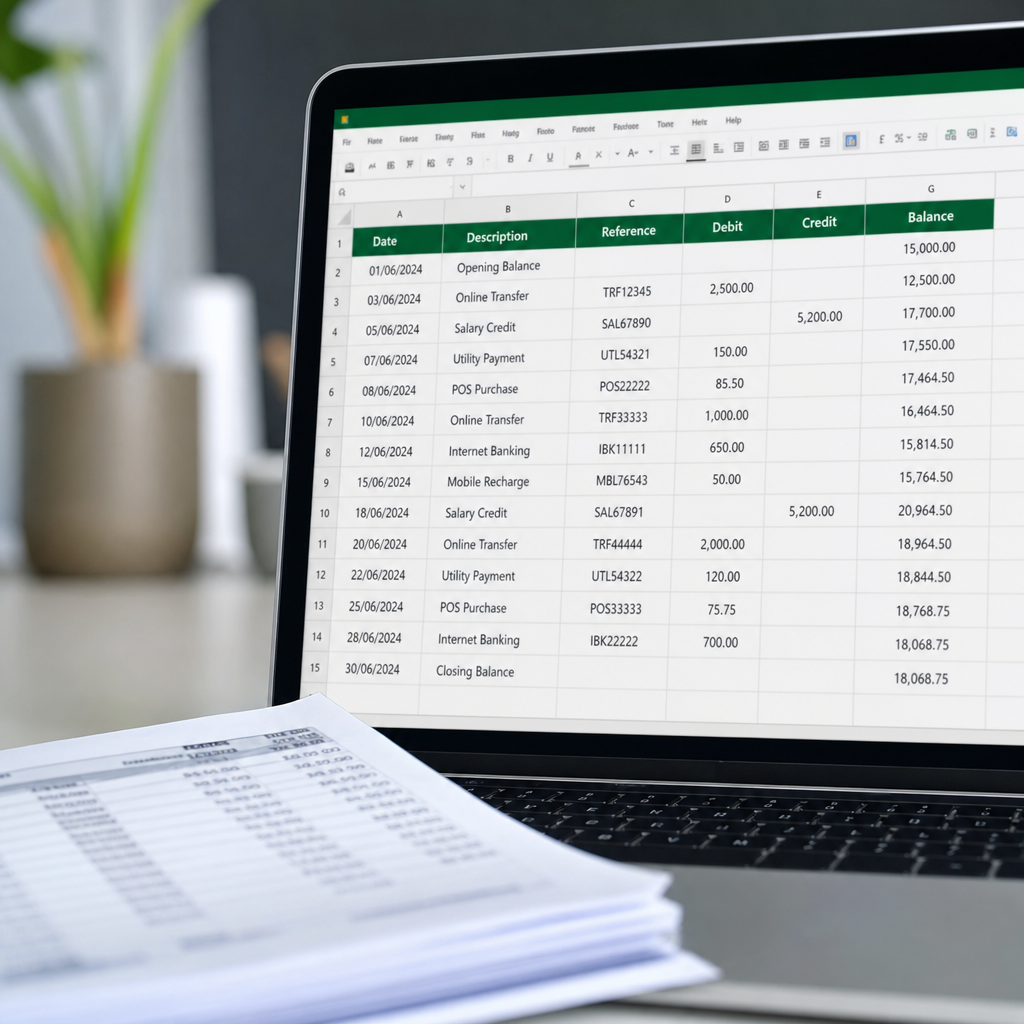
- Clean Excel/CSV output with properly separated date, description, debit, credit, and balance fields
- Accounting software compatibility, including formatting presets for QuickBooks, Xero, and Sage
- Secure handling of sensitive financial data, often with encryption and automatic file deletion policies
- API access for firms that need to automate conversion at scale rather than uploading files one at a time
Because the underlying technology is trained on financial documents specifically, these platforms generally produce far more reliable results on scanned, lower-quality, or older statements than general-purpose OCR tools.
Comparing the Three Approaches
| Factor | Manual Entry | Generic OCR Tools | Dedicated Converter (e.g., Bank Statement Boss) |
|---|---|---|---|
| Time per statement (20 pages) | 2–4 hours | 30–60 minutes (plus cleanup) | 2–5 minutes |
| Accuracy on scanned documents | High (if careful) | Moderate to low | High |
| Column structure preserved | Manual control | Often inconsistent | Yes, by design |
| Accounting software compatibility | Manual formatting required | Manual formatting required | Built-in presets |
| Scalability for multiple clients | Poor | Limited | Strong, especially with API |
| Cost | Free (time cost only) | Free to low-cost | Subscription-based |
| Security for sensitive data | Depends on handling | Varies, often unclear | Typically encrypted, policy-driven |
This comparison highlights the core trade-off: free or manual methods cost time and carry accuracy risk, while a dedicated tool costs money but reclaims hours and reduces costly reconciliation errors.
What to Look for in a Scanned Statement Converter
Not all conversion tools are created equal, and for financial documents, the stakes of a bad conversion are higher than for a typical scanned receipt or form. Here's what finance professionals should evaluate before choosing a platform.
1. Accuracy on Low-Quality Scans
Ask whether the tool has been tested on actual scanned (not digitally exported) documents. Many converters advertise "PDF to Excel" conversion but perform poorly once a real scan with skew or noise is introduced.
2. Column and Field Separation
A good converter should output clearly separated columns: date, description, debit, credit, and balance — not a single block of merged text that still requires manual cleanup.
3. Compatibility With Accounting Platforms
If your end goal is importing data into QuickBooks, Xero, or Sage, check whether the tool offers export formats or column structures aligned with those platforms. This is a major time-saver compared to reformatting spreadsheets after the fact. According to QuickBooks' own import guidelines, properly formatted CSV or Excel files significantly reduce import errors.
4. Data Security and Privacy
Bank statements contain sensitive personal and business financial data. The Federal Trade Commission emphasizes that businesses handling consumer financial data should use encryption and limit unnecessary data retention. Look for converters that explicitly state their data handling policies, encryption standards, and deletion timelines.
5. Batch Processing and API Access
Bookkeepers and finance teams handling multiple clients or accounts benefit enormously from batch upload capabilities and API access, which allow statement conversion to be built directly into existing workflows rather than handled one file at a time.
6. Support for Multiple Banks and Formats
Statement layouts vary significantly between banks and even between account types at the same bank. A tool that's only tested on a handful of major banks may struggle with regional banks, credit unions, or older statement formats — which are exactly the kinds of documents most likely to be scanned rather than digitally exported.
Step-by-Step: Converting a Scanned Bank Statement to Excel
Regardless of which method you choose, following a consistent process helps minimize errors:
- Check scan quality first. If possible, rescan at a higher resolution (300 DPI or higher) and ensure the page is straight and well-lit.
- Upload to your chosen conversion tool. Whether it's a dedicated converter or general OCR software, start with a single statement to test accuracy before processing a full batch.
- Review the output against the original. Spot-check at least the first and last transactions, plus any unusually large amounts, to confirm the conversion captured them correctly.
- Reconcile the running balance. If the converted spreadsheet includes a balance column, verify that it matches the original document's math from the opening to closing balance.
- Format for your accounting software. Adjust column headers and date formats to match the import requirements of QuickBooks, Xero, Sage, or your platform of choice.
- Import and reconcile. Bring the cleaned data into your accounting software and reconcile against existing records to catch any remaining discrepancies.
Skipping the review step is the most common mistake — even high-accuracy tools can occasionally misread a smudged digit, and catching it before import is far easier than catching it after your books are already out of balance.
Typical Time and Cost Comparison for Common Scenarios
| Scenario | Manual Entry | Generic OCR | Dedicated Converter |
|---|---|---|---|
| Single personal statement (1 month) | 30–60 min | 10–20 min | 1–2 min |
| Small business, 12 months of statements | 10–15 hours | 4–6 hours (with cleanup) | 15–20 min |
| Bookkeeper managing 10 clients monthly | Not practical | 20–30 hours/month | 1–2 hours/month |
| Finance team processing multiple accounts via API | Not applicable | Not applicable | Automated, near-instant |
As the table shows, the time savings of a dedicated converter compound significantly as volume increases — which is precisely the scenario most bookkeepers and finance teams face.
Common Mistakes When Converting Scanned Statements
Even with the right tool, a few recurring mistakes can undermine accuracy:
- Skipping resolution checks. Low-DPI scans are the single biggest driver of OCR errors.
- Ignoring multi-page tables that split mid-transaction. Some statements break a single transaction row across a page boundary, which can confuse both generic and specialized tools if not handled carefully.
- Not verifying currency and negative values. Credit card statements in particular often use parentheses or minus signs inconsistently for debits versus credits.
- Overwriting original files. Always keep the original scanned PDF as a backup in case you need to re-verify a transaction later.
- Forgetting about date format mismatches. US (MM/DD/YYYY) versus international (DD/MM/YYYY) date formats can cause major reconciliation headaches if not standardized before import.
Why This Matters for Accounting Accuracy
Bank statement data isn't just a convenience — it's foundational to accurate bookkeeping, tax filing, and financial reporting. The IRS recordkeeping guidelines require businesses to maintain accurate financial records, and discrepancies introduced during manual or low-quality OCR conversion can create downstream problems during audits, loan applications, or year-end close.
For freelance accountants and bookkeepers managing multiple clients, consistency matters too. Using the same reliable conversion process across every client's scanned statements reduces variability in output quality and makes month-over-month reconciliation far more predictable.
Final Thoughts
Choosing how to convert scanned bank statement to Excel files ultimately comes down to volume, accuracy requirements, and how much time you're willing to trade for cost savings. Manual entry works in a pinch for a single short statement, generic OCR can handle simple cases with some cleanup, but neither scales well for bookkeepers, accountants, or finance teams managing recurring statement conversions across multiple clients or accounts.
A dedicated platform built specifically for financial documents removes most of the guesswork. Bank Statement Boss was designed for exactly this challenge — turning scanned and digital bank and credit card statements into clean, accurately structured spreadsheets formatted for QuickBooks, Xero, and Sage, with secure data handling and API access for teams that need to scale. Instead of spending hours retyping numbers or cleaning up messy OCR output, you can upload a statement and get a reconciliation-ready spreadsheet in minutes — freeing up time for the higher-value work that actually grows your practice or business.
Article written by FrontRank