

Every bookkeeper, accountant, and small business owner eventually hits the same wall: a stack of PDF bank statements that need to become usable data. Banks issue statements as PDFs for security and archival purposes, but PDFs are notoriously difficult to work with when you need to reconcile transactions, build budgets, or import data into accounting software. If you've ever tried to copy a table from a PDF into a spreadsheet only to watch the columns collapse into a single unreadable block of text, you already understand the problem this article solves.
This guide walks through why PDF statements are so hard to convert, the methods available today, and how to choose the right approach depending on your volume, accuracy needs, and technical comfort level.
Why Bank Statements Are Difficult to Convert
PDFs are designed to preserve visual layout, not structured data. A bank statement PDF might look like a clean table on screen, but underneath the hood it's often just positioned text and lines with no real concept of "rows" or "columns." This creates several recurring headaches:
- Inconsistent formatting across banks. Chase, Bank of America, Wells Fargo, and regional credit unions all structure their statements differently, so a parser tuned for one often fails on another.
- Multi-column layouts. Some statements place debits and credits in separate columns, while others use a single running-balance column with plus/minus indicators.
- Scanned or image-based PDFs. Older statements or scanned documents contain no selectable text at all, requiring optical character recognition (OCR) before any conversion is possible.
- Merged headers and footers. Page breaks often repeat headers, disclaimers, and account summaries, which can pollute a straightforward text extraction with irrelevant rows.
- Rounding and currency symbols. Extracted numbers sometimes carry stray characters ($, commas, parentheses for negatives) that break spreadsheet formulas if not cleaned properly.
Understanding these obstacles helps explain why "just copy and paste" rarely works, and why purpose-built tools exist in the first place.
Manual Methods: Copy-Paste and Basic Formulas
For a single-page statement with only a handful of transactions, manual entry might still be the fastest option. Here's the typical workflow:
- Open the PDF and the spreadsheet side by side.
- Manually type or copy each transaction row into Excel or Google Sheets.
- Use formulas like
TRIM(),SUBSTITUTE(), andVALUE()to clean up stray spaces, currency symbols, or text-formatted numbers. - Manually verify the running balance to catch typos.
This works, but it doesn't scale. A typical monthly business checking account statement can contain 50-200 transactions. Multiply that across twelve months and several accounts, and manual entry quickly becomes a multi-day project prone to human error. Studies on data entry accuracy consistently show that manual keying error rates hover between 1% and 4% per field, which is unacceptable when reconciling to the penny.
If you do go the manual route, Microsoft's own documentation on importing and analyzing data in Excel is a useful reference for cleaning up pasted text using the Text Import Wizard or Power Query.
Using Adobe Acrobat and Built-In PDF Export Tools
Adobe Acrobat Pro and similar PDF editors include a "Export PDF to Excel" feature that attempts to detect tables automatically. This is a meaningful step up from manual copy-paste, but it has limitations worth knowing before you rely on it for financial data:
| Feature | Adobe Acrobat Export | Manual Copy-Paste | Dedicated Statement Converter |
|---|---|---|---|
| Table detection | Automatic, moderate accuracy | None (manual) | Automatic, tuned for bank layouts |
| Handles scanned PDFs | Limited OCR | No | Yes, with OCR built in |
| Multi-account batch processing | No | No | Yes |
| Categorization for accounting | No | Manual | Often included |
| Time per statement (avg.) | 10-15 minutes | 30-60 minutes | Under 2 minutes |
| Risk of transposition errors | Moderate | High | Low |
Adobe's export tool is a reasonable choice for occasional, low-volume conversions, particularly for statements with simple, single-column layouts. But once headers repeat across pages or the bank uses non-standard spacing, the exported spreadsheet often needs substantial manual cleanup. Adobe's own PDF export documentation acknowledges that complex layouts may not convert perfectly.
Google Sheets and Third-Party Add-Ons
Google Sheets doesn't natively import PDFs, but several add-ons and Google Apps Script solutions attempt to bridge the gap by combining OCR with pattern matching. These tools are generally aimed at developers or highly technical users comfortable writing custom scripts to detect column boundaries and date formats.
The tradeoff here is flexibility versus setup time. A custom Apps Script solution can be tailored precisely to your bank's format, but building and maintaining it requires ongoing developer attention, especially when your bank updates its statement template (which happens more often than most people expect). For most bookkeepers and small business owners, this path only makes sense if you're processing statements from a single, unchanging source at very high volume.
AI-Powered Statement Converters
The most reliable and scalable solution for converting PDF statements to Excel is a purpose-built AI parser trained specifically on financial documents. Rather than treating a bank statement as generic text, these tools recognize transaction patterns, date formats, debit/credit columns, and running balances the way a human bookkeeper would, but at machine speed.
This is the approach behind Bank Statement Boss, which is built specifically to convert PDF bank and credit card statements into clean, structured spreadsheets ready for accounting work. Instead of guessing at table boundaries the way generic PDF exporters do, it applies models trained on statement layouts from major banks and credit unions, then outputs data formatted for direct import into platforms like QuickBooks, Xero, and Sage.
Key advantages of an AI-driven approach include:
- Format-aware parsing that correctly separates dates, descriptions, debits, credits, and balances even when the source PDF uses inconsistent spacing.
- OCR for scanned statements, allowing older or image-based PDFs to be processed without manual retyping.
- Batch processing, so an entire year of statements — or statements from multiple accounts — can be converted in one pass.
- Accounting-ready output, meaning column headers and formats match what QuickBooks, Xero, or Sage expect on import, reducing the mapping work bookkeepers usually do by hand.
- Secure handling of sensitive financial data, which matters enormously given that bank statements contain account numbers, balances, and personally identifiable information.
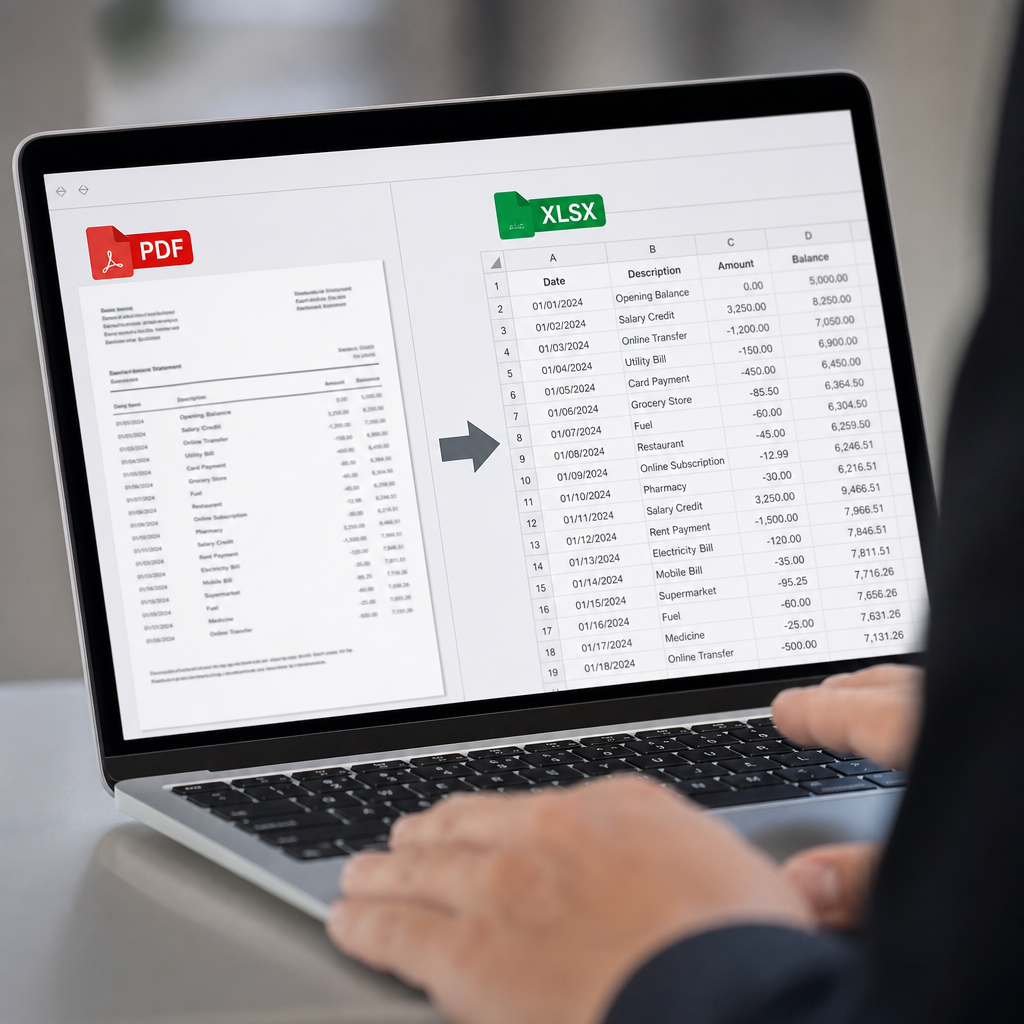
Step-by-Step: Converting a PDF Statement to Excel
Regardless of which tool you use, the underlying workflow for a clean conversion looks roughly like this:
- Gather your PDF statements. Download them directly from your bank's portal rather than relying on emailed copies, which are sometimes lower resolution or watermarked.
- Check for password protection. Many banks encrypt statement PDFs by default; you'll need the password (often a combination of your SSN and zip code, or your login credentials) before any conversion tool can read the file.
- Upload to your conversion tool. With a platform like Bank Statement Boss, this is a simple drag-and-drop, with automatic detection of the bank format.
- Review the extracted transactions. Even the best automated tools recommend a quick manual scan for anomalies, particularly for statements with unusual formatting like foreign currency transactions or split deposits.
- Export in your preferred format. Choose CSV or XLSX depending on what your accounting software accepts, and confirm column headers match your chart of accounts structure.
- Import into your accounting platform. QuickBooks, Xero, and Sage all support CSV/Excel bank feeds, though each has specific column requirements worth double-checking beforehand.
- Reconcile. Compare the imported running balance against the original statement's ending balance to confirm nothing was dropped or duplicated.
Comparing Output Formats: CSV vs. XLSX vs. Direct Accounting Import
Choosing the right export format affects how much post-processing you'll need to do. Here's a breakdown of the tradeoffs:
| Format | Best For | Pros | Cons |
|---|---|---|---|
| CSV | Bulk imports into accounting software | Universally compatible, lightweight | No formatting, formulas, or multiple sheets |
| XLSX (Excel) | Manual review and analysis | Supports formulas, multiple tabs, formatting | Larger file size, occasional compatibility issues with older software |
| Direct API import | High-volume, recurring workflows | No manual export/import step, fully automated | Requires technical setup, typically available only on higher-tier plans |
For firms processing statements every month for multiple clients, an API-based workflow eliminates the repetitive export-then-import cycle entirely. This is increasingly common among bookkeeping firms managing dozens of client accounts, where manual file handling becomes a bottleneck.
Accuracy and Data Integrity Considerations
When converting financial documents, accuracy isn't a nice-to-have, it's the entire point. A conversion tool that saves time but introduces errors creates more work than it eliminates once you factor in the time spent hunting down discrepancies during reconciliation. Consider these accuracy safeguards:
- Cross-check totals. Always verify that the sum of extracted transactions matches the statement's stated ending balance.
- Spot-check dates. Date format errors (mixing MM/DD/YYYY with DD/MM/YYYY) are among the most common silent errors in statement conversion.
- Watch for duplicate entries. Multi-page statements sometimes repeat the last transaction of one page as the first transaction of the next; good parsers should filter these automatically.
- Confirm negative value handling. Some banks denote debits with parentheses, others with a minus sign, and others with a separate column entirely, make sure your tool interprets all three correctly.
- Verify currency and decimal formatting, particularly for businesses handling multi-currency accounts.
For a broader perspective on data quality standards in financial reporting, the AICPA's guidance on data integrity offers useful context on why accuracy controls matter beyond simple convenience.
Security and Compliance When Handling Bank Data
Bank statements are sensitive documents containing account numbers, transaction histories, and sometimes Social Security numbers or tax IDs. Any tool you use to convert PDF statements to Excel should take data security seriously. When evaluating a conversion service, look for:
- Encryption in transit and at rest, so uploaded files aren't exposed during processing or storage.
- Clear data retention policies, ideally with automatic deletion after processing.
- SOC 2 or equivalent compliance certifications, particularly if you're handling client data as a third-party bookkeeper or accountant.
- No unnecessary data sharing with third parties for purposes unrelated to the conversion itself.
The Federal Trade Commission's guidance on safeguarding customer financial information is a useful benchmark for any business handling client bank data, even indirectly through a conversion tool. Firms bound by the Gramm-Leach-Bliley Act in particular need to ensure any software touching client financial data meets baseline safeguarding requirements.

Choosing the Right Tool for Your Workflow
Not every business has the same volume or complexity of statements to process. Here's a quick framework for matching your situation to the right method:
- Occasional, single-account use: Adobe Acrobat's export feature or careful manual entry may be sufficient if you're only converting a handful of statements per year.
- Regular monthly bookkeeping for one business: A dedicated converter that handles multiple bank formats and outputs accounting-ready files will save significant time without requiring a large budget.
- Bookkeeping or accounting firms managing multiple clients: Batch processing and API access become essential, since manual handling doesn't scale across dozens of client accounts.
- In-house finance teams processing high statement volume: Look for tools offering audit trails, secure storage, and integration with existing accounting stacks rather than one-off conversions.
Tools like Bank Statement Boss are built with this range of use cases in mind, from a solo freelancer converting a single statement to a firm running recurring batch conversions through the API. For teams researching broader financial workflow automation strategies, resources like frontrank.com and leadmailbox.com also publish useful perspectives on streamlining back-office operations.
Common Mistakes to Avoid
Even with good tools available, a few recurring mistakes trip up otherwise careful bookkeepers:
- Skipping the password removal step, which causes conversion tools to fail silently or return blank output.
- Not verifying bank format compatibility before committing to a bulk upload of a full year's statements.
- Ignoring header/footer noise that gets pulled into the spreadsheet as if it were transaction data.
- Failing to standardize date formats before importing into accounting software, leading to transactions appearing on the wrong day or even wrong month.
- Overwriting original PDFs without keeping a backup, statements are often needed later for audits or tax filings.
Avoiding these pitfalls up front saves considerable reconciliation time later, particularly during tax season when statement accuracy is scrutinized most closely.
Final Thoughts
Converting a PDF bank statement to Excel used to mean hours of manual retyping or fighting with generic export tools that mangled columns and dropped decimal points. Today, purpose-built AI parsers have largely solved that problem, offering accuracy, speed, and accounting-ready formatting that manual methods simply can't match. Whether you're a freelance bookkeeper handling a handful of client accounts or a finance team processing hundreds of statements a month, choosing the right conversion method has a direct impact on how much time you spend reconciling versus actually analyzing your numbers.
Bank Statement Boss was built specifically to close that gap, turning messy PDF statements into clean, structured spreadsheets that drop straight into QuickBooks, Xero, or Sage, with the security and accuracy that financial data demands. If you're still copying and pasting transaction rows by hand, it's worth seeing how much time a dedicated converter can give back to your books.
Article written by FrontRank