
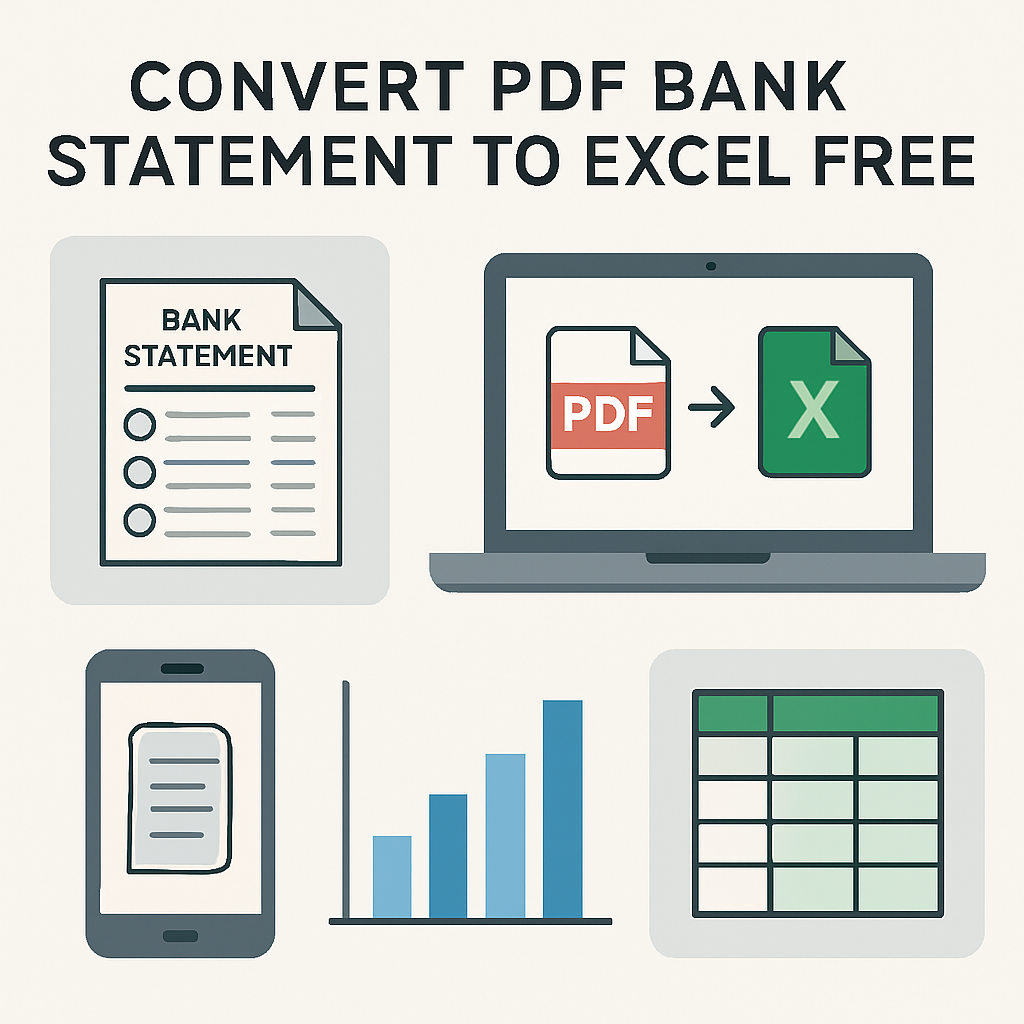
Manually retyping transaction data from PDF bank statements into spreadsheets is one of the most tedious tasks facing small business owners, bookkeepers, and accountants. Whether you are reconciling monthly accounts, preparing for tax season, or building a cash flow forecast, having your bank data in Excel format saves hours of work. This guide walks you through everything you need to know about how to convert PDF bank statement to Excel free, including manual methods, automated tools, and best practices for accuracy and security.
Why Convert PDF Bank Statements to Excel
Banks issue statements as PDFs because they are easy to read and difficult to tamper with. However, PDFs are notoriously hard to work with when you need to analyze, categorize, or import financial data into accounting software. Converting to Excel unlocks several advantages:
- Faster reconciliation - Match transactions against your books in minutes instead of hours.
- Easier categorization - Sort, filter, and tag expenses by vendor, date, or amount.
- Accounting software compatibility - Import cleaned data directly into QuickBooks, Xero, or Sage.
- Better financial analysis - Build pivot tables, charts, and cash flow projections.
- Audit readiness - Maintain organized digital records that are easy to search and export.
For accountants and bookkeepers managing multiple clients, this conversion process is not a one-off task but a recurring monthly or quarterly need. That is why choosing the right method matters so much for long-term efficiency.
Manual Methods to Convert PDF Bank Statements to Excel
Before exploring automated tools, it helps to understand the manual options available, especially if you only need to convert a single statement occasionally.
1. Copy and Paste
The simplest approach is opening the PDF, selecting the transaction table, and pasting it into Excel. This works only for text-based PDFs (not scanned images) and often results in messy formatting that requires significant cleanup.
2. Excel's Built-In PDF Import
Modern versions of Excel include a Get Data > From PDF feature under the Data tab. This uses Power Query to detect tables inside a PDF and import them as structured data. It works reasonably well for simple, single-column statements but often struggles with multi-column layouts, merged cells, or statements with inconsistent formatting across pages.
3. Google Sheets with Add-Ons
Google Sheets does not have native PDF import, but several third-party add-ons attempt to extract tables. Results vary widely in accuracy, and most free versions limit the number of pages you can convert.
4. Online Free Converters
A large number of free web-based PDF-to-Excel converters exist, such as those built into general-purpose PDF tools. These are convenient for basic documents but often:
- Struggle with bank-specific formatting
- Introduce errors in decimal points or negative values
- Fail on scanned or image-based statements
- Raise data privacy concerns since files are uploaded to unknown servers
For a single, simple statement, these manual and free tools might suffice. But for anyone regularly processing multiple bank statements across different formats, the limitations become a serious bottleneck.
Comparing Manual vs Automated Conversion Methods
The table below breaks down how common conversion methods stack up against each other in terms of speed, accuracy, and suitability for professional use.
| Method | Accuracy | Speed | Handles Scanned PDFs | Best For |
|---|---|---|---|---|
| Copy and Paste | Low | Slow | No | One-off, simple statements |
| Excel Power Query | Medium | Medium | No | Basic single-table PDFs |
| Free Online Converters | Medium | Fast | Rarely | Occasional personal use |
| AI-Powered Tools (e.g. Bank Statement Boss) | High (99%+) | Very Fast | Yes | Recurring business/accounting use |
As the table shows, accuracy and the ability to handle scanned documents are where free generic tools fall short. This is particularly important for accountants working with older statements or clients who only have printed and scanned copies on file.
Why Accuracy Matters More Than You Think
A single misread decimal point or transposed digit can throw off an entire reconciliation. According to the Association of Certified Fraud Examiners, inaccurate financial records are a common contributing factor in undetected discrepancies and fraud. When you are converting dozens or hundreds of transactions per statement, even a 95% accuracy rate means multiple errors per document.
This is especially critical when:
- Preparing financial statements for tax filing
- Reconciling accounts for audit purposes
- Importing data directly into accounting software without manual review
- Managing multiple client accounts as a bookkeeper or accountant
High-accuracy AI extraction tools are trained specifically to recognize bank statement formats, including tables that span multiple pages, varying date formats, and multi-currency transactions. This is a key reason many professionals move beyond free generic converters toward purpose-built solutions like Bank Statement Boss, which advertises 99% accuracy across most major banks worldwide.
Step-by-Step: Converting a PDF Bank Statement to Excel for Free
If you want to try converting a statement yourself before committing to a paid tool, here is a practical step-by-step process:
- Check if your PDF is text-based or scanned. Try selecting text in the PDF. If you can highlight individual words, it is text-based. If not, it is likely a scanned image requiring OCR (Optical Character Recognition).
- Use a free tool with a free tier. Many platforms, including Bank Statement Boss, offer a free plan that allows you to convert a limited number of statements per month at no cost.
- Upload your PDF statement. Most tools support drag-and-drop uploads and can process multiple pages at once.
- Review the extracted data. Check dates, descriptions, debits, credits, and running balances for accuracy before exporting.
- Export to your preferred format. Choose Excel (.xlsx), CSV, or a direct accounting integration format depending on your workflow.
- Clean and categorize. Add labels or categories for expense tracking, then save your final file for reconciliation or reporting.
Following this process ensures you get usable, structured data rather than a jumbled table full of merged cells and misaligned columns, which is a common complaint with basic free converters.
Key Features to Look for in a Free PDF to Excel Converter
Not all free converters are created equal. When evaluating tools, especially if you plan to use them regularly for business or client work, consider the following features:
- OCR support for scanned or image-based statements
- Multi-bank compatibility since formatting varies significantly between institutions
- Multi-currency and multi-language support if you work with international clients
- Direct export to accounting software such as QuickBooks, Xero, or Sage
- Data security and encryption to protect sensitive financial information
- Batch processing to handle multiple statements simultaneously
- Free tier limitations - understand how many pages or statements you can convert before hitting a paywall
According to guidance from the Federal Trade Commission, consumers and businesses should always verify how third-party services handle and store uploaded financial documents before using them, particularly with free online tools that may monetize data in less transparent ways.
Comparing Popular Free and Freemium Conversion Tools
Here is a broader comparison of the types of tools available today, focusing on the features most relevant to small business owners and finance professionals.
| Tool Type | Free Tier Available | OCR for Scanned PDFs | Accounting Software Export | Typical Accuracy |
|---|---|---|---|---|
| General PDF converters | Yes | Limited | No | 70-85% |
| Excel Power Query | Yes (built-in) | No | No | 75-85% |
| Spreadsheet add-ons | Yes | Limited | No | 70-80% |
| Bank Statement Boss | Yes | Yes | Yes | 99% |
While general tools may work for a quick, informal conversion, professionals handling client accounts or preparing books for tax purposes typically need higher reliability. The Internal Revenue Service recommends maintaining accurate financial records for at least three years, making it essential that your converted data is correct from the start rather than requiring repeated manual corrections.
Common Challenges When Converting Bank Statements
Even with the best tools, certain challenges consistently arise when converting PDF bank statements to Excel. Understanding these in advance helps you choose the right solution and avoid frustration.
Multi-Page and Multi-Column Layouts
Many bank statements span multiple pages with headers repeating on each page. Basic converters often duplicate headers or lose column alignment between pages, resulting in fragmented data that needs manual reassembly.
Inconsistent Date and Currency Formats
International banks format dates differently (DD/MM/YYYY vs MM/DD/YYYY) and may use different currency symbols or decimal separators. Tools that are not specifically trained on global bank formats can misinterpret these values.
Scanned or Photographed Statements
Older statements, or those provided by clients as photos or scans, require OCR technology. Many free converters skip this feature entirely or offer poor-quality results, especially with lower-resolution scans.
Password-Protected PDFs
Many banks issue statements with password protection for security. Some free tools cannot handle encrypted PDFs at all, requiring you to manually remove password protection before uploading, which can be technically challenging for non-technical users.
Data Security Concerns
Uploading sensitive financial documents to unknown or unsecured platforms poses real privacy risks. It is worth reviewing a provider's security practices, similar to how the Consumer Financial Protection Bureau advises consumers to scrutinize any service handling personal financial data.
Best Practices for Accountants and Bookkeepers
For professionals managing multiple clients or high transaction volumes, a more structured approach to statement conversion pays dividends. Consider these best practices:
- Standardize your workflow. Use the same tool and export format across all clients to streamline reconciliation.
- Batch process statements monthly. Avoid falling behind by converting statements as soon as they are received rather than waiting until tax season.
- Always review before importing. Even with 99% accuracy tools, a quick review catches edge cases like unusual transaction descriptions.
- Maintain version control. Keep both the original PDF and the converted Excel file for audit trail purposes.
- Automate recurring tasks. If you handle the same clients' statements every month, look for tools that support recurring uploads or integrations with cloud storage.
- Choose tools with accounting software export. Directly exporting to QuickBooks, Xero, or Sage formats eliminates an entire manual data entry step.
These practices are especially relevant for bookkeeping firms managing dozens of client accounts, where even small inefficiencies multiply across the client base each month.
When Free Tools Are Enough vs When to Upgrade
Free conversion tools are perfectly adequate in certain scenarios but insufficient in others. Here is a quick breakdown:
Free tools are usually enough when:
- You need to convert a single statement occasionally
- Your statement is text-based, not scanned
- You only need basic transaction data without categorization
- You have time to manually review and correct errors
Upgrading to a paid or premium tier makes sense when:
- You process multiple statements monthly for clients or your own business
- You need direct integration with accounting software
- Accuracy is critical for compliance, audit, or tax purposes
- You handle scanned or password-protected statements regularly
- You want batch processing to save time across multiple files
Many platforms, including Bank Statement Boss, structure their offering around this reality by providing a free tier for occasional users while offering tiered subscription plans for professionals with higher volume needs. This flexibility allows small business owners to start free and scale up as their conversion needs grow, without committing to a paid plan before understanding the tool's accuracy and reliability firsthand.
Frequently Asked Questions
Can I convert a scanned PDF bank statement to Excel for free? Some free tools offer basic OCR, but accuracy is often inconsistent, particularly with lower-quality scans or older statements. Purpose-built tools with dedicated OCR engines tend to perform significantly better on scanned documents.
Is it safe to upload bank statements to online converters? You should always check a provider's privacy policy and data handling practices before uploading sensitive financial documents. Look for encryption, clear data retention policies, and reputable providers with transparent security practices.
Do free converters support multiple banks and currencies? Most basic free tools are designed for generic table extraction and may not handle bank-specific formatting well. Tools built specifically for bank statement conversion, such as Bank Statement Boss, are trained to recognize formats from most major banks worldwide.
Can converted Excel files be imported directly into QuickBooks or Xero? This depends on the tool. Generic converters typically only export to basic Excel or CSV formats, requiring additional manual formatting before import. Specialized tools often provide direct export options compatible with accounting software.
Final Thoughts on Converting PDF Bank Statements to Excel
Converting PDF bank statements to Excel does not have to be a time-consuming, error-prone process. For occasional, simple conversions, manual methods and free online tools can get the job done. However, for small business owners, accountants, and bookkeepers who regularly process bank and credit card statements, accuracy, security, and integration with accounting software quickly become non-negotiable requirements.
This is where a dedicated solution like Bank Statement Boss stands out. With AI-powered extraction delivering 99% accuracy, support for most major banks worldwide, and direct compatibility with QuickBooks, Xero, and Sage, it eliminates the guesswork and manual cleanup associated with free generic converters. Whether you are just getting started with a free plan or scaling up to a subscription tier for high-volume client work, Bank Statement Boss offers a reliable path from messy PDF statements to clean, ready-to-use spreadsheets, saving valuable time every month while reducing the risk of costly data entry errors.
Article written by FrontRank