

Every bookkeeper, freelance accountant, and small business owner eventually hits the same wall: a stack of PDF bank statements that need to become usable spreadsheet data. Whether you're reconciling accounts, preparing taxes, or feeding numbers into QuickBooks or Xero, manually retyping transactions from a PDF is slow, error-prone, and frankly a waste of billable hours. Fortunately, in 2026 there are far better options than copy-pasting line items by hand.
This article walks through seven practical ways to convert PDF bank statement to CSV format, comparing their speed, accuracy, and suitability for different users — from solo freelancers handling a handful of statements to finance teams processing hundreds of accounts every month.
Why Converting PDF Bank Statements to CSV Matters
Bank statements are typically issued as PDFs because they're easy to read and hard to tamper with. But that same rigidity makes them terrible for data analysis. A CSV (comma-separated values) file, by contrast, can be opened in Excel, Google Sheets, or imported directly into accounting software. Converting to CSV allows you to:
- Automate reconciliation instead of manually checking each transaction
- Import transactions directly into QuickBooks, Xero, or Sage
- Run cash flow analysis and category-based reporting
- Reduce human error from manual transcription
- Save hours of administrative work per client or account
According to the Small Business Administration, bookkeeping and financial administration remain among the top time drains for small business owners, often consuming several hours per week that could otherwise go toward growth activities. Automating statement conversion directly addresses this bottleneck.
Method 1: Dedicated AI-Powered Conversion Tools
The fastest and most accurate way to convert PDF bank statement to CSV is to use a purpose-built converter designed specifically for financial documents. Tools like Bank Statement Boss use AI models trained on hundreds of bank and credit card statement formats to detect transaction tables, dates, descriptions, and amounts — even when statements are scanned images rather than text-based PDFs.
Unlike generic PDF-to-Excel converters, a financial-document-specific tool understands the structure of a bank statement: it knows where the running balance column typically sits, how to separate debits from credits, and how to handle multi-page statements without duplicating headers. Bank Statement Boss also formats the output to match the column structures expected by QuickBooks, Xero, and Sage, which eliminates a second round of manual cleanup.
Best for: Bookkeepers and accounting firms processing statements from multiple banks and clients regularly.
Method 2: Built-In Bank Export Features
Many banks allow customers to export transaction history directly as CSV or OFX files through their online banking portal, bypassing the PDF step entirely. This is worth checking first, especially for recent statements still within the bank's online history window (often 12-24 months).
Pros:
- Free and directly from the source
- No risk of OCR misreads
Cons:
- Only works for accounts you can log into directly
- Historical statements older than the retention window aren't available
- Format varies wildly bank to bank, requiring cleanup before use in accounting software
Method 3: Spreadsheet Software with Manual Import
Excel and Google Sheets both have "Import PDF" or "Get Data from PDF" features that attempt to detect tables within a document. This works reasonably well for perfectly formatted, text-based PDFs, but tends to break down with:
- Scanned or photographed statements
- Statements with inconsistent column spacing
- Multi-column layouts common in credit card statements
Best for: One-off conversions where you already have Excel expertise and only need to process a single, clean statement.
Method 4: General-Purpose PDF-to-Excel Converters
Generic PDF converters (not specialized for finance) can extract tables from PDFs into spreadsheet format, but they usually don't understand banking-specific conventions like parentheses indicating negative amounts, or split transaction descriptions across multiple lines. You'll often need significant manual cleanup afterward, which defeats much of the time savings.
Method 5: Optical Character Recognition (OCR) Software
For scanned paper statements or image-based PDFs, OCR software such as Adobe Acrobat's built-in export tool can pull raw text out of an image and attempt structured formatting. Accuracy depends heavily on scan quality, font clarity, and table complexity. OCR is a helpful first step but rarely produces a finance-ready CSV on its own — expect to spend time correcting misread digits (a common OCR pitfall is confusing "0" with "O" or "1" with "l").
Method 6: Outsourcing to a Bookkeeper or Data Entry Service
If volume is low and budget allows, some businesses simply pay a bookkeeper or virtual assistant to manually transcribe statements. This guarantees a human check on accuracy but scales poorly and costs significantly more per statement than automated tools — particularly problematic for firms handling dozens of client accounts monthly.
Method 7: Custom Scripts (Python/Pandas)
Technically inclined users sometimes build custom Python scripts using libraries like pdfplumber or PyMuPDF combined with pandas to parse and export bank statement data. This offers full control but requires programming knowledge, ongoing maintenance as bank formats change, and isn't practical for non-technical staff. It's a viable route for larger finance teams with in-house developer resources, but overkill for most small businesses.
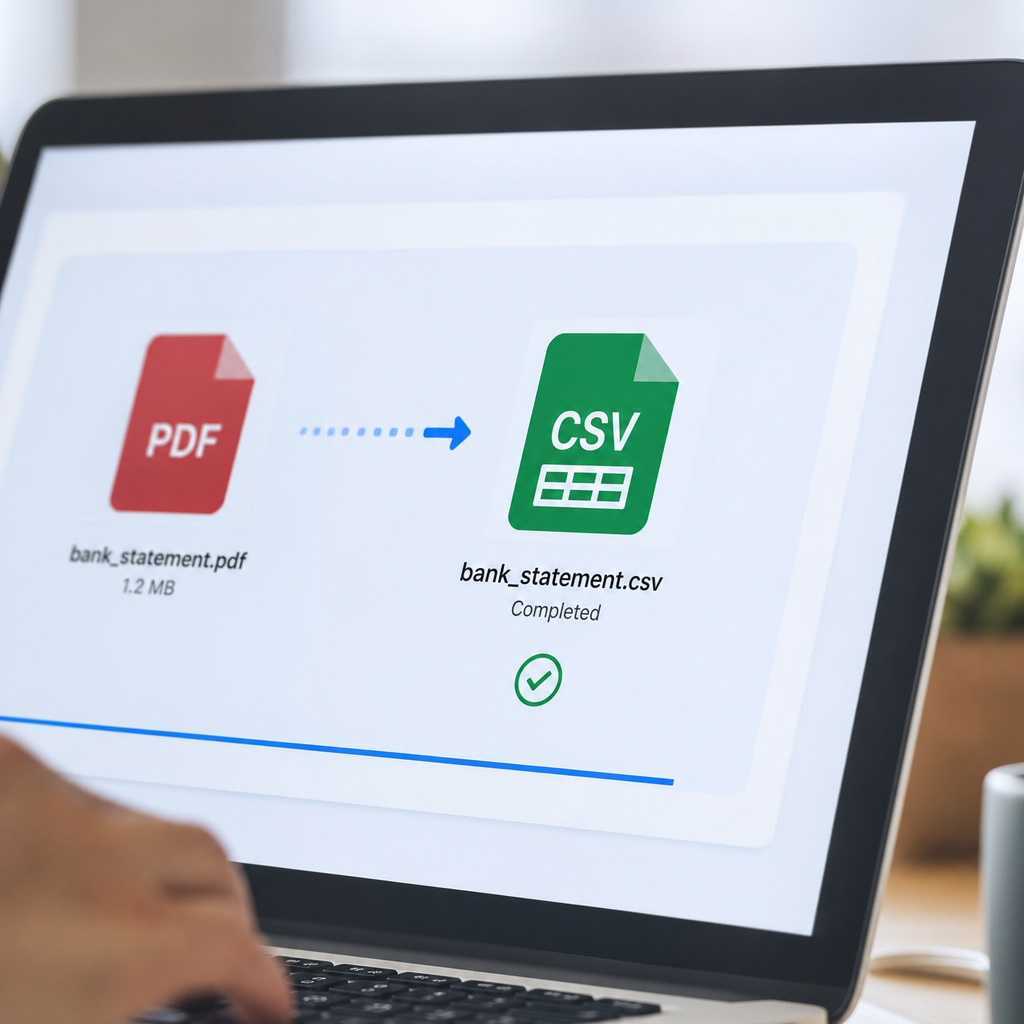
Comparing the Methods
| Method | Speed | Accuracy | Technical Skill Needed | Best For |
|---|---|---|---|---|
| AI-powered tool (e.g., Bank Statement Boss) | Very fast | High | None | Regular, recurring conversions |
| Bank's built-in export | Fast | High | Low | Recent statements only |
| Excel/Sheets import | Moderate | Medium | Low-Medium | Occasional single statements |
| Generic PDF-to-Excel converter | Moderate | Medium | Low | Simple, clean PDFs |
| OCR software | Slow | Variable | Medium | Scanned/paper statements |
| Manual outsourcing | Slow | High (human-checked) | None | Low volume, high budget |
| Custom scripts | Fast (after setup) | High | High | In-house dev teams |
Accuracy and Format Compatibility: What Actually Matters
Speed alone isn't the whole story. The real test of any conversion method is whether the resulting CSV can be imported cleanly into your accounting platform without further editing. Here's how common output formats stack up against major accounting software requirements:
| Accounting Platform | Required CSV Fields | Common Import Issues |
|---|---|---|
| QuickBooks | Date, Description, Amount (or Debit/Credit) | Date format mismatches, merged descriptions |
| Xero | Date, Amount, Payee, Reference | Currency symbol errors, inconsistent decimal separators |
| Sage | Date, Details, Debit, Credit, Balance | Column order sensitivity, header row conflicts |
Tools built specifically for financial document conversion, such as Bank Statement Boss, address these formatting quirks automatically by offering export templates pre-mapped to each platform's expected structure — something generic converters and manual methods typically can't replicate without extra configuration.
Security Considerations When Converting Bank Statements
Bank statements contain sensitive financial data, including account numbers, balances, and transaction histories. Before choosing any conversion method, especially a third-party online tool, verify how your data is handled. Key questions to ask:
- Is the connection encrypted? Look for HTTPS and TLS encryption standards during upload and download.
- Is data stored after conversion, or immediately deleted? Reputable tools should offer automatic deletion policies.
- Does the provider comply with recognized security frameworks? Standards like SOC 2 indicate a formal commitment to data protection.
- Is there an audit trail or activity log, particularly important for accounting firms handling multiple clients' financial records?
Bank Statement Boss addresses these concerns with secure data handling practices designed specifically for financial documents, making it a suitable option for accountants who must maintain client confidentiality standards. Since privacy regulations and client expectations continue to tighten, this is not a step to skip — the Federal Trade Commission offers useful general guidance on business data handling obligations that apply to financial service providers and their vendors alike.
Step-by-Step: Converting a PDF Bank Statement to CSV
Regardless of which method you choose, the general workflow looks similar:
- Gather your statements. Download PDFs directly from your bank's portal rather than using forwarded email copies, which can introduce formatting artifacts.
- Choose your conversion method. For one-off jobs, a manual import may suffice; for recurring monthly work, an automated tool saves substantially more time.
- Upload or import the file. With a tool like Bank Statement Boss, this is as simple as dragging the PDF into the browser interface.
- Review the extracted data. Even the best AI tools benefit from a quick human scan for obvious anomalies, such as a missing transaction row or a misread total.
- Select your export format. Choose CSV formatted specifically for QuickBooks, Xero, Sage, or a generic spreadsheet layout depending on your next step.
- Import into your accounting software. Map columns if prompted, then reconcile the imported totals against the original statement balance to confirm accuracy.
- Archive the original PDF. Keep the source document for audit purposes even after conversion, per standard bookkeeping practice.
Common Mistakes to Avoid
Even with good tools, a few recurring mistakes cause headaches during PDF-to-CSV conversion:
- Ignoring multi-page statements. Some converters drop or duplicate headers across pages, leading to missing or repeated transactions.
- Not checking date formats. US (MM/DD/YYYY) and international (DD/MM/YYYY) date formats frequently get swapped during conversion, throwing off chronological order.
- Overlooking negative amount conventions. Some banks denote debits with parentheses or minus signs; if your CSV doesn't match your accounting software's expected convention, transactions can be miscategorized as income instead of expenses.
- Skipping balance verification. Always cross-check the final CSV's running balance against the original statement's ending balance before filing anything with a client or into your books.
- Using outdated bank statement templates. Banks periodically change their statement layouts. A converter that hasn't been updated for the new format may produce garbled results.
Choosing the Right Solution for Your Workflow
For a solo freelancer converting one or two personal statements per month, a spreadsheet import feature might be sufficient. But for bookkeepers, accounting firms, or finance teams managing multiple clients and dozens of statements monthly, the calculus changes quickly. Manual methods and generic tools introduce cumulative time costs and error risk that scale poorly.
This is where a specialized platform earns its keep. Bank Statement Boss was built specifically to solve the PDF bank statement conversion problem at scale — supporting bulk uploads, API access for developers who want to build conversion directly into their own systems, and export templates tailored to the accounting platforms bookkeepers already use daily. For teams that also handle client outreach or lead generation workflows alongside their financial operations, resources like leadmailbox.com offer complementary insights on managing business communications efficiently, while frontrank.com covers broader digital workflow and SEO strategy for service-based businesses looking to scale their operations.
Frequently Asked Questions
Can I convert a scanned (image-based) bank statement to CSV? Yes, but accuracy depends on scan quality and the OCR capability of your chosen tool. AI-powered converters generally handle scanned documents better than basic OCR software because they're trained to recognize banking-specific layouts even when image quality is imperfect.
Is it safe to upload bank statements to an online converter? It can be, provided the service uses encryption, doesn't retain your files longer than necessary, and follows recognized security practices. Always review a provider's privacy policy before uploading sensitive financial documents.
Will the CSV import directly into QuickBooks without editing? If you use an export template specifically formatted for QuickBooks, yes, in most cases. Generic CSV exports often require column remapping or manual adjustments first.
How long does it take to convert a bank statement using an automated tool? Most AI-powered tools process a standard statement in under a minute, compared to 15-30 minutes or more for manual transcription of the same document.
What if my bank statement has multiple accounts on one PDF? Look for a converter that can detect and separate multiple account sections automatically; otherwise, you may need to split the PDF manually before conversion.
Final Thoughts
Converting PDF bank statements to CSV doesn't have to be a tedious, error-prone chore. Whether you handle a handful of statements a year or hundreds every month, choosing the right method — from built-in bank exports to dedicated AI-powered platforms — can save significant time while improving accuracy for reconciliation, reporting, and tax preparation. For those who need speed, reliability, and compatibility with major accounting platforms, Bank Statement Boss offers a purpose-built solution that turns messy PDFs into clean, import-ready spreadsheets in moments, freeing up time for the higher-value work that actually grows your business.
Article written by FrontRank