

Every bookkeeper, accountant, or small business owner has faced the same tedious task: staring at a PDF credit card statement, trying to figure out how to get those transactions into a spreadsheet without spending an entire afternoon retyping numbers. Manual entry is slow, error-prone, and frankly a poor use of anyone's billable hours. Fortunately, there are faster, more reliable ways to convert a credit card statement to Excel — and this article walks through all of them.
Whether you're reconciling monthly expenses, preparing books for tax season, or feeding data into QuickBooks or Xero, getting clean, structured data out of a PDF statement is a foundational step in modern bookkeeping. Below, we'll cover why this conversion matters, the methods available, how to choose the right tool, and how to avoid common pitfalls that can quietly wreck your reconciliation process.
Why Converting Credit Card Statements to Excel Matters
Credit card statements are typically issued as PDFs — a format designed for readability, not data extraction. That's great for humans skimming a monthly summary, but terrible for anyone trying to import transaction data into accounting software or build a spreadsheet for expense tracking.
When you convert a credit card statement to Excel, you unlock several practical benefits:
- Faster reconciliation — matching transactions against receipts or accounting entries becomes far easier in a spreadsheet than in a static PDF.
- Error reduction — manual retyping introduces transposition errors, missing decimals, and duplicate entries.
- Better reporting — Excel allows sorting, filtering, and pivot tables to analyze spending by category, vendor, or date range.
- Accounting software compatibility — most platforms like QuickBooks, Xero, and Sage accept CSV or Excel imports far more reliably than PDF uploads.
- Audit readiness — structured data makes it simple to produce clean records if you're ever audited or need to demonstrate expense history.
For freelance accountants and bookkeeping firms managing multiple clients, this isn't just a convenience — it's a scalability issue. If every client statement requires manual transcription, growth becomes limited by hours in the day, not by client demand.
Common Methods to Convert Credit Card Statements to Excel
There isn't just one way to move data from a PDF statement into a spreadsheet. Here are the primary methods in use today, ranked roughly by effort and reliability.
1. Manual Data Entry
The oldest method: opening the PDF, reading each line, and typing it into Excel. It's free but extremely time-consuming and prone to human error, especially with statements containing hundreds of transactions.
2. Copy-Paste from PDF
Some PDFs allow text selection, so you can copy a table and paste it into Excel. The problem is that formatting often breaks — columns misalign, dates get merged with descriptions, and multi-page statements require repetitive cleanup.
3. Built-In Bank Export Tools
Many credit card issuers let you download transaction history directly as CSV or Excel through their online portal. This works well if you only need current-cycle data and have access to the live account. It doesn't help with older archived statements or PDFs sent by clients who don't share portal access.
4. Generic PDF-to-Excel Converters
General-purpose PDF converters can extract tables, but they're not built specifically for financial documents. They often misread transaction dates, merge amount columns, or fail on multi-column statement layouts — especially those with running balances or foreign currency conversions.
5. Purpose-Built Statement Conversion Tools
Dedicated tools designed specifically for bank and credit card statements — like Bank Statement Boss — use AI models trained on financial document layouts. These tools recognize transaction rows, dates, merchant names, and amounts even across varying bank formats, then output clean, structured spreadsheets ready for use in accounting platforms.
Comparing the Methods
| Method | Speed | Accuracy | Best For |
|---|---|---|---|
| Manual entry | Very slow | Low (human error risk) | Single, short statements |
| Copy-paste | Slow | Medium | Simple single-column PDFs |
| Bank portal export | Fast | High | Current billing cycle only |
| Generic PDF converter | Medium | Medium | One-off, non-recurring needs |
| Dedicated AI conversion tool | Fast | Very high | Recurring bookkeeping, multiple clients |
As the table shows, purpose-built tools consistently outperform generic alternatives when accuracy and speed both matter — which is nearly always the case in professional bookkeeping contexts.
What to Look for in a Credit Card Statement Converter
Not all converters are created equal. If you're evaluating tools to convert credit card statement to Excel on a regular basis, consider these criteria:
- Format compatibility — Does it export to Excel (.xlsx), CSV, and formats accepted by QuickBooks, Xero, or Sage?
- Accuracy on real-world statements — Can it handle multi-page PDFs, foreign transactions, and varying bank layouts?
- Security and data handling — Since statements contain sensitive financial data, look for tools with encryption and clear data retention policies.
- Batch processing — If you handle multiple clients, the ability to upload and convert several statements at once saves significant time.
- API access — For finance teams integrating conversion into existing workflows, an API allows automation without manual uploads.
- Pricing transparency — Understand whether pricing is per-document, subscription-based, or tiered by volume.
Tools like Bank Statement Boss are built around these exact requirements, offering AI-powered extraction alongside export formatting tailored for accounting platforms, plus secure handling appropriate for financial data.
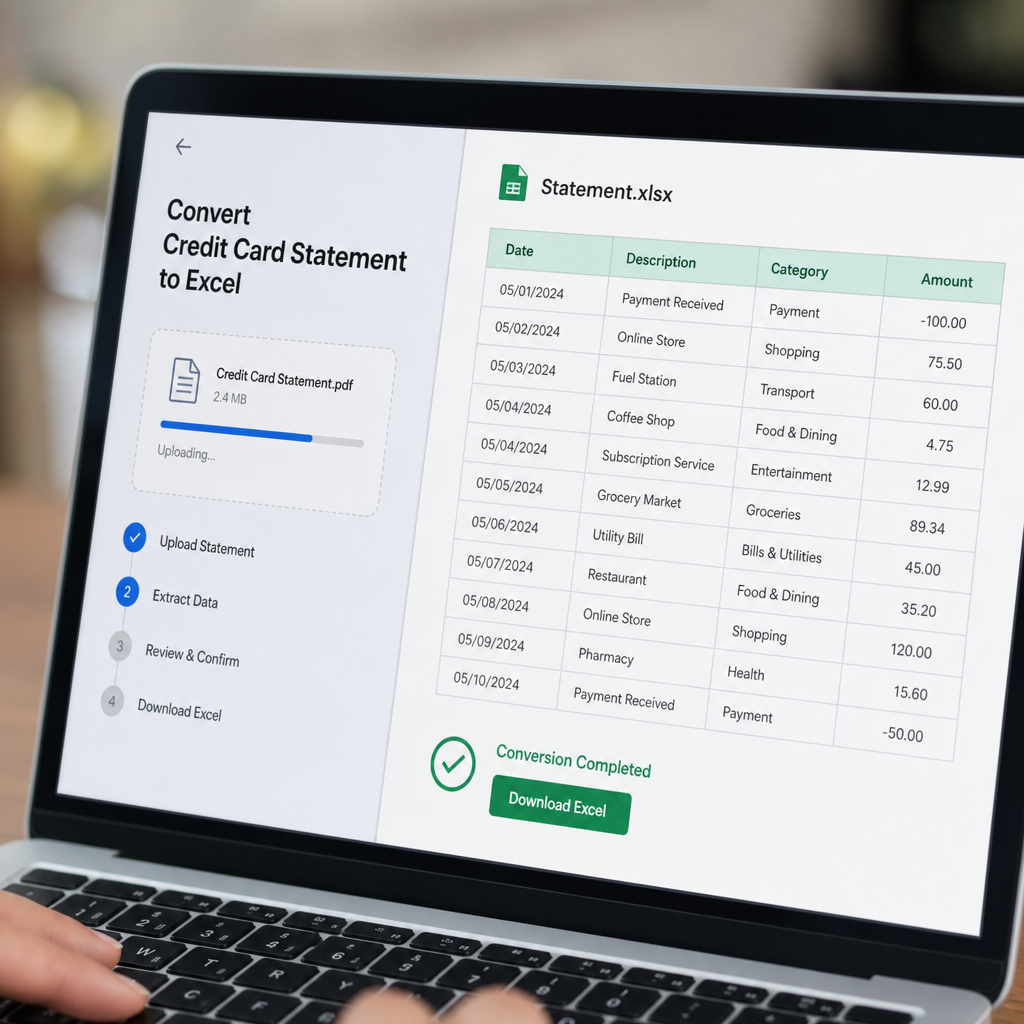
Step-by-Step: Converting a Credit Card Statement to Excel
Here's a general workflow that applies whether you're using a dedicated tool or a more manual process:
- Gather your statements. Collect PDF statements from the relevant billing periods, either downloaded from the issuer's portal or provided by a client.
- Choose your conversion method. For occasional use, a manual or copy-paste approach may suffice. For recurring bookkeeping work, a dedicated conversion tool is more efficient.
- Upload or open the PDF. If using a conversion tool, upload the file directly — most tools support drag-and-drop.
- Review extracted data. Even the best AI tools benefit from a quick human review, especially for unusual transaction types like foreign currency purchases or refunds.
- Export to your preferred format. Choose Excel, CSV, or a format pre-mapped for QuickBooks, Xero, or Sage.
- Import into your accounting software or reconciliation spreadsheet. Match transactions against receipts, categorize expenses, and finalize your books.
- Store the original PDF securely. Even after conversion, retain the source document for audit trail purposes.
This workflow, when supported by the right software, can take a multi-page statement from PDF to usable spreadsheet in minutes rather than hours.
Formatting Considerations for Accounting Software
One overlooked detail when converting credit card statements is ensuring the resulting spreadsheet actually matches the import requirements of your accounting platform. QuickBooks, Xero, and Sage each expect slightly different column structures, date formats, and categorization fields.
| Platform | Preferred Date Format | Common Import Format | Notes |
|---|---|---|---|
| QuickBooks | MM/DD/YYYY | CSV, QBO | Requires specific column headers for bank feed import |
| Xero | DD/MM/YYYY | CSV | Bank statement import mapped via Xero's CSV template |
| Sage | DD/MM/YYYY | CSV | Column order matters for automatic mapping |
Getting this formatting wrong is one of the most common reasons import attempts fail or require manual correction afterward. According to QuickBooks' own support documentation, incorrectly formatted CSV files are a leading cause of failed bank transaction imports. Similarly, Xero's help center outlines strict formatting rules for CSV imports, underscoring why generic converters that ignore these standards often create more work rather than less.
This is precisely where purpose-built conversion tools add value — they don't just extract data, they format it for direct compatibility with these platforms, eliminating a huge chunk of manual cleanup.
Common Mistakes When Converting Statements
Even with good tools, certain mistakes recur across bookkeeping workflows:
- Ignoring multi-currency transactions — foreign transaction fees and currency conversions can confuse both manual entry and generic converters.
- Missing negative signs on refunds or credits — a misplaced sign can throw off an entire reconciliation.
- Skipping a review step — even AI-powered tools benefit from a quick human check, especially on unusually formatted statements.
- Not standardizing date formats — inconsistent date formats between statements can break sorting and filtering later.
- Failing to remove duplicate headers — when converting multi-page statements, repeated header rows sometimes get pulled into the data table.
- Overlooking security practices — uploading sensitive financial documents to unsecured or unclear services risks data exposure.
Avoiding these pitfalls is largely about choosing tools designed specifically for financial statement structures rather than general document converters. As the AICPA has noted in guidance on digital recordkeeping, data integrity during format conversion is a growing concern for accounting professionals relying on automated tools.
Security and Compliance Considerations
Credit card statements contain sensitive financial information — account numbers, transaction histories, and sometimes personal identifying details. When choosing a conversion tool, security shouldn't be an afterthought.
Key considerations include:
- Encryption in transit and at rest — ensures uploaded documents and converted files aren't exposed during processing or storage.
- Data retention policies — understand whether the tool stores your documents after conversion, and for how long.
- Compliance alignment — for firms handling client data, alignment with standards discussed by organizations like the National Institute of Standards and Technology (NIST) on data security practices can be a useful benchmark when vetting vendors.
- Access controls — for teams, the ability to manage user permissions matters, especially for firms handling multiple clients' financial data.
Bank Statement Boss addresses these concerns directly, offering secure data handling as a core feature alongside its conversion capabilities — an important distinction from free, generic converters that may not disclose their data practices clearly.

Who Benefits Most From Automated Statement Conversion
While anyone can benefit from converting credit card statements to Excel, certain groups see outsized returns on the time saved:
- Freelance bookkeepers managing multiple clients each with different banks and statement formats.
- Small business owners who need clean expense records for tax filing without hiring a full-time accountant.
- Accounting firms processing large volumes of client statements monthly, where even small per-document time savings compound significantly.
- Finance teams at growing companies that need to integrate statement data into broader financial reporting systems, often via API rather than manual upload.
For firms scaling their client base, automation isn't optional — it's the difference between taking on new clients confidently or turning them away due to capacity constraints. Resources like frontrank.com and leadmailbox.com offer further reading on how service-based businesses streamline operations through automation, a theme closely related to why statement conversion tools have become essential rather than optional in modern bookkeeping.
Choosing Between Free and Paid Conversion Tools
It's worth addressing the free-versus-paid question directly, since many users start with free tools before realizing their limitations.
Free tools typically:
- Handle simple, single-format PDFs reasonably well
- Struggle with multi-page or non-standard statement layouts
- Offer limited or no export formatting for accounting platforms
- May lack clear data security practices
Paid, purpose-built tools typically:
- Handle a wide variety of bank and credit card statement formats
- Offer export formatting pre-mapped to QuickBooks, Xero, and Sage
- Provide batch processing for multiple statements at once
- Include API access for automated workflows
- Maintain clearer security and data handling standards
For occasional, personal use, a free tool might suffice. But for anyone converting statements as a regular part of their workflow — bookkeepers, accountants, and finance teams — the time saved and error reduction from a dedicated paid tool quickly outweighs the subscription cost. This is the exact gap Bank Statement Boss was built to fill, providing AI-powered, accounting-ready conversion without the formatting headaches of generic tools.
Final Thoughts
Converting a credit card statement to Excel doesn't have to mean hours of manual transcription or fighting with misaligned copy-paste tables. With the right approach — and the right tool — this task can go from a recurring headache to a five-minute step in your monthly workflow. Whether you're a solo bookkeeper juggling multiple clients or a finance team looking to automate data intake, prioritizing accuracy, security, and accounting software compatibility will save far more time than it costs.
Bank Statement Boss was built specifically for this problem: converting PDF bank and credit card statements into clean, structured spreadsheets formatted for QuickBooks, Xero, and Sage, with secure data handling and API access for teams that need automation at scale. For anyone tired of manual data entry, it's a practical, professional-grade solution worth exploring at bankstatementboss.com.
Article written by FrontRank