

Sage remains one of the most trusted accounting platforms for small businesses, freelance accountants, and finance teams across the globe. But even the best accounting software is only as good as the data going into it. For many bookkeepers, the biggest bottleneck isn't Sage itself — it's getting bank statement data out of a PDF and into a format Sage can actually use. If you've ever spent an evening retyping transaction rows from a scanned statement, you already know why this matters.
This article walks through practical, tested approaches to convert bank statement to Sage-ready formats, compares manual versus automated methods, and shows how AI-powered tools like Bank Statement Boss are changing the reconciliation workflow for good.
Why Converting Bank Statements for Sage Is Still a Problem in 2026
Despite years of fintech innovation, most banks still issue statements as PDFs — not as clean, structured data files. Sage accepts CSV or compatible spreadsheet imports, but a raw PDF statement is essentially a picture of a table, not usable data. That mismatch creates friction for anyone managing books in Sage 50, Sage Business Cloud Accounting, or Sage Intacct.
Common pain points include:
- Multi-column layouts that don't translate cleanly when copied
- Inconsistent date formats across different banks
- Merged transaction descriptions that need splitting into separate fields
- Statements spanning dozens of pages with recurring headers and footers
- Currency symbols, commas, and rounding inconsistencies that break Sage's import validation
According to the Sage support documentation, CSV imports must follow a strict column structure — date, description, amount, and sometimes a reference or category field. Any deviation causes import errors or duplicate entries, which means bookkeepers often spend more time fixing bad imports than they would have spent entering data manually in the first place.
Manual Entry vs. Automated Conversion: A Side-by-Side Comparison
Before choosing a workflow, it helps to understand where manual entry breaks down compared to automated tools. Here's a comparison based on typical mid-sized business statement volumes (roughly 150–300 transactions per month).
| Factor | Manual Entry | Spreadsheet Copy-Paste | AI-Powered Conversion (e.g., Bank Statement Boss) |
|---|---|---|---|
| Average time per statement | 45–90 minutes | 25–40 minutes | 2–5 minutes |
| Error rate | Moderate to high | Moderate | Low |
| Sage-compatible formatting | Manual reformatting required | Manual reformatting required | Built-in |
| Handles multi-page statements | Slow, tedious | Difficult | Automatic |
| Scales with volume | Poor | Poor | Excellent |
| Requires accounting knowledge | Yes | Yes | Minimal |
As the table shows, the time savings compound quickly once you're processing more than a handful of statements per month. For solo bookkeepers managing multiple clients, that difference can mean hours reclaimed every week.
Step-by-Step: Converting a PDF Bank Statement for Sage Import
Whether you're doing this manually or using automation, the underlying steps are similar. Here's the general process:
- Gather all statement PDFs for the reconciliation period, ideally from a single account to avoid mixing currencies or formats.
- Extract the transaction table — either manually retyping, copying into Excel, or uploading to an automated parser.
- Standardize the date format to match Sage's expected structure (usually MM/DD/YYYY or DD/MM/YYYY depending on your region).
- Separate merged fields, such as combined description and reference numbers, into distinct columns.
- Verify amount columns are formatted as positive/negative values or split into debit/credit columns, depending on your Sage setup.
- Save as CSV or XLSX, following Sage's import template structure.
- Run a test import on a small batch before uploading the full statement to catch formatting issues early.
- Reconcile against the closing balance to confirm no transactions were dropped or duplicated.
Skipping steps 3 through 6 is where most manual conversions go wrong. Even small inconsistencies — like a stray currency symbol — can cause Sage to reject an entire import batch.
Formatting Requirements Sage Actually Expects
Sage's import tools are less forgiving than some competitors when it comes to file structure. Based on general accounting platform standards (also referenced in resources from QuickBooks' import guidelines and Xero's file format documentation), here's a simplified breakdown of what a clean import file typically needs:
| Field | Requirement | Common Mistake |
|---|---|---|
| Date | Consistent format, no mixed styles | Switching between MM/DD and DD/MM mid-file |
| Description | Plain text, no special characters | Line breaks or tabs embedded in the field |
| Amount | Single decimal format, consistent sign convention | Mixing parentheses and negative signs for debits |
| Account Reference | Optional but recommended for multi-account imports | Left blank, causing miscategorization |
| Currency | Should match the ledger currency | Mixed currency symbols in the same column |
Getting this right the first time avoids the frustrating cycle of failed imports, manual correction, and re-uploading — a cycle that can eat up an entire afternoon for a single client's books.
Where AI-Powered Conversion Tools Fit In
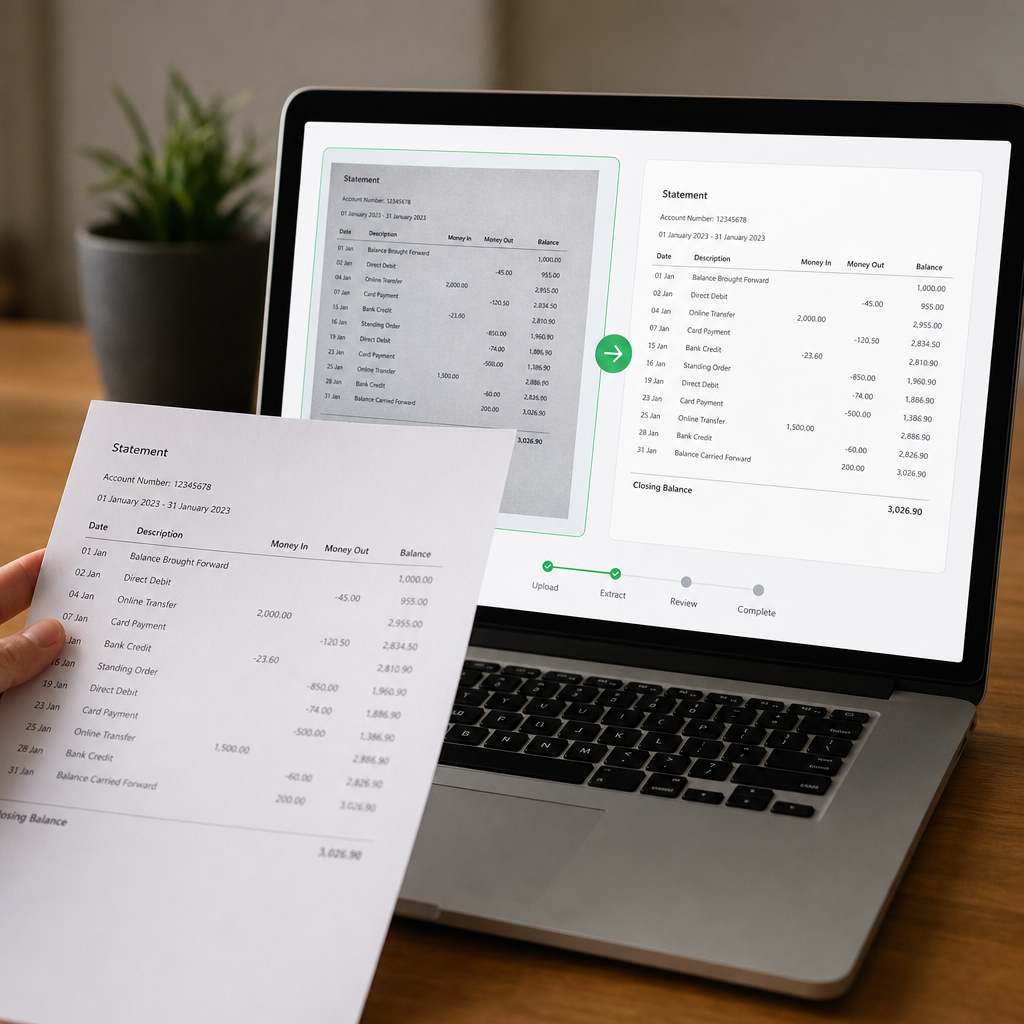
This is where dedicated conversion tools earn their keep. Rather than manually reformatting every statement, platforms like bankstatementboss.com use optical character recognition and machine learning to read PDF statements directly, then output data already structured for accounting software imports — including Sage-compatible column layouts.
Key capabilities that matter for Sage users specifically:
- Consistent date normalization across statements from different banks
- Automatic debit/credit separation, matching Sage's expected column structure
- Bulk processing for multi-page or multi-account statements
- Secure handling of sensitive financial data, an important consideration given rising data privacy regulations around financial documents
- API access for firms that want to build statement conversion directly into their existing workflow
For bookkeeping firms managing dozens of clients, the ability to batch-process statements rather than handle them one at a time is often the deciding factor. Bank Statement Boss's structured output reduces the back-and-forth of failed imports, since the formatting is built around what platforms like Sage, QuickBooks, and Xero actually expect on the first attempt.
Common Mistakes That Derail Sage Imports
Even with the right tools, a few recurring mistakes trip up otherwise careful bookkeepers:
- Ignoring header rows. Sage import templates often expect a specific header row structure — missing or mismatched headers cause silent import failures.
- Not reconciling before importing. Skipping the balance check means errors surface only after the data is already in the ledger, making them harder to trace.
- Mixing statement periods. Overlapping date ranges from multiple PDF exports can create duplicate transactions.
- Forgetting multi-currency accounts. Sage requires currency consistency per ledger; mixed-currency statements need to be split before import.
- Relying on copy-paste from PDF viewers. This frequently breaks column alignment, especially with statements that use tabular PDF layouts rather than true data tables.
Avoiding these issues up front saves significant cleanup time later, particularly during month-end close when accuracy matters most.
Security Considerations When Converting Financial Documents
Bank statements contain sensitive data — account numbers, balances, and transaction histories — so the conversion method matters as much as the output format. When evaluating any conversion tool, consider:
- Encryption in transit and at rest, ensuring uploaded PDFs and generated files are protected
- Data retention policies — does the tool delete files after processing, or store them indefinitely?
- Compliance certifications, such as SOC 2 or GDPR alignment, especially for firms serving clients in regulated industries
- Access controls for team-based accounts, particularly relevant for bookkeeping firms with multiple staff members
Bank Statement Boss addresses these concerns with secure data handling practices designed specifically for financial documents, which is a meaningful differentiator compared to generic PDF-to-Excel converters that weren't built with accounting compliance in mind.
Choosing the Right Workflow for Your Practice
Not every bookkeeper or business needs the same solution. Here's a quick framework for deciding which approach fits your situation:
- Low volume, occasional statements: Manual entry or spreadsheet copy-paste may still be manageable if you're processing only one or two statements per month.
- Multiple clients or high transaction volume: Automated conversion tools become essential, both for speed and for reducing error rates across recurring monthly work.
- Firms needing integration: If you're building statement processing into a larger workflow — say, alongside client onboarding or automated reporting — API access matters more than a simple web upload tool.
- Teams prioritizing turnaround time: Faster processing means faster client deliverables, which matters for firms marketing quick-turnaround bookkeeping services.
For growing practices, pairing a conversion tool with a broader client communication strategy also matters. Firms looking to streamline client intake and document requests sometimes turn to services like leadmailbox.com to manage inbound document flow before it even reaches the bookkeeping stage, creating a smoother end-to-end pipeline from client submission to Sage-ready ledger entry.

Best Practices for Ongoing Statement Conversion
Once you've settled on a workflow, a few habits help keep the process running smoothly month after month:
- Standardize your file naming conventions so statements are easy to track by client, account, and period.
- Batch process at consistent intervals — weekly or monthly — rather than letting statements pile up.
- Keep a conversion log noting which statements have been processed and imported, to avoid duplicate work.
- Spot-check a sample of transactions after each import against the original PDF to catch any systemic formatting issues early.
- Review Sage's changelog periodically, since import requirements can shift with software updates. The Sage product updates page is a useful reference for staying current.
These habits matter more than they might seem. A single overlooked formatting quirk repeated across dozens of client statements can compound into hours of correction work at month-end.
Final Thoughts
Converting bank statements for Sage doesn't have to mean hours of manual retyping or wrestling with failed CSV imports. With the right process — and the right tools — bookkeepers and small business owners can turn a tedious monthly chore into a five-minute task. Understanding Sage's formatting requirements, avoiding common conversion mistakes, and choosing a secure, purpose-built tool are the three pillars of a reliable workflow.
For firms and business owners looking to eliminate manual data entry entirely, bankstatementboss.com offers an AI-powered solution built specifically for this problem: converting PDF bank and credit card statements into clean, structured spreadsheets ready for Sage, QuickBooks, or Xero. With secure data handling and API access for teams that need deeper integration, it's designed to take the friction out of one of accounting's most persistent manual tasks — so you can spend less time formatting and more time actually closing the books.
Article written by FrontRank