

Every small business owner eventually hits the same wall: a stack of PDF bank statements that need to end up inside QuickBooks, and no fast, reliable way to get them there. Manual entry is slow. Bank feeds miss historical data. Formatting errors create reconciliation headaches that eat entire afternoons. If you've ever typed transaction data line by line at 11 p.m. trying to close the books before a deadline, you already know the problem this article solves.
This guide breaks down exactly how to convert bank statement to QuickBooks-ready formats in minutes rather than hours, compares the three realistic methods available in 2026, and shows you how to avoid the common errors that cause reconciliation nightmares later.
Why Converting Bank Statements to QuickBooks Is Harder Than It Should Be
QuickBooks is built to accept clean, structured data — typically CSV, QBO, or QFX files with clearly labeled columns for date, description, amount, and category. Bank statements, on the other hand, are designed for human readability, not software import. They arrive as PDFs with inconsistent layouts, multi-line descriptions, running balances, and formatting quirks that vary from bank to bank.
This mismatch creates real friction for bookkeepers and finance teams:
- PDF text often extracts as garbled or misaligned when copied directly
- Multi-page statements can duplicate headers or split transactions across pages
- Foreign currency symbols and date formats vary by institution
- Credit card statements mix purchases, payments, and fees in inconsistent orders
- Scanned (image-based) statements have no selectable text at all
According to the Intuit QuickBooks support documentation, the platform accepts specific file types for bank transaction imports, and any deviation from the expected column structure typically causes an import failure or, worse, a silent data mismatch that only surfaces during reconciliation weeks later.
Three Ways to Convert Bank Statements for QuickBooks
There are three realistic paths available to bookkeepers and business owners today. Each has tradeoffs in speed, accuracy, and cost.
1. Manual Data Entry
This is the default fallback when no other tool is available. You open the PDF, read each transaction, and manually type it into a spreadsheet or directly into QuickBooks.
Pros:
- No software cost
- Full control over categorization as you go
Cons:
- Extremely time-consuming (often 2-4 hours per statement)
- High error rate from fatigue and repetitive typing
- Doesn't scale for multiple accounts or clients
2. Bank Feed Connections
QuickBooks Online offers direct bank feed integration, which pulls transactions automatically once your account is linked. This works well for ongoing, current transactions.
Pros:
- Automatic and continuous once set up
- No manual formatting required
Cons:
- Cannot retroactively pull older historical statements in many cases
- Some banks limit lookback windows to 90 days
- Connection issues, especially with smaller or regional banks, are common
- Doesn't help when a client hands you a PDF from a bank they no longer use
3. AI-Powered PDF Conversion Tools
Purpose-built converters extract transaction data from PDF statements and output it in a format QuickBooks accepts natively. Tools like Bank Statement Boss use AI-based parsing to read statement layouts from hundreds of banks and produce clean, structured spreadsheets or QBO-compatible files in minutes.
Pros:
- Handles historical statements bank feeds can't reach
- Works across multiple banks and formats without manual reformatting
- Dramatically faster than manual entry
- Reduces human transcription error
Cons:
- Requires a subscription or per-conversion fee
- Complex or heavily scanned documents may need manual review for edge cases
Comparing the Three Methods Side by Side
| Method | Time per Statement | Accuracy | Historical Data Access | Best For |
|---|---|---|---|---|
| Manual Entry | 2-4 hours | Low-Medium (fatigue-driven errors) | Yes, but slow | Single, occasional statements |
| Bank Feeds | Instant (ongoing only) | High for current data | Limited (often 90 days) | Ongoing transaction sync |
| AI Conversion Tool | 2-5 minutes | High | Yes, unlimited backdated statements | Bulk conversions, multi-client work, catch-up bookkeeping |
As the table shows, AI-powered conversion is the only method that combines speed with full historical access — a critical factor for bookkeepers handling catch-up work or onboarding new clients with a year of unorganized statements.
Step-by-Step: Converting a PDF Bank Statement to QuickBooks Format
Here's the general workflow when using a dedicated conversion tool rather than manual entry:
- Gather your PDF statements. Download them directly from your bank's online portal to ensure the highest text quality.
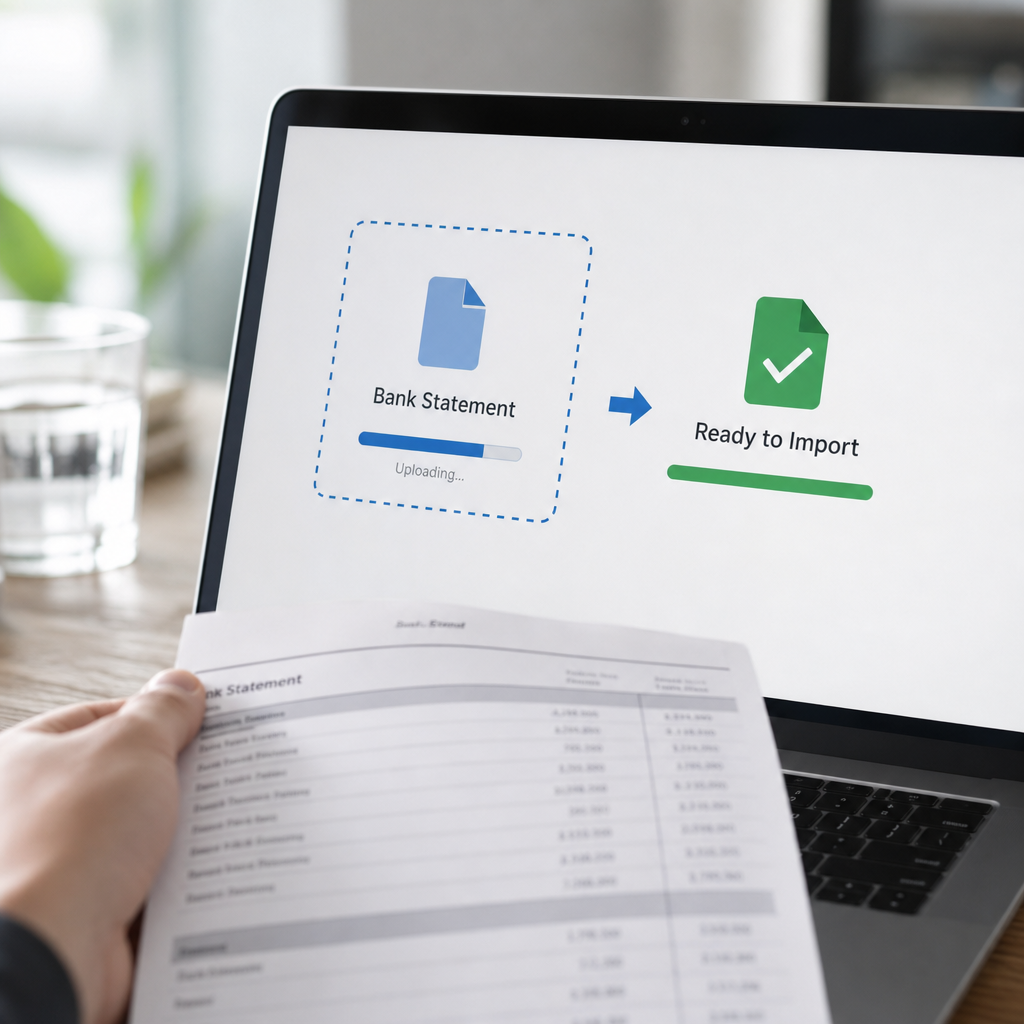
- Upload to a conversion platform. Tools like Bank Statement Boss accept PDF uploads and use AI to detect the statement's bank-specific layout automatically.
- Review the extracted data. A good tool will present a preview table showing dates, descriptions, and amounts before final export.
- Select your export format. Choose CSV, Excel, or a QuickBooks-specific format (QBO/QFX) depending on your import method.
- Import into QuickBooks. Navigate to Banking > Upload Transactions within QuickBooks Online and select your exported file.
- Categorize and reconcile. Match the imported transactions against existing records and assign categories or rules for future automation.
This process typically takes under ten minutes per statement, compared to hours of manual work, and scales linearly — converting ten statements takes only marginally longer than converting one.
File Format Requirements: What QuickBooks Actually Accepts
Understanding QuickBooks' import requirements prevents failed uploads and wasted time. Below is a breakdown of the formats QuickBooks Online and Desktop typically support.
| Format | QuickBooks Online | QuickBooks Desktop | Notes |
|---|---|---|---|
| CSV | Yes (3-column: Date, Description, Amount) | Yes | Most flexible, but must match column order exactly |
| QBO | Yes | Yes | Web Connect format, ideal for bank-style imports |
| QFX | Limited | Yes | Common for Desktop, less universal on Online |
| Excel (XLSX) | Via CSV conversion only | Via CSV conversion only | Must be saved/exported as CSV first |
| No | No | Never accepted directly; must be converted first |
This is precisely why conversion is a mandatory step, not an optional convenience — QuickBooks simply cannot ingest a raw PDF, regardless of how well-formatted the statement looks to the human eye. For a deeper technical breakdown of supported banking file types, the QuickBooks Community forum is a useful ongoing resource maintained by both Intuit staff and experienced bookkeepers.
Common Errors When Converting Bank Statements (and How to Avoid Them)
Even with the right tools, certain mistakes recur across bookkeeping teams. Watch for these:
- Mismatched date formats. US (MM/DD/YYYY) versus international (DD/MM/YYYY) formats can silently swap days and months during import.
- Duplicate transactions. Importing the same statement twice, or overlapping bank feed data with a manual import, creates duplicate entries that inflate totals.
- Missing negative signs on debits. Some exports strip the negative sign from withdrawals, causing every transaction to post as income.
- Incorrect currency handling. Multi-currency accounts need explicit currency tagging, or QuickBooks may misinterpret exchange values.
- Truncated multi-line descriptions. Some PDF parsers cut off long merchant descriptions, losing important reconciliation context.
A well-built conversion tool addresses most of these automatically by standardizing date formats, applying consistent sign conventions, and validating totals against the statement's own summary page before export. This validation step is one of the most overlooked but valuable features when choosing a bank statement converter, since it catches errors before they ever reach your books.
Security and Compliance Considerations
Bank statements contain sensitive financial data, so any conversion workflow needs to account for data protection. When evaluating a tool, consider:
- Encryption in transit and at rest. Files should be encrypted using standards like AES-256 and TLS during upload.
- Data retention policy. Reputable providers delete uploaded files after conversion rather than storing them indefinitely.
- Compliance certifications. Look for SOC 2 or similar attestations, particularly if you handle client data as a professional bookkeeper.
- Access controls. For teams, role-based permissions prevent unauthorized staff from viewing sensitive client statements.
The Federal Trade Commission's guidance on safeguarding customer information is a useful baseline for any firm handling financial documents on behalf of clients, and it's worth confirming that any SaaS tool you adopt aligns with these principles before uploading real client data.
Who Actually Needs This Workflow?
Not every business needs automated conversion, but several groups benefit significantly:
- Freelance bookkeepers managing multiple clients across different banks, each with unique statement formats
- Small business owners doing their own books who lack time for manual transaction entry
- Accounting firms onboarding new clients with a backlog of unreconciled historical statements
- Finance teams at growing companies that need to consolidate multiple business accounts quickly
For solo bookkeepers in particular, the ability to process a full year of a new client's statements in an afternoon, rather than a week, directly affects how many clients they can realistically serve. This scalability question is discussed in more depth on industry resources like frontrank.com, which covers broader workflow automation trends affecting service-based businesses.

Choosing the Right Conversion Tool: What to Look For
Not all PDF-to-QuickBooks converters are built equally. When comparing options, prioritize these factors:
- Bank coverage. Does it recognize statement layouts from major banks and credit unions, or only a handful of large institutions?
- Output flexibility. Can it export to CSV, Excel, and QuickBooks-specific formats, or just one?
- Accuracy validation. Does it cross-check extracted totals against the statement's stated balance?
- Batch processing. Can you upload multiple statements at once, or only one at a time?
- API access. For firms building internal tools or automations, is there a developer API available?
- Pricing transparency. Is pricing per-page, per-statement, or subscription-based, and does it scale sensibly with volume?
Bank Statement Boss is built specifically around these priorities, offering AI-based extraction, multiple export formats compatible with QuickBooks, Xero, and Sage, and API access for teams that need to integrate conversion directly into their existing bookkeeping pipelines. For teams processing statements at scale, this kind of infrastructure-level access — rather than a one-off manual tool — tends to produce the best long-term time savings.
Frequently Asked Questions
Can QuickBooks read a PDF bank statement directly? No. QuickBooks requires CSV, QBO, or QFX formats. PDFs must be converted first using either manual re-entry or a dedicated conversion tool.
How far back can I import bank statements into QuickBooks? Bank feeds are usually limited to 90 days of history, but converted PDF statements have no such limit — you can import data going back years if you have the original PDFs.
Is it safe to upload bank statements to an online converter? It depends on the provider. Look for encryption, clear data retention policies, and compliance certifications before uploading sensitive financial documents.
What's the fastest way to convert multiple years of statements at once? Batch-upload features in AI-powered tools allow dozens of PDF statements to be processed simultaneously, which is far faster than importing them one at a time through bank feeds.
Does converting a statement change the original transaction data? No — a proper conversion tool extracts and reformats the data without altering transaction amounts, dates, or descriptions. Validation checks against the statement's summary balance confirm accuracy.
For additional context on broader digital bookkeeping automation trends, resources like leadmailbox.com also cover how service businesses are adapting document workflows to reduce manual administrative overhead — a trend directly relevant to anyone still hand-keying bank statements in 2026.
Final Thoughts
Converting a bank statement to QuickBooks doesn't have to mean hours of manual transcription or wrestling with bank feed limitations. Whether you're a freelance bookkeeper managing a dozen clients, a small business owner trying to close your books faster, or a finance team consolidating multiple accounts, the right conversion approach saves measurable time every single month.
Manual entry still has a place for the occasional one-off statement, and bank feeds remain useful for ongoing transaction syncing. But for historical data, multi-bank environments, or any bulk conversion need, AI-powered tools have become the clear standard. Bank Statement Boss was built precisely for this gap — turning messy PDF statements into clean, QuickBooks-ready data in minutes, with the security and format flexibility that professional bookkeepers and growing finance teams require. If your bookkeeping workflow still involves manually typing transactions from a PDF, it's worth testing how much time a purpose-built converter can actually give back to your week.
Article written by FrontRank