

Every bookkeeper eventually hits the same wall: a client hands over a stack of PDF bank statements, and QuickBooks needs a clean QBO file to work with. The gap between those two things — a static PDF and a structured, importable file — is where hours disappear every month. Choosing the right method to convert a bank statement to a QBO file isn't just a technical decision; it's a decision about how much of your time you're willing to trade for accuracy and convenience.
This article weighs the three realistic paths available in 2026: manual data entry, generic OCR software, and purpose-built conversion tools like Bank Statement Boss. We'll look at accuracy, time cost, pricing, and reliability so you can decide which approach actually fits your workflow.
What Is a QBO File, and Why Does It Matter?
A QBO file is QuickBooks' native format for importing bank and credit card transactions. Unlike a CSV or Excel file, a QBO file is structured specifically to map transaction dates, descriptions, amounts, and payee information into QuickBooks' Banking feed, where it can be reviewed, categorized, and reconciled.
Most banks offer QBO downloads directly through their online portals — but this only works if your bank supports direct export and your client has given you access to that account. In reality, many bookkeepers and finance teams work from PDF statements instead, because:
- The client's bank doesn't offer a QBO export option
- The account is closed or access has lapsed
- Statements come from a card processor, not a traditional bank
- The client simply forwards PDFs rather than granting portal access
- Older or historical statements aren't available for re-download
When direct export isn't possible, you need a reliable way to convert a bank statement to a QBO file from the PDF itself. That's where the three methods below come into play.
Method 1: Manual Data Entry
Manual entry means literally opening the PDF, reading each transaction line, and typing it into a spreadsheet or directly into QuickBooks before converting that data into QBO format.
Pros:
- No software cost
- Full control over formatting
- Works for any statement, regardless of layout
Cons:
- Extremely time-consuming — a 3-page statement with 60 transactions can take 45–90 minutes to transcribe accurately
- High risk of human error, especially with transposed numbers or missed decimal points
- Doesn't scale across multiple clients or accounts
- Requires a second pass for QA, doubling the time investment
For a solo bookkeeper handling one or two clients a month, manual entry might feel manageable. But for anyone managing multiple accounts — which describes most freelance accountants and finance teams — this method quickly becomes the single biggest drain on billable hours.
Method 2: Generic OCR Software
Optical Character Recognition (OCR) tools, including general-purpose apps and some PDF editors, can extract text from scanned documents. Some accountants try to repurpose these tools to pull bank statement data before manually reformatting it into a QBO-compatible structure.
The problem is that generic OCR wasn't built for financial documents. It doesn't understand that a bank statement has recurring columns for date, description, debit, credit, and balance — it just sees text on a page. This leads to common issues:
- Misaligned columns when the statement layout shifts between pages
- Merged or split transaction lines
- Loss of decimal precision or currency symbols
- No built-in mapping to QBO, OFX, or QFX formats
- Manual cleanup still required before the file is usable
According to the AICPA, data entry and reconciliation remain among the most time-intensive tasks in small business bookkeeping — a problem generic OCR only partially solves. You still need a second tool, or a lot of manual formatting, to get from raw extracted text to an actual importable QBO file.
Method 3: Dedicated Bank Statement Conversion Tools
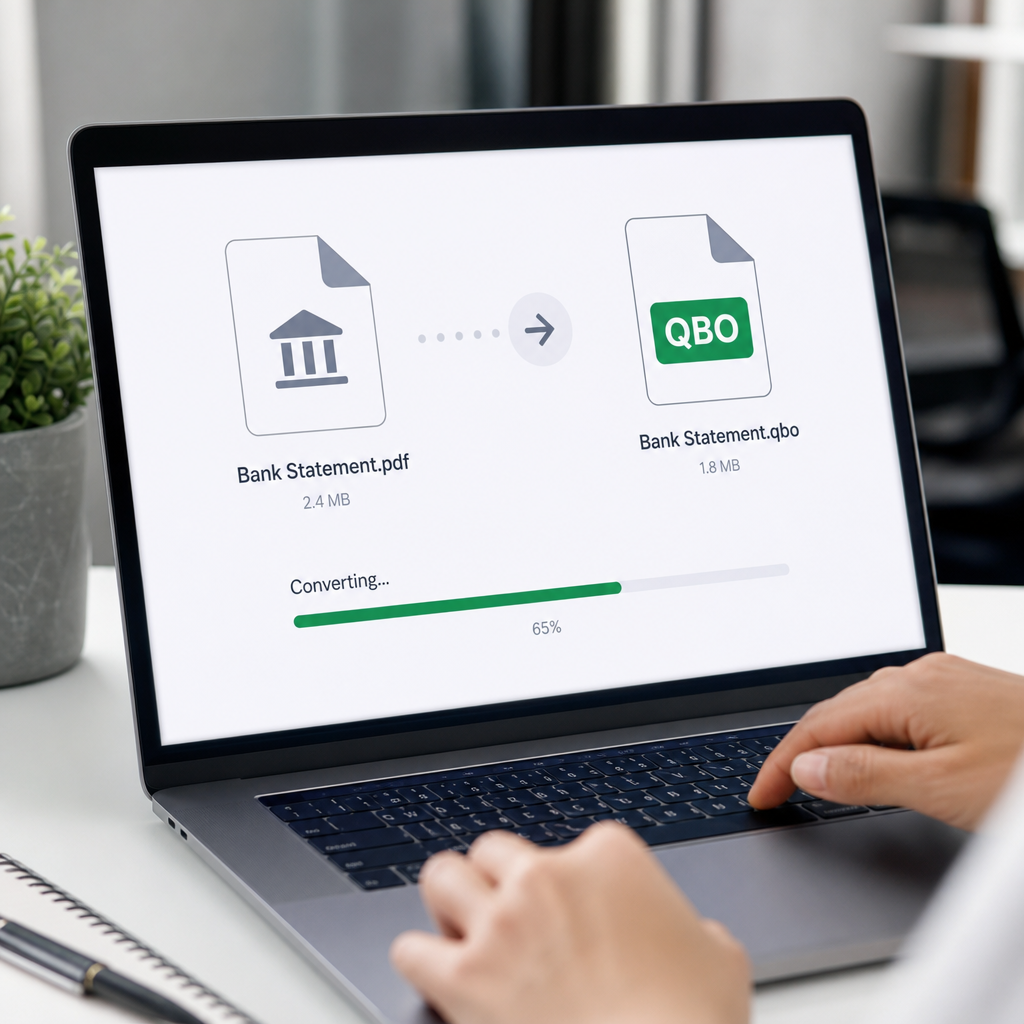
Purpose-built converters are designed around one job: turning PDF bank and credit card statements into clean, structured, accounting-ready files. Tools like Bank Statement Boss use AI models trained specifically to recognize bank statement layouts — not generic documents — which means they understand transaction tables, multi-page statements, and varying bank formats out of the box.
This matters because banks don't use standardized statement layouts. A Chase statement looks nothing like a Wells Fargo or a regional credit union statement. A tool trained specifically on financial documents can adapt to these differences automatically, while generic OCR or manual entry treats every statement as a brand-new puzzle.
How Dedicated Converters Typically Work
- Upload the PDF bank or credit card statement
- The AI engine identifies transaction rows, dates, descriptions, and amounts
- Data is structured into a clean table
- You export in the format you need — QBO, CSV, Excel, or formats compatible with Xero and Sage
- The file imports directly into your accounting platform
Because the output is already formatted for accounting software, there's no secondary cleanup step. This is the core advantage over generic OCR: the conversion is accounting-aware from the start.
Comparing the Three Methods Side by Side
| Factor | Manual Entry | Generic OCR | Dedicated Converter |
|---|---|---|---|
| Time per statement (avg. 50 transactions) | 45–90 minutes | 20–40 minutes + cleanup | 2–5 minutes |
| Accuracy | Variable, human error risk | Moderate, column errors common | High, purpose-trained AI |
| QBO-ready output | No — requires manual formatting | No — requires manual formatting | Yes, direct export |
| Scalability across clients | Poor | Fair | Excellent |
| Learning curve | None | Moderate | Low |
| Best for | Single, occasional statement | Tech-comfortable users with time to spare | Bookkeepers, accountants, finance teams |
Accuracy and Compliance Considerations
Accuracy isn't just about convenience — it affects compliance and financial reporting integrity. Misreported transactions can throw off reconciliations, tax filings, and audit trails. The IRS recordkeeping guidelines emphasize that businesses must maintain accurate financial records, and that standard extends to how source documents like bank statements are transcribed into accounting systems.
When evaluating any conversion method, ask:
- Does it preserve exact transaction amounts, including cents?
- Does it correctly distinguish debits from credits?
- Does it handle multi-page statements without duplicating or dropping rows?
- Is there an audit trail if a client questions a transaction later?
Dedicated tools generally perform better here because they're built around validation logic specific to financial data — checking, for example, that running balances match stated totals, which generic OCR tools don't attempt.
Security: Who's Handling Your Clients' Financial Data?
Security deserves its own serious consideration, especially for bookkeepers and accountants handling sensitive client data under professional obligations. The Federal Trade Commission's Safeguards Rule requires financial institutions and their service providers to implement safeguards for customer financial information — a standard that extends to how bookkeeping professionals handle bank statement data.
When comparing tools, look for:
- Encrypted file transfer and storage
- Clear data retention and deletion policies
- No unnecessary data sharing with third parties
- Compliance documentation available on request
Bank Statement Boss builds secure data handling into its process by design, which matters significantly more than it might with a generic, free OCR tool that wasn't built with financial compliance in mind.
Pricing Comparison: What Each Option Really Costs
It's tempting to think manual entry is "free" since there's no software subscription — but time is money, especially for billable professionals. Here's a realistic cost comparison based on an average bookkeeper's hourly rate of $35–$50.
| Method | Direct Cost | Time Cost (per statement) | Effective Cost per Statement |
|---|---|---|---|
| Manual Entry | $0 | 60 minutes avg. | $35–$50 |
| Generic OCR | $10–$20/month (tool) | 30 minutes avg. (incl. cleanup) | $17.50–$25 + subscription |
| Dedicated Converter | Subscription-based (varies by plan) | 3 minutes avg. | Fraction of a billable hour |
When you multiply this across dozens of statements per month for multiple clients, the dedicated converter option consistently wins on total cost — even before accounting for reduced error rates and faster turnaround for clients.

Step-by-Step: Converting a Bank Statement to a QBO File
For bookkeepers ready to move away from manual entry, here's a practical workflow using a dedicated converter:
- Gather statements — Collect all PDF bank or credit card statements for the period you're reconciling.
- Upload to the converter — Use a platform like bankstatementboss.com to upload one or multiple PDFs at once.
- Review the extracted data — Confirm dates, amounts, and descriptions match the source document.
- Select your export format — Choose QBO if importing directly into QuickBooks, or CSV/Excel if you need to manipulate the data first.
- Import into QuickBooks — Use QuickBooks' "File Upload" option under Banking to bring in the QBO file.
- Categorize and reconcile — Match transactions to the correct accounts and complete your reconciliation as usual.
This workflow typically takes a few minutes per statement instead of the better part of an hour, which compounds significantly across a client roster.
When Each Method Actually Makes Sense
No single method is right for every situation. Here's a practical breakdown:
- Manual entry still makes sense for a one-off, unusual statement format that no software recognizes, or for extremely low transaction volumes.
- Generic OCR can work as a stopgap if you only need to extract raw text occasionally and don't mind manual formatting afterward.
- Dedicated converters make the most sense for anyone processing bank statements regularly — bookkeepers managing multiple clients, accounting firms, or finance teams closing books monthly.
Given that most of this audience fits the third category, a dedicated tool is generally the more defensible long-term choice, both financially and in terms of professional reliability.
Common Mistakes to Avoid
Even with the right tool, there are pitfalls worth watching for:
- Skipping the review step. Even highly accurate AI extraction should be spot-checked against the original PDF before import.
- Ignoring file format compatibility. Not every accounting platform reads QBO the same way — confirm your QuickBooks version supports direct QBO import, as some versions prefer QFX or CSV with mapped templates.
- Overlooking duplicate transactions. When re-importing a statement after a failed first attempt, duplicate entries can slip into the Banking feed.
- Neglecting data security. Uploading sensitive client financial data to unknown or unverified tools can create compliance exposure.
- Not keeping the original PDF. Always retain source documents for audit trail purposes, even after conversion.
Tools built specifically for this use case, including features offered through bankstatementboss.com, tend to reduce these risks by validating totals and structuring data in a way that's easier to audit after the fact. For teams managing high-volume document workflows more broadly, resources like leadmailbox.com and frontrank.com also offer useful perspectives on streamlining business document handling and growth operations.
Frequently Asked Questions
Can QuickBooks import a QBO file directly from a PDF? No. QuickBooks requires a properly formatted QBO file. PDFs must first be converted using OCR or a dedicated conversion tool before import.
Is converting bank statements to QBO files legal and compliant? Yes, as long as the data is handled securely and accurately reflects the original source document. Compliance concerns arise from how the data is stored and transmitted, not from the conversion itself.
What if my bank doesn't offer a QBO download option? This is exactly the scenario dedicated converters solve — turning a PDF statement into a usable QBO, CSV, or Excel file when direct bank export isn't available.
How accurate are AI-based bank statement converters? Purpose-built tools trained on financial documents typically outperform generic OCR significantly, though reviewing extracted data against the original statement remains good practice.
Final Thoughts
Converting a bank statement to a QBO file is a task every bookkeeper and finance professional eventually faces, and the method you choose has a real impact on your time, accuracy, and bottom line. Manual entry is slow and error-prone. Generic OCR offers a partial solution but leaves formatting work undone. Dedicated conversion tools close that gap entirely, turning a tedious manual process into a task that takes minutes instead of hours.
For professionals who handle bank statement conversions regularly, Bank Statement Boss offers a secure, accurate, and fast way to transform PDF statements into QuickBooks-ready QBO files — along with compatibility for Xero and Sage, and API access for teams that need to scale the process further. Whether you're reconciling a single client's account or managing dozens, bankstatementboss.com is built to turn statement conversion from a monthly headache into a five-minute task.
Article written by FrontRank