

For freelance bookkeepers and small business owners working on a Mac, Apple's Numbers app is often the spreadsheet tool of choice. It's clean, intuitive, and integrates seamlessly with the rest of the Apple ecosystem. But there's a persistent problem: banks don't hand out statements in Numbers format. They issue PDFs — static, often poorly formatted documents that are great for printing and terrible for data analysis.
If you've ever tried to manually retype transaction data from a PDF bank statement into a spreadsheet, you already know how tedious and error-prone that process can be. This article walks through exactly how to convert bank statement to Numbers format efficiently, what tools actually work in 2026, and how to avoid the common mistakes that cost bookkeepers hours of rework.
Why Converting Bank Statements to Numbers Format Matters
Numbers, Apple's native spreadsheet application, is a popular choice among freelancers and small firms that favor macOS over Windows-based accounting setups. But its popularity creates a unique conversion challenge, since most financial software and extraction tools are built with Excel or CSV output in mind first, and Numbers compatibility second.
Still, the underlying need is universal: transaction-level data needs to move from an unstructured PDF into rows and columns that a spreadsheet — or an accounting platform like QuickBooks, Xero, or Sage — can actually use. Without this step, you're stuck manually transcribing dates, descriptions, and amounts, which introduces risk at every keystroke.
Accurate bank statement conversion matters because:
- Reconciliation accuracy depends on clean, correctly parsed transaction data.
- Time efficiency is critical when you're managing multiple clients or accounts.
- Audit readiness requires consistent, well-formatted records that can be traced and verified.
- Tax preparation becomes significantly faster when historical statements are already digitized.
According to the IRS recordkeeping guidelines, businesses are required to retain financial records that support income, deductions, and credits — and having that data in a structured, searchable format makes compliance far less painful.
The Manual Conversion Problem
Before diving into solutions, it's worth understanding why manual conversion is such a drain on productivity. A typical monthly bank statement might contain anywhere from 30 to 200+ transactions. If you're managing books for multiple clients, that volume multiplies quickly.
Manually converting a bank statement to Numbers format typically involves:
- Opening the PDF and visually scanning each transaction line.
- Copy-pasting data into Numbers, which often breaks column alignment.
- Manually fixing merged cells, misread decimals, and jumbled date formats.
- Cross-checking totals against the statement's summary page.
- Repeating this process for every account, every month.
This approach isn't just slow — it's a liability. A single transposed digit in a deposit amount can throw off an entire reconciliation, and catching that error after the fact often takes longer than the original data entry did.
Comparing Conversion Methods
There are several ways to get bank statement data into a usable spreadsheet format, each with tradeoffs in speed, accuracy, and cost.
| Method | Speed | Accuracy | Best For |
|---|---|---|---|
| Manual data entry | Very slow | Low (human error risk) | Single, short statements |
| Copy-paste from PDF | Slow | Low-Medium (formatting breaks) | Occasional one-off use |
| Generic PDF-to-Excel tools | Moderate | Medium | Simple, text-based PDFs |
| Bank's own CSV/OFX export | Fast | High (if available) | Banks that support it |
| AI-powered conversion tools | Very fast | High | Recurring, multi-client workflows |
Not every bank offers a direct export option, and even when they do, the format often doesn't match what your accounting software expects. This is where purpose-built conversion tools come in — particularly ones designed with accountants and bookkeepers in mind.
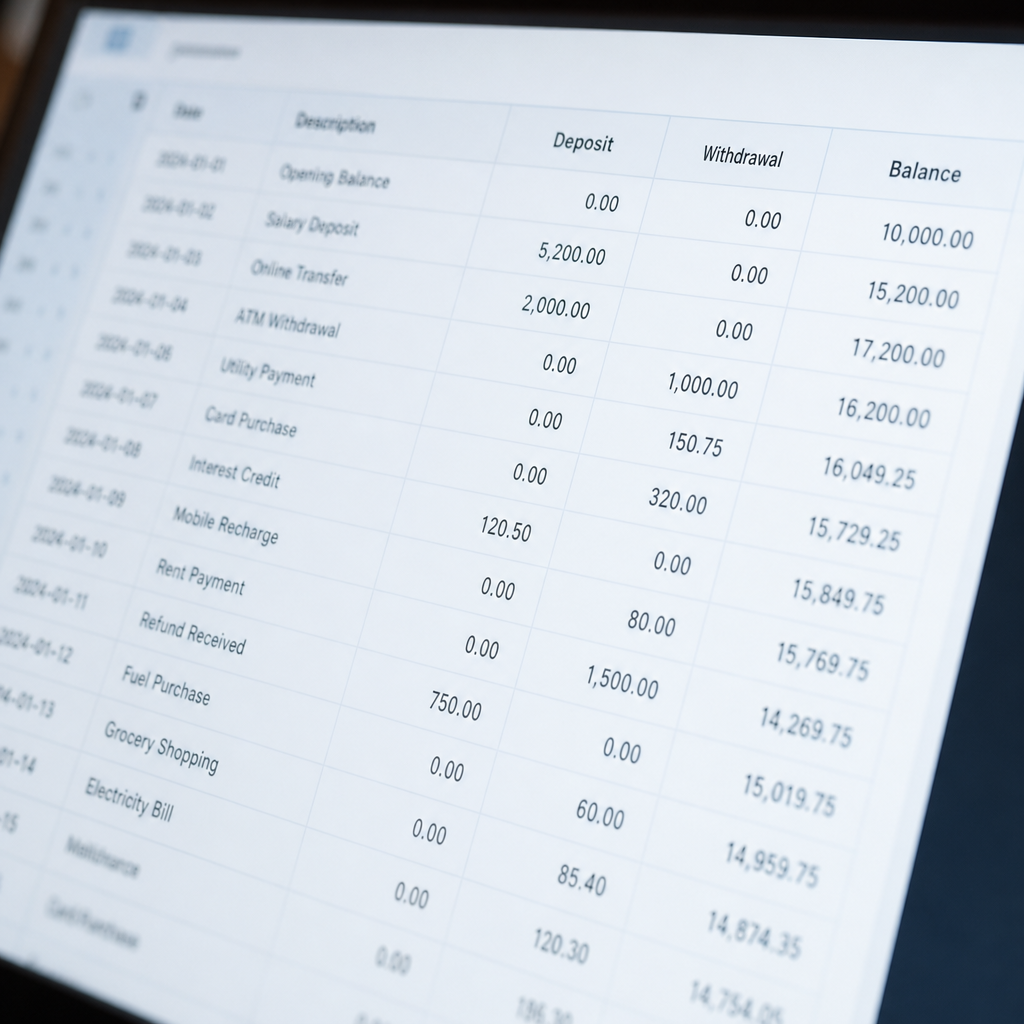
Bank Statement Boss was built specifically to solve this gap. Instead of relying on generic PDF converters that struggle with multi-column statement layouts, it uses AI trained specifically on financial documents to accurately extract transaction dates, descriptions, debits, credits, and running balances — then exports them into clean spreadsheet formats compatible with Numbers, Excel, and Google Sheets alike.
Step-by-Step: Converting a Bank Statement to Numbers Format
Here's a practical workflow for getting from PDF to a Numbers-ready spreadsheet:
- Gather your statements. Collect all PDF bank or credit card statements you need converted. Batch processing saves significant time if you're handling multiple months or accounts.
- Upload to a conversion tool. Use a platform like Bank Statement Boss that supports secure PDF uploads and automated data extraction.
- Review the extracted data. Even the best AI tools benefit from a quick human review pass, especially for unusual transaction descriptions or multi-currency entries.
- Export to CSV or Excel. Most tools export to CSV or XLSX, both of which Numbers can open natively via File > Open or drag-and-drop.
- Open and format in Numbers. Once imported, apply your preferred table styles, currency formatting, and formulas.
- Reconcile against the original statement. Confirm that the opening and closing balances match the source document.
This process, done with the right tool, typically takes a few minutes per statement rather than the 30-60 minutes manual entry can consume.
What to Look for in a Bank Statement Conversion Tool
Not all conversion tools are created equal. When evaluating options, bookkeepers and finance teams should weigh the following criteria:
- Format compatibility: Does it export to CSV or XLSX files that open cleanly in Numbers without broken columns?
- Accuracy on varied layouts: Banks format statements differently — some use single-column transaction lists, others use multi-column layouts with separate debit/credit fields.
- Security and data handling: Since bank statements contain sensitive financial information, look for providers with clear data retention and encryption policies. The Federal Trade Commission's guidance on safeguarding customer information is a useful benchmark for what responsible handling looks like.
- Accounting software integration: Tools that format output for QuickBooks, Xero, or Sage save an extra formatting step.
- Batch processing: If you manage multiple clients, the ability to upload and convert multiple statements at once is essential.
- API access: For firms building their own internal workflows, API access allows statement conversion to be embedded directly into existing systems.
Bank Statement Boss covers each of these criteria, which is why it has become a go-to resource for freelance accountants and bookkeeping professionals looking to cut down on manual data entry without compromising accuracy.
Comparing Popular Spreadsheet Destinations
Once your bank statement data is extracted, where should it actually live? The answer depends on your workflow, your clients, and your existing software stack.
| Spreadsheet/Software | Mac Compatibility | Formula Support | Best Use Case |
|---|---|---|---|
| Apple Numbers | Native | Good, simplified | Solo freelancers, Mac-based workflows |
| Microsoft Excel | Via Mac app or Office 365 | Extensive | Complex financial modeling |
| Google Sheets | Browser-based | Good, collaborative | Teams needing real-time collaboration |
| QuickBooks Online | Import via CSV | N/A (accounting-specific) | Full-service bookkeeping |
| Xero | Import via CSV | N/A (accounting-specific) | Small business accounting |
If your end goal is simply visualizing and lightly manipulating transaction data, Numbers is often sufficient and offers a more approachable interface than Excel for many solo practitioners. However, if you're preparing data for a client who uses QuickBooks or Xero, it often makes sense to export directly in a format tailored to those platforms, then maintain a Numbers copy for your own internal review.
This is one reason tools like Bank Statement Boss support multiple export formats from a single upload — you shouldn't have to convert the same statement twice just because your internal tools and your client's accounting software differ.
Common Mistakes When Converting Bank Statements
Even with good tools, certain mistakes crop up repeatedly. Avoiding them will save you time and prevent downstream reconciliation headaches.
- Ignoring multi-page statements. Some PDFs split transaction tables across pages with repeated headers — make sure your conversion tool handles this without duplicating header rows.
- Overlooking currency symbols and locale formatting. A statement from a European bank may use commas as decimal separators, which can corrupt numeric fields if not handled correctly.
- Skipping the balance reconciliation step. Always verify that the sum of transactions matches the statement's stated closing balance.
- Using generic OCR tools on scanned statements. Basic optical character recognition often misreads numbers, especially when statements are scanned at low resolution. Purpose-built financial document AI, as described by NIST's overview of document digitization standards, performs significantly better on structured financial data.
- Failing to standardize date formats. Mixing MM/DD/YYYY and DD/MM/YYYY formats across different bank statements can silently break date-based reporting.
- Not securing sensitive data during conversion. Uploading financial documents to unknown or unsecured third-party tools can expose sensitive account information.

Security Considerations for Financial Document Conversion
Because bank statements contain highly sensitive data — account numbers, balances, transaction histories — security should never be an afterthought in your conversion workflow. The Consumer Financial Protection Bureau has repeatedly emphasized that consumers and businesses alike should scrutinize how third-party financial tools store and process data.
When selecting a conversion service, confirm:
- Data is encrypted both in transit and at rest.
- The provider has a clear, published data retention policy.
- Documents are not used to train shared AI models without explicit consent.
- The company complies with relevant financial data handling regulations.
Bank Statement Boss was built with these concerns front and center, offering secure processing designed specifically for sensitive financial documents, which is a key differentiator from generic file-conversion websites that weren't designed with banking data in mind.
Why Automation Beats Manual Entry Long-Term
It's tempting to think of manual conversion as "free" since it doesn't involve a software subscription. But when you factor in the hourly value of a bookkeeper's or accountant's time, manual entry is almost always more expensive than it appears.
Consider a firm handling statements for 15 clients, each with 2-3 bank accounts, every month:
- Manual entry at roughly 45 minutes per statement across 35 accounts equals over 26 hours monthly.
- AI-assisted conversion at an average of 3-5 minutes per statement, including review, cuts that to under 3 hours monthly.
That reclaimed time can be redirected toward advisory services, client acquisition, or simply reducing billable hour pressure — all of which have a direct impact on firm profitability.
Final Thoughts
Converting a bank statement to Numbers format doesn't need to be a manual, error-prone chore. With the right workflow — uploading statements to a purpose-built AI extraction tool, reviewing the output, and exporting into a Numbers-compatible file — bookkeepers and small business owners can reclaim hours every month while improving accuracy and audit readiness.
Bank Statement Boss was designed precisely for this use case: turning messy PDF bank and credit card statements into clean, structured spreadsheets that work with Numbers, Excel, QuickBooks, Xero, and Sage alike. With secure data handling and API access for growing firms, it offers a reliable path from paper-based chaos to digitized, actionable financial data — saving time today and building a more resilient bookkeeping process for the future.
Article written by FrontRank