

FreshBooks is one of the most popular accounting platforms for freelancers and small businesses, but it has a well-known limitation: it doesn't always play nicely with PDF bank statements. If you've ever tried to import a statement straight from your bank's website into FreshBooks, you've probably hit a formatting wall. Dates in the wrong order, merged columns, missing transaction descriptions — the list of headaches goes on.
This article compares the three realistic ways to convert bank statement to FreshBooks-ready data: manual entry, native bank feeds, and AI-powered PDF conversion tools. We'll look at accuracy, time investment, cost, and which option makes the most sense depending on your business size and transaction volume.
Why Bank Statements Don't Import Cleanly into FreshBooks
FreshBooks accepts CSV files for transaction imports, but it expects a very specific structure: date, description, and amount columns in a predictable order, with consistent date formatting and no stray headers or footers. Most bank statements, especially PDFs downloaded directly from online banking portals, aren't built for that purpose at all.
Common issues include:
- Inconsistent date formats (MM/DD/YYYY vs. DD/MM/YYYY vs. written-out dates)
- Combined debit/credit columns that need to be split into separate values
- Multi-page PDFs where transaction tables break across pages with repeated headers
- Non-standard currency symbols or thousands separators that confuse CSV parsers
- Scanned statements that are images rather than selectable text, which no spreadsheet software can read directly
Because of these quirks, simply "saving as CSV" from a PDF viewer rarely produces a file FreshBooks will accept without errors. This is where most small business owners start hunting for a better process — and where the three methods below diverge sharply in terms of time and reliability.
Method 1: Manual Data Entry
Manual entry is still the default approach for many solo freelancers and very small businesses, mostly because it requires no new tools or signup process. You simply open your bank statement, read each transaction, and type it into FreshBooks or an intermediate spreadsheet.
Pros:
- No cost beyond your own time
- Full control over categorization as you go
- No software to learn
Cons:
- Extremely time-consuming for anything beyond a handful of transactions
- High risk of transposition errors and missed entries
- Doesn't scale — a business with multiple accounts or high transaction volume will burn hours every month
- Difficult to audit later since there's no clean source file to cross-reference
For a business processing fewer than 20 transactions a month, manual entry might be tolerable. Beyond that, it becomes a genuine drag on productivity. A Bureau of Labor Statistics report on bookkeeping occupations notes that data entry and reconciliation remain among the most time-intensive parts of the bookkeeping role — precisely the tasks automation is best suited to eliminate.
Method 2: FreshBooks Native Bank Connections
FreshBooks offers direct bank feed connections through partners like Plaid, which can automatically pull in transactions from supported banks. This works well when it works — but it has real limitations worth understanding before you rely on it as your only method.
Pros:
- Transactions sync automatically once connected
- No manual file handling required
- Good for ongoing, real-time bookkeeping
Cons:
- Not all banks or credit unions are supported, especially smaller regional institutions
- Historical data is often limited to 90 days or less on first connection
- Connection drops are common and require re-authentication
- No way to import older statements or data from closed accounts
- Security concerns for some users about linking live bank credentials to third-party aggregators
If your bank isn't supported, or you need to backfill six months of historical transactions for tax prep, bank feeds alone won't solve the problem. This is a frequent pain point discussed in accounting communities, and the FreshBooks Help Center itself acknowledges that CSV import remains the fallback option when bank connections aren't available or reliable.
Method 3: AI-Powered Bank Statement Conversion
The third approach — and the one gaining the most traction among bookkeepers and finance teams in 2026 — is using a dedicated conversion tool to transform PDF statements into clean, FreshBooks-compatible spreadsheets automatically.
This is exactly the problem Bank Statement Boss was built to solve. The platform uses AI to read PDF bank and credit card statements, extract every transaction line, and output a structured spreadsheet with correctly separated dates, descriptions, and amounts — formatted to drop directly into FreshBooks, QuickBooks, Xero, or Sage without manual cleanup.
Pros:
- Processes multi-page statements in seconds rather than hours
- Works with scanned or text-based PDFs from virtually any bank
- Produces consistent formatting every time, reducing reconciliation errors
- Secure handling of sensitive financial documents
- API access available for firms that need to automate conversion at scale
Cons:
- Involves a subscription or per-document cost (though typically far less than the value of time saved)
- Requires uploading documents to a third-party service, so choosing a provider with strong data security practices matters
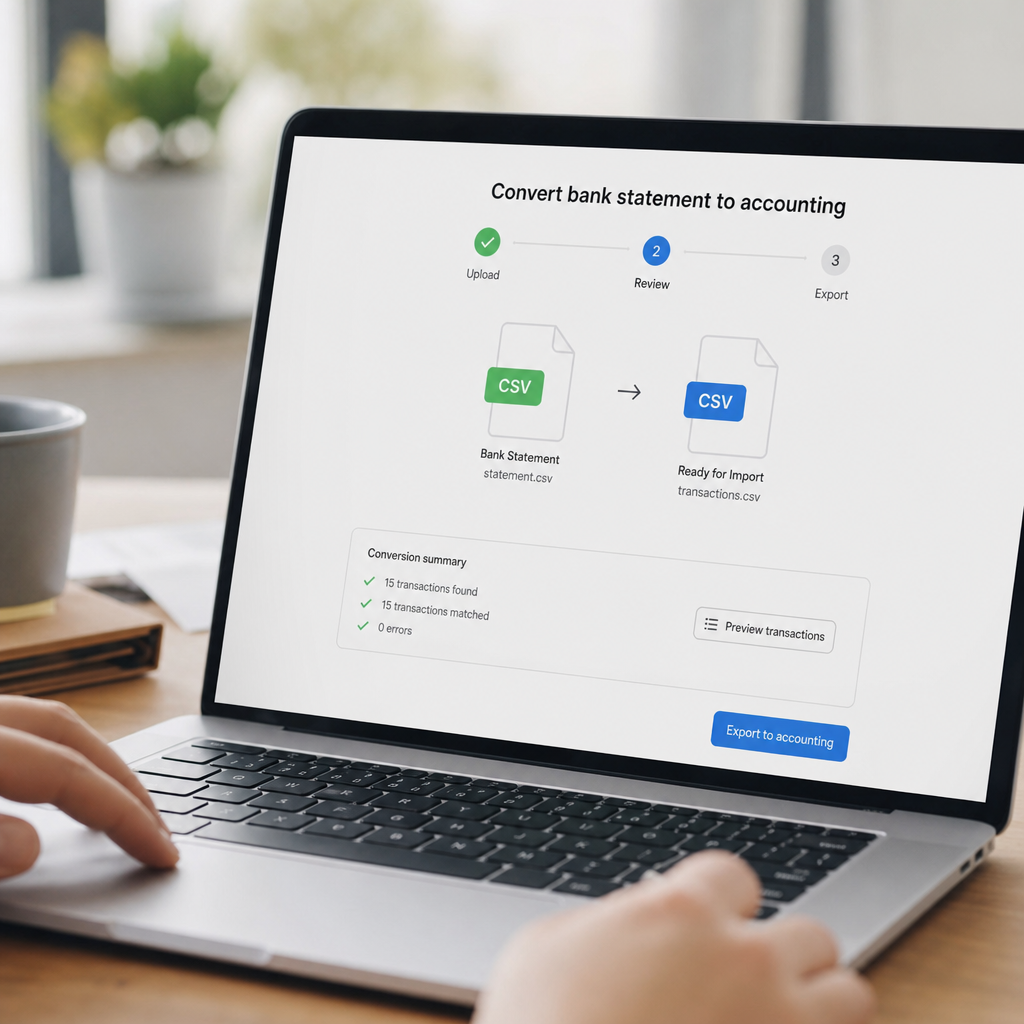
Side-by-Side Comparison: Which Method Actually Wins?
The table below compares all three methods across the factors that matter most to small business owners, freelance accountants, and bookkeepers managing multiple clients.
| Factor | Manual Entry | FreshBooks Bank Feeds | AI Conversion (Bank Statement Boss) |
|---|---|---|---|
| Setup time | None | 10-20 minutes per account | 2-3 minutes per document |
| Handles historical statements | Yes, but slow | No (limited lookback) | Yes, any date range |
| Works with any bank | Yes | No (bank-dependent) | Yes, any PDF format |
| Risk of human error | High | Low (automated) | Low (AI-verified) |
| Scales to high volume | Poor | Moderate | Excellent |
| Multi-platform formatting (QuickBooks, Xero, Sage) | Manual rework needed | Not applicable | Built-in |
| Ongoing cost | Time only | Free with FreshBooks plan | Subscription-based |
For a single freelancer with one bank account and minimal transactions, native bank feeds may be sufficient. But for anyone juggling multiple accounts, historical statements, or client books across different institutions, AI conversion is the clear winner on time savings and accuracy.
Step-by-Step: Converting a Bank Statement to FreshBooks Format
Regardless of which bank you use, the general workflow for getting a PDF statement into FreshBooks via an AI conversion tool looks like this:
- Download your statement as a PDF from your bank's online portal (most banks retain 12-24 months of statements for download).
- Upload the PDF to a conversion tool like Bank Statement Boss.
- Select your target format — in this case, a FreshBooks-compatible CSV layout with date, description, and amount columns correctly separated.
- Review the extracted data in the preview screen to confirm transactions were read correctly, especially for unusual formatting like foreign currency or combined statements.
- Download the formatted spreadsheet.
- Import the file into FreshBooks via Accounting > Chart of Accounts > Import, or through the relevant bank transaction import screen depending on your FreshBooks plan.
- Categorize and reconcile transactions inside FreshBooks as you normally would.
This process typically takes under five minutes per statement, compared to the 30-60 minutes manual entry can consume for a single month's worth of transactions on a moderately active account.
Cost Comparison: Time Saved vs. Money Spent
It's worth putting real numbers against these methods, since "it saves time" is a vague claim until you quantify it. The table below estimates costs for a small business processing statements from three accounts monthly.
| Method | Avg. Time per Month | Hourly Value of Owner/Bookkeeper Time | Estimated Monthly Cost |
|---|---|---|---|
| Manual Entry | 4-6 hours | $35/hr (typical bookkeeper rate) | $140-$210 |
| FreshBooks Bank Feeds (where supported) | 1-2 hours (review/fixes) | $35/hr | $35-$70 |
| AI Conversion Tool | 15-20 minutes | $35/hr + subscription fee | ~$10-$20 + subscription |
Even accounting for subscription costs, AI conversion tools come out well ahead once you factor in the hourly cost of manual labor — a calculation echoed in broader discussions of bookkeeping automation ROI from the AICPA on technology adoption in accounting practices. For accounting firms billing multiple clients, the time savings multiply quickly, often paying for the subscription within the first one or two client engagements.

Security Considerations When Converting Financial Documents
Bank statements contain sensitive data: account numbers, balances, and transaction histories that reveal spending patterns. Before choosing any conversion tool, it's worth confirming a few baseline security practices:
- Encryption in transit and at rest — documents should be encrypted both while uploading and while stored
- Data retention policy — look for tools that delete source documents after processing rather than holding them indefinitely
- Compliance posture — reputable providers will reference frameworks like SOC 2 or similar standards
- Access controls — especially important for firms with multiple staff members handling client documents
The National Institute of Standards and Technology publishes widely referenced guidance on data security practices that's useful context when evaluating any SaaS tool that touches financial records. Bank Statement Boss builds its handling practices around these kinds of principles, which is a key reason bookkeepers managing multiple clients' sensitive statements have adopted it as part of their standard workflow.
Beyond FreshBooks: Why Format Flexibility Matters
Many small businesses and bookkeeping practices don't use just one platform. A freelance accountant might manage some clients on FreshBooks, others on QuickBooks, and a few on Xero or Sage. Switching between formatting requirements for each platform manually is its own time sink.
This is where a tool built for multi-platform export earns its keep. Rather than learning the quirks of four different CSV templates, a converter that outputs clean data compatible across platforms means:
- One upload workflow regardless of which client uses which software
- Less risk of formatting errors when switching between platforms during a busy week
- Easier onboarding for new clients who arrive with months of unconverted statements
For bookkeepers specifically, some firms also use complementary productivity tools like alcogoal.app to manage broader personal and professional routines alongside the technical side of client work — a reminder that efficient workflows extend beyond just the software stack to how time and energy are managed day to day.
Common Mistakes to Avoid
Even with the right tool, a few recurring mistakes can undermine the benefits of automated conversion:
- Skipping the review step. AI extraction is highly accurate, but statements with unusual formatting (foreign transactions, combined joint accounts) deserve a quick visual check before import.
- Importing duplicate transactions. If you've already partially entered data manually, re-importing the same date range can create duplicate entries in FreshBooks.
- Ignoring currency and decimal formatting. International statements sometimes use different decimal separators, which can throw off amount columns if not handled correctly.
- Not matching account categories ahead of time. Pre-mapping common vendors to expense categories in FreshBooks speeds up reconciliation significantly after import.
- Forgetting to archive source PDFs. Even after conversion, keep original statements for audit trail purposes — most accountants recommend retaining records for at least three to seven years depending on jurisdiction.
Frequently Asked Questions
Does FreshBooks accept PDF statements directly? No. FreshBooks requires CSV format for manual imports, which is why converting PDFs first is necessary for most bank statements.
Can I convert statements from any bank? Most AI-based conversion tools, including Bank Statement Boss, are designed to handle statements from virtually any bank or credit card issuer, since they read the document structure rather than relying on bank-specific templates.
Is it safe to upload bank statements to a third-party tool? As long as the provider follows strong encryption and data retention practices, it's a widely accepted practice among bookkeeping professionals. Always review a provider's security documentation before uploading sensitive files.
How far back can I convert statements? Unlike bank feed integrations, which often limit historical data to 90 days, PDF conversion tools can process statements going back as far as you have PDFs available — useful for catching up on backlogged bookkeeping or preparing for tax season.
Final Thoughts
Choosing how to convert bank statement to FreshBooks data isn't just a matter of preference — it has real consequences for how much time you spend on bookkeeping each month and how accurate your books end up being. Manual entry works in a pinch but doesn't scale. Native bank feeds are convenient but limited by bank support and historical data restrictions. For most small business owners, freelance accountants, and bookkeeping teams, AI-powered conversion offers the best balance of speed, accuracy, and flexibility across platforms.
Bank Statement Boss was built specifically to close this gap — turning messy PDF statements into clean, FreshBooks-ready spreadsheets in minutes, with the same output also compatible with QuickBooks, Xero, and Sage. Whether you're catching up on a backlog of statements or building a faster monthly workflow, bankstatementboss.com gives you a reliable way to skip the manual data entry and get straight to accurate, reconciled books.
Article written by FrontRank