

Manually retyping transactions from a PDF bank statement into a spreadsheet is one of the most tedious tasks a bookkeeper, freelancer, or small business owner can face. A single month's statement might contain anywhere from 30 to 300 line items, and copying each one by hand invites errors that can throw off reconciliations for weeks. Fortunately, you don't have to do it that way anymore. This guide walks through exactly how to convert bank statement to excel free online, what tools are worth trying, and how to avoid the common pitfalls that cost finance teams hours of rework.
Whether you're preparing books for tax season, reconciling client accounts, or just trying to get a clear picture of your cash flow, turning a static PDF into a structured spreadsheet is the first real step toward usable financial data.
Why Convert Bank Statements to Excel in the First Place
Banks issue statements as PDFs because they're easy to read and hard to tamper with. But that same rigidity makes them nearly useless for analysis. You can't sort a PDF by date, filter it by vendor, or drop it straight into QuickBooks. Excel and CSV formats, on the other hand, are the backbone of virtually every accounting workflow.
Here's what you gain once your statement data lives in a spreadsheet:
- Searchable and sortable transactions instead of scrolling through pages of a static document
- Faster reconciliation against your general ledger or accounting software
- Easier categorization of expenses for tax prep or budgeting
- Shareability with accountants, auditors, or business partners without sending raw bank documents
- Compatibility with formulas, pivot tables, and reporting dashboards
For freelance bookkeepers juggling multiple clients, or finance teams closing the books each month, this conversion isn't a nice-to-have — it's foundational to doing the job efficiently.
Manual vs. Automated Conversion: What Actually Works
There are a few ways people attempt this conversion, and they are not created equal. Let's break down the realistic options.
Manual Data Entry
This is exactly what it sounds like: opening the PDF, reading each line, and typing it into Excel. It's free in the sense that it costs no money, but the time cost is significant. A 50-transaction statement can easily take 45 minutes to an hour to transcribe accurately, and that's before you catch typos.
Copy-Paste from PDF
Some PDFs allow you to select and copy text, which you can then paste into Excel. The problem is that bank statements are usually formatted in columns and tables that don't translate cleanly. You'll often end up with jumbled text in a single cell rather than organized rows and columns.
Built-In Bank Export Features
Many banks allow you to export transaction history directly as a CSV or Excel file from their online portal. This works well if you have active online access to the account and only need recent transactions. It falls short when you're working with older statements, PDFs sent by a client, or scanned documents.
Dedicated PDF-to-Excel Conversion Tools
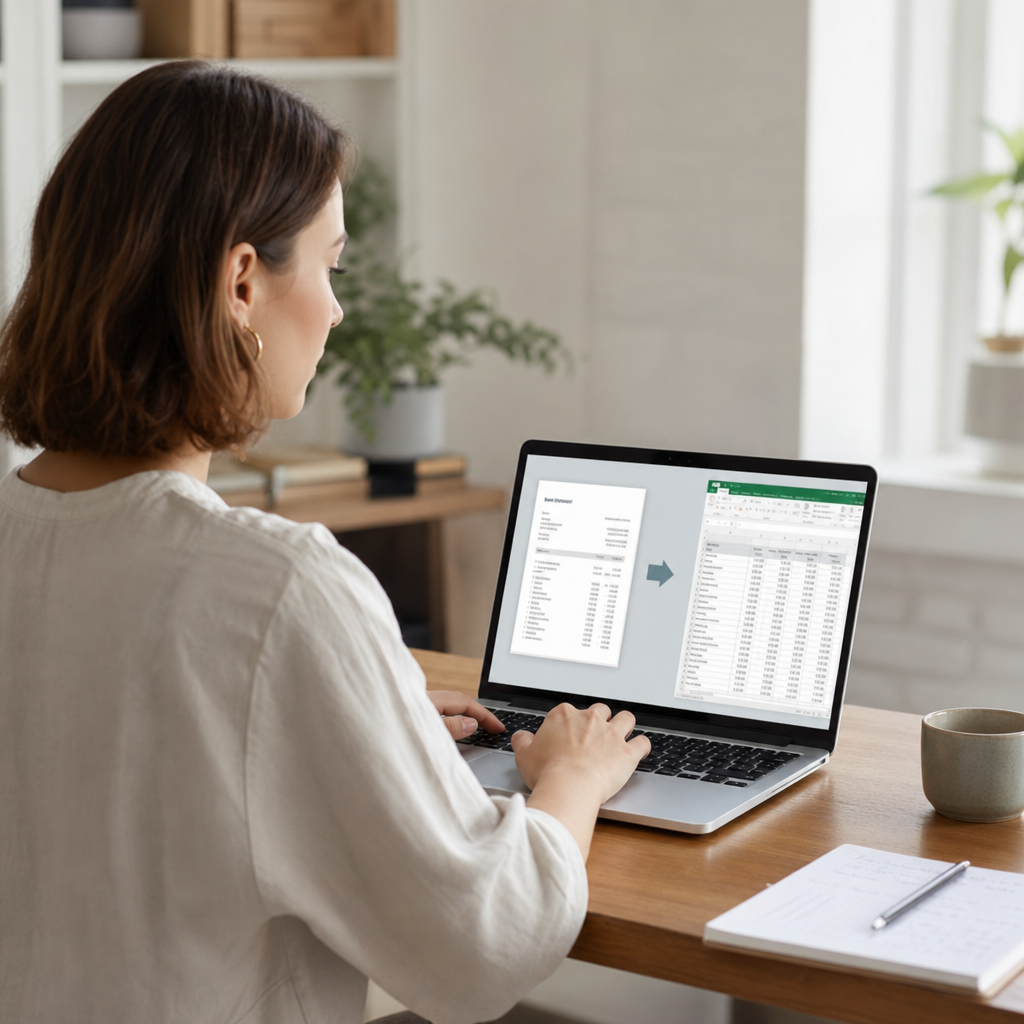
Purpose-built converters — including AI-powered tools like Bank Statement Boss — are designed specifically to read the structure of a bank statement and output clean, labeled columns: date, description, withdrawal, deposit, and balance. These tools use optical character recognition (OCR) and machine learning to understand statement layouts across hundreds of banks, which manual copy-paste simply cannot replicate.
How to Convert Bank Statement to Excel Free Online: Step-by-Step
If you want to try the free online route first, here's a general process that applies to most PDF-to-Excel conversion tools:
- Gather your PDF statements. Make sure they're not password-protected, or have the password ready if they are.
- Choose a converter. Look for one that explicitly supports bank statements rather than generic PDF tables, since bank formatting is unique.
- Upload the file. Most tools accept drag-and-drop or a simple file browser upload.
- Review the extracted data. Check that dates, amounts, and descriptions have landed in the correct columns.
- Download the spreadsheet. Save as XLSX or CSV depending on what your accounting software accepts.
- Spot-check against the original PDF. Even the best tools benefit from a quick manual review, especially on the first and last transactions of a statement.
- Import into your accounting platform. Match column headers to what QuickBooks, Xero, or Sage expects before finalizing the import.
This workflow typically takes under five minutes per statement once you're familiar with the tool — a dramatic improvement over manual entry.
Comparing Free Online Conversion Methods
Not all "free" tools offer the same value. Some are genuinely free with limitations, while others use "free" as a lead-in to a paid tier. Here's a comparison of the general categories available in 2026.
| Method | Cost | Accuracy | Speed | Best For |
|---|---|---|---|---|
| Manual data entry | Free | High (if careful) | Very slow | Single short statements |
| Copy-paste from PDF | Free | Low to moderate | Slow | Simple, unformatted statements |
| Bank portal export | Free | High | Fast | Recent transactions only |
| Generic free online converters | Free (limited) | Moderate | Fast | Occasional, low-volume use |
| AI-powered tools like Bank Statement Boss | Free trial / paid tiers | Very high | Very fast | Recurring bookkeeping needs |
The key tradeoff is almost always between cost and reliability. Free generic converters can handle basic statements reasonably well, but they often stumble on multi-column layouts, scanned images, or statements with inconsistent formatting — which is common across different banks.
What Makes a Good Bank Statement Converter
Before you commit to any tool, it helps to know what separates a reliable converter from one that will create more cleanup work than it saves. Look for these characteristics:
- Bank-specific formatting recognition. A good tool understands that Chase, Bank of America, and a regional credit union all lay out statements differently.
- Accurate column separation. Dates, descriptions, debits, credits, and running balances should land in distinct, correctly labeled columns.
- Support for scanned or image-based PDFs. Not every statement is a clean digital export; some are scanned paper documents.
- Data security practices. Since you're uploading sensitive financial data, encryption and clear data retention policies matter.
- Accounting software compatibility. The output should be easy to import into QuickBooks, Xero, Sage, or similar platforms without extensive reformatting.
- Batch processing. If you're a bookkeeper working across multiple clients, the ability to upload multiple statements at once saves substantial time.
This is precisely where purpose-built platforms differentiate themselves from free, generic PDF converters. According to the National Institute of Standards and Technology, document digitization accuracy depends heavily on how well a system is trained to recognize structured data — a generic OCR tool trained on random documents won't match one trained specifically on financial statement layouts.
Common Problems When Converting Bank Statements
Even with a good tool, certain issues come up regularly. Knowing them in advance helps you catch mistakes before they affect your books.
Misaligned Columns
Some converters struggle when a statement has merged cells or inconsistent spacing, resulting in a transaction description spilling into the amount column.
Duplicate or Missing Transactions
Multi-page statements sometimes get processed with overlapping or skipped sections, especially with lower-quality tools.
Date Format Inconsistencies
U.S. banks typically use MM/DD/YYYY, while many other countries use DD/MM/YYYY. If you work with international clients, confirm the date format didn't get scrambled during conversion.
Rounding or Currency Symbol Errors
Currency symbols and thousand separators (commas vs. periods) can cause numeric fields to be misread as text, which breaks formulas in Excel.
Security Risks with Unknown Tools
Uploading a bank statement to a random free website is a legitimate privacy concern. The Federal Trade Commission regularly warns consumers and businesses about the risks of uploading sensitive financial documents to unverified third-party services. Always check for encryption, a clear privacy policy, and data deletion practices before trusting a converter with real account information.
Comparing Popular Conversion Approaches for Accounting Workflows
For small business owners and bookkeepers who need output that plugs directly into accounting software, not all spreadsheet formats are equal. Here's how common conversion outputs stack up against typical accounting platform requirements.
| Output Format | QuickBooks Compatibility | Xero Compatibility | Sage Compatibility | Notes |
|---|---|---|---|---|
| Raw CSV (unformatted) | Partial | Partial | Partial | Often needs manual column remapping |
| Excel (XLSX) with labeled columns | Good | Good | Good | Easier to review before import |
| Structured CSV matching platform template | Excellent | Excellent | Excellent | Minimal manual adjustment needed |
| PDF text dump (copy-paste) | Poor | Poor | Poor | Requires significant cleanup |
Tools built specifically for accounting workflows — such as Bank Statement Boss — generate output formatted to match what QuickBooks, Xero, and Sage expect by default, which eliminates much of the manual remapping that generic converters leave behind. This is particularly valuable for bookkeepers managing recurring monthly imports across multiple client accounts.
Tips for Bookkeepers and Finance Teams Handling High Volume
If you're converting statements regularly rather than as a one-off task, a few best practices will save significant time over the course of a year.
- Standardize your naming conventions. Save converted files with a consistent format like
ClientName_Account_MonthYear.xlsxso they're easy to locate later. - Batch process by client or account. Group statements before conversion rather than handling them one at a time throughout the week.
- Build a reconciliation checklist. After each conversion, confirm the opening and closing balances match the original PDF exactly.
- Automate recurring imports where possible. If your conversion tool offers API access, consider integrating it directly with your practice management or accounting software to remove manual uploads altogether.
- Keep a backup of original PDFs. Even after conversion, retain the source documents for audit trails and compliance purposes.
- Review currency and locale settings. If you work with international clients, confirm the tool correctly interprets date formats and currency symbols for each region.
Teams managing cash flow forecasting or expense tracking across multiple tools sometimes also use dedicated financial dashboards; for example, platforms like alcogoal.app are built to help track spending goals once your transaction data is clean and structured, making the quality of your initial conversion even more important downstream.
Free vs. Paid Conversion Tools: When to Upgrade
Free online converters are genuinely useful for occasional, low-stakes conversions — a single statement here or there for personal budgeting, for example. But there's a point where the limitations of free tools start costing more time than they save.
| Scenario | Free Tool Sufficient? | Reason |
|---|---|---|
| One-time personal budget review | Yes | Low volume, low accuracy requirements |
| Monthly bookkeeping for one small business | Maybe | Depends on statement complexity and format consistency |
| Managing multiple client accounts | No | Batch processing and accuracy become critical |
| Preparing statements for tax season | No | Errors can lead to compliance issues |
| API integration with accounting software | No | Requires paid-tier infrastructure |
As outlined in Investopedia's guide to bookkeeping basics, accuracy and consistency in financial record-keeping directly affect tax compliance and financial reporting integrity. When the stakes are higher than a casual budget check, investing in a dedicated tool with higher accuracy and support for accounting software formatting is almost always worth the cost difference compared to the time lost fixing errors from free alternatives.
Security Considerations You Shouldn't Skip
Because bank statements contain account numbers, balances, and transaction histories, security deserves its own dedicated attention — not just an afterthought in your tool selection.
- Check for encryption in transit and at rest. Reputable converters use HTTPS and encrypt stored files.
- Understand data retention policies. Ask whether uploaded files are deleted automatically after processing or stored indefinitely.
- Avoid tools with no clear company information. Legitimate services identify who operates them and how to contact support.
- Look for compliance certifications. SOC 2 or similar standards indicate a provider takes data handling seriously.
- Be cautious with browser extensions. Some "free" conversion extensions request broad permissions that go beyond what's needed for the task.
The Consumer Financial Protection Bureau has published guidance on protecting financial data when using third-party financial tools, which is a useful reference before uploading sensitive documents anywhere online.
Making the Conversion Process Part of Your Routine
Once you've found a reliable method, the real value comes from making statement conversion a routine part of your monthly close process rather than a reactive scramble. Set a recurring reminder to download and convert statements as soon as they're issued, rather than waiting until reconciliation deadlines approach. This reduces the backlog of PDFs that pile up and keeps your books consistently current.
For bookkeepers managing several clients, building a simple intake process — where clients upload statements directly to a shared, secure folder — paired with batch conversion, can turn what used to be hours of manual work into a streamlined, repeatable system.
Final Thoughts
Learning how to convert bank statement to excel free online is a practical skill that pays off whether you're managing your own small business finances or handling books for multiple clients. Manual entry and copy-paste methods work in a pinch, but they introduce errors and consume time that most finance professionals simply can't spare. Free online converters offer a reasonable starting point for occasional use, but as volume and accuracy requirements grow, dedicated tools become the clear better investment.
Bank Statement Boss was built specifically to solve this problem for small business owners, freelance accountants, bookkeepers, and finance teams who need statement data that's clean, accurate, and ready to import into QuickBooks, Xero, or Sage — without hours of manual cleanup. With secure data handling, accounting-ready formatting, and API access for teams that need automation at scale, bankstatementboss.com turns a tedious monthly chore into a task that takes minutes, not hours.
Article written by FrontRank