

Bookkeepers and small business owners who use Sage know the frustration well: your bank sends statements as PDFs, but Sage needs clean, structured CSV files to import transactions correctly. Manually retyping rows of dates, descriptions, and amounts is slow, error-prone, and simply not sustainable once you're managing multiple accounts or clients. This article breaks down exactly how to convert bank statement to CSV for Sage, what it costs in time and money, and which methods actually produce import-ready files.
Whether you're a freelance bookkeeper juggling a dozen client accounts or a finance team closing the books every month, understanding the fastest and most accurate conversion path can save hours of tedious work. We'll also compare manual entry, free tools, and dedicated AI-powered converters so you can choose the right approach for your workflow.
Why Sage Needs a Specific CSV Format
Sage accounting products — including Sage 50, Sage Business Cloud Accounting, and Sage Intacct — don't accept just any spreadsheet. Each version expects a particular column structure, date format, and sometimes specific header names before it will recognize a file as valid transaction data. If your CSV doesn't match Sage's expected schema, the import will either fail outright or map fields incorrectly, creating messy ledgers that take even longer to fix than manual entry would have.
Typical Sage CSV import requirements include:
- A consistent date format (often DD/MM/YYYY or MM/DD/YYYY depending on your region)
- Separate columns for debit and credit amounts, or a single signed amount column
- A clean description or reference field free of line breaks and special characters
- No merged cells, subtotals, or bank-added disclaimers mixed into the data rows
- UTF-8 encoding to avoid currency symbol or character corruption
Because every bank formats its PDF statements differently — different fonts, column orders, and even multi-page layouts — getting from "bank PDF" to "Sage-ready CSV" is rarely a simple copy-paste job. This is precisely the gap that tools like Bank Statement Boss are built to close, using AI extraction rather than rigid templates that break the moment a bank updates its statement design.
The Manual Conversion Process (And Why It Falls Short)
Many small business owners still convert statements by hand, especially when transaction volume is low. The typical manual process looks like this:
- Open the PDF statement and visually scan each transaction line
- Create a new spreadsheet with the correct Sage column headers
- Manually type each date, description, and amount into the correct cells
- Split combined debit/credit figures into separate columns if needed
- Reformat dates to match Sage's expected pattern
- Save the file as CSV (not XLSX) and test-import it into Sage
- Fix any import errors and repeat for every statement page
For a single-page statement with 20 transactions, this might take 15–20 minutes. But multiply that across 12 months, multiple accounts, or several clients, and the hours add up fast. A bookkeeper managing five clients with monthly statements could easily spend 10+ hours a month on manual re-entry alone — time that isn't billable in any meaningful sense and carries real risk of transposition errors.
Human error is the hidden cost here. A single misplaced decimal or transposed digit in a bank reconciliation can cascade into hours of troubleshooting later, especially if it isn't caught until quarter-end.
Comparing Your Conversion Options
Not all conversion methods are created equal. Below is a breakdown of the most common approaches small businesses and bookkeepers use today.
| Method | Average Time (50 transactions) | Accuracy | Sage-Ready Formatting | Cost |
|---|---|---|---|---|
| Manual typing | 45–60 minutes | Variable, error-prone | No — requires manual reformatting | Free (but costly in labor) |
| Generic PDF-to-Excel converter | 10–15 minutes | Often breaks table structure | Partial, needs cleanup | Free–$10/month |
| Spreadsheet macros/scripts | 20–30 minutes setup, fast after | Good once configured | Requires custom coding | Free–$20 one-time |
| AI-powered converter (e.g., Bank Statement Boss) | 2–5 minutes | High, trained on bank layouts | Yes — exports Sage-compatible CSV | Pay-per-page or subscription |
As the table shows, generic converters often get you partway there but still leave formatting work behind. Dedicated financial document converters are built specifically to recognize bank statement layouts and produce columns that map cleanly to accounting software fields.
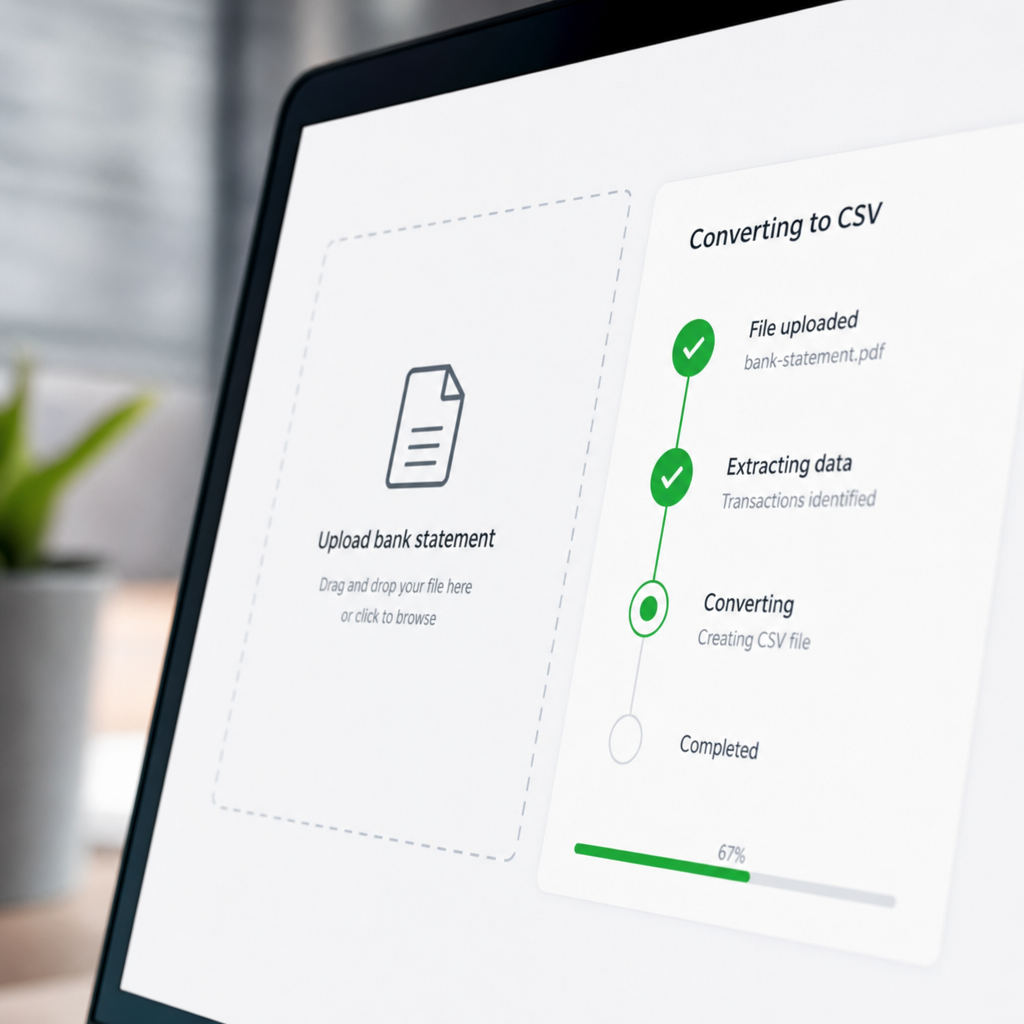
Step-by-Step: Converting a PDF Bank Statement to CSV for Sage
Here's a practical workflow using an AI-based converter, which represents the fastest and most reliable path for most users:
- Gather your PDF statements. Download the statement directly from your bank's portal rather than using a scanned image, which improves text recognition accuracy.
- Upload to a conversion tool. Platforms such as Bank Statement Boss allow you to upload one or multiple PDFs at once, including multi-page statements.
- Select your output format. Choose CSV (or the Sage-specific template if offered) rather than a generic spreadsheet export.
- Review the extracted data. Check that dates, descriptions, and amounts have been captured correctly — most AI tools display a preview table before final export.
- Download the CSV file. Save it in a dedicated folder structure by client and month for easy retrieval during audits.
- Import into Sage. Use Sage's built-in bank import wizard, mapping each column if prompted on first use.
- Reconcile. Cross-check the imported transaction count and closing balance against the original statement to confirm nothing was missed.
This workflow typically takes under five minutes per statement once you're familiar with the tool, compared to the 45-plus minutes manual entry demands.
What to Look for in a PDF-to-CSV Converter for Sage
Not every converter is built with accounting workflows in mind. When evaluating tools, prioritize these features:
- Bank layout recognition: The tool should handle statements from major banks and credit unions without requiring you to manually define column positions each time.
- Accounting software templates: Look for direct export options formatted for Sage, QuickBooks, and Xero rather than a single generic CSV structure.
- Multi-page and multi-account support: Bookkeepers handling multiple clients need batch processing, not one-PDF-at-a-time limitations.
- Data security and compliance: Since bank statements contain sensitive financial data, confirm the provider uses encryption in transit and at rest, and ideally doesn't retain your files longer than necessary. The Federal Trade Commission's data security guidance is a useful benchmark for what to expect from any financial SaaS tool.
- Accuracy guarantees or review steps: A preview or validation stage before final export reduces the risk of silent extraction errors.
- API access: For firms integrating conversion directly into their existing workflow or practice management software, an API matters more than a polished web interface.
Bank Statement Boss was built around these exact priorities, offering formatting compatible with Sage, QuickBooks, and Xero alongside secure handling and API access on higher-tier plans — making it a practical fit for both solo bookkeepers and larger finance teams.
Cost Comparison: Manual Labor vs. Automated Conversion
It's worth putting real numbers against the "free" manual option, because labor time has a cost even when no invoice changes hands. The table below estimates monthly costs for a bookkeeper processing statements for 10 small business clients, each with roughly 100 transactions per month.
| Approach | Est. Monthly Time | Hourly Rate Assumption | Monthly "Cost" | Error Risk |
|---|---|---|---|---|
| Manual entry | 15–20 hours | $35/hour | $525–$700 | High |
| Generic free converter + manual cleanup | 8–10 hours | $35/hour | $280–$350 | Medium |
| AI converter subscription | 1–2 hours | $35/hour + tool fee | $35–$70 + subscription | Low |
Even accounting for a monthly subscription fee, automated conversion tools typically pay for themselves within the first batch of statements processed, simply by reclaiming billable hours. For bookkeepers charging clients by the hour for reconciliation work, faster data entry also means more capacity to take on additional clients without working longer days.

Common Formatting Mistakes That Break Sage Imports
Even when using a conversion tool, certain formatting issues repeatedly cause Sage import failures. Watch for these:
- Mismatched date formats. Sage is sensitive to regional date formatting; a file formatted as MM/DD/YYYY will misread dates if Sage expects DD/MM/YYYY, silently shifting transaction dates.
- Combined debit/credit columns. Some banks list all amounts in a single column with a positive or negative sign, which Sage may not parse correctly without a separate debit and credit column.
- Extra header or footer rows. Bank-added marketing text, page numbers, or disclaimers sometimes get pulled into the CSV and confuse the import wizard.
- Currency symbols embedded in amount fields. A cell reading "$1,204.56" instead of "1204.56" can cause Sage to treat the value as text rather than a number.
- Trailing whitespace or hidden characters. These are invisible in a spreadsheet view but can cause validation errors during import.
- Duplicate transactions from split PDF pages. If a statement spans multiple pages and a tool fails to detect page breaks correctly, the same transaction might get extracted twice.
Running a quick manual spot-check against the original PDF — comparing transaction counts and the closing balance — remains good practice even when using automated tools. For further technical detail on Sage's own import specifications, their official Sage support documentation is the most reliable first stop, alongside community guidance available on resources like Investopedia's bookkeeping basics for understanding reconciliation fundamentals.
Why Accuracy Matters More Than Speed Alone
It's tempting to choose the fastest tool available, but speed without accuracy simply moves the time cost downstream — you'll spend it fixing reconciliation discrepancies instead of doing data entry. A conversion tool's real value lies in getting both speed and accuracy right simultaneously.
AI-based extraction tools trained specifically on financial documents tend to outperform generic OCR software here, because they understand the structure of a bank statement rather than treating it as generic text. They can distinguish between a transaction row and a summary row, correctly associate multi-line descriptions with a single amount, and flag unusual formatting for manual review rather than guessing. This is the core reason tools built specifically for financial statement conversion — like Bank Statement Boss — consistently outperform repurposed general-document converters for this use case.
For additional perspective on how automation is reshaping bookkeeping workflows more broadly, the Journal of Accountancy regularly publishes research and case studies on automation adoption among accounting firms, which underscores that this shift isn't a short-term trend but a structural change in how financial data entry gets handled.
Choosing the Right Plan for Your Volume
If you're only converting a handful of statements a month, a pay-per-page or low-tier plan likely covers your needs. Larger firms processing dozens of client accounts monthly should weigh subscription tiers against API access, since direct integration into existing practice management systems eliminates even the small manual step of uploading and downloading files one at a time.
When evaluating providers, ask directly:
- Does the free or trial tier let you test actual Sage-formatted output, not just a generic CSV?
- Is pricing based on pages, statements, or a flat monthly volume?
- What happens to your uploaded documents after conversion — are they deleted, and on what schedule?
- Is customer support available if an unusual bank layout isn't recognized correctly?
Getting clear answers to these questions upfront avoids surprises once you're relying on a tool for recurring monthly work.
Final Thoughts
Converting bank statements into Sage-ready CSV files doesn't have to consume hours of your week. Manual entry remains the slowest and riskiest option, generic converters offer a partial shortcut that still requires cleanup, and purpose-built AI tools deliver the speed and accuracy that recurring bookkeeping work demands. For professionals managing multiple accounts or clients, the time saved compounds quickly into real cost savings and more billable capacity.
Bank Statement Boss was designed specifically to solve this problem — converting PDF bank and credit card statements into clean, structured spreadsheets formatted for Sage, QuickBooks, and Xero, with secure handling and API access for teams that need it. If you're ready to stop retyping transactions line by line, visiting bankstatementboss.com is a solid next step toward a faster, more accurate bookkeeping workflow.
Article written by FrontRank