

Manually retyping transactions from a PDF bank statement into a spreadsheet is one of the most tedious tasks in bookkeeping. It's slow, prone to typos, and eats up hours that could be spent on higher-value client work. Yet accurate, spreadsheet-ready bank data is the foundation of reconciliation, tax prep, and financial reporting. This article walks through exactly how to convert bank statement PDF to spreadsheet formats reliably, what methods exist, and how to choose the right approach for your workflow.
Whether you're a solo freelance bookkeeper juggling a dozen clients or part of a finance team processing hundreds of statements a month, the goal is the same: get clean, structured data out of a PDF and into a format your accounting software can use — without errors creeping in.
1. Why Converting Bank Statements to Spreadsheets Matters
Bank statements arrive as PDFs because that's the standard, tamper-resistant format banks use for official records. But PDFs are built for reading, not for data processing. Numbers are locked inside static layouts, tables, and sometimes even scanned images. To reconcile accounts, categorize expenses, or import data into QuickBooks or Xero, that information needs to exist as structured rows and columns.
The stakes are real. According to the Journal of Accountancy, manual data entry errors remain one of the leading causes of reconciliation discrepancies in small business bookkeeping. A single transposed digit in an account balance can trigger hours of troubleshooting later.
Converting statements properly also matters for:
- Audit readiness — clean digital records are easier to trace and verify.
- Time efficiency — automated conversion can cut data entry time by more than 80%.
- Multi-client scalability — bookkeepers managing dozens of clients need repeatable processes, not manual retyping.
- Data consistency — spreadsheets formatted the same way every time reduce downstream errors in accounting software imports.
2. Common Methods to Convert Bank Statement PDF to Spreadsheet
There are several ways to approach this task, each with different trade-offs in speed, accuracy, and cost.
Manual Copy-Paste
The most basic method: opening the PDF, reading each line, and typing it into Excel or Google Sheets. It works for a single-page statement but becomes unsustainable for multi-page documents or recurring monthly work.
Native PDF Export Tools
Some PDF readers, including Adobe Acrobat, offer an "export to spreadsheet" feature. This can work reasonably well on statements with simple table structures, but it frequently mangles column alignment, merges header rows incorrectly, or fails entirely on scanned (image-based) statements. Adobe's own documentation acknowledges that export accuracy depends heavily on the original PDF's formatting quality.
Optical Character Recognition (OCR) Software
OCR tools read the visual layout of a scanned document and attempt to extract text and table structures. General-purpose OCR software can process bank statements, but without training specific to financial document layouts, it often misreads decimal points, currency symbols, or multi-column layouts common in bank statements.
Purpose-Built Bank Statement Converters
Tools designed specifically for financial documents — like Bank Statement Boss — combine OCR with AI models trained on hundreds of bank and credit card statement formats. These tools recognize transaction dates, descriptions, debits, credits, and running balances as distinct fields, then output them into a spreadsheet structured for direct import into accounting platforms.
Accounting Software Bank Feeds
Many platforms offer direct bank feed integrations that pull transactions electronically rather than from a PDF. This works well going forward but doesn't help with historical statements, closed accounts, or banks that don't support feed integration — situations where PDF conversion remains essential.
3. Comparing Conversion Methods
Choosing the right method depends on volume, accuracy requirements, and how much manual cleanup you're willing to do afterward.
| Method | Speed | Accuracy | Best For | Limitations |
|---|---|---|---|---|
| Manual copy-paste | Very slow | Low-Medium | Single, short statements | Not scalable, error-prone |
| Adobe/PDF export tools | Moderate | Medium | Simple, text-based PDFs | Struggles with scanned docs, complex tables |
| Generic OCR software | Moderate | Medium | One-off conversions | Misreads financial formatting |
| Dedicated bank statement converter (e.g. Bank Statement Boss) | Fast | High | Recurring bookkeeping, bulk jobs | Subscription cost |
| Bank feed integrations | Instant (ongoing) | High | Live transaction syncing | No historical PDF support |
As the table shows, purpose-built converters strike the best balance for anyone doing this regularly. A tool trained specifically to recognize the structure of financial statements — rather than generic tables — avoids the misalignment issues that plague general PDF export tools.
4. Step-by-Step: Converting a Bank Statement PDF to Spreadsheet
Here's a practical workflow for converting statements accurately, whether you're processing one file or a batch.
- Gather your PDF statements. Download them directly from the bank's portal rather than using scanned printouts when possible — native PDFs convert more accurately than scanned images.
- Check the file quality. Ensure the PDF isn't password-protected or corrupted, and that scanned pages are legible if that's your only option.
- Upload to a conversion tool. With a platform like Bank Statement Boss, you simply upload the PDF (or a batch of them) and let the AI engine extract transaction data automatically.
- Review the extracted data. Even the best tools benefit from a quick human check — scan for any misread dates or amounts, particularly on statements with unusual formatting.
- Select your export format. Choose CSV, XLSX, or a format pre-mapped for QuickBooks, Xero, or Sage, depending on where the data needs to go next.
- Import into your accounting software. Map columns if needed (many tools do this automatically) and reconcile the imported transactions against your ledger.
- Archive the original PDF and the converted spreadsheet. Keeping both preserves an audit trail in case discrepancies arise later.
This process, once set up, typically takes minutes rather than hours — a meaningful difference when you're processing statements for multiple clients every month.
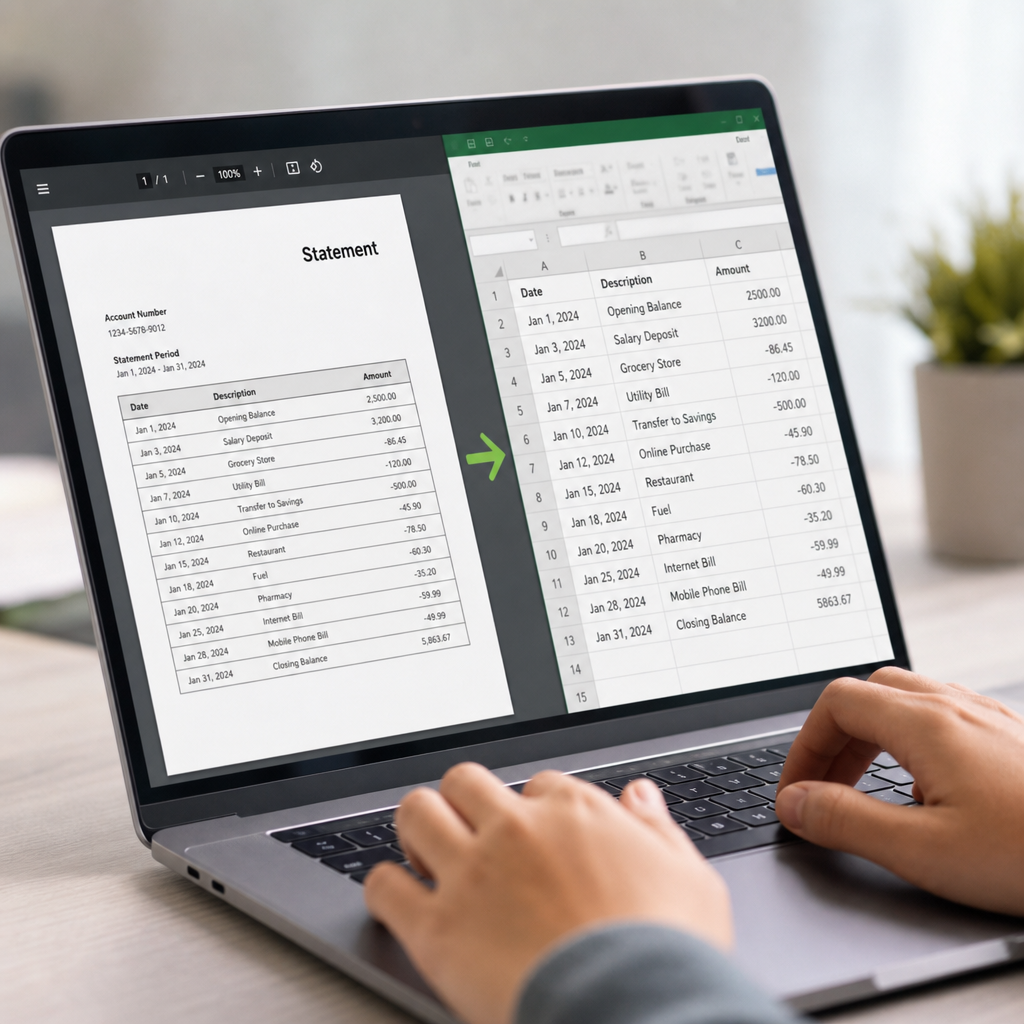
5. What to Look for in a Bank Statement Conversion Tool
Not all converters are built equally. When evaluating options, consider these criteria:
- Format compatibility — Does it export directly into formats accepted by QuickBooks, Xero, or Sage, or will you need to manually reformat columns?
- Accuracy on complex layouts — Multi-column statements, foreign currency transactions, and credit card statements with separate charge/payment sections all test a tool's real capability.
- Security and data handling — Bank statements contain sensitive financial data. Look for tools that offer encryption in transit and at rest, and clear data retention policies. The Federal Trade Commission provides guidance on what businesses should expect from vendors handling financial data.
- Batch processing — For bookkeepers managing multiple clients, the ability to upload and convert dozens of statements at once saves significant time.
- API access — Finance teams building internal tools or automating workflows benefit from API-level integration rather than manual uploads.
- Support for scanned documents — Not every client provides clean, digital-native PDFs; robust OCR handling for scanned statements is essential.
- Turnaround time — Some tools process files in seconds; others queue jobs, which matters if you're working against a close deadline.
Bank Statement Boss was built around these exact requirements, offering AI-powered extraction, accounting-software-ready formatting, and secure handling designed for professionals managing sensitive client financial data.
6. Formatting Considerations for QuickBooks, Xero, and Sage
Getting data out of a PDF is only half the job — it also needs to land in your accounting software in a usable format. Each platform has its own expectations for imported transaction data.
| Platform | Preferred Import Format | Key Formatting Requirements |
|---|---|---|
| QuickBooks | CSV or QBO | Date, Description, Amount columns; consistent date format (MM/DD/YYYY) |
| Xero | CSV | Date, Amount, Payee, Description; positive/negative values for debits/credits |
| Sage | CSV or XLSX | Date, Reference, Details, Debit, Credit columns separated |
Mismatched date formats, combined debit/credit columns, or inconsistent decimal separators are among the most common reasons spreadsheet imports fail or produce inaccurate ledgers. According to Intuit's QuickBooks support documentation, a large share of import errors stem from formatting inconsistencies rather than missing data — reinforcing why pre-formatted exports matter as much as accurate extraction.
This is where a dedicated converter has a clear edge over general-purpose tools: it doesn't just pull the numbers off the page, it structures them the way your accounting platform expects to receive them, cutting out an entire round of manual reformatting.
7. Security and Compliance Considerations
Bank statements are among the most sensitive documents a business handles — they reveal account numbers, transaction histories, and cash flow patterns. Any conversion process, whether manual or automated, should account for data security.
Key considerations include:
- Encryption — Files should be encrypted both during upload/transfer and while stored.
- Data retention policies — Understand how long a service retains your uploaded files and whether they're deleted after processing.
- Access controls — For firms with multiple staff, role-based access prevents unauthorized viewing of client financial data.
- Compliance standards — Look for providers who align with recognized frameworks; the National Institute of Standards and Technology publishes widely referenced guidance on data security practices relevant to financial document handling.
- Audit trails — Especially important for accounting firms, having a record of who accessed or converted a given file supports compliance and client trust.
Bookkeepers and accountants handling client data across multiple entities should treat conversion tool selection as a security decision, not just a productivity one. Choosing a platform like Bank Statement Boss, which is built with secure data handling as a core feature, reduces risk compared to ad hoc tools or free online converters of unclear provenance.

8. Common Mistakes to Avoid
Even with good tools, certain mistakes recur when converting bank statements to spreadsheets:
- Skipping the review step — Automated extraction is highly accurate but not infallible; always spot-check totals against the statement's summary page.
- Ignoring inconsistent date formats — Statements from different banks often use different date conventions (DD/MM/YYYY vs. MM/DD/YYYY), which can cause errors after import.
- Combining debits and credits into one column — Some accounting platforms require these separated; failing to do so distorts reports.
- Using low-quality scans — Blurry or skewed scans significantly reduce OCR accuracy, even with strong AI models.
- Not archiving source PDFs — Keeping only the converted spreadsheet removes your ability to verify data against the original if a client or auditor asks.
- Overlooking multi-currency transactions — International transactions need consistent currency labeling to avoid reconciliation errors.
- Uploading statements to unsecured free tools — Convenience shouldn't come at the cost of client data security.
Avoiding these pitfalls is often less about the technology and more about process discipline — building a consistent review step into your workflow regardless of which conversion method you use.
Choosing the Right Approach for Your Workflow
For occasional, single-page conversions, a manual approach or built-in PDF export tool may suffice. But for anyone handling bank statements regularly — bookkeepers managing multiple clients, freelance accountants preparing month-end reports, or finance teams processing statements across several accounts — a dedicated, AI-powered conversion tool pays for itself quickly in time saved and errors avoided.
The right tool should combine accurate extraction, accounting-software-ready formatting, and strong data security, all without requiring you to manually clean up columns after every upload. That combination is exactly what makes purpose-built solutions worth the investment over generic alternatives.
Final Thoughts
Converting a bank statement PDF to a spreadsheet doesn't have to mean hours of manual data entry or wrestling with misaligned exports. With the right process — and the right tool — you can turn static PDF statements into clean, accounting-ready data in minutes rather than hours. Bank Statement Boss was purpose-built for exactly this challenge, offering AI-powered accuracy, formatting compatible with QuickBooks, Xero, and Sage, and secure handling for sensitive financial documents, plus API access for teams ready to automate the process entirely. For small business owners, bookkeepers, and finance professionals looking to reclaim the hours lost to manual statement entry, it's a practical, reliable way to keep your books accurate and your workflow moving.
Article written by FrontRank