

Bookkeepers and finance teams know the dread of opening a folder stuffed with dozens of PDF bank statements at month-end. Multiply that by multiple clients or multiple bank accounts, and what should be a quick reconciliation task turns into hours of copy-pasting, formatting, and double-checking numbers. If you've ever searched for a better way to batch process bank statements PDF files, you're not alone — and the good news is that the manual approach is no longer necessary.
This article walks through exactly how batch processing works, why it matters for accounting accuracy and efficiency, and the practical steps you can take to implement it in your own workflow, whether you manage one small business or fifty client accounts.
1. Why Batch Processing Bank Statement PDFs Matters
Processing bank statements one at a time might be manageable if you only handle a single account. But for freelance accountants, bookkeeping firms, and finance teams juggling multiple clients or subsidiaries, single-file processing quickly becomes a bottleneck.
Batch processing means feeding multiple PDF statements — potentially from different banks, different account types, and different date ranges — into a single workflow that extracts and organizes all the data at once. Instead of opening file after file, manually transcribing transactions into Excel, and reformatting columns to match your accounting software, you upload everything together and receive clean, structured output in one pass.
The business case is straightforward:
- Time savings: Manual data entry for a single 20-page statement can take 30-45 minutes. Multiply that across 10 clients monthly, and you're looking at 5-7+ hours of pure transcription work.
- Error reduction: Manual re-keying introduces transposition errors, missed transactions, and inconsistent formatting — all of which can throw off reconciliations.
- Scalability: As your client roster or transaction volume grows, batch processing lets you scale without proportionally increasing headcount.
- Faster close cycles: Month-end and year-end close happen faster when data ingestion isn't the rate-limiting step.
According to the American Institute of CPAs, automation of routine bookkeeping tasks is increasingly viewed as essential to maintaining margins in accounting practices, particularly as client expectations around turnaround time rise.
2. The Manual Alternative — and Why It Breaks Down at Scale
Before diving into the batch processing workflow itself, it's worth understanding why the traditional methods fail once volume increases.
Common Manual Approaches
- Copy-paste from PDF to Excel — tedious, error-prone, and nearly impossible to do accurately with tables that span multiple pages.
- Manual retyping — accurate but extremely slow, often outsourced to freelance data entry clerks.
- Generic OCR software — can extract text but frequently misreads numbers, merges columns, or fails on scanned (image-based) statements.
- Spreadsheet templates — require someone to still manually populate the data before the template's formulas can do anything useful.
Each of these methods might work for a single statement in a pinch, but none of them scale. A bookkeeper managing 15 clients, each with 2-3 accounts, could be looking at 30-45 individual PDF statements every single month. At 30-45 minutes per statement using manual methods, that's upward of 20 hours of pure data entry — before any actual bookkeeping or analysis happens.
Where Generic OCR Falls Short
Many finance professionals try generic optical character recognition (OCR) tools as a stopgap. The problem is that bank statements are not uniform documents. Each bank uses different layouts, column structures, and formatting conventions. A tool trained generically on text extraction often:
- Misaligns debit and credit columns
- Fails to distinguish between running balances and transaction amounts
- Struggles with multi-column layouts or statements with embedded images
- Cannot intelligently categorize transactions
This is where purpose-built tools diverge sharply from general-purpose software.
3. How AI-Powered Batch Conversion Actually Works
Modern document conversion platforms, including Bank Statement Boss, use machine learning models trained specifically to recognize the structure of financial documents — not just extract raw text, but understand what that text represents.
The typical batch processing workflow looks like this:
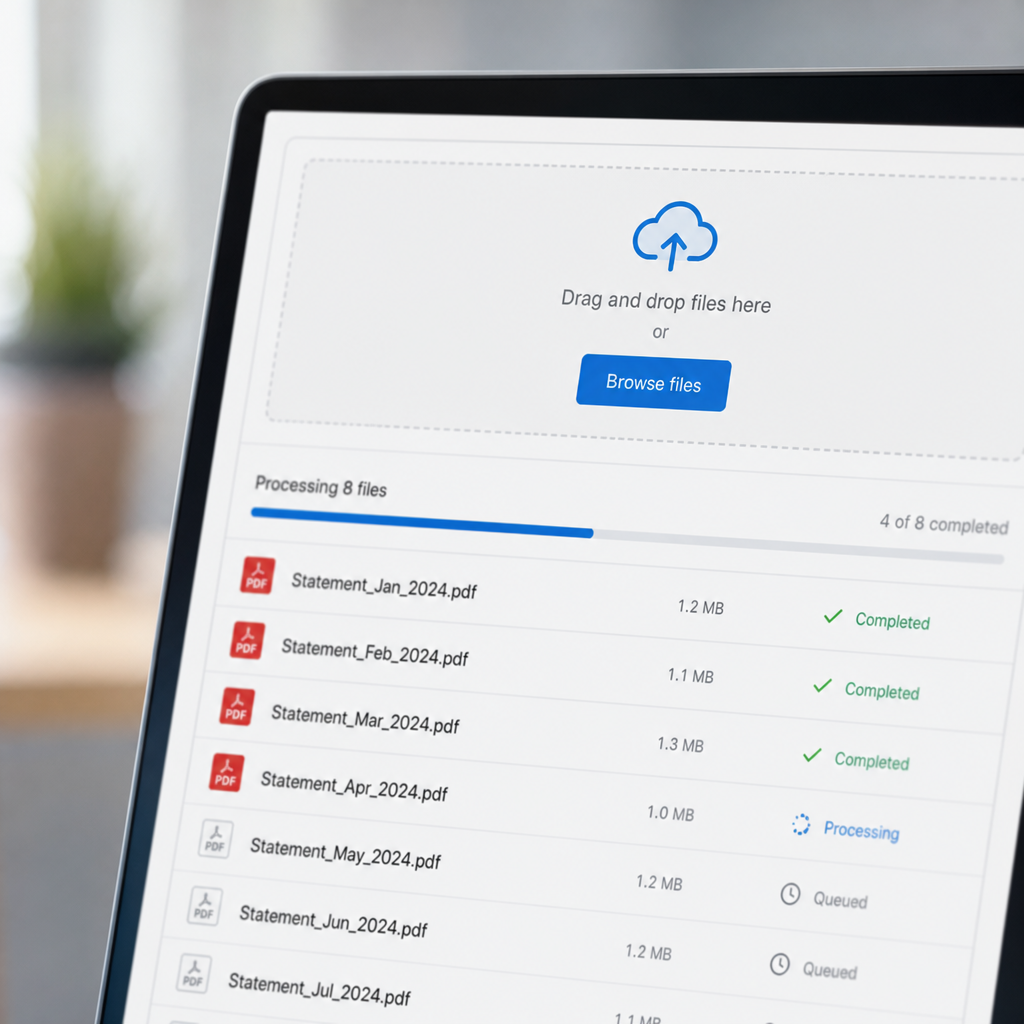
- Bulk upload — Drag and drop multiple PDF files (sometimes dozens) into the platform at once, regardless of which bank issued them.
- Automatic bank detection — The system identifies the statement's source format and applies the appropriate parsing template.
- Data extraction — Transaction dates, descriptions, debits, credits, and running balances are extracted field by field.
- Validation checks — Automated checks confirm that running balances reconcile and flag any anomalies for review.
- Structured export — Clean output is generated in formats compatible with accounting platforms like QuickBooks, Xero, and Sage.
- Categorization (optional) — Some platforms layer in transaction categorization based on historical patterns or merchant data.
The entire batch — whether it's 5 statements or 500 — typically processes in minutes rather than hours. This is the core advantage of purpose-built batch processing software: it treats volume as a non-issue rather than a multiplier of effort.
4. Comparing Batch Processing Methods
Not all approaches to digitizing bank statements are created equal. The table below compares the most common methods across the dimensions that matter most to bookkeepers and finance teams.
| Method | Speed (per statement) | Accuracy | Scalability | Accounting Software Compatibility |
|---|---|---|---|---|
| Manual data entry | 30-45 minutes | Low-Medium (human error risk) | Poor | Manual formatting required |
| Freelance typist/outsourcing | 20-30 minutes (but queued) | Medium | Moderate (cost scales linearly) | Depends on typist's output format |
| Generic OCR software | 5-10 minutes + manual cleanup | Medium (frequent misreads) | Moderate | Usually requires reformatting |
| AI-powered batch converter (e.g. Bank Statement Boss) | Under 1 minute per file in bulk | High | Excellent | Native QuickBooks, Xero, Sage formatting |
As the table shows, the time-per-statement advantage of AI-driven batch conversion compounds dramatically once you're processing dozens of files simultaneously. A freelance accountant handling multiple clients each month stands to reclaim entire workdays by switching from manual or semi-manual methods to a dedicated batch tool.
For additional perspective on how automation is reshaping bookkeeping workflows more broadly, the Journal of Accountancy regularly publishes research on technology adoption trends among accounting professionals.
5. Step-by-Step: Setting Up a Batch Processing Workflow
If you're ready to move away from manual entry, here's a practical roadmap for implementing batch processing in your own practice or finance department.
Step 1: Audit Your Current Statement Volume
Before choosing a tool, understand your actual workload. Count how many statements you process monthly, which banks they come from, and whether they're digital PDFs or scanned images. This affects which tools will work best for you.
Step 2: Choose a Tool Built for Financial Documents
Avoid generic PDF-to-Excel converters not designed for bank statements specifically. Look for platforms that explicitly support:
- Multiple bank formats
- Both digital and scanned (image-based) PDFs
- Export formats aligned with QuickBooks, Xero, and Sage
- Secure handling of sensitive financial data
Step 3: Test With a Small Batch First
Before committing an entire month's worth of statements, run a test batch of 3-5 files. Check:
- Did all transactions get captured accurately?
- Do running balances reconcile correctly?
- Is the output format compatible with your accounting software?
Step 4: Scale to Full Batch Uploads
Once validated, move to processing your full statement volume in bulk. Most platforms, including Bank Statement Boss, allow dozens of files to be uploaded and converted simultaneously, with progress tracking for larger batches.
Step 5: Integrate Into Your Monthly Close Process
Build batch conversion into your standard operating procedure. For bookkeeping firms, this might mean requesting statements from clients on a fixed schedule and running a weekly or monthly batch job rather than processing files as they trickle in.
Step 6: Review and Reconcile
Even with high-accuracy AI extraction, it's good practice to spot-check a sample of transactions against the original PDF, particularly for the first few cycles with a new tool.
Step 7: Archive Structured Data
Once converted, store the structured spreadsheet output in your document management system alongside the original PDFs for audit trail purposes. This is especially important given data retention requirements outlined by bodies like the IRS recordkeeping guidelines for small businesses.

6. Security and Compliance Considerations for Bulk Uploads
When you're uploading dozens of bank statements containing sensitive financial information at once, security isn't optional — it's foundational. Bank statements typically include account numbers, balances, and transaction histories that could be damaging if exposed.
Key security features to look for in any batch processing tool:
- Encryption in transit and at rest — Data should be encrypted using industry-standard protocols (TLS for transit, AES-256 for storage).
- Automatic data deletion policies — Reputable platforms delete uploaded files after processing within a defined retention window.
- SOC 2 compliance or equivalent — Indicates the vendor has undergone third-party auditing of its security controls.
- Role-based access controls — Particularly important for teams where multiple staff members access the same account.
- No data resale or model training on your data — Confirm the vendor's privacy policy explicitly states customer data isn't used to train models shared with other customers.
The National Institute of Standards and Technology (NIST) offers a widely referenced cybersecurity framework that many SaaS vendors align their practices with — it's worth checking whether a prospective tool references these standards in its security documentation.
Bank Statement Boss builds secure data handling into its core architecture, which matters significantly when you're processing financial documents for multiple clients simultaneously rather than just your own records.
7. Choosing the Right Plan for Your Volume
Batch processing needs vary significantly depending on whether you're a solo bookkeeper or a finance team processing hundreds of statements monthly. Here's a comparison of typical plan tiers you'll encounter when evaluating batch conversion tools.
| Plan Tier | Typical Monthly Volume | Best For | Common Features |
|---|---|---|---|
| Starter/Free trial | 1-10 statements | Individual freelancers testing the tool | Basic conversion, limited exports |
| Professional | 10-100 statements | Small bookkeeping practices | Full batch upload, multiple export formats |
| Business | 100-500 statements | Growing accounting firms | Priority processing, team seats |
| Enterprise/API | 500+ statements | Finance teams, large firms | API access, custom integrations, dedicated support |
If your volume is unpredictable — say, you take on seasonal tax-season clients — look for a provider offering flexible or usage-based pricing rather than rigid tiers that force overpayment during slow months or throttling during busy ones.
For finance teams with recurring, high-volume needs, API access (available on higher-tier plans from providers like Bank Statement Boss) allows direct integration into existing accounting pipelines, removing the need for manual uploads altogether. This is particularly valuable for firms that want to build statement conversion directly into client onboarding workflows or internal ERP systems.
8. Common Pitfalls to Avoid When Batch Processing Statements
Even with the right tool, there are a few mistakes that can undermine the efficiency gains of batch processing:
- Mixing file types without checking compatibility — Some scanned, low-resolution PDFs may need pre-processing or higher-quality rescans for optimal extraction accuracy.
- Skipping validation on the first few batches — Trusting a new tool completely before confirming its accuracy on your specific bank formats can lead to downstream reconciliation headaches.
- Ignoring export format settings — Many platforms allow you to customize export structure (e.g., QuickBooks IIF vs. generic CSV). Choosing the wrong format creates extra manual cleanup.
- Not archiving source PDFs — Structured data is useful, but auditors and tax authorities may still require the original statements as supporting documentation.
- Overlooking currency and multi-account complexity — If you work with international clients or multi-currency accounts, confirm the tool handles currency formatting correctly before relying on it for bulk processing.
Avoiding these pitfalls ensures that the time saved through batch processing doesn't get eaten up by downstream corrections.
Bringing It All Together
Batch processing bank statement PDFs isn't just a convenience — it's becoming a competitive necessity for bookkeepers, freelance accountants, and finance teams who want to serve more clients without burning out on repetitive data entry. The shift from manual transcription to AI-powered extraction represents one of the clearest efficiency gains available in modern accounting workflows today.
Whether you're processing statements for a handful of small business clients or managing high-volume finance operations across an entire organization, the right batch processing tool can turn what used to be a multi-day task into a matter of minutes. Bank Statement Boss is purpose-built for exactly this use case — converting PDF bank and credit card statements into clean, structured spreadsheets formatted for QuickBooks, Xero, and Sage, with the secure handling and API access that growing accounting practices and finance teams need. If your monthly close process still involves manually keying in transactions from PDF statements, it's worth testing a batch processing workflow and reclaiming the hours you're currently spending on work a well-built tool can handle in seconds.
Article written by FrontRank