

Reconciling accounts in QuickBooks depends on clean, accurate transaction data. Yet most banks still issue statements as PDFs — a format built for reading, not for importing into accounting software. If you've ever tried to copy-paste transaction rows from a PDF into a spreadsheet, you already know how messy that process can get: misaligned columns, merged dates, and currency symbols that break QuickBooks' import parser.
This guide walks through exactly how to convert a bank statement to CSV for QuickBooks, what QuickBooks expects in that file, common pitfalls to avoid, and how automated tools like Bank Statement Boss can turn a stack of PDF statements into import-ready spreadsheets in a fraction of the time it takes to do it manually.
Why CSV Is the Preferred Format for QuickBooks Imports
QuickBooks supports several import methods, including direct bank feeds, QFX/OFX files, and CSV uploads. For many small business owners and bookkeepers, CSV remains the most flexible option because:
- It works with virtually any bank, even ones that don't support direct QuickBooks integration.
- It allows manual review and correction before import, reducing reconciliation errors.
- It can be customized to match QuickBooks' required column structure.
- It's compatible with batch processing across multiple accounts or clients.
According to Intuit's own QuickBooks support documentation, CSV remains one of the three officially supported formats for importing bank transactions into both QuickBooks Online and QuickBooks Desktop. That official backing matters — it means a properly formatted CSV won't trigger the import errors that often come with unsupported file types.
The catch is the word "properly formatted." QuickBooks is particular about column order, date formats, and how debits and credits are represented. A CSV exported carelessly from a PDF conversion tool can still fail to import, which is why understanding the required structure matters before you even open your bank statement.
What QuickBooks Actually Requires in a CSV File
QuickBooks Online's standard CSV import format typically expects three columns: Date, Description, and Amount (or separate Debit and Credit columns, depending on version and region). QuickBooks Desktop has slightly different expectations depending on whether you're using the "Banking" import tool or a third-party app via the Intuit App Store.
Here's a simplified breakdown of common formatting requirements:
| Field | Requirement | Common Mistake |
|---|---|---|
| Date | MM/DD/YYYY (US) or DD/MM/YYYY (UK) | Inconsistent date formats mixed in one file |
| Description | Plain text, no special characters | Line breaks or merged memo fields |
| Amount | Positive for credits, negative for debits | Currency symbols left in the number field |
| Separate Debit/Credit | Two columns instead of signed amount | Mixing signed and unsigned values |
| Header Row | Present for most import mapping tools | Missing header causes misaligned mapping |
QuickBooks also enforces file size and row limits depending on the subscription tier, so if you're processing a full year of transactions for a business with daily activity, you may need to split statements into smaller batches or use a tool that automatically chunks the output.
The QuickBooks Online CSV import guide is a useful reference point for the exact column mapping QuickBooks expects, though the interface for mapping fields during import does allow some flexibility if your columns are in a different order.
The Manual Conversion Process (And Why It's Time-Consuming)
Before automated converters existed, bookkeepers had three main options for getting PDF statement data into CSV format:
- Manual data entry — retyping every transaction line by line into a spreadsheet.
- Copy-paste from PDF — selecting text in a PDF viewer and pasting into Excel, then manually fixing column breaks.
- Generic OCR software — using optical character recognition tools not built specifically for financial statements.
Each of these methods introduces risk. Manual entry is slow and prone to transposition errors — a single misplaced decimal can throw off an entire reconciliation. Copy-pasting from PDFs often merges the date and description into one cell, or splits a single transaction across two rows. Generic OCR tools can misread numbers, especially when statements use unusual fonts or have faint print from older thermal-printed statements.
For a bookkeeper managing multiple clients, this adds up fast. A 2023 survey by the American Institute of CPAs on practice management found that administrative data entry remains one of the top time drains for small accounting firms, often consuming hours per client per month that could otherwise go toward advisory work.
Comparing Conversion Methods
Choosing the right method depends on volume, accuracy requirements, and how many hours you're willing to spend on manual cleanup. Here's how the main approaches stack up:
| Method | Speed | Accuracy | Best For | Cost |
|---|---|---|---|---|
| Manual retyping | Very slow | Low-medium (human error risk) | Single statement, occasional use | Free (time cost high) |
| Copy-paste + Excel cleanup | Slow | Medium | Simple statements, few transactions | Free (time cost moderate) |
| Generic OCR software | Moderate | Medium | Non-financial documents | Low to moderate |
| Bank's native export | Fast | High (when available) | Accounts with direct bank feed support | Free, limited availability |
| AI-powered converter (e.g., Bank Statement Boss) | Fast | High | Bulk statements, multiple clients, recurring use | Subscription-based |
Bank feeds are convenient when available, but many business checking accounts, especially from smaller regional banks or older statement archives, don't support a live feed back further than 90 days. For historical statements or accounts without feed support, a dedicated conversion tool fills the gap.
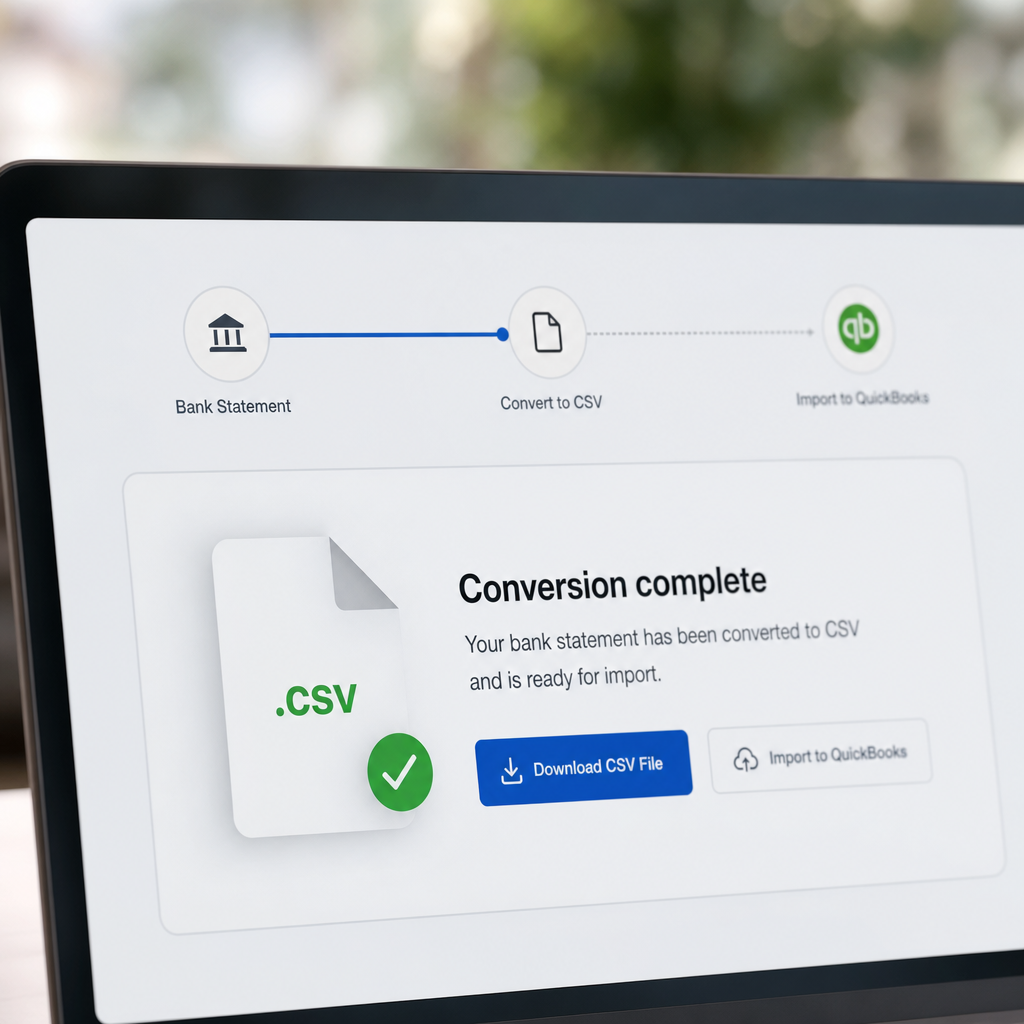
Step-by-Step: Converting a PDF Bank Statement to a QuickBooks-Ready CSV
Whether you're using automated software or working manually, following a consistent process reduces errors. Here's the general workflow:
- Gather your statements. Download PDF statements directly from your bank's portal rather than using scanned paper copies when possible — digital PDFs convert more accurately than scans.
- Upload to a conversion tool. Platforms like Bank Statement Boss accept PDF uploads and use AI-based extraction to identify transaction rows, dates, descriptions, and amounts automatically.
- Review the extracted data. Even with high-accuracy AI extraction, it's good practice to spot-check a sample of transactions against the original PDF, particularly the opening and closing balances.
- Select your accounting format. Choose an export template formatted specifically for QuickBooks (as opposed to a generic CSV), which ensures the column order and date formatting match what QuickBooks expects.
- Download the CSV file. Save it in a clearly labeled folder structure — by client and statement period — especially important if you're managing multiple accounts.
- Import into QuickBooks. Navigate to Banking > Upload Transactions (QuickBooks Online) or use the appropriate import wizard in QuickBooks Desktop, then map columns if prompted.
- Reconcile. Match the imported transactions against your bank statement's beginning and ending balances to confirm nothing was missed or duplicated.
This workflow typically takes a few minutes per statement using automated tools, compared to 20-40 minutes or more for manual entry on a statement with 50+ transactions.
Common Errors That Break QuickBooks Imports
Even experienced bookkeepers run into import failures. The most frequent causes include:
- Duplicate transactions from re-importing a statement that overlaps with a previous upload.
- Incorrect date format — especially common when converting statements from banks outside the US that default to DD/MM/YYYY.
- Negative number formatting inconsistencies, such as using parentheses instead of a minus sign.
- Extra header or footer rows left in the CSV from the original PDF layout (page numbers, bank disclaimers, running totals).
- Currency symbols or thousands separators embedded in amount fields, which QuickBooks reads as text rather than numeric values.
- Merged multi-line descriptions, which can shift subsequent columns out of alignment.
A tool purpose-built for accounting exports — rather than a generic PDF-to-Excel converter — is specifically designed to strip out these artifacts before you ever see the file. This is one of the core differentiators of a platform like Bank Statement Boss, which applies formatting logic tailored to QuickBooks, Xero, and Sage rather than leaving users to clean up a raw extraction themselves.
Security Considerations When Converting Financial Documents
Bank statements contain sensitive data: account numbers, balances, transaction histories, and sometimes personal identifying information. Before uploading statements to any third-party conversion service, it's worth understanding how that data is handled.
Key questions to ask any conversion tool provider:
- Is data encrypted in transit and at rest?
- How long are uploaded files retained on the server?
- Is the service compliant with relevant data protection standards, such as SOC 2 or GDPR where applicable?
- Can files be permanently deleted after processing?
- Does the provider offer audit logs for firms with compliance obligations?
The Federal Trade Commission's guidance on safeguarding customer information is a useful baseline for financial service providers and the vendors they rely on, including document processing tools. Firms handling client financial data should treat statement conversion tools with the same scrutiny applied to any other financial software vendor.
Bank Statement Boss addresses this by offering secure data handling practices designed around the needs of accounting professionals, including encrypted processing and clear data retention policies — details that matter more as firms scale up the number of statements they process monthly.
Batch Processing for Bookkeepers and Accounting Firms
A single business owner converting one or two monthly statements has very different needs than a bookkeeping firm managing dozens of clients. For firms, the real value of automated conversion comes from batch processing capabilities:
- Bulk upload of multiple PDF statements across different banks and formats in a single session.
- Template consistency so every client's output follows the same CSV structure, simplifying QuickBooks import routines.
- API access for firms that want to integrate statement conversion directly into their own practice management or document workflow software.
- Multi-format export so the same source statement can be output for QuickBooks, Xero, or Sage depending on which client uses which platform.
This is where a dedicated SaaS tool outperforms both manual labor and freelance data-entry services. Outsourcing data entry to a freelancer introduces turnaround delays and recurring costs per statement, whereas a subscription-based converter scales with volume at a predictable monthly cost. For firms processing hundreds of statements a month, the API access available on higher-tier Bank Statement Boss plans allows statement conversion to be built directly into existing workflow automation, removing the manual upload step entirely.

QuickBooks Online vs. QuickBooks Desktop: Import Differences
It's worth noting that CSV import behavior differs slightly between QuickBooks Online and QuickBooks Desktop, which can affect how you prepare your file.
| Feature | QuickBooks Online | QuickBooks Desktop |
|---|---|---|
| Native CSV import | Yes, via Banking menu | Limited; often requires 3rd-party tool |
| Column mapping during import | Yes, flexible | Varies by version |
| Max transactions per file | Platform-dependent, generally a few hundred | Similar, version-dependent |
| OFX/QFX support | Yes | Yes, often preferred |
| Multi-currency handling | Built-in for supported plans | Requires manual adjustment |
If you're on QuickBooks Desktop, you may find that OFX or QFX formats offer smoother imports for bank feed-style data, while CSV remains better suited for historical statements or accounts that don't support feed-based formats at all. Many conversion tools, including Bank Statement Boss, offer multiple export formats so you're not locked into CSV if your QuickBooks setup prefers otherwise.
Tips for Keeping Your Books Accurate After Import
Converting the statement is only half the job. Once the CSV is in QuickBooks, a few habits help maintain accuracy:
- Reconcile immediately after import rather than batching multiple months before checking balances.
- Set up bank rules in QuickBooks to auto-categorize recurring transactions like rent, payroll, or subscription charges.
- Flag unusual transactions for manual review rather than accepting QuickBooks' auto-suggested categorization blindly.
- Keep a backup of the original PDF alongside the converted CSV, in case of an audit or dispute with the bank.
- Standardize your file naming (e.g.,
ClientName_Account_MonthYear.csv) to avoid duplicate uploads.
Firms serving multiple clients also benefit from establishing a monthly checklist, ensuring that every account is converted, reviewed, and imported on a consistent schedule rather than scrambling at quarter-end.
When Automation Makes the Most Sense
Not every business needs an automated conversion tool. A sole proprietor with one bank account and a handful of monthly transactions might reasonably stick to QuickBooks' built-in bank feed or manual entry. But automation becomes increasingly valuable as:
- The number of accounts or clients grows beyond what can be manually reviewed each month.
- Statements come from banks that don't offer reliable live feeds.
- Historical data needs to be digitized for past periods not covered by bank feed connections.
- Multiple accounting platforms (QuickBooks, Xero, Sage) are used across a client roster, each requiring different formatting.
- Compliance or audit requirements demand consistent, well-documented data handling practices.
For bookkeeping firms and finance teams operating at any real scale, the hours saved by automating statement conversion typically outweigh the subscription cost within the first month or two of use, particularly once time saved is measured against standard hourly billing rates for bookkeeping services.
Final Thoughts
Getting a bank statement into QuickBooks shouldn't require hours of manual formatting or guesswork about date formats and column order. Understanding what QuickBooks requires in a CSV file — and avoiding the common formatting mistakes that cause failed imports — puts you most of the way there. For occasional, low-volume needs, manual conversion or copy-paste cleanup may still be workable. But for small business owners, bookkeepers, and finance teams handling recurring statement volume, a dedicated solution saves meaningful time and reduces costly reconciliation errors.
Bank Statement Boss was built specifically to solve this problem: converting PDF bank and credit card statements into clean, QuickBooks-ready CSV files (along with Xero and Sage formatting options) using AI-powered extraction, secure data handling, and API access for firms that need to scale. Instead of spending your afternoon retyping transaction rows, you can upload a statement, review the output, and get back to the work that actually requires your expertise.
Article written by FrontRank