

Every bookkeeper has felt the quiet dread of opening a client's folder and finding nothing but PDF bank statements. The numbers are all there, but accounting software can't read a PDF the way a human can. Before that data becomes usable, it has to be reshaped into a format your accounting platform actually understands. Getting the bank statement format right isn't a cosmetic detail — it determines whether reconciliation takes ten minutes or three hours.
This article breaks down exactly what accounting software expects from a bank statement file, how formats differ across platforms like QuickBooks, Xero, and Sage, and how modern conversion tools are removing the manual work entirely.
1. Why Bank Statement Format Matters for Accounting Software
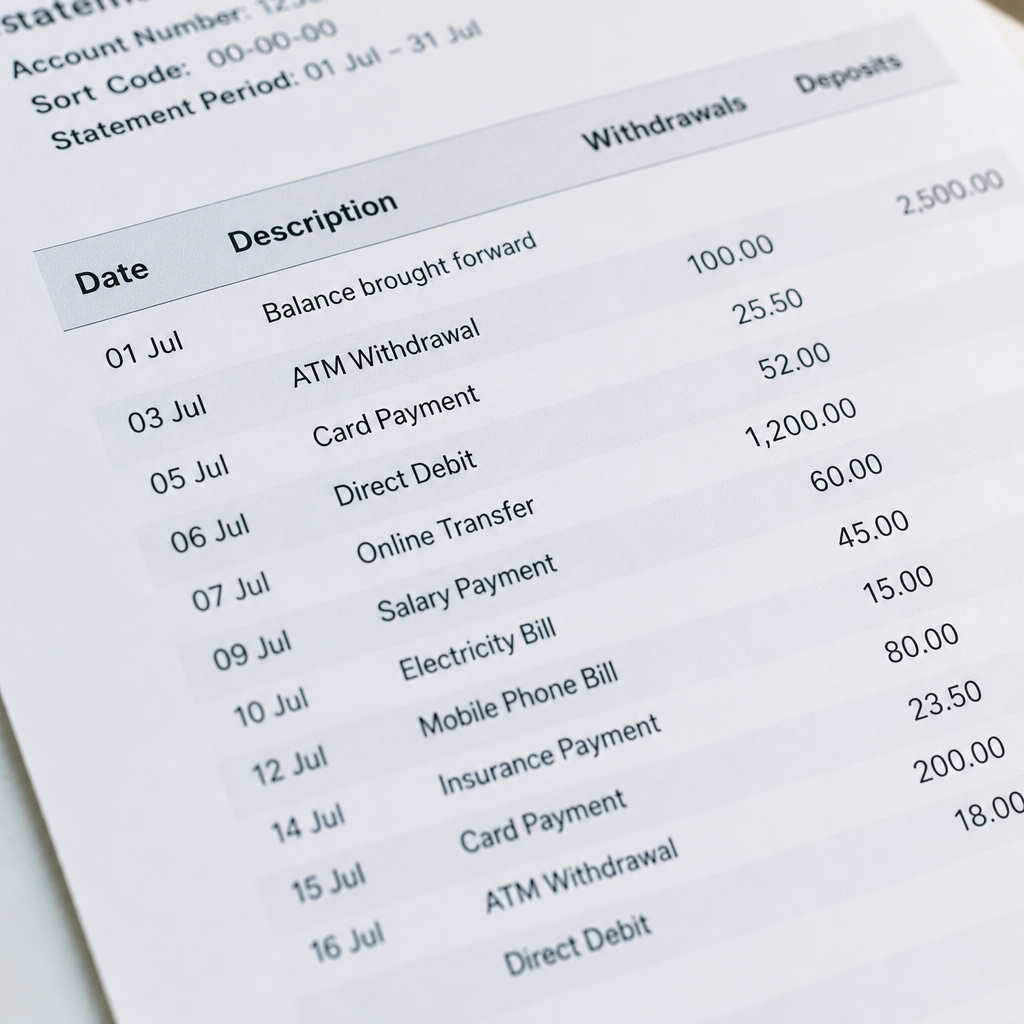
Accounting platforms don't process raw bank statements — they process structured data. A PDF statement is essentially an image-like document designed for human eyes, with headers, footers, page breaks, and inconsistent spacing. Software like QuickBooks or Xero needs rows and columns: a date, a description, a debit or credit amount, and sometimes a running balance.
When the format doesn't match what the software expects, you get common problems:
- Misaligned columns that shift transaction dates into the description field
- Duplicate or missing transactions during import
- Currency symbols or commas that break numeric parsing
- Merged multi-line descriptions that confuse the reconciliation engine
These aren't rare glitches. According to the American Institute of CPAs, manual data entry and reconciliation errors remain among the top time drains reported by small accounting firms. The right format eliminates most of that friction before it starts.
2. The Core Elements of a Proper Accounting-Ready Format
Regardless of which accounting software you use, there's a baseline structure that almost every platform expects. Think of this as the universal skeleton beneath QuickBooks, Xero, Sage, and most other ledger systems.
Required fields:
- Transaction date — in a consistent, unambiguous format (YYYY-MM-DD is safest)
- Description or payee — a single-line, unbroken field
- Amount — either a single signed column or separate debit/credit columns
- Running balance (optional but useful for reconciliation checks)
- Reference or check number (if applicable)
Formatting rules that matter:
- No merged cells or multi-row entries
- No currency symbols embedded in numeric fields
- Consistent decimal and thousand separators
- One transaction per row, no header repetition mid-file
- UTF-8 encoding to avoid broken characters in descriptions
A spreadsheet that follows these rules will import cleanly into nearly any accounting system, and it's exactly what tools like bankstatementboss.com are built to produce automatically from a PDF source.
3. Comparing Format Requirements Across Major Accounting Platforms
While the core structure is similar, each platform has its own quirks around file type, column naming, and date handling. Here's a comparison of what the three most common platforms expect.
| Platform | Preferred File Type | Date Format | Amount Handling | Notes |
|---|---|---|---|---|
| QuickBooks Online | CSV, QBO, QFX | MM/DD/YYYY | Single signed amount column | Strict on header row naming |
| Xero | CSV, OFX | DD/MM/YYYY or YYYY-MM-DD | Separate debit/credit or signed amount | Allows custom bank feed mapping |
| Sage | CSV, QIF | DD/MM/YYYY | Debit/credit columns preferred | Sensitive to extra blank rows |
This is where many bookkeepers get tripped up — a CSV built for QuickBooks often fails silently when uploaded into Sage, simply because the date format or column order doesn't match. The Xero support documentation and QuickBooks help center both publish their own import specs, but keeping track of three different rulebooks is exactly the kind of repetitive task that benefits from automation.
4. Manual Formatting vs. Automated Conversion
For years, the only way to get a bank statement into the right shape was to open the PDF, copy the data by hand, and rebuild it in Excel. That approach still exists, but it scales poorly, especially for firms handling dozens of client accounts each month.
Here's how the two approaches compare in practice:
| Factor | Manual Formatting | Automated Conversion (e.g., Bank Statement Boss) |
|---|---|---|
| Time per statement | 20–45 minutes | Under 2 minutes |
| Error rate | Higher, especially with long statements | Low, with structured validation |
| Multi-page handling | Tedious, prone to skipped pages | Handled automatically |
| Platform-specific export | Manual reformatting required | Pre-mapped templates for QuickBooks, Xero, Sage |
| Scalability | Poor for high volume | Built for batch processing |
Manual entry isn't just slower — it's also where most transcription errors originate. A single transposed digit in an amount column can throw off an entire reconciliation, and catching that mistake later costs far more time than preventing it up front.
5. How AI-Powered Conversion Tools Solve the Format Problem
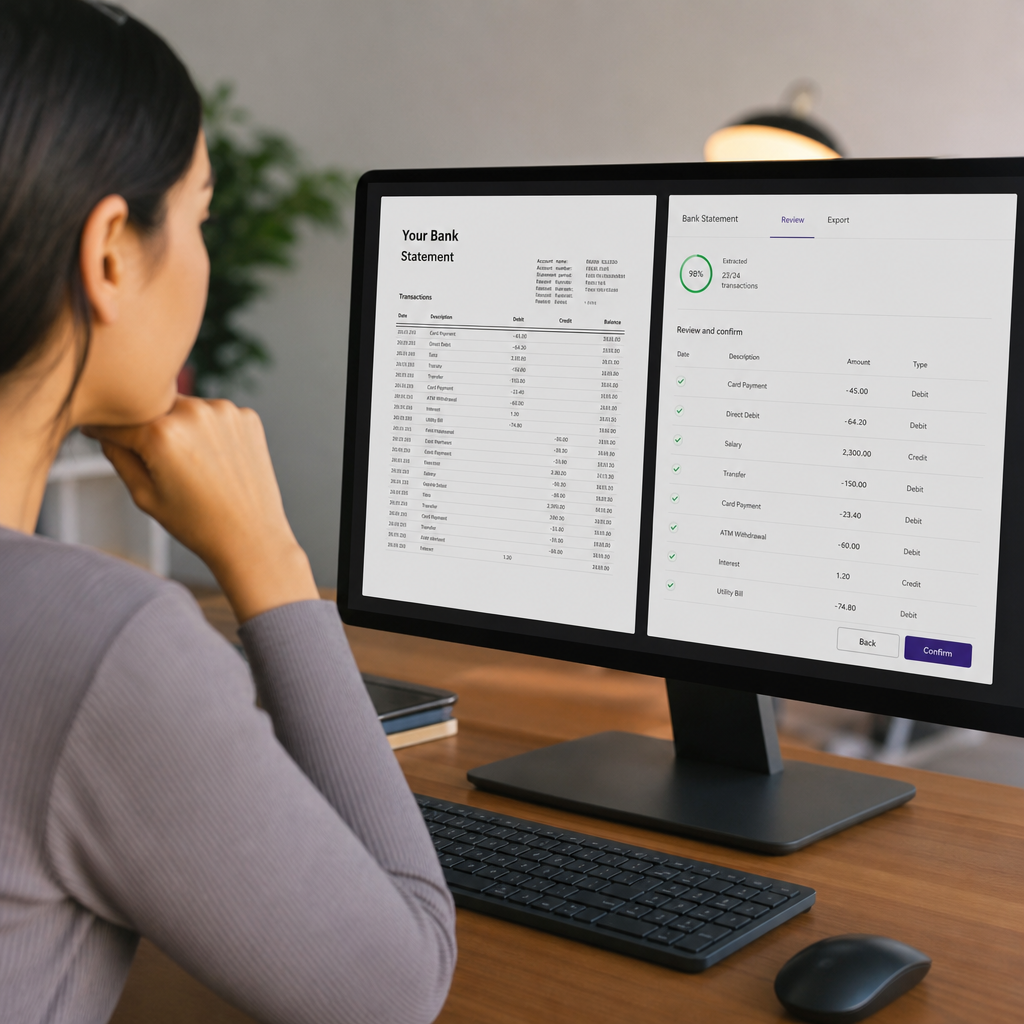
This is the gap that AI-driven conversion tools were built to close. Instead of treating a PDF as an image to be manually transcribed, these tools use optical character recognition combined with layout detection to identify transaction rows, separate columns correctly, and output a file already shaped for your accounting software.
Bank Statement Boss, for example, takes a PDF bank or credit card statement and converts it into a structured spreadsheet with:
- Column headers matched to QuickBooks, Xero, or Sage import specs
- Clean date formatting with no ambiguity between day and month
- Separated debit and credit values or signed amounts, depending on platform
- Multi-page statement stitching so nothing gets lost between pages
- Secure handling of sensitive financial data throughout the process
For firms processing statements at scale, there's also API access available on higher-tier plans, which means the conversion step can be built directly into an existing bookkeeping workflow rather than handled as a separate manual task. This kind of integration matters for finance teams that need predictable, repeatable formatting across hundreds of statements a month rather than one-off conversions.
It's worth noting that data security should be non-negotiable when choosing a conversion tool. Bank statements contain sensitive account numbers and transaction histories, so look for providers that use encryption in transit and at rest, and that don't retain data longer than necessary. The Federal Trade Commission's guidance on data security is a useful baseline reference when evaluating any SaaS tool that touches financial documents.
6. Common Formatting Mistakes That Break Imports
Even with a conversion tool in hand, it helps to understand what typically goes wrong so you can spot issues before they derail an import. These are the mistakes that show up most often in bookkeeping support threads and forums.
Date ambiguity. A date like 03/04/2026 means March 4th in the US but April 3rd in much of Europe. If your accounting software's locale setting doesn't match the file's assumed format, transactions land on the wrong day — which can throw off monthly reconciliations.
Negative numbers formatted inconsistently. Some banks show withdrawals in parentheses, others with a minus sign, and others in a separate debit column entirely. Mixing these within one file causes software to misread the sign.
Hidden characters from PDF extraction. Copy-pasting directly from a PDF often drags along invisible formatting characters or non-breaking spaces that cause otherwise correct-looking cells to fail validation.
Inconsistent column headers. Renaming "Description" to "Memo" halfway through a spreadsheet, or leaving headers off entirely, is a common reason bulk imports fail silently.
Multi-line transaction descriptions. Many bank PDFs wrap long merchant names across two lines. If that wrap carries into the spreadsheet as a second row, it creates a phantom blank transaction.
Avoiding these issues manually requires a careful, repeatable checklist. Automating the conversion step — rather than relying on copy-paste — removes nearly all of them by design.
7. A Practical Workflow for Getting Statements Import-Ready
For small business owners and bookkeepers who want a repeatable process rather than a one-off fix, here's a straightforward workflow that works well across most accounting platforms:
- Gather all PDF statements for the period you're reconciling, including credit card statements if applicable.
- Convert each PDF into a structured spreadsheet using a dedicated tool rather than manual transcription.
- Select the correct export template for your accounting platform (QuickBooks, Xero, or Sage formatting differs, as shown earlier).
- Spot-check the first and last transactions on each page against the original PDF to confirm nothing was skipped during multi-page stitching.
- Import the file into your accounting software using its native bank feed or file upload feature.
- Reconcile against the statement balance to confirm the opening and closing balances match exactly.
- Archive the original PDF and converted file together for audit purposes.
Following this sequence consistently — rather than improvising each time — is what separates bookkeeping operations that scale smoothly from ones that constantly firefight import errors. Many firms also pair this workflow with budgeting or cash flow tools; for teams tracking spending patterns alongside reconciliation, a tool like alcogoal.app can complement the formatted statement data once it's already clean and structured.
8. Choosing the Right Format Strategy for Your Business Size
Not every business needs the same level of formatting rigor. A freelance accountant handling five clients has different needs than a finance team processing statements for dozens of entities each month. Here's how to think about it based on scale:
Solo bookkeepers and freelancers:
- Occasional conversions are fine to handle through a web-based tool with manual upload
- Focus on getting the format right once per client, then reusing the same template monthly
Small business owners managing their own books:
- Prioritize simplicity — a tool that outputs directly in QuickBooks or Xero-ready format saves the most time
- Avoid overcomplicating with manual CSV editing unless absolutely necessary
Growing accounting firms and finance teams:
- Volume makes automation essential, not optional
- API access becomes valuable for embedding conversion directly into existing workflows
- Standardized naming conventions and folder structures matter more as client count grows
Regardless of size, the underlying principle doesn't change: a well-formatted statement file saves time downstream, while a poorly formatted one creates cleanup work that often takes longer than the original data entry would have. Resources like the Journal of Accountancy regularly cover how automation is reshaping bookkeeping workflows, and format standardization is consistently cited as one of the biggest unlock points for efficiency gains.
Getting It Right the First Time
The format of a bank statement might seem like a small technical detail, but it's often the single biggest factor in whether your accounting software import goes smoothly or turns into an afternoon of troubleshooting. Clean dates, consistent amount columns, properly separated transactions, and platform-matched templates aren't just nice-to-haves — they're the difference between a five-minute import and a frustrating reconciliation session.
Rather than manually rebuilding statements in Excel or wrestling with inconsistent CSV exports, tools built specifically for this task can handle the heavy lifting. Bank Statement Boss converts PDF bank and credit card statements into structured spreadsheets formatted for QuickBooks, Xero, and Sage, with secure data handling built in and API access available for teams that need to scale the process. If you're tired of reformatting statements by hand every month, bankstatementboss.com is built to turn that recurring chore into a task that takes minutes instead of hours.
Article written by FrontRank