

Importing bank statements into QuickBooks should be a five-minute task. Instead, countless bookkeepers and small business owners spend hours wrestling with garbled columns, duplicate transactions, and rejected file formats. The culprit is rarely QuickBooks itself — it's the conversion step that happens before the data ever reaches the accounting platform. Choosing the wrong bank statement converter for QuickBooks, or using the right one incorrectly, is where most of the damage happens.
This article walks through the most common mistakes people make when converting PDF bank statements for QuickBooks, why they happen, and how to avoid them. Whether you're a freelance bookkeeper managing a dozen clients or a finance team closing the books every month, understanding these pitfalls will save you real time and prevent costly reconciliation errors.
Why Bank Statement Conversion Goes Wrong in the First Place
Bank statements are designed to be read by humans, not parsed by software. Every bank formats its PDFs differently — some use multi-column layouts, others embed transaction tables inside scanned images, and many mix running balances with transaction amounts in confusing ways. When you feed these documents into a generic converter or try to copy-paste them into Excel, the structure collapses.
The core problem is that PDFs don't store data in rows and columns the way a spreadsheet does. They store visual positioning information. A converter has to reverse-engineer the table structure, which is a much harder problem than it looks. This is why so many free tools produce spreadsheets with dates in the wrong column, split transaction descriptions, or merged debit and credit amounts.
According to the U.S. Small Business Administration, accurate bookkeeping is one of the top predictors of small business survival — yet manual data entry from bank statements remains one of the most error-prone and time-consuming bookkeeping tasks. Getting the conversion step right isn't a nice-to-have; it directly affects the accuracy of your books.
Mistake #1: Assuming Every Converter Formats Data for QuickBooks
Not all bank statement converters are created equal. Many tools simply extract text from a PDF and dump it into a spreadsheet without regard for how QuickBooks expects data to be structured. QuickBooks typically wants:
- A consistent date format (MM/DD/YYYY in most US company files)
- Separate columns for debits and credits, or a single signed amount column
- Clean, unbroken transaction descriptions
- No embedded currency symbols or thousands separators that confuse numeric fields
- Column headers that match QuickBooks' import mapping expectations
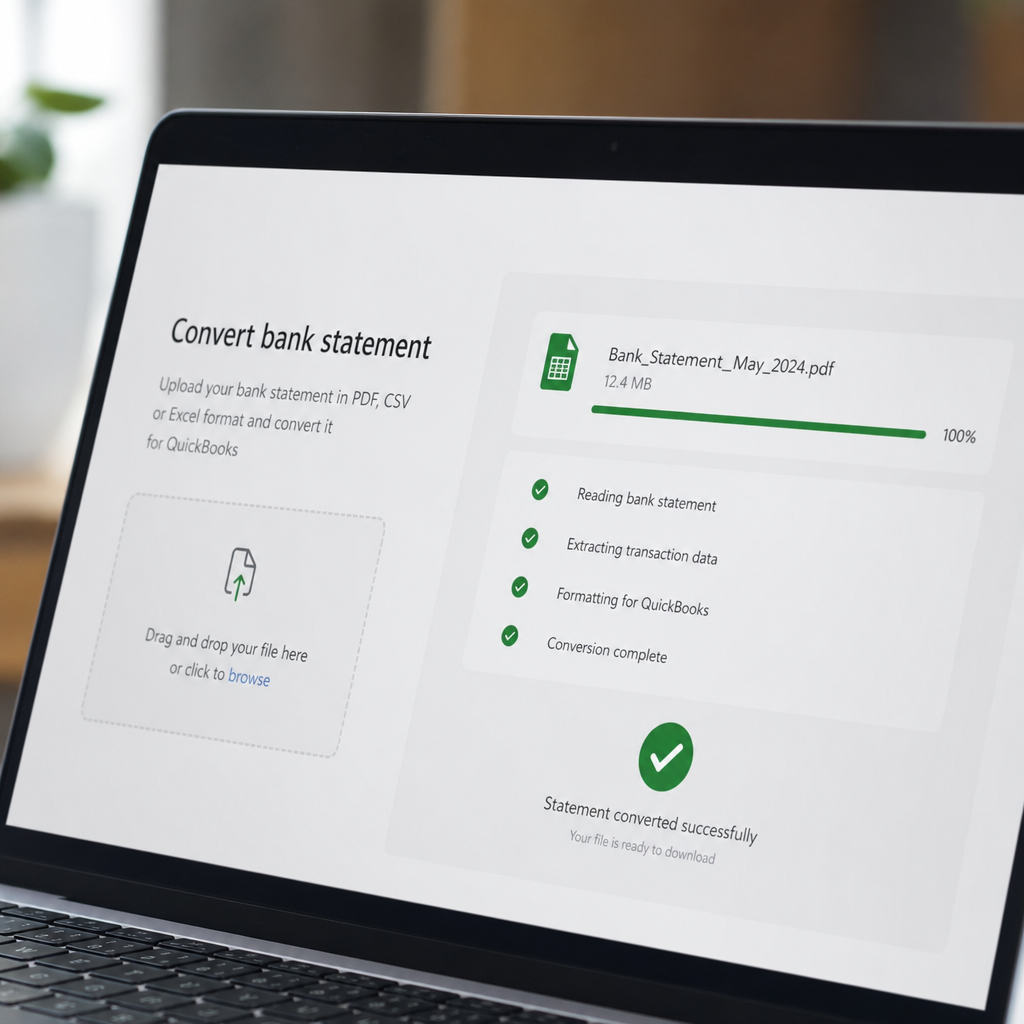
Generic PDF-to-Excel tools rarely account for these requirements. That's the gap that a purpose-built bank statement converter for QuickBooks is designed to close — it doesn't just extract text, it structures the output specifically for accounting software import.
Mistake #2: Ignoring OCR Quality on Scanned Statements
Not every bank statement is a clean, digitally generated PDF. Many older statements, or ones downloaded from certain regional banks, are actually scanned images wrapped in a PDF container. If your converter doesn't use high-quality optical character recognition (OCR), it will either fail outright or produce garbled text — numbers that look like letters, misread decimal points, and transaction dates that don't make sense.
This is a critical distinction to check before committing to a tool:
| Statement Type | Common Issue | What to Look For |
|---|---|---|
| Native digital PDF | Usually clean text extraction | Fast, accurate parsing |
| Scanned/image-based PDF | Requires OCR, prone to misreads | AI-based OCR with error correction |
| Password-protected PDF | Conversion fails without proper handling | Secure decryption support |
| Multi-account statement | Data from different accounts gets mixed | Account separation logic |
The National Institute of Standards and Technology has published extensive research on OCR accuracy rates, and even top-performing systems can introduce errors on low-quality scans. This is why AI-powered converters that use context-aware correction (recognizing that "l23.45" should be "123.45" based on surrounding transaction patterns) significantly outperform basic OCR tools.
Mistake #3: Not Checking for Duplicate or Missing Transactions
One of the most damaging — and least visible — mistakes in bank statement conversion is silent data loss. A converter might skip the first or last row of a table, merge two transactions into one line, or duplicate an entry across page breaks. Because the output looks like a normal spreadsheet, these errors often go unnoticed until reconciliation fails.
To catch this early, always:
- Compare the transaction count in the converted file to the number of line items on the original PDF statement.
- Check that the opening and closing balances in the spreadsheet match the statement header and footer.
- Spot-check a handful of transactions in the middle of the statement, not just the first and last few.
- Confirm that multi-page statements haven't dropped or repeated rows at page breaks.
- Verify that transaction descriptions haven't been truncated mid-word.
Skipping this verification step is how bookkeepers end up with books that don't reconcile weeks later, forcing a time-consuming audit to find the source of the discrepancy.
Mistake #4: Overlooking Data Security and Compliance
Bank statements contain some of the most sensitive financial data a business handles — account numbers, transaction histories, and sometimes personally identifiable information. Uploading these documents to an unsecured or unvetted online tool is a real risk. Some free converters retain uploaded files indefinitely, sell aggregated data, or lack basic encryption.
Before choosing a tool, confirm:
- Files are encrypted in transit (TLS/SSL) and at rest
- The provider has a clear data retention and deletion policy
- The company doesn't claim ownership or resale rights over your uploaded data
- There's compliance alignment with standards like SOC 2 or GDPR where applicable
The Federal Trade Commission's guidance on data security is a useful benchmark for any business handling financial documents online. Bookkeepers and accounting firms in particular should treat this as a due-diligence requirement, not an afterthought, since they're handling client data under a fiduciary responsibility.
Bank Statement Boss addresses this by processing files with encryption and automatic deletion policies, which matters more with every passing year as regulatory scrutiny on financial data handling increases. For teams evaluating vendors, this kind of transparency should be a non-negotiable checklist item — you can review how bankstatementboss.com handles data security directly on its site before uploading anything sensitive.
Mistake #5: Manually Reformatting Instead of Using Purpose-Built Templates
Even after a PDF is technically converted into a spreadsheet, many people make the mistake of manually reformatting columns, renaming headers, and adjusting date formats by hand before importing into QuickBooks. This is slow, repetitive, and introduces new opportunities for human error — a misplaced decimal, a wrong column swap, or an inconsistent date format that QuickBooks silently misreads.
A better approach is using a converter that outputs QuickBooks-ready templates from the start. This eliminates the manual cleanup step entirely and standardizes the process across every client or account you manage.
| Approach | Time per Statement | Error Risk | Scalability |
|---|---|---|---|
| Manual data entry | 30–60 minutes | High | Poor |
| Generic PDF-to-Excel + manual reformatting | 15–25 minutes | Medium | Fair |
| Purpose-built QuickBooks converter | 2–5 minutes | Low | Excellent |
For firms processing dozens or hundreds of statements monthly, this difference compounds quickly. If you're billing clients hourly or managing your own limited time, every minute saved on formatting is a minute redirected toward higher-value analysis work. Tools like bankstatementboss.com are built around this exact use case, producing structured output that maps directly onto QuickBooks' import fields.
Mistake #6: Failing to Test the Import Before Committing to a Full Batch
Even with a high-quality converter, it's a mistake to import an entire year's worth of statements into QuickBooks without first testing a single file. QuickBooks has specific requirements for CSV and Excel imports — including exact header naming conventions, date formatting, and the way it interprets debit versus credit values.
QuickBooks Online, for example, requires imported bank transaction files to follow a three-column format (Date, Description, Amount) or a four-column format (Date, Description, Debit, Credit), depending on how the bank feed is configured. Getting this wrong on a bulk import can create dozens of duplicate or misclassified transactions that are tedious to unwind.
The safer process looks like this:
- Convert one statement first.
- Import it into a QuickBooks sandbox or test company file if available.
- Verify transactions appear correctly categorized and dated.
- Confirm balances reconcile against the source statement.
- Only then proceed with bulk conversion and import for the remaining statements.
Intuit's own QuickBooks support documentation outlines the accepted import formats in detail, and it's worth reviewing before any large-scale conversion project, especially if you're new to a particular bank's statement format.
Mistake #7: Choosing a Tool That Doesn't Scale With Your Workload
A converter that works fine for one or two statements a month might completely fall apart when a bookkeeping firm needs to process hundreds of statements across multiple clients. Common scalability failures include:
- No batch upload capability, forcing one-by-one processing
- No API access for firms wanting to automate the pipeline
- Per-file pricing that becomes unsustainable at volume
- No support for multiple bank formats within the same account
Finance teams and accounting firms should evaluate converters the same way they'd evaluate any other piece of business infrastructure — based on total cost of ownership and scalability, not just the sticker price of a single conversion.
| Plan Type | Best For | Key Features |
|---|---|---|
| Pay-per-file | Occasional individual users | Simple, no commitment |
| Subscription tier | Freelance bookkeepers, small firms | Batch processing, multiple formats |
| API access tier | Accounting firms, finance teams | Automation, integration with existing systems |
Higher-tier plans with API access, like those offered through Bank Statement Boss, let firms integrate conversion directly into their existing workflows rather than relying on manual uploads every time. This is particularly valuable for firms already using automation elsewhere in their client management stack, as outlined in resources from leadmailbox.com, which covers workflow automation strategies relevant to service-based businesses.

Mistake #8: Underestimating the Value of Accurate Categorization
Conversion isn't just about getting numbers into columns — it's about setting up clean data for the categorization step that follows. If descriptions are cut off, merged, or misspelled during conversion, QuickBooks' automatic categorization rules (and any bank rules you've set up) will fail to match transactions correctly. This creates extra manual categorization work downstream, which defeats the purpose of automating the conversion in the first place.
A high-quality converter preserves full, accurate transaction descriptions exactly as they appear on the original statement. This might seem like a small detail, but it has an outsized impact on how much manual cleanup is required after import. According to research published by the American Institute of CPAs, data quality issues introduced early in the bookkeeping pipeline are among the leading causes of reconciliation delays during month-end close.
Best Practices for a Reliable Conversion Workflow
To avoid the mistakes outlined above, build a repeatable process:
- Standardize your source files. Always download statements directly from the bank in PDF form rather than screenshots or forwarded copies.
- Use a converter built specifically for accounting platforms. General-purpose PDF tools aren't designed with QuickBooks' import requirements in mind.
- Verify before you trust. Spot-check transaction counts and balances after every conversion, especially for new bank formats.
- Prioritize security. Only use tools with clear encryption and data deletion policies, especially when handling client statements.
- Scale deliberately. Choose a plan and toolset that can grow with your client base or transaction volume, including API access if you're processing statements at scale.
Following this checklist turns bank statement conversion from a recurring headache into a fast, reliable part of your monthly close process.
Bringing It All Together
The mistakes covered here — mismatched formatting, poor OCR, silent data loss, security gaps, manual reformatting, untested imports, scalability limits, and weak categorization — are all avoidable with the right tool and the right process. The common thread is that generic, one-size-fits-all conversion tools simply weren't built with QuickBooks' specific requirements in mind, and that gap is where errors creep in.
Bank Statement Boss was built to close that gap directly, offering AI-powered conversion that turns PDF bank and credit card statements into clean, QuickBooks-ready spreadsheets, with the same accuracy and formatting support extended to Xero and Sage users. With secure data handling, batch processing, and API access on higher-tier plans, it's designed to support everyone from solo bookkeepers to full finance teams that need a dependable, scalable way to digitize financial documents. If you're tired of reformatting spreadsheets by hand or chasing down reconciliation errors caused by a poor conversion, bankstatementboss.com is built to make that entire process fast, accurate, and secure from the very first upload.
Article written by FrontRank